Add MobilityArena as a preferred source on Google
Zoox has been testing their autonomous driving system using retrofitted Toyota Highlanders. It was the first company to gain approval for providing self-driving transport services to the public in California, and tests have been ongoing in San Francisco, California and Las Vegas, Nevada.
Zoox’s outlook is focued on developing fully autonomous driving systems that will be applied in purpose built vehicles for on-demand mobility.
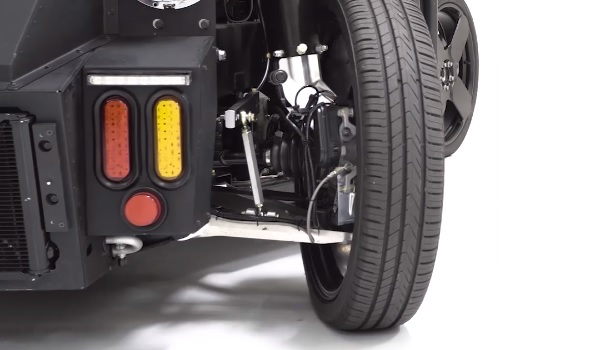
In other words, Zoox applies its self-driving system to vehicles that are built from the scratch. The company believes that retrofitted vehicles are not optimized for autonomous driving, hence their work on building a symmetrical, bi-directional battery-electric vehicle that solves for the unique challenges of autonomous mobility.[2]
References
- Amazon acquires Zoox ( source )
- Robotaxi Startup Zoox Becomes A Big Acquirer Of Tesla-Incubated Talent ( source )
Author:MobileChic
That motivated, gadget-loving geeky chic who tries to stay on top of things. Unapologetic iFan.
Add MobilityArena as a preferred source on Google
How to sync your Google Calendar on your Huawei phone is a common problem that Huawei smartphone users have had for years. I solved this problem and share the details with you in this article.
The pre-installed Calendar app on Huawei Android smartphones is a very nice one. But it has a weak point: it is not Google Calendar. Even worse, it does not support Google Calendar. There is also no easy way to add your Google account to this calendar. When you dive into the app settings and choose the option to add a calendar, what you get is the complicated setup procedure for Exchange accounts. Too complicated for the everyday user.
I found it out from weeks of reviewing the Huawei GR3. Not supporting Google calendar could be a dealbreaker for you. It is for me, as that is what I manage my schedule with.
How to use Google Calendar on your Huawei phone
Thankfully, there is an easy way to sync Google Calendar on your Huawei phone. Follow these three steps:
- Launch Play Store and search for Google Calendar
- Install and launch it
- Now, select or login to the Google account you use.
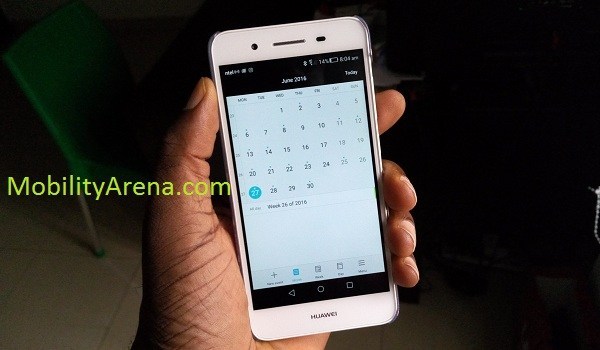
That’s it. If you launch the default Calendar on the Huawei phone now, all your Google Calendar entries will show up there.
When you create a calendar entry, be sure to select the option to add it to your Google Calendar account, or else it will be added to the phone. Unfortunately, there does not seem to be a way to fix saving to Google account as default option, so you have to select it manually each time.
Why bother with the default Calendar any more now that you have Google Calendar installed? Afterall, you are now able to sync Google Calendar on your Huawei. Why use the pre-installed app anymore?
Well, like I said, I find Huawei’s own calendar more visually compelling and more user-friendly than Google’s. Of course, depending on your personal preference, you can ignore the pre-installed one from Huawei after installing Google’s. You can’t uninstall it though, as it is a system app.
The key point, however, is that you can sync your Google Calendar entries on the Huawei GR3 (and very likely any Huawei smartphone).
Let me know if you are able to sync Google Calendar on your Huawei phone after following this guide. Thanks for reading.
Related : How to set birthday reminders on an Android phone and iPhone .
- Don’t miss our reviews .
- Join our WhatsApp Group , to be notified of the most important articles and deals,
- Follow us on Instagram , Facebook , Twitter , and YouTube .
Author:Mister Mobility
Digital Skills and Communication Coach | Mobile Phone Connoisseur since 2001 | Tech Blogging since 2004
