Add MobilityArena as a preferred source on Google
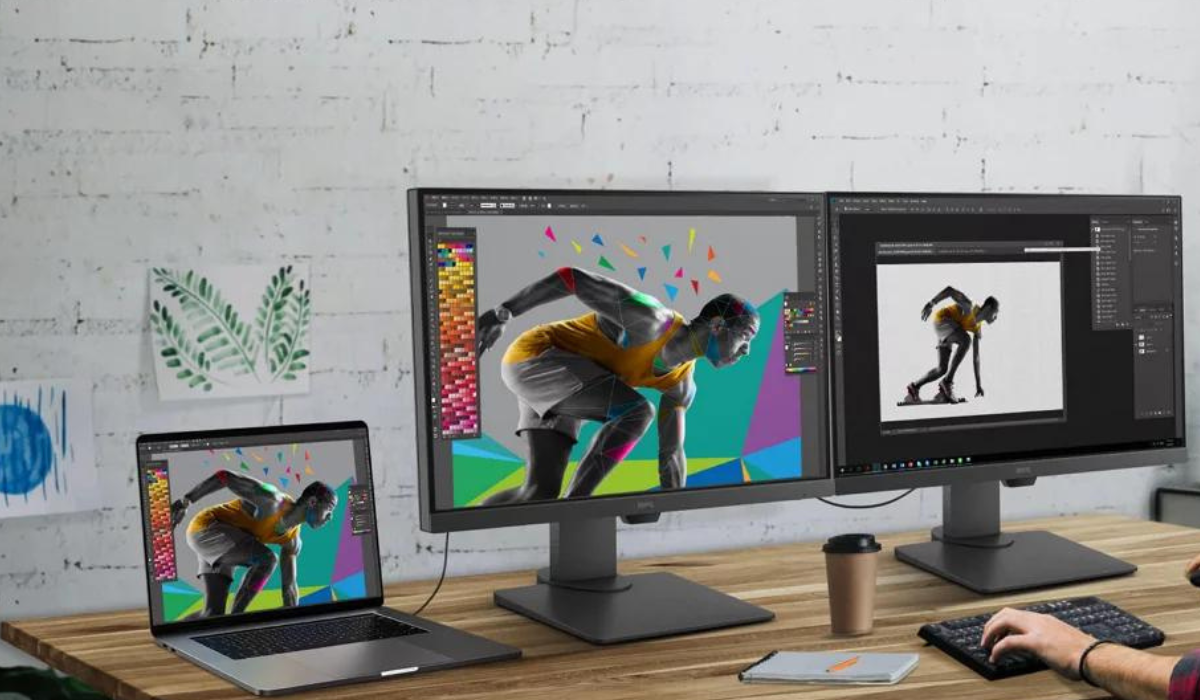
When I’m collaborating on projects, my Mac’s screen-sharing feature makes working so much easier. Showing my teammates anything from my screen is a breeze, and it makes no difference that we could be continents apart from each other. If you’re not sure how to share your Mac’s screen during meetings, webinars or livestreams, I’ve created this guide for you.
In this article, I’ll go over several methods you can use to share your Mac’s screen with others. Even if your options may be limited depending on the devices your participants use, I’m sure you’ll find at least one option that works great for you.
What Are the Different Ways to Share Your Mac’s Screen?
Sharing the screen of your Mac is an important aspect of optimizing your productivity experience. There are several straightforward ways to share your Mac’s screen with others, and I’ve described these methods below.
Native Screen Sharing App
Many people are unaware that macOS features a built-in screen-sharing program called Screen Sharing . With just your Apple ID email address and a few simple clicks, you can share your Mac’s screen with another device.
When you share your Mac’s screen in this manner, both devices must have reliable internet access. Otherwise, it will not operate or will play back unevenly.
To share your screen with the Screen Sharing app on the destination device, follow the instructions below:
- On the target Mac, open Spotlight ( Cmd + Space ), type Screen Sharing , then press Return .
- In the little window that displays, enter your Apple ID.
- Return to your Mac, where a screen sharing prompt should appear.
- Choose Options , and then click Accept .
- After that, the screen from your computer will show as a new window on the target Mac’s desktop.
During a FaceTime Call
FaceTime is one of the simplest ways to share your Mac’s screen with other Apple users, thanks to Apple’s SharePlay function . The following steps will show you how you can use it on a Mac:
- Begin a FaceTime call.
- Navigate to the menu bar and select the FaceTime icon (seen as white video camera within a green rectangle).
- Click on the SharePlay icon, which looks like a screen with a person in the right corner.
- You can share a single window or your whole screen.
- The other person on the call should be able to see what’s on your screen after you choose it.
While this method does not give the other user control of your Mac, it is more accessible because no hostnames or Apple IDs are required. You can also use SharePlay to organize movie nights with your friends. Please keep in mind that this feature is only available on macOS Monterey and later devices.
AirPlay
Using the built-in AirPlay capability, you can share your Mac’s screen by mirroring it onto an iPad, smart TV, or another Mac that is connected to the same Wi-Fi network and is AirPlay compatible. Here’s what to do to share your Mac’s screen in this manner:
- From the menu bar, open the Control Center .
- Choose Screen Mirroring , then click on an available output device from the list.
- To share your Mac’s screen with the other device, select Mirror Built-in Display .
Modern Macs can also function as AirPlay receivers, allowing you to send videos from your iPhone or iPad to your Mac.
iMessage
You can also share your Mac’s screen with iMessage users by using the built-in Messages program. It functions in a similar manner to the above stated Screen Sharing but instead of requesting a host, it connects you instantly using your Apple ID.
Here’s how you can use iMessage to share your Mac’s screen:
- Launch Messages from the Dock and select the person with whom you want to share your screen.
- Engage them in conversation.
- Navigate to the menu bar and choose Conversation .
- Select Invite to Share My Screen and wait until the other person accepts.
- Once they accept, the screen sharing notification will appear highlighted in the menu bar. You can set your screen-sharing preferences from there by selecting appropriate options.
Using Third-Party Apps
You can also use third-party apps apart from the built-in option to share your Mac’s screen. A similar version of most of them is also available online. I recommend Zoom , Discord , and Google Meet as three such apps. Note that they all require permission to access your Mac’s screen, so make sure to grant the necessary permissions so you can share your Mac’s screen.
Follow these steps on your Mac first after installing any of these apps:
- Open System Settings , then choose Privacy & Security from the left pane.
- Click Screen Recording , then turn on all the applications for which you want to grant permission.
Discord
It’s simple to start a screen-sharing session on your Mac using Discord. Simply follow these steps:
- Start or join a Discord call.
- Locate and click on the Share Your Screen icon, which should be directly above your login, represented by a monitor with an arrow inside.
- Choose between sharing program windows and sharing screens.
- After you’ve selected your resolution and frame rate, click the option to “ Go Live .”
Zoom
To share your Mac’s screen during a Zoom meeting, follow these steps:
- Open Zoom , then start or join a meeting.
- At the bottom of the window, tap the Share Screen button .
- Click Share after selecting the desktop or window you want to share.
Google Meet
Despite the fact that Google Meet is fully browser-based, you can still share your Mac’s screen with it by following these actions:
- Open your browser and navigate to https://meet.google.com .
- Sign in and then select New Meeting > Instant Meeting .
- At the bottom of the window, select Present now (represented by an upward-facing arrow in a rectangle).
- Select a window or your whole screen and select Share when you’re done.
Ultimately , there are several options to share your Mac’s screen. Any of the alternatives I’ve provided work just fine, both from Apple and third-party apps. So, feel free to select the one that best fits your needs.
Author:Joan Agie
Add MobilityArena as a preferred source on Google
I certainly don’t want strangers snooping through my private WhatsApp messages, and I know other people feel the same way. Fortunately, WhatsApp includes a feature for the iPhone that allows you to lock the app using your device’s Face ID or Touch ID authentication.
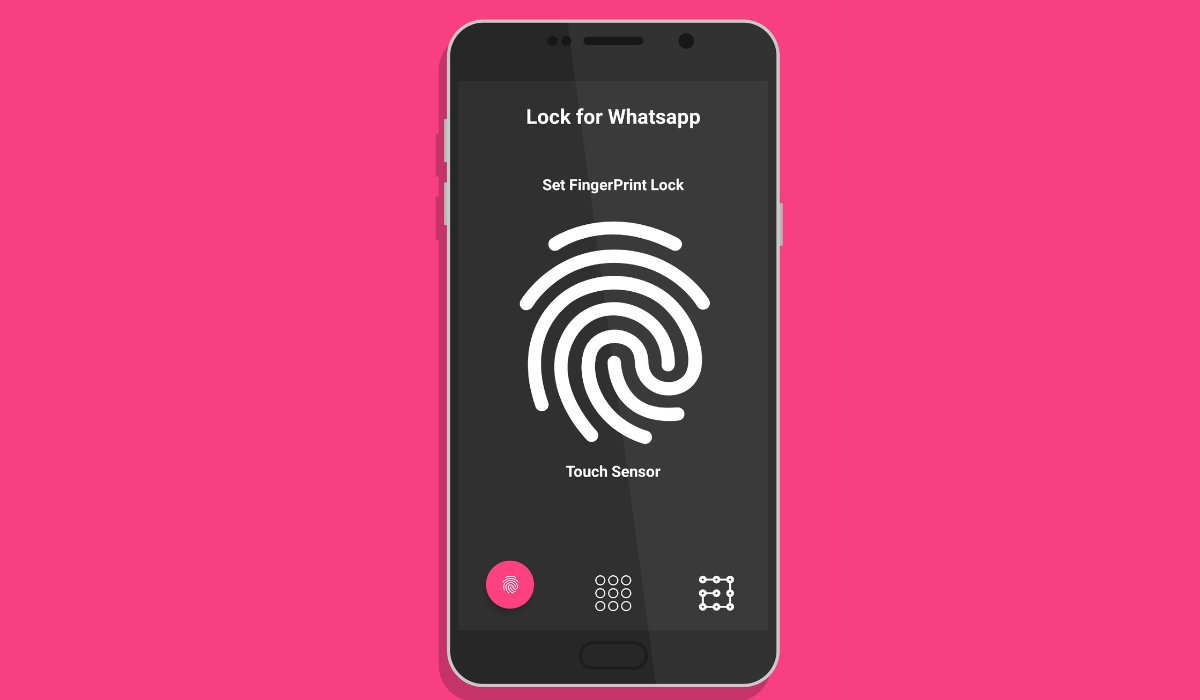
In this article, I’ll describe how to lock WhatsApp on your iPhone with Face ID or Touch ID. Locking WhatsApp with Face ID or Touch ID is a simple solution to improve the privacy of all your conversations. You can also hide notification previews on the lock screen by using Face ID or Touch ID.
- How Can You Lock WhatsApp on Your iPhone With Face ID or Touch ID?
- Lock WhatsApp on Your iPhone With Face ID or Touch ID
- Hide WhatsApp Notification Previews on the Lock Screen of Your iPhone
How Can You Lock WhatsApp on Your iPhone With Face ID or Touch ID?
It’s pretty easy to lock WhatsApp on your iPhone, and I’d call it a wise move for an additional layer of security and privacy for your messages. It’s especially useful if your iPhone isn’t configured to automatically lock after a short period of inactivity. With this action, even if you leave your iPhone unlocked, your WhatsApp chats will remain safely hidden from view.
Below, I’ve described the steps you’ll need to lock WhatsApp on your iPhone with Face ID or Touch ID. You can take advantage of this function to protect WhatsApp privacy on your iPhone, and prevent unauthorized access to your private WhatsApp chats.
Lock WhatsApp on Your iPhone With Face ID or Touch ID
Follow the instructions below to use Face ID or Touch ID to lock WhatsApp on your iPhone and prevent unauthorized access:
- On your iPhone, launch the Settings app.
- Click on Face ID & Passcode ( or Touch ID & Passcode ) and input your passcode.
- Click Other Apps and make sure the WhatsApp toggle is turned on.
- Launch WhatsApp , go to the bottom-right corner, and select Settings .
- Select Privacy and go to Screen Lock .
- Turn on the Require Face ID (or Require Touch ID ) switch. You’ll be given the option to lock WhatsApp on your iPhone Immediately , After 1 minute , After 15 minutes , or After 1 hour .
When you access the app after that, WhatsApp will first authenticate your identity before you can use the app. To turn off this function that locks WhatsApp, you can go to the same menu and uncheck the Require Face ID or Require Touch ID checkboxes.
Please keep in mind that you cannot use a password to lock WhatsApp on your iPhone. Even though it can be locked using Face ID and Touch ID, there is no way to do this successfully with a specific password.
However, your iPhone will prompt you for your passcode if Face ID or Touch ID has been enabled previously, and they fail for some reason. For instance, if your finger is wet and prevents authentication through Touch ID or you have sunglasses on preventing authentication through Face ID. It is also not possible to create a separate passcode (different from your phone’s passcode) just to lock WhatsApp on your iPhone.
Hide WhatsApp Notification Previews on the Lock Screen of Your iPhone
It’s true that Face ID or Touch ID can successfully lock WhatsApp on your iPhone and keep strangers from opening your WhatsApp chats. However, keep in mind that someone else may still be able to read fresh notifications on your iPhone lock screen.
To prevent this, you can disable or lock WhatsApp’s notification previews on the lock screen. The steps to do this are described below:
- On your iPhone, open the Settings app.
- Scroll down and look for WhatsApp .
- Choose Notifications .
- Click Show Previews and select When Unlocked . This implies that previews will appear only if your iPhone has validated your identity using Face ID , Touch ID , or your passcode . You can choose “ Never ” for more protection.
Your iPhone’s message content will now be hidden in the Notification Center . This is a good way to prevent any bypass to security when you lock WhatsApp on your iPhone to protect your privacy. You can also check out other ways to customize your lockscreen’s function for improved security .
To summarize , I hope that this guide has helped you to use Face ID and Touch ID to lock WhatsApp on your iPhone and prevent unauthorized access. If you need further help, you can check out WhatsApp’s help page for extra information.
Note that there are numerous other iPhone apps that you can lock with Face ID or Touch ID, many of which may be more important to protect than WhatsApp. Examples are banking apps and password managers, so make sure you do not overlook them.
