Add MobilityArena as a preferred source on Google
Apple iPhone 13 Pro is a superb camera phone and sits in the chart of top camera phones today (based on DXOmark’s rankings).
And that is no surprise: Apple has made fantastic camera phones for as long as we can remember. In keeping with a tradition of showcasing what their flagship device can do, the company has released a Christmas holiday movie, Saving Simon, and it is shot on iPhone 13 Pro.
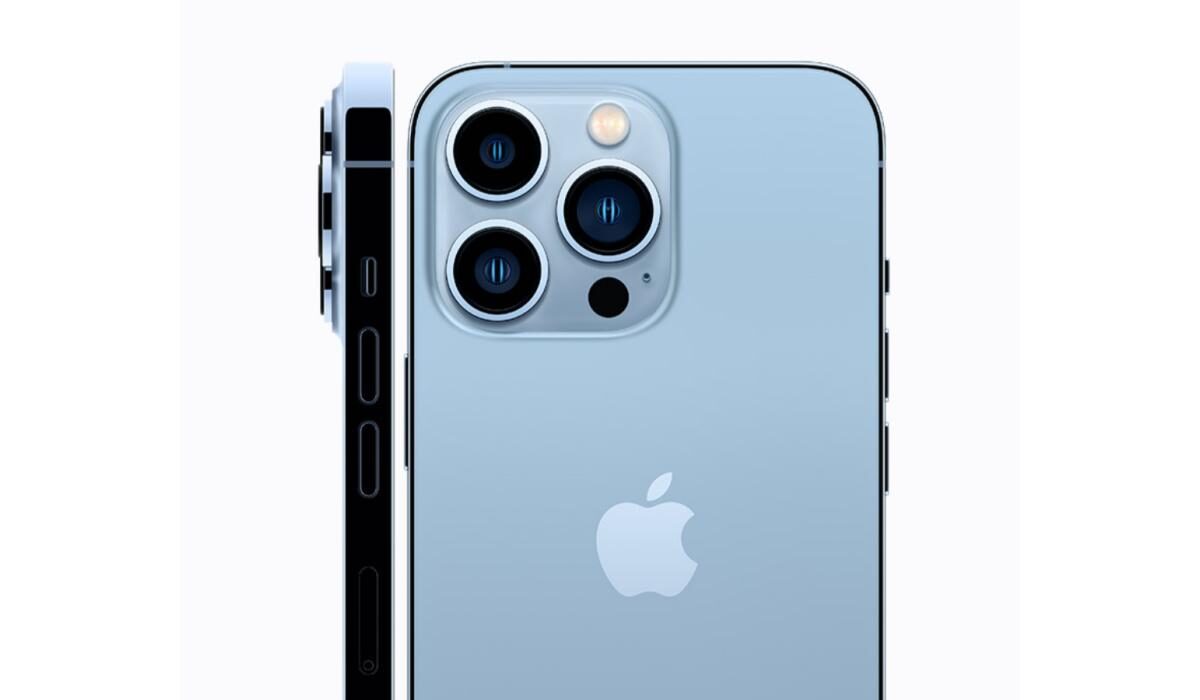
iPhone 13 Pro camera
The 3-minute video was directed by Oscar-nominated father-son duo Jason Reitman and Ivan Reitman. As already stated, it was shot entirely on iPhone 13 Pro. However, as with modern movie production, there is post-production involved i.e. editing, visual and sound effects, etc, added.
We love demonstrations of phone capabilities. For example, here at Mobility Arena, all our photos and videos are done with smartphone cameras, and for the same reason. We believe that a cell phone blog should showcase, in practical terms, what those devices are capable of.
Watch Saving Simon, the movie that was shot on iPhone 13 Pro
it is only 3 minutes long, so have a go.
What do you think of the movie?
- Don’t miss our reviews .
- Join our WhatsApp Group , to be notified of the most important articles and deals,
- Follow us on Instagram , Facebook , Twitter , and YouTube .
Author:InfoDesk
Add MobilityArena as a preferred source on Google
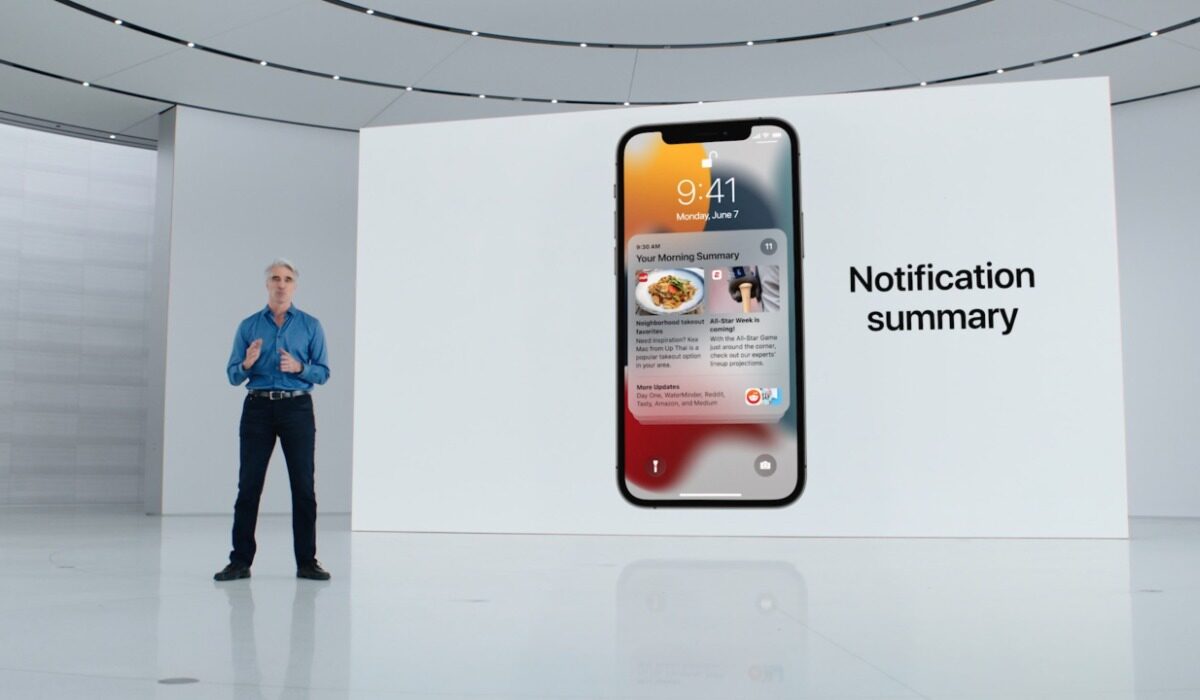
Although I am an Android user, I still find myself dabbling into the iOS world to try out new features and additions to the iOS software. For today, we will be talking about one of the newest features, Notification Summary.
Ever since I started using iPhones, receiving notifications have always been a bit cluttered. Unlike it’s Android counterparts whose notifications came in orderly groups from their respective applications, iOS notifications have always been pretty random and needed to be sorted out and dealt with individually.
This issue really needed to be fixed quickly by Apple and thanks to updates made on the operating system all of that is being fixed gradually. At the moment, notifications on iOS are not yet “picture perfect” but visible changes have been made to how they are being presented.
iOS 15 Upgrade Came With Something New For Notifications
So, iOS 15 came with a lot of cool new features and refinements, and one of them that caught my attention was the notification summary. What is a Notification Summary? How can we set it up? These questions will be addressed in this article.
The notification summary feature from iOS 15 is a bit like what we see on the Post Box application. Well, Post Box is a digital wellbeing application from Google Creative Lab that helps summarize your notifications and delivers them to you at your stipulated time(s) during the day. But Notification Summary on iOS is not the Post Box application, there are a few differences here, let’s take a look at them.
To get started, let us have a little insight into what Notification Summary is all about. This is a new productivity centric feature on iOS 15 that delivers notifications at stipulated times during the day. For people that get swarms of notifications from various applications, this feature was made just for you. Even if you have your data turned on, you will not receive any notification from applications placed under the Scheduled Summary until the allotted time. This feature helps reduce distraction at every beep from your iPhone.
How To Set up Notification Summary
Like we said earlier Notification Summary is not an application rather it is a feature baked into the iOS 15 software. What this simply implies is that you do not need to go to your app store to download any application in other to gain access to Notification Summary. All you need to do to make use of this feature is to first update your iPhone software to the latest version (iOS 15).
Setting up Notification Summary on your iPhone is pretty easy, just carefully follow the five steps below, and you will be good to go.
- Go to your device settings application.
- Select notifications
- Select scheduled summary and turn it on.
- Now you will see an option menu where you can choose applications to add to the schedule.
- You can also set the desired time to receive your notification, and how many times to receive them.
Now you can rest easy knowing that you would not be getting annoying notifications occasionally. Be sure to share these tips with your friends, they might also need to take a break from the constant influx of notifications. Also, check out these iOS 15 nifty features that you can use here .
Author:KittysTech
Tech analyst, Collins Eshiet, writes about technology. Follow me on Twitter @KittysTech.
