Add MobilityArena as a preferred source on Google
Sky mobile is a mobile virtual network provider (MVNO) which uses O2’s infrastructure and reselling O2’s services to end users. Sky mobile was founded in 1998. The MVNO offers a feature where customers can roll over data that wasn’t used into the next month. How good is Sky Mobile’s phone service? Here’s our round-up of different customer reviews to help you decide for yourself.
Sky mobile Phone Service Reviews On Trustpilot
Trustpilot was the first site I visited and the site had an overall star review rating of 1.5 stars out of 5 stars. There were a decent amount of good reviews and a lot of them were similar. A lot of the reviews were about the company’s customer service agents and employees who were helpful, friendly and polite. Here are a few of the good reviews:
•Had an issue with my internet. Booked an appointment online and an engineer arrived the day after. Then phoned sky up and renewed my sky package with discounts. No issues getting through to anyone. I admit the online help is awful but the customer services are great if you phone them up.
•I think I’m one of the very few who are happy with their experience. I rang customer service to query the price of my new contract and the lady I spoke to was lovely. She not only got it lowered but it’s now cheaper than what I was paying. I didn’t get her name but she is an asset to the company. Thank you.
•My feedback is based on closing an account after a relative’s death. I thought this would be so difficult, I spoke to a lovely kind, understanding representative who only needed the minimum information. The account was closed easily, and I received a cheque refund within 2 weeks. No hassle or difficulty. I wish I’d taken the customer service man’s name. He was excellent at a difficult time.
Now, on to the bad reviews, a good amount of the bad reviews spoke about poor signal strength and data coverage. A lot of customers mentioned that they were being overcharged and their bills were being increased without being involved. There were also a few customers who wrote about how rude some customer service agents were to them. Some customers also mentioned that the deals and promises made to them by customer service agents were never fulfilled. Here are some of the bad reviews:
•Spoke to Karl in customer Experience and he was so rude. Telling me that he is working from home and sighing when I asked for the matter to be escalated. After being on hold 4 times he say the manager can not help me as they are in meetings and to call back. He proceeds to school me on how to pronounce his name Karl several times when asked. Why join ‘services’ when you do not like giving service to your customers. I felt so belittled and let down after 15 years of being with Sky mobile. I am now cancelling. very hurt by this experience.
•Zero stars. Absolute rubbish . Every month my bill is going up. This month £123 it’s a laugh because I don’t even use the phone , I barely use the TV as I’m never home. I mean ??? What exactly am I getting charged for every month ! Ridiculous and when you phone it up it’s all just a load of nonsense on the phone. Sick of being ripped off.
•This is really regarding the broadband service that Sky provides. It has to be one of the worst on the market! It’s slow and unreliable. It’s always fluctuating from normal speed to a snail’s pace. I can’t fault the customer service as they do try to help, but 9 out of 10 times they can not resolve the issue. My advice would be to check the market before choosing Sky!
•3 months+without access to my mobile data, calls and texts and the only way to sort this was by calling them.. however I couldn’t call as my services weren’t working?!
Been a week since I have been able to get in contact and still no service.
(Source)
Sky mobile Phone Service Reviews On Reviews.io Site
The Review.io site had an overall star review rating of 1.7 stars out of 5 stars. There were very few good reviews so here are a few of the good reviews I found:
•Just had the sky installed. I was a bit dubious at first but there was no need. The technician Andy was absolutely brilliant and it was all done and dusted in 1/2 hour. I couldn’t believe how quick he was and a very pleasant guy to boot talk about “wham bam thank you ma’am”€.
Thanks sky and Andy
Gerry
•Can’t fault the sky, my broadband and sky Q is amazing. Yes I know it is pricey but sky is the best tv and broadband service. I know that it may take a while to talk to someone for help or advice but pretty much every company these days is sometimes tricky to contact anyone. It’s just life. I really don’t know why people give sky awful reviews.
•We talked to customer help line with a man named David despite me having health issues he was was very patient he obviously new all of Sky products and spent the time I needed to sort out my problem Thank you David hope I get to chat to you soon
There were a lot of complaints about poor phone signal and coverage. There were even more complaints about billing issues. A lot of customers complained about being overcharged by the company. Some of the customers mentioned they were being charged for another person’s bills and when they complained to the customer service agents, no solution was rendered. Here are some of the bad reviews:
•Generally one of the worst Internet providers I’ve had, even talk talk come better than this and I was with them for 10 years+ literally can’t even connect to the Internet got booted from my online game too it’s constantly slow I’m constantly battling with the net to get on and I only have 4 things connected to my Internet it’s a joke I want a reduction on my bill because you are quick to take money but provide me with scraps of Internet and its not on I will be phoning in the morning and I will be cussing mad too so just be prepared for a heated conversation in the morning just saying.
•Spoke to Sky in December referenced an increase in direct payments as they had increased by £4.40 a month after speaking to a customer advisor who said they don’t have to inform you of increase or tv packages going up or offers coming to an end.
Also advised they do this all the time and customers don’t notice. I find this totally unacceptable and have now stopped the direct debit and been told I can’t do this until my contract ends. I told them they broke the contract by putting my bill up and not advising me of this.
•Few weeks ago the sky went down and I was lied to for five days being told it would be on later that day every day being fed more lies. Was told u would be compensated but instead they took £60 from my bank . Now they have gone down again and no service again. After 14 years I’m done with the sky. Won’t get another penny.
(Source)
Sky Mobile Phone Service Reviews: Last Words
After reading through the numerous reviews, I would say I have mixed feelings about Sky mobile so I’ll leave it to you guys to decide if you want to use Sky mobile’s services. After all, no company is perfect and it seems like Sky mobile has a lot of improvements to make.
- Don’t miss our mobile phone reviews .
- Follow our news on Google News .
- Follow us on Instagram , Facebook , Twitter , and YouTube .
Author:Dun
Dun enjoys reading and writing, and is always on her smartphone. She currently uses a Google Pixel 3.
Add MobilityArena as a preferred source on Google
Purchasing a new mobile device can be really exciting and pleasant. However, this would also typically require you to move all of your data from the outdated device to the new one.
Fortunately, this procedure is simpler than you might expect, especially if you’re employing the appropriate techniques to complete the task. There are several methods available for transferring data from one Android phone to another, making the process quite straightforward.
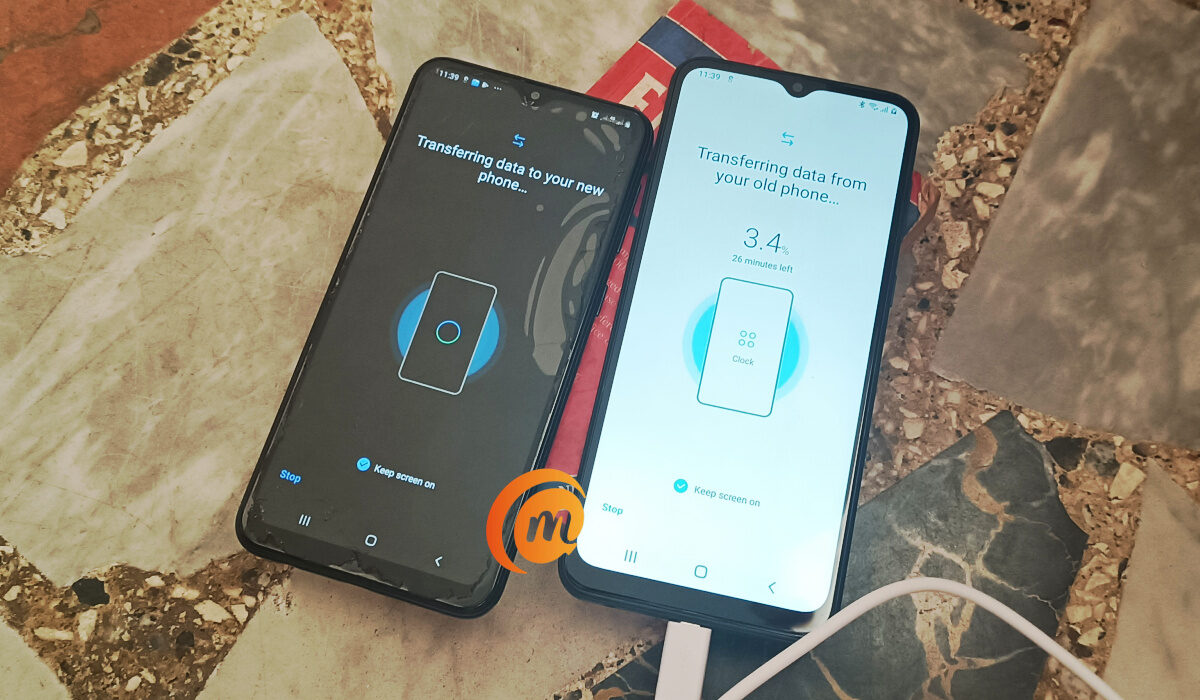
We’ve created this guide to show you the best ways to transfer your files from one Android device to the other. So, keep reading to find out which method will work best for your needs.
- How to Transfer Files Between Android Phones via Bluetooth
- Transfer Files Between Android Phones Using USB Transfer on PC
- Transfer Files Between Android Phones using Near Field Communication (NFC)
- Transfer Files Between Android Phones using Nearby Share
- Transfer Files Between Android Phones Using Third-Party Apps
How to Transfer Files Between Android Phones via Bluetooth
Using your Android smartphone’s Bluetooth function is one of the standard and most well-known ways to transfer data from an Android phone to another. You may effortlessly transmit pictures, movies, music, documents, and more between Android devices by using Bluetooth, and you’ll achieve this without any hassles.
To transfer files using this option:
- Turn on Bluetooth on both devices, then pair them.
- Select the files you wish to transfer by opening File Manager.
- On your device, click Share .
- From the list of choices, pick Bluetooth .
- From the list of associated Bluetooth devices, pick the receiving device.
- The file transfer function will be turned on, and both phones will show the transfer’s status.
Transfer Files Between Android Phones UsingUSB Transfer on PC
You can use this approach to transfer files from an Android phone to an Android tablet without the use of a third-party program.
You would simply need to get a USB cable to connect your Android devices to a PC for this option. Although you’ll be limited in the amount of data you can transfer using this approach, it is a convenient option for exchanging music, images, and movies.
Find out how to use this method below:
- Use a USB cord to connect your old device to a computer.
- Tap the “Charging this device through USB” message on your Android phone, then choose “Use USB for” under File Transfer.
- Following that, launch File Explorer on your computer, choose your phone from the left-hand tab, then copy and paste the files into any folder there.
- Remove this device once the files have been transferred, then attach the new phone.
- To transfer the files from your PC to your new phone, repeat step 2 to gain access to your phone’s internal storage.
Transfer Files Between Android Phones usingNear Field Communication (NFC)
Another quick method for moving data from an old Android phone to a new one is by using NFC, or near-field communication. This technique is especially helpful for transferring huge files rapidly. Be aware that the procedure is time-consuming and somewhat complicated, especially for novices. The NFC function is also not widely supported by Android phones. In any event, it is a useful method for transferring Android data.
Near-field communication (NFC) chips on two cell phones make close-range data sharing simple, and it doesn’t require phone pairing. Just make sure Android Beam and NFC are both turned on if you wish to send data between two Android devices that have NFC.
To transfer files using this method:
- Enable Android Beam and NFC.
- Select Bluetooth & Connections under Settings .
- Enable NFC by choosing it.
- Then choose Android Beam and activate it.
- Then, select the file you wish to transmit by using File Manager.
- Place both phones with their rear panels touching each other and open the file.
- When the phone vibrates, a “Tap to beam” option will appear.
- The transmission will start after you tap the file.
Transfer Files Between Android Phones usingNearby Share
In 2019, Google created its own version of AirDrop for Android called Nearby Share , which is compatible with devices running Android 6.0 or higher. Nearby Share can handle all of your sharing needs, whether you want to send a picture, a video, an app from the Google Play store, or even your location from Google Maps. You may utilize Nearby Share wherever the Share button is on your Android phone.
Follow these steps to share files using Nearby Share:
- Open the file you want to share, tap the Share icon, and then select Nearby Share. Your phone should start searching for nearby devices. Note that the Android smartphone receiving the file must have Nearby Share enabled.
- You only need to tap the device name of the recipient’s phone after your phone recognizes it. You must simultaneously touch Accept on the other phone for the transfer to begin.
- Depending on the files you’re sharing, the transfer will be finished in a short while.
Transfer Files Between Android PhonesUsing Third-Party Apps
There are numerous third-party apps that may be used to move data from one Android smartphone to another. The apps are available for download from the Google Play Store and may be used to move data between Android devices, including files, essential documents, music, and videos. You can use the data transfer apps that various smartphone manufacturers offer as well.
Xender
Xender has over 100 million downloads on the Google Play Store. Simply connect your Android devices using Hotspot, and you may instantly share any kind of file. The best feature of this program is its capacity to transport data between several platforms and link four devices at once.
To use Xender:
- On both of your smartphones, install the app. Make sure that “Personal Hotspot” is turned on on their smartphone.
- Start it up on the outdated device, hit “+,” and select “Create Group.”
- Launch it after that and select “Join Group.”
- Tap the group when you find it.
- After connecting the devices, you can begin transferring files rather rapidly.
Other apps include SHAREall, Files by Google, etc, which offer a fast and easy file transfer process. You’ll typically find these apps downloadable from the Google Play Store.
In summary , moving your important files from one Android smartphone to the other is an easy process as long as you know the right things to do. Simply pay attention to the instructions we’ve provided in this guide and you should be able to do it easily.
