Add MobilityArena as a preferred source on Google
Smartphone manufacturers are continuously adding new features on their latest devices so that you can have an enhanced experience. Introducing new features also means removing certain ones that they don’t think we need anymore i.e. removing the headphone jack.
Many big companies like Apple, Samsung, OnePlus, etc. have made this move on their latest devices. In fact, Apple phones did it when they introduced iPhone 7 and 7 Plus and introduced Air Pods. This might have made a lot of people happy because they don’t have to deal with tangled wires anymore.
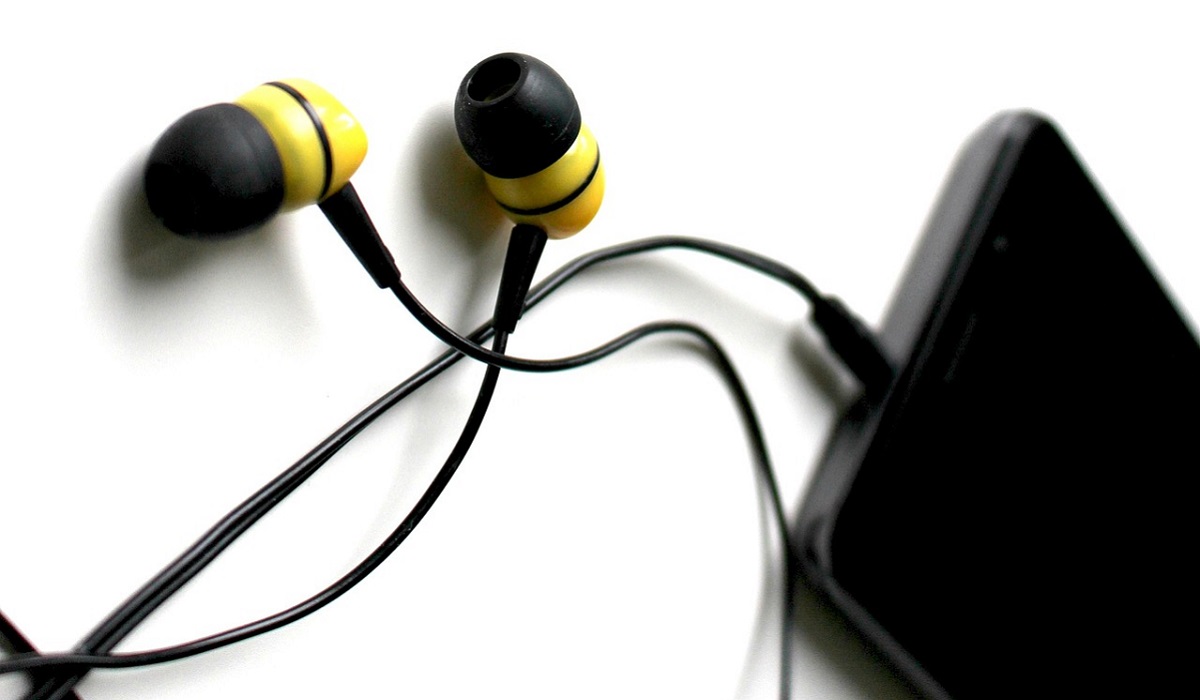
But headphone users were disappointed by this move because they still preferred putting on their favorite headphones. Also, you can’t deny the exceptional quality that comes with wired connections.
If you are one of those disappointed users and are looking for new smartphones that come with the headphone jack in 2023, you have come to the right place. We are listing them in this article.
However, before we go on, if you own a smartphone that lacks headphone jack, there is still a solution to this. If you have earphones with C-Type connectivity, most of the latest smartphones allow you to use your wired earphones. In the case of Apple phones, you need earphones with a lighting cable connection to plug them into the charger port of your Apple phone.
- Top 6 smartphones with Headphone Jack Motorola G100 Samsung Galaxy A52 Samsung Galaxy A32 Google Pixel 5a Nokia XR20 Sony Xperia 1 III
- Why Headphone Jack Is Being Removed on Many Phones
- Wrapping Up
Top 6 smartphones with Headphone Jack
If you are still adamant about getting a smartphone with a headphone jack to plug in your favorite headphones, we have listed some of them in this article.
Motorola G100
The manufacturers of Motorola don’t really fall behind on the new trends like other smartphone manufacturers, but the best part is that they haven’t removed the headphone jack from their smartphones.
Along with a headphone jack, the other qualities of Motorola G100 include a big 6.7-inch screen for a detailed visual experience, triple rear camera at 64 MP, 16 MP, and 2 MP as well as dual front camera at 16 MP and 8 MP. This would be ideal for photos and videography. You can use its 128 GB internal storage for your files as well as audio files.
Samsung Galaxy A52
Samsung is one of the leading smartphone manufacturers, which is why we are listing two of their models. Some of the newer models of Samsung smartphones may have eliminated the headphone jack feature, but the A series continues to use it, such as Samsung Galaxy A52 .
Even with a headphone jack, you can enjoy its water-resistant quality to prevent A52 from being damaged by any accidental drops. Other features you can enjoy are PENTA rear camera at 32 MP, 64 MP, 12 MP, 5 MP, and 5 MP, and also 32 MP at the front camera, along with a 128GB internal memory and memory card slot for microSD if you want more space.
Samsung Galaxy A32
With 6.5-inch display and your ideal headphones connected to the headphone jack, you can enjoy smooth video chatting on Samsung Galaxy A32 .
This phone has a triple rear camera at 13 MP, 48 MP, and 8 MP with the main lens i.e. 48 MP to capture both landscape and portrait shots! The front camera is 13 MP which is comparable to most iPhone devices.
Google Pixel 5a
Unfortunately, Google’s latest smartphones have removed the headphone jack feature. But you can still find it in Google Pixel 5a and older, though 5a was released in 2021, so that makes it the latest Google Pixel smartphone to have a headphone jack.
This phone has a 6.34-inch display, with a capable dual camera rear view at 12.2 MP and 16 MP and a front camera of 8 MP. It also has a water-resistant quality that can withstand submersion in water up to just 1 meter.
Nokia XR20
That’s right, Nokia has moved away from classic designs that we remember from the early 2000s to bring amount modern and sophisticated style of smartphones. And that too, with a headphone jack in one of their latest Nokia XR20 .
Its huge 6.67-inch screen makes it ideal for online gamers and movie streamers. It also offers a dual rear camera at 48 MP and 13 MP as well as an 8 MP front camera. You can store all your apps, photos, and videos in the internal storage of 65 GB and if you need more, you can also install a microSD in its memory card slot.
SonyXperia1 III
Sony models might be a bit pricey, but with their higher budget, they have a lot to offer including the headphone jack on their latest Sony Xperia 1 III from 2021. You have the option to choose between 256 GB or 512 GB for internal storage of all your music, podcasts, audiobooks, radio apps, and other non-audio files as well.
Why Headphone Jack Is Being Removedon Many Phones
The smartphone manufacturers haven’t really shared why they are ditching the headphone jack on their devices, but there are a couple of reasons we have come up with.
For one, from an engineering point of view, the headphone jack takes up a lot of space in the device, meaning that there is only a limit to how thin a phone can get because of it.
Another reason is that many manufacturers are now waterproofing smartphones, which is a relief for most. Most of the audio duties will be carried out by hardware such as USB-C or lighting port, hence, the headphone jack is now considered redundant now.
There might be other reasons as well, but these are enough to emphasize why headphone jacks are now being removed from many smartphones.
Wrapping Up
Just because most smartphones don’t have a headphone jack anymore, it’s not the end of the world for headphone users. There are still smartphone alternatives that support the headphone jack feature so that you don’t have to rely on pricey Air Pods or get separate earphones with C-Type cable.
Author:Content Partner
Add MobilityArena as a preferred source on Google
Sometimes, a need arises to scan a document urgently and find yourself without access to any quick scanning tool. What you may not realize though, is that your iPhone already has an in-built scanning feature.
In this guide, we’ll show you how to use the Notes app on your iPhone as a scanner, so keep reading to find out.
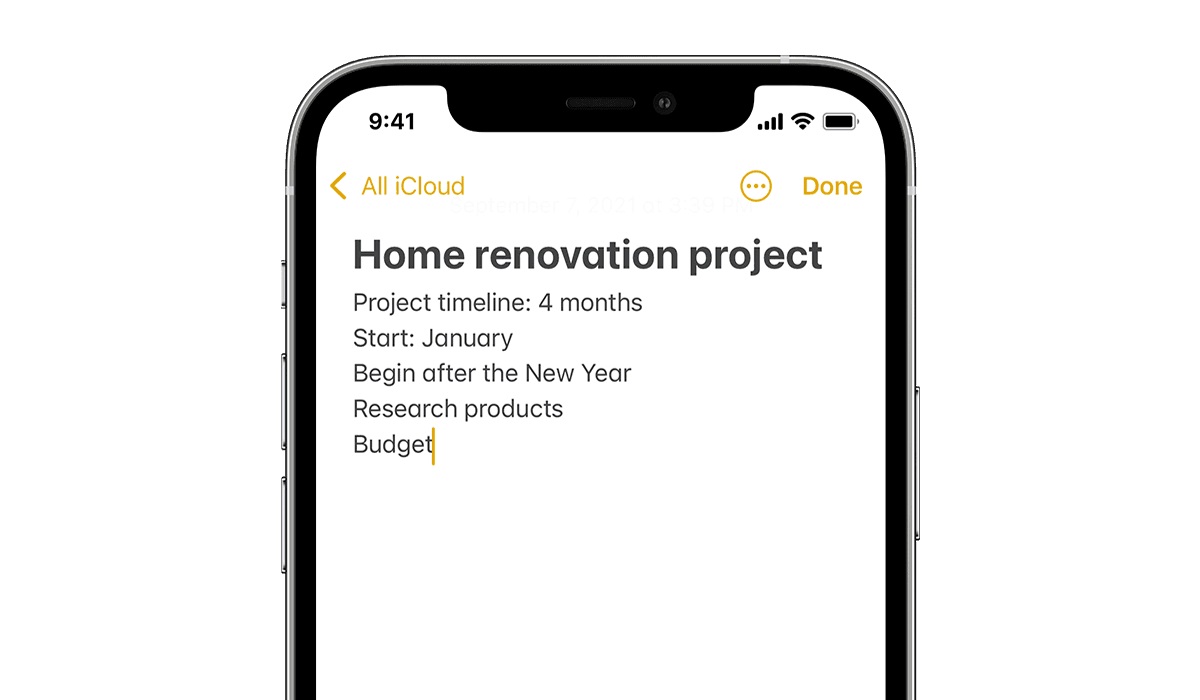
iPhone Notes app
- How Can You Use the Notes App on your iPhone as a Scanner?
- How to Make Adjustments to Scanned Documents
- How to Sign and Share a Scanned Document in iPhone’s Notes App
How Can You Use the Notes App on your iPhone as a Scanner?
Being asked to sign, scan, and email a document can seem like an outdated, daunting chore if you don’t own a scanner. However, there’s no need to worry since you can easily use the Notes app on your iPhone as a scanner. Here’s how to scan documents with your iPhone’s Notes app:
● Arrange the document(s) in a well-lit area, on a level surface. Try creating a new note in the Notes app, but you can also just open an old note. We also suggest making a folder to keep all of your scanned documents so you can locate them quickly.
● Tap the camera icon when a note is open, then select the Scan Documents option.
● The camera on your iPhone or iPad will start up and have a shutter button close to the screen’s bottom. Follow the instructions on your screen instead of pushing the shutter button immediately. Also, remember that it’s best to position your device directly over the document for the best results.
● While the camera starts scanning and searching for the document, a yellow box will emerge. You’ll get on-screen hints like “ Move closer ” while your device seeks to identify the paper’s corners and edges.
● It will automatically take a scan of the document after it has been fully identified. You can hit the shutter button to help your iPhone find the document if it’s having trouble.
● The bottom-left corner of each page will display a tiny thumbnail, and the scanner will continue to scan further pages while it is open. Tap Save once you’re done scanning.
It’s really easy to scan documents with your iPhone’s Notes app by following the instructions above.
How to Make Adjustments to Scanned Documents
You can also make changes after using the Notes app on your iPhone to scan a document, such as defining the corners if the scan wasn’t exactly accurate, changing the color scheme, rotating the document, or adding new pages. Follow these steps:
● When you click on the document to view it, all the editing tools will be on the screen’s bottom. If you don’t want a particular area of the document to be included, you can remove it using the crop tool.
● The simplest way to use the crop tool is to put your finger close to the tiny circles that serve as magnifying glasses and are situated on each of the document’s corners. By doing so, you will be able to see your edits more clearly rather than having them hidden.
How to Sign and Share a Scanned Document in iPhone’s Notes App
There are two alternatives after using the Notes app on your iPhone to scan a document and adjust it. You can either sign the document and share it, or save it in the Notes app for later use. Follow these steps to sign and share the scanned document:
● Hit the Share button in the top-right corner of the screen to display the share sheet.
● Scroll down to the app shortcuts and tap Markup to add your signature. The markup tool includes tools for drawing, writing, adding text, and signing documents. To view all of the tool options, tap the plus sign.
● Once you’re through with signing or annotating the scanned document, you’ll see options to email it, save it in the Files app, or use the document on your iPhone or iPad as you normally would with any other document.
In summary , you can save yourself stress by using the Notes app on your iPhone as a scanner. Just follow our instructions to do it correctly and get the right results.
