Add MobilityArena as a preferred source on Google
Don’t worry if you’re having trouble with a math problem. There are applications that can perform the operations on their own. Here are the best mobile apps for solving math problems and equations.

1. Photomath
If you’re looking for a math app that works on both Android and iOS, Photomath is one of the best. Simply take a photo of the equation, formula, or problem and the app will solve it for you!
One of the tool’s strengths is that it can recognize handwritten and textbook typed problems. Furthermore, it can be used for almost any mathematical operation that comes to mind: arithmetic, logarithms, derivatives, equations. Definitely one of the necessities.
2. Malmath
MalMath is a great app for solving math problems on Android and iOS. It is a free offline tool capable of solving exercises and math problems at various levels, particularly ESO and Baccalaureate.
To accomplish this, the app provides a detailed step-by-step guide that explains how to complete each exercise. Among other things, you will be able to solve integrals, derivatives, logarithms, equations, and limits. A fantastic app for learning math quickly and intuitively.
3. Cymath
Cymath is another essential math app for your Android or iOS device. The app will guide you to the solution with clear and simple explanations, whether you use a photo or type the operation on the keyboard.
Of course, Cymath’s interface can detect handwriting and is excellent for solving algebra and other calculations. The app is free, but you must purchase the Plus version to use it ad-free.
Best Apps for Elementary Math
If your child starts to grasp some of the fundamental concepts of mathematics, a good strategy is to use apps to reinforce their learning in a fun way. If that’s what you’re looking for, we’ll go over the best primary school math apps in this section.
4. Smartick
Smartick is a math app designed for elementary school students. The application helps children understand math in a fun and intuitive way. This works with fifteen-minute sessions per day, adapting in real time to each student’s responses.
It is an excellent application for increasing motivation and removing frustration from “not reaching” a certain level. All of this is accomplished through entertaining exercises and math games that will improve your children’s problem solving and mathematical understanding.
5. Addition and subtraction
Addition and Subtraction is one of the most basic math apps for children. They will learn addition and subtraction operations through numbers with friendly and colorful designs using this tool.
The tool has three difficulty levels (easy, intermediate, and difficult) that can be increased as the child learns. Each operation has three possible outcomes, and the selected answer is shown in two colors: red for failures and green for successes.
6. Math Cubes
If you have an iPad or an iPhone at home, Math Cubes is an excellent app for teaching your children to add and subtract. The tool presents operations in an appealing manner using blocks and includes music and animation to create a stimulating environment.
The operation is straightforward: five operations appear and are resolved. Once completed, the cubes will display the correct answer, with points awarded for each correct answer. Math Cubes is designed for children and young people aged 4 to 14 who have special learning needs.
7. Multiplication Tables Playing!
Now it’s the turn of a multiplication app, which is available for both Android and iOS. In this case, we bring you a tool with which the children can learn the tables using various memory-stimulating techniques.
The game has 76 levels divided into 11 episodes. While solving multiplications, the goal is to assist Kelly in collecting photos for her space museum. It has a very user-friendly interface and supports up to 12 tables.
8. Bmath
Bmath is a Primary math app that should not be overlooked in this list. It is a platform where boys and girls aged 3 to 12 can learn mathematical skills through games and the Innovamat method.
Bmath has over 700 educational games (addition, subtraction, volume, Roman numerals, etc.) and a reward system to increase motivation. An app that will allow your child to learn in a personalized and enjoyable manner.
How to Solve Math Problems on Google
Using Google to solve a math problem is as simple as pasting the exercise into the search bar. Once completed, Google will show you a detailed step-by-step procedure with the exercise procedure until you reach the final solution.
Where Can You Solve Math Problems Online?
If you don’t want to download an app to solve problems, there are a number of specialized math websites that can help. Symbolab, Mathway, Math 10, Microsoft Math Solver, Zearn Math, and K5 Learning are a few examples.
- Don’t miss our mobile phone reviews .
- Follow our news on Google News .
- Join our WhatsApp Group , to be notified of the most important articles and deals,
- Follow us on Instagram , Facebook , Twitter , and YouTube .
Author:Moses Udah
Creative, teacher, web content writer, copywriter, and student.
Add MobilityArena as a preferred source on Google
Many people agree that the iPhone is a fantastic tool when it comes to maintaining productivity. It enables us to maintain relationships with those who are significant to us, while at the same time offering the ecosystem of iOS apps that have a solution for practically every productivity issue.
With access to more than a million applications, there are undeniably more solutions to daily problems. However, this will inevitably result in many of us having an excessive number of apps on our phones, making it a bit challenging to keep them organized.
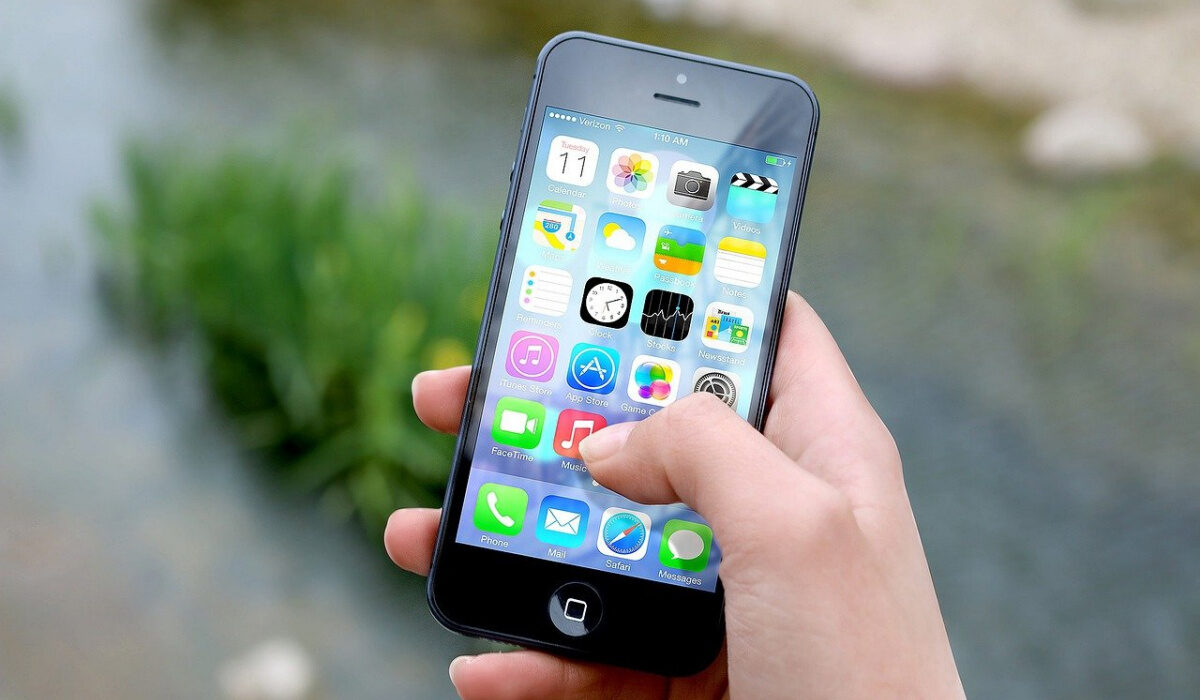
Fortunately, there are a few easy things you can do to manage your apps and use your iPhone more effectively. We understand the need for this, and this is why we’ve created this guide, to help you better manage your iPhone apps to achieve increased productivity.
- Organize iPhone Apps: Declutter your Home Screen
- Organize iPhone Apps: Use your App Library
- Organize iPhone Apps: Use the Search Bar
- Organize iPhone Apps: Use Widgets
- Organize iPhone Apps: Hide Some App Pages
Organize iPhone Apps: Declutter your Home Screen
One of the most valuable digital spaces in your life is most likely the first screen of your iPhone. Your home screen should be set up adequately such that everything is both simple to find and structured in a way that makes you feel calm every time you glance at it. Simply by having fewer apps clutter up the home screen of your iPhone, you can achieve this easily.
We advise that you include only the apps you use every day on your iPhone’s home screen. Everything that you utilize less frequently, let’s say once per week, ought to be on the second screen. If there are any apps with even less frequency of usage, we advise that you keep these in the App Library.
If you only use a few folders, we strongly advise that you delete every folder first. Then, carefully add the apps you want back in after you’ve gotten a sense of what you actually want to keep accessible.
Organize iPhone Apps:Use your App Library
The App Library is one of the features of iOS 14 that can be truly helpful in keeping you organized. Every app shows up by default in the App Library. It follows that you can still keep them on your device even if you delete them off your home screen. Then, if you still require them, you may get to the App Library by swiping across all of your screens.
Simply long-press an app to open a menu, then tap the minus icon to send it to the App Library. When you choose “Remove App,” alternatives will appear. The app can be deleted, or you can choose “Remove From Home Screen” to move it to the App Library.
You might not appreciate how the App Library automatically groups apps into the categories that Apple chooses. Instead of having to guess which category Apple placed your app in, you can quickly find what you’re searching for by tapping the search box at the top of the library, which will display an alphabetical list of all the apps on your device.
Organize iPhone Apps:Use the Search Bar
The App Library is a good place to store apps that you use sometimes, but it’s not necessarily the most effective way to find apps. Instead, pulling down from the top of the screen and typing your search term into the search box is typically speedier.
Even before you start typing, Siri will typically suggest apps you may be looking for. You’ll find that it actually does a pretty good job of anticipating what you might want, which will help you save even more time.
Organize iPhone Apps: Use Widgets
Widgets, one of the best methods for arranging the information on your iPhone, were introduced with iOS 14. They are incredibly helpful for decreasing the number of apps on your home screen and for giving you the information you require without even having to load an app.
You can fit a lot into a small space without it looking or feeling cluttered since you can stack many widgets together on your home screen. It actually offers you easy access to the data you use frequently in addition to breaking up the grid, which is a bigger value than you may imagine.
Organize iPhone Apps:Hide Some App Pages
The majority of iPhone users have way too many app pages. We’ll advise that you reduce the number of home screen pages on your device, which is one of the first recommendations for organizing your home screen. It’s not necessary to have page upon page of apps just because you have them on your device.
Most apps should only be in the App Library and not on any pages at all. Try to limit the number of apps on your iPhone to no more than two pages, with the option of adding a third page for any apps you’re testing.
However, iOS 14 makes it simple to quickly conceal app sections you don’t use frequently. Put a group of apps on a home screen and then conceal the whole page if you have a collection of them that you use collectively but aren’t always in need of.
To do this,
- Long-press the home screen to activate the “jiggly mode” and conceal pages.
- Next, press the page counter that is located right above the dock at the bottom. You can then choose to show or hide any of your app pages.
In summary , it’s also a good idea to keep fewer apps in general. One useful piece of advice is to look through your apps, both on the Home Screen and App Library, then check for any ones you’ve not used in a space of six months. Uninstall such apps to make more space and keep your applications more organized.
We’re sure you’ve found this article helpful, so don’t hesitate to share it with other iPhone users who will benefit from this helpful information.
- Don’t miss our mobile phone reviews .
- Follow our news on Google News .
- Follow us on Instagram , Facebook , Twitter , and YouTube .
