Add MobilityArena as a preferred source on Google
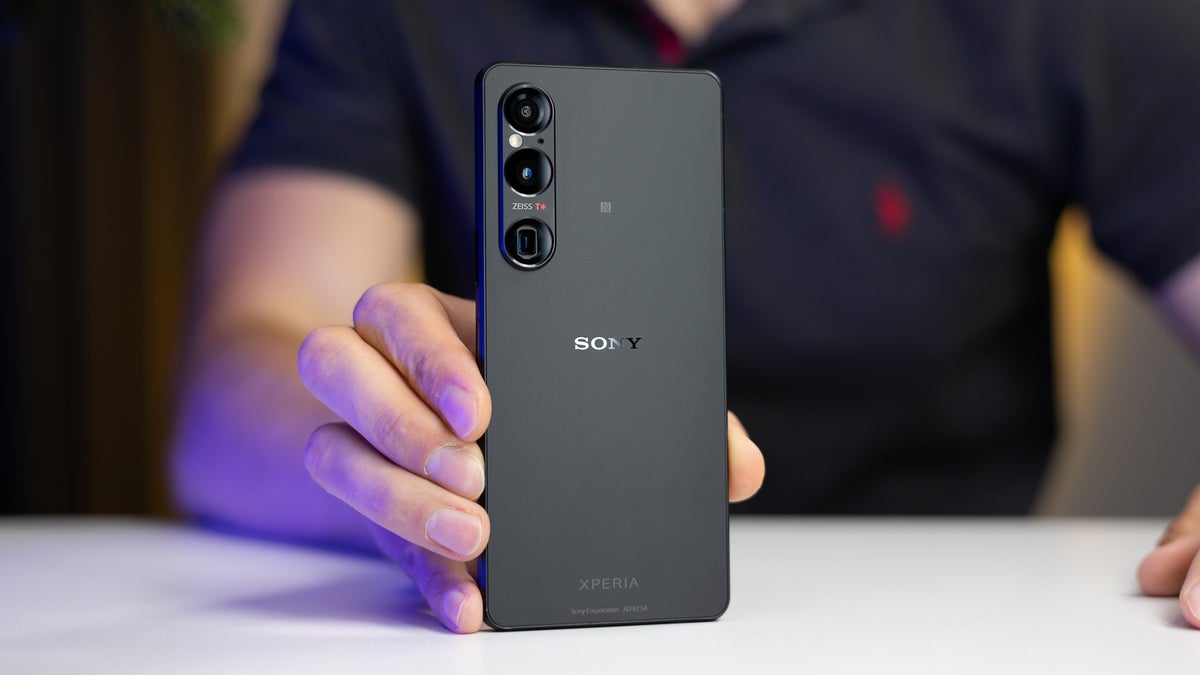
The Sony Xperia 1 VI is a flagship smartphone that boasts impressive specifications, including the powerful Snapdragon 8 Gen 3 chipset and a stunning 4K OLED display. However, some users have reported frustrating lagging performance that detracts from the overall experience. This can be particularly noticeable during tasks such as gaming, scrolling through menus, or multitasking between applications. By addressing these issues effectively, you can maximize the potential of your device and enjoy all the features it has to offer. Whether you’re a gamer looking for seamless performance or a casual user wanting to enhance everyday tasks, resolving these lagging concerns will significantly improve your overall satisfaction with the Sony Xperia 1 VI. In this article, I discuss some factors contributing to the lag and actionable steps to overcome them!
- Common Causes of Lagging Performance Refresh Rate Throttling Overheating Issues Background Applications Software Bugs Insufficient Storage Space
- Perform a Factory Reset (as a last resort)
- Conclusion
Common Causes of Lagging Performance
Refresh Rate Throttling
Many users have noticed that lag occurs when the screen refresh rate fluctuates between 15Hz and 120Hz. This inconsistency can lead to stuttering and unresponsiveness, especially during scrolling or when opening apps. Simply adjust the refresh rate. Here is how to:
- Use the Game Enhancer app to lock your preferred apps at a consistent refresh rate of 120Hz.
Overheating Issues

The Sony Xperia 1 VI can become warm during intensive tasks, such as gaming or streaming, which may lead to throttling. This performance drop can result in noticeable lag and reduced responsiveness. Simply manage the overheating. Here is how:
- Avoid using the phone while charging or during intensive tasks for extended periods. If you notice overheating, give your device a break to cool down.
- Remove any cases that may trap heat during heavy usage.
Background Applications
Having multiple apps running in the background can consume system resources, leading to slower performance. This is particularly problematic if resource-intensive applications are active. Simply close background applications:
- Regularly check for background apps by accessing the recent apps menu and swiping away those you don’t need.
- Consider using the built-in Battery Saver mode to limit background activity further when performance is critical.
Software Bugs

Some users of the Sony Xperia 1 VI have reported that software bugs or glitches can cause lagging issues. These problems may arise after updates or due to specific app interactions. Ensure to regularly check for software update:
- Go to Settings > System > Software Update and ensure your device is running the latest version.
- Software updates often include bug fixes that can resolve performance issues.
Insufficient Storage Space

When storage space is nearly full on the Sony Xperia 1 VI, it can significantly impact device performance. The operating system requires free space for temporary files and updates, and a lack of space can lead to slowdowns. I recommend the following: Solution:
- Delete unnecessary files, apps, or media to free up storage space. Aim to keep at least 15-20% of your total storage free for optimal performance.
- Use cloud storage solutions or external SD cards to offload large files if needed.
Perform a Factory Reset (as a last resort)
If all else fails and performance issues persist:
- How to Reset: Back up your data first, then go to Settings > System > Reset options > Erase all data (factory reset) .
- Note: This will return your device to its original state, potentially resolving lingering software issues.
Conclusion
While lagging performance in the Sony Xperia 1 VI can be frustrating, understanding its common causes and implementing these effective solutions can significantly enhance your user experience. By adjusting refresh rate settings, managing overheating, closing background applications, regularly updating software, freeing up storage space, and considering a factory reset, you can optimize your device’s performance. Additionally, utilizing features like the Game Enhancer app on the Sony Xperia 1 VI can help lock your favorite applications at a consistent refresh rate of 120Hz, ensuring smoother interactions during gameplay or app usage. Monitoring your device’s temperature during intensive tasks is also crucial, as overheating can lead to throttling and lag. With these strategies in place, you can enjoy the full capabilities of your Sony Xperia 1 VI and make the most of its impressive features. Embrace these proactive steps to transform your smartphone experience into one that is seamless and enjoyable!
Author:Ifeoluwa Adeleke
Add MobilityArena as a preferred source on Google
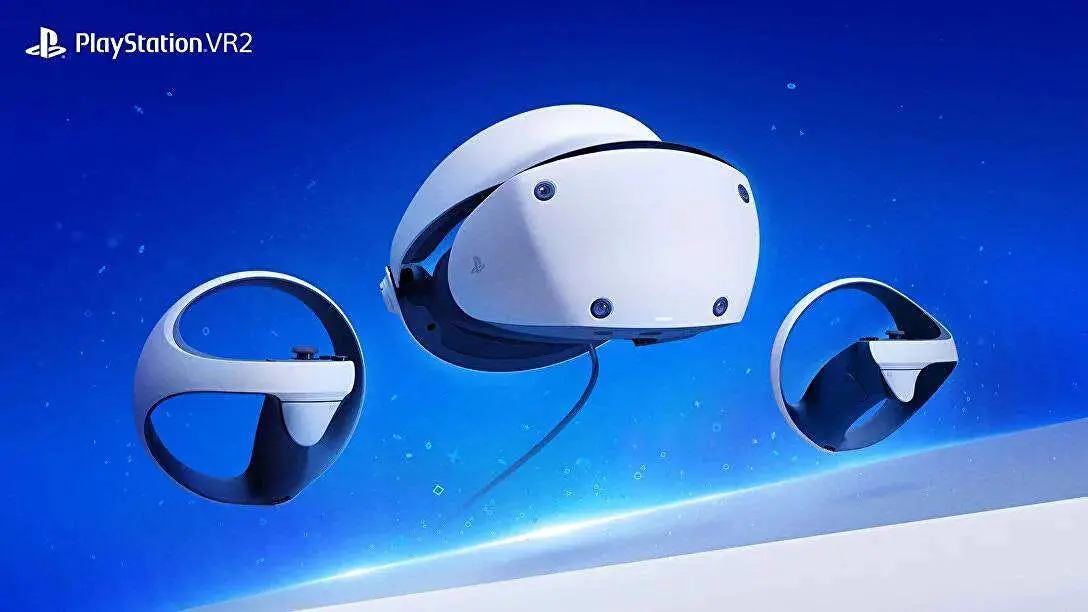
The PlayStation VR2 has revolutionized the virtual reality gaming landscape, offering players immersive experiences and stunning graphics. However, some users have reported frustrating headset tracking problems that can disrupt gameplay and diminish the overall experience. These issues can manifest as loss of head tracking, inconsistent performance, or environmental interference, making it challenging to enjoy the full capabilities of the system. By understanding these potential pitfalls and implementing effective fixes, players can enhance their gameplay and make the most of this cutting-edge technology. Whether you are a seasoned VR enthusiast or new to the world of virtual reality, addressing these tracking problems will significantly improve your immersion and enjoyment. Read through I discuss the details and discover how to overcome these challenges for a more seamless VR experience!
- Common Headset Tracking Issues Loss of Head Tracking Inconsistent Performance Environmental Interference Controller Tracking Issues Clean Headset Cameras and Lenses Adjust Your Play Space Setup
- Conclusion
Common Headset Tracking Issues
Loss of Head Tracking
One of the most frequently reported issues is the loss of head tracking during gameplay. Users of PlayStation VR2 may find that their view becomes locked or unresponsive, making it difficult to navigate in virtual environments. Ensure there’s proper lighting to give you a better experience. Here is how:
- Make sure your play area is well-lit. Bright, even lighting helps the headset’s cameras track your movements more effectively. Avoid direct sunlight or harsh shadows that can interfere with sensor performance.
- Tip: Consider using soft white LED lights to illuminate your space evenly.
Inconsistent Performance

Many players experience inconsistent tracking performance, where the headset fails to register movements accurately. This can lead to disorientation and frustration, especially in fast-paced games. Simply calibrate your headset. Here’s how to:
- Go to Settings > Accessories > PlayStation VR2 .
- Select Tracking Calibration and follow the on-screen instructions to rescan your room and set your height.
Environmental Interference

Tracking problems can also arise from environmental factors such as poor lighting conditions, reflective surfaces, or obstacles in the play area that obstruct the headset’s sensors of the PlayStation VR2. Simply clear obstacles from the play area:
- Remove any objects that may obstruct the headset’s view of its surroundings. This includes furniture, cables, or anything else that could interfere with tracking.
- Tip: Create a dedicated VR space that is free from clutter to enhance your experience.
Controller Tracking Issues
In addition to headset tracking problems of the PlayStation VR2, some users report issues with controller tracking, where the controllers may not respond correctly or lose connection intermittently. Regularly check for updates:
- Regularly check for system updates by going to Settings > System Software > System Software Update .
Clean Headset Cameras and Lenses

A dirty lens can significantly impact tracking accuracy, so regular maintenance is essential for optimal performance:
- Ensure that the cameras on your headset are clean and unobstructed. Use a microfiber cloth to gently clean the lenses and sensors.
Adjust Your Play Space Setup
If you’re using the PlayStation VR2 in a seated position, ensure that your seating arrangement allows for adequate tracking space. Sometimes, adjusting your chair or play area can improve tracking performance. Additional Consideration: If using a large TV or monitor, ensure it’s positioned correctly so that it doesn’t interfere with headset sensors.
Conclusion
While headset tracking problems in the PlayStation VR2 can be frustrating, understanding their common causes and implementing these effective solutions can significantly enhance your gaming experience. By ensuring proper lighting, recalibrating your headset, clearing obstacles from your play area, checking for software updates, cleaning lenses, and adjusting your setup, you can enjoy a seamless virtual reality experience. Embrace these strategies as opportunities to optimize your PlayStation VR2 setup for peak performance. With a little attention and care, you’ll find that these immersive gaming sessions become even more enjoyable and engaging!
