Add MobilityArena as a preferred source on Google
| Sony Xperia 10 III in Summary |
|---|
| Android 10. Announced 2021 2G/3G/4G 6.0-inch, 1080×2460 pixels display 12 MP triple camera |
Sony Xperia 10 III Specs, Features, Images/Photos
Network, Software
- 2G bands : GSM, GPRS, EDGE 850 / 900 / 1800 / 1900 MHz.
- 3G bands : UMTS, WCDMA, HSDPA 850 / 900 / 2100 MHz
- 4G bands : LTE 1(2100) / 3(1800) / 5(850) / 8(900) / 38(2600) / 40(2300) / 41(2500)
- 5G bands : No.
- SIM Type : Nano-SIM, Dual SIM
- Software / OS : Android 10
Design
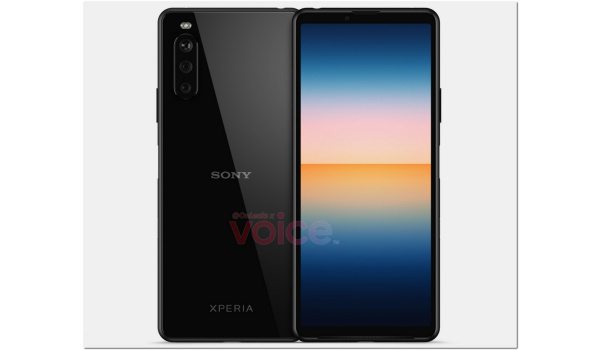
- Dimensions : 154.4 x 68.4 x 8.3 mm
- Weight : g
- Display : 6.0 inches, 1080 x 2460 pixels, 20:9 aspect ratio, IPS LCD screen
- Colours : Grey
- Physical Build : Glass front, plastic frame, plastic back.
Internal
- CPU : 64-bit, 2.05 GHz Octa-core, Cortex-A76
- Chipset :
- GPU :
- RAM : GB
- Storage : GB
- Card Slot : microSD, up to 512 GB (dedicated slot)
Cameras
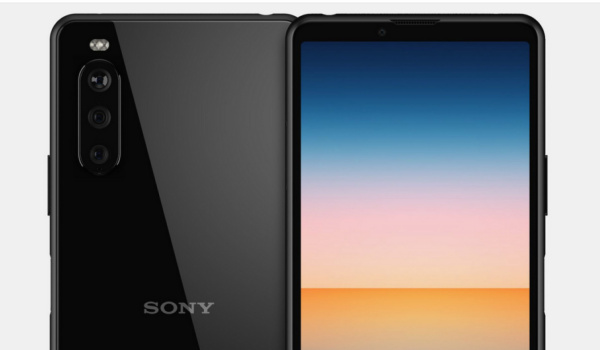
- Main Camera : 12MP main camera + 8MP telephoto lens + 8MP ultra-wide lens., LED flash, 4K and 1080p@30fps video recording
- Front Camera : 8 MP, Face ID/Recognition, 1080p@30fps video capture
Audio, Video Playback
- Music Support : PCM, AAC / AAC + / eAAC + / MP3 / AMR – NB / WB / APE
- Audio : 3.5 mm audio jack
- Loudspeaker : Mono speakers
- Video Support : H.264/MP4/MPEG4 player
- FM Radio : Yes.
Sensors
- Digital Compass : Yes.
- Accelerometer : Yes.
- Proximity Sensor : Yes.
- Ambient Light Sensor : Yes.
- Barometer : No.
- Pedometer : No.
- Heart Rate Monitor : No.
- Gyroscope (G-Sensor) : Yes.
- Fingerprint Scanner : Yes; side-mounted.
- Face Unlock : Yes.
- Iris Scanner : No.
- Motion Sensing / Gesture Control : No.
- Voice Control : No.
- Intelligent Digital Assistant : Yes; Google Assistant.
- Infra-red Sensor : No.
Connectivity
- Bluetooth : v5.0, A2DP
- WLAN : Wi-Fi 802.11 a/b/g/n/ac, hotspot
- GPS : Yes, with A-GPS, BDS
- USB : microUSB v2.0. USB-on-the-go.
- NFC : No.
Miscellaneous
- Battery : Non-Removable Lithium-Polymer 4500 mAh
- Charging : 10W fast charging
- Wireless Charging : No.
- Reverse Charging : No.
- Model Version/Number : N/A.
Launch
- Announced : Yet to be announced
- Released : Yet to be announced.
- Price : .
Questions and Answers about Sony Xperia 10 III
Here are answers to some of the most commonly asked questions about Sony Xperia 10 III.
Is Sony Xperia 10 III a 4G phone?
Yes; Xperia 10 III is a 4G LTE phone.
Does Sony Xperia 10 III have a fingerprint scanner?
Yes; it has a fingerprint reader.
Does Sony Xperia 10 III have Gorilla Glass?
We do not have this information at this time.
Does Sony Xperia 10 III have quick charging?
It has quick charging technology.
Will Sony Xperia 10 III work in USA?
Sony Xperia 10 III has limited network support across various US carriers like AT&T, Verizon, Metro PCS, Sprint, T-Mobile, Virgin Mobile, Cricket, Boost Mobile, H2O Wireless, Ting, US Cellular, Lyca Mobile, PureTalk, Consumer Cellular, Ultra Mobile, Straight Talk, Red Pocket Mobile, Jolt, Airvoice Wireless, and Google Fi. What this means that some bands are supported, while others are not. You will have to make enquiries from your carrier to know what bands/frequencies are supported on them.
MobilityArena Buyer’s Guide Verdict
Not available yet.
Our Buyer’s Guide Verdict is recommendation that we make based on our evaluation the specs of the phone or device. It is a general guide designed to help you understand how much value a smartphone offers for its price. It is not a stamp of quality assessment or an endorsement of either the device or of its manufacturers. Be sure to ask questions and use your judgement when buying any device, as MobilityArena may not be held responsible for your buying decisions .
Sony Xperia 10 III Phone Review Rating
We are yet to review the Sony Xperia 10 III and so do not have a review rating for it yet. This section will be updated with our review rating and a link to the review page, as soon as we have a review ready.
Source
Author:MobileChic
That motivated, gadget-loving geeky chic who tries to stay on top of things. Unapologetic iFan.
Add MobilityArena as a preferred source on Google
Apple iPhones are one of the most in-demand models of smartphones worldwide and are popular for their high performance and impressive technology. However, there are certain times where your Apple iPhone just “freezes” when loading, what happens then? Well, in this article we will look at the best steps to follow when your iPhone is stuck on the Apple logo.
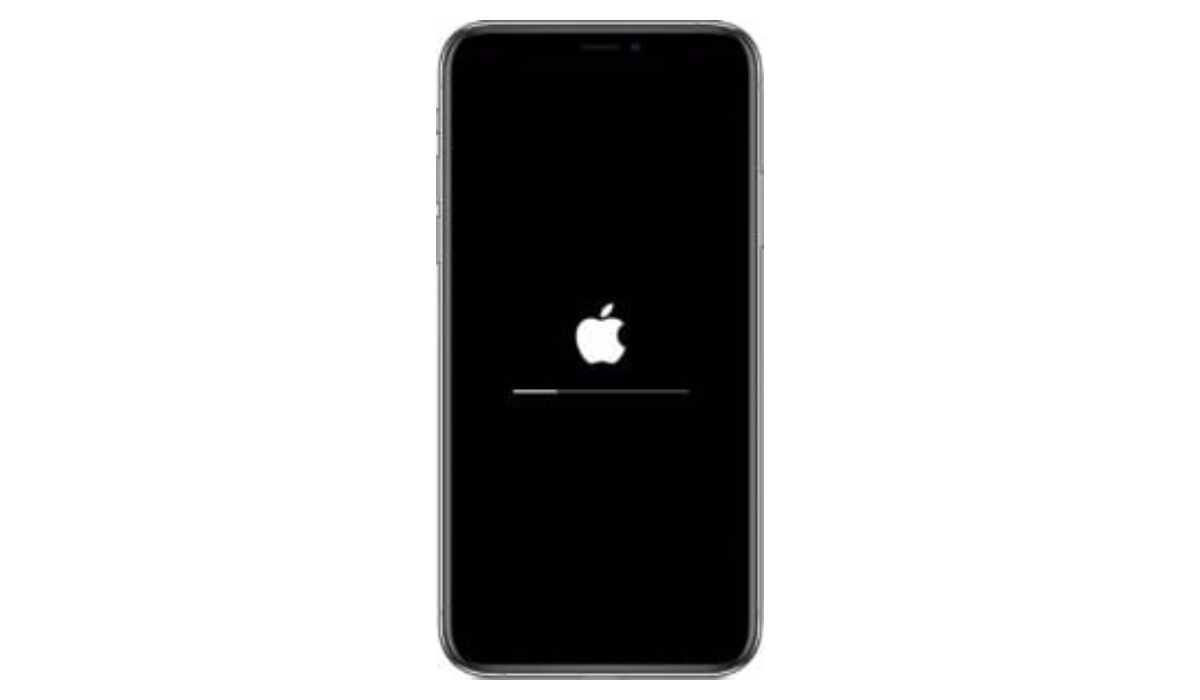
What to do if your iPhone is stuck on the Apple logo
- Restart your iPhone: This is one of the quickest ways to regain control of your iPhone when it is stuck on the Apple logo. To do this, follow these tips:
- Hold the Sleep button for a moment then release it.
- Now, shut down your device by moving the Power Off slider to the right.
- Hold the Sleep button till the Apple logo appears, then leave the button and wait patiently for the phone to boot completely.
- Set your iPhone in Recovery Mode: Another tip that can help you regain control when your iPhone is stuck on the Apple logo, this solution is relatively straightforward and works in most situations, as your device is connected to iTunes and can now receive fresh updates. To do this, follow these steps:
- Turn off your device.
- Hold the H ome button, then plug your iPhone to a system already running iTunes.
- When your display shows Connect to iTunes , select Update and let go of the Home button.
- Try DFU mode: The Device Firmware Update mode lets you communicate with iTunes without needing bootloader. This mode can help you restore your iPhone from any stage, effectively dealing with your iPhone is stuck on the Apple logo. The downside to this is, it wipes your iPhone and may clear some of your data. To do this, follow these tips:
- Launch iTunes on your system.
- Connect your system and iPhone then turn off your iPhone.
- Hold down the Sleep button for three short seconds.
- Now, hold down the Home button together with the Sleep button for 10 seconds.
- Next off, let go of the Sleep button and continue holding on to the Home button for 5 more seconds.
- Ideally, your device should be blank, this means your device is in DFU mode .
- A pop-up on your system will ask for restoration for previous backup or restore iPhone to factory settings.
Author:Alfa Baye
Staff Writer
