Add MobilityArena as a preferred source on Google
So many smartphone companies have been launching smartphones with little or no edges, and also some with minimum holes, stopgap and physical buttons. Meizu has surpassed that by announcing the launch of a new smartphone from the company – it is the first smartphone without holes or buttons – and is named “Zero.”
The Meizu Zero has no charging port or headphone jack. It doesn’t even have a speaker grill. Neither does it have a SIM card slot nor the buttons you normally see on a phone. The only visible elements of its all-display, 7.8 mm thick ceramic body are its dual 20MP and 12MP primary camera and 20MP secondary camera.
A Smartphone Without Holes?
While it has no ports and grilles, the Meizu Zero still has 2 pinholes – one is for hard resets and the other is a microphone hole. So, is this claim baseless. Not exactly. Bezel-less phones do have tiny bezels. So, a smartphone with two pinholes must count as holeless.

Though, there are neither Buttons nor Ports in the Meizu Zero, but it does have edges. It also has 18-Watt Wireless Charging (this is the fastest wireless charging till date) and this is the first smartphone to have no charging port. The Meizu Zero is a natural progression for smartphones, as OEMs have been trying to get rid of Ports and Buttons for quite a long time.
First Smartphone Without Buttons
There are no physical buttons anywhere in the Meizu Zero. Home and back keys have been left out in almost every recent smartphones and have been replaced by software UIs, but this phone is unique in a way that it doesn’t even have volume keys or a power button. Touch capacitive panels with haptic feedback were used in place of the keys which were meant to be physical, this is actually similar to the HTC U12+.
Sound Without A Loudspeaker Cutout
Surprisingly, this phone doesn’t have a speaker cutout on it, as the company has installed a piezoelectric transducer beneath the display to transmit the sound. It is called mSound 2.0, this is almost the same as that visible on the Sharp Aquos Crystal and the Xiaomi Mi MIX.
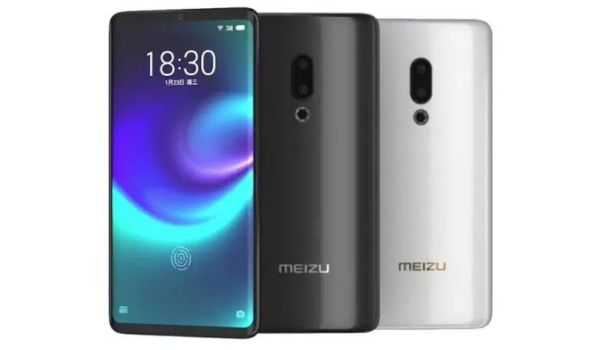
Meizu Zero is the first smartphone without holes and buttons
Due to the fact that this is a smartphone without holes – no ports and grilles – the traditional SIM card slot has been replaced by the latest eSIM technology, which is similar to that of the new Apple iPhones. Also, data transfer can only be done via Mobile Data or Wi-Fi.
This phone has a 5.99-inch QHD OLED screen, which also acts like some kind of massive speaker and a replacement for its lack of earpiece. Its edges are big enough to house a 20MP selfie camera, it has an on-screen fingerprint scanner and is IP68 certified against dust and water.
The manufacturers of the Meizu Zero made a statement about the phone’s retail launch in China being connected to the progress of the local carriers’ with the eSIM. This will most likely cause its availability to be limited.
The Meizu Zero will run on the Snapdragon 845 chipset instead of the Snapdragon 855. The colour variants available for this phone are Black and White. The battery capacity, price, and storage configurations of the phone have not yet been revealed by the company. But since be Mobile World Congress is close by, we will most likely find out soon.
Source
- Don’t miss our reviews .
- Follow our news on Google News .
- Join our WhatsApp Group , to be notified of the most important articles and deals,
- Follow us on Instagram , Facebook , Twitter , and YouTube .
Author:Victor Ehijiator
Add MobilityArena as a preferred source on Google
Windows Defender is a security software that helps protect your computer against pop-ups, slow performance, and security threats caused by spyware and other unwanted software. In the event that you want to disable it, there are three ways presented below to doing so. This article walks you through different ways to disable Windows Defender on your Windows 10 PC.
Please note that turning off Windows Defender without an alternative security software running will leave your PC open to possible security threats. As such, we advise that you install another security software or Antivirus programme if you are turning off Windows Defender.

how to turn off windows defender
How to disable Windows Defender using the Security Center app
Difficulty Level : Easy. Every PC user can do this comfortably . Keep in mind that disabling Windows Defender will open your computer to security threats..
If you are not a techie person, this is the easiest way to turn off Windows Defender. It is straightforward and direct. The following process only disables Windows Defender Antivirus temporarily. The next time you restart your PC, Windows Defender will re-enable automatically.
To proceed and disable Windows Defender temporarily , follow these steps:
- Click the Windows logo in the bottom-left corner of the screen. The Start menu will pop up.
- Click on the Gear icon to open your PC’s Security menu.
- Click Update & Security .
- Click on Windows Defender in the upper-left side of the window.
- Open Windows Defender Security Center .
- Click on Virus & threat protection .
- Click Virus & threat protection settings .
- Turn off the Real-time protection toggle switch.
That is it. Windows Defender is disabled temporarily. Note that it will be active once again the next time you restart your PC.
How to disable Windows Defender using the Registry Editor
Difficulty Level : Fairly Difficult. This disables the software permanently but requires you having a knowledge of command line. Using the Registry Editor can harm or even brick your computer. You proceed with the steps below at your own risk. Preferably, make a backup of your PC at this point.
Here is how to disable disable Windows Defender permanently using the Registry Editor:
- Use the Windows key + R keyboard shortcut to open the Run command.
- Type regedit , and click OK to open the Registry .
- Browse the following path: HKEY_LOCAL_MACHINE\SOFTWARE\Policies\Microsoft\Windows Defender Quick Tip: You can now copy and paste the path in the new Registry’s address bar to quickly jump to the key destination.
- If you don’t see the DisableAntiSpyware DWORD, right-click the Windows Defender (folder) key, select New , and click on DWORD (32-bit) Value .
- Name the key DisableAntiSpyware and press Enter .
- Double-click the newly created DWORD and set the value from 0 to 1 .
- Click OK .
- Restart your computer.
Windows Defender Antivirus is now disabled.
How to re-enable Windows Defender using the Registry Editor
If you ever want to re-enable the service at any time, follow these steps:
- Go back to the Windows Defender folder in Registry Editor by following steps 1 to 4 above.
- Click on the “Windows Defender” folder.
- Open the “DisableAntiSpyware” value by double-clicking it.
- Change the “Value data” from 1 to 0.
- Click OK , then restart your computer.

How to turn off Windows Defender using Local Group Policy
Difficulty Level : Fairly Difficult. This requires you having a knowledge of command line. Using the Registry Editor can harm or even brick your computer. You proceed with the steps below at your own risk. Preferably, make a backup of your PC at this point.
The following steps detail how to disable Windows Defender permanently for Windows 10 Pro, Enterprise, or Education users using the Local Group Policy Editor :
- Use the Windows key + R keyboard shortcut to open the Run command.
- Type gpedit.msc and click OK to open the Local Group Policy Editor .
- Browse the following path: Computer Configuration > Administrative Templates > Windows Components > Windows Defender Antivirus
- On the right, double-click the Turn off Windows Defender Antivirus policy.
- Select the Enabled option to disable Windows Defender.
- Click Apply .
- Click OK .
- Restart your computer.
You have disabled Windows Defender Antivirus permanently.
How to re-enable Windows Defender using the Registry Editor
If you ever want to re-enable Defender at any time, follow these steps:
- Go back to the Windows Defender folder in Registry Editor by following steps 1 to 4 above.
- At step 5, select the Not Configured option.
- Click OK .
- Restart your computer.
That is it.
- Don’t miss our reviews .
- Follow our news on Google News .
- Join our WhatsApp Group , to be notified of the most important articles and deals,
- Follow us on Instagram , Facebook , Twitter , and YouTube .
