Add MobilityArena as a preferred source on Google
What is T-Mobile Home Internet ? It is an Internet service that uses a 4G LTE or 5G network to deliver Internet to residences across the United States. But instead of working directly via smartphones, the connection is delivered via a Gateway router/modem which broadcasts a Wi-Fi signal accessible by all the devices in your home.
In summary, the Home Internet service allows multiple devices – smartphone, tablet, smart TV, laptop, etc, to connect at the same time to use the T-Mobile 4G or 5G network. The service runs primarily on 5G, but where 5G coverage isn’t available, it can be delivered over a 4G network.
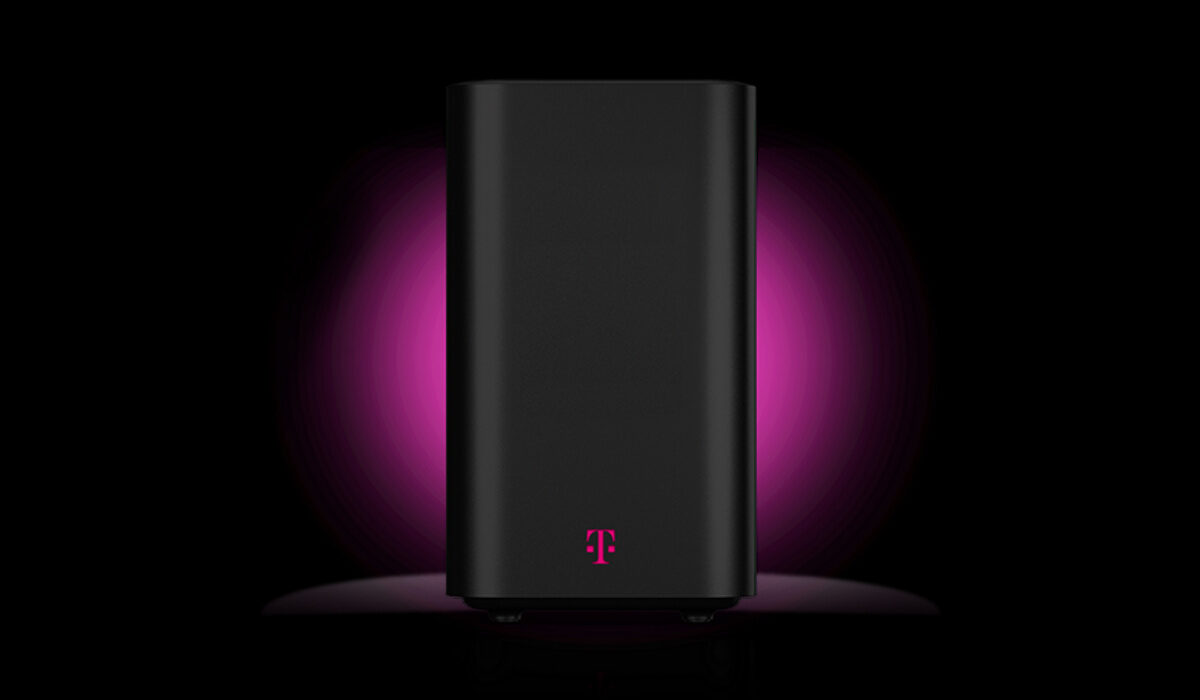
What service plans are available on T-Mobile Home Internet service? There is only one plan. Just one. It provides unlimited data for $50 monthly. That’s it. Is there a data cap? T-Mobile says there is none. So far, users have not reported hitting any either. But it isn’t the fastest service you can find: maximum speed is only 115 Mbps, whereas Verizon’s 5G home Internet service delivers up to 1 Gbps.
The Home Internet service can be managed via the portal on the T-Mobile website, as well as via mobile apps for iPhone/iPad and Android. The download links for the apps are provided in the section below.
- Frequently Asked Questions About T-Mobile Home Internet Is T-Mobile home Internet really unlimited? Does T-Mobile home internet slow down? How many devices can connect to T-Mobile home internet? Does weather affect T-Mobile Home Internet? How can I improve my T-Mobile internet speed? Does T-Mobile home internet have an external antenna? Can you add an antenna to T-Mobile Home internet? How do I access my T-Mobile Home Internet router? Where is T-Mobile Home Internet available? How do I download the T-Mobile 5G Internet app? How much does the T-Mobile Home Internet plan cost? Is T-Mobile home internet good for online gaming? Is T-Mobile 5G Home Internet good? How fast is T-Mobile Home Internet?
Is T-Mobile home Internet really unlimited?
As far as feedback from users is concerned, the service provides an unlimited amount of data.
Does T-Mobile home internet slow down?
As is common to all wireless connections, T-Mobile internet is subject to weather conditions and network congestion. If you exceed Fair Usage Policy threshold, your connection may also be throttled, though users say T-Mobile does not enforce any strict data caps.
How many devices can connect to T-Mobile home internet?
A whopping 64 devices can connect to the Gateway router/modem at the same time.
Does weather affect T-Mobile Home Internet?
Yes; weather conditions can affect the connection speed and stability of the Home Internet service.
How can I improve my T-Mobile internet speed?
One way to possibly improve signal strength and your connection speed is to change the Wi-Fi channel of your Gateway router/modem.
Does T-Mobile home internet have an external antenna?
T-Mobile says that the Wi-Fi Gateway router/modem doesn’t have any external antenna ports, but it is possible to access the internal ports and install adapters that allow you to connect antennas.
Can you add an antenna to T-Mobile Home internet?
T-Mobile says that the Wi-Fi Gateway router/modem doesn’t have any external antenna ports, but it is possible to access the internal ports and install adapters that allow you to connect antennas.
How do I access my T-Mobile Home Internet router?
As is standard practice with routers and mifi devices, you can access the admin backend of the Gateway router/modem by browsing to http://192.168.12.1.
Connect your laptop or smartphone to the Gateway WiFi, open a web browser, and visit http://192.168.12.1. You will need to provide your Gateway your username and password to gain access.
Where is T-Mobile Home Internet available?
It is reported as covering over 40 million homes in 40 different states. You can check if the service is available at your location by using the availability tool on the T-Mobile website.
How do I download the T-Mobile 5G Internet app?
How much does the T-Mobile Home Internet plan cost?
It is available for $50 monthly. There are no contracts that tie you down.
Is T-Mobile home internet good for online gaming?
Feedback from users is that the service works well for online gaming, because T-Mobile does not enforce any strict data caps.
Is T-Mobile 5G Home Internet good?
It isn’t as fast as some other Home Internet services, but it is affordable, has about the widest coverage, and generally offers reliable service for a comfortable monthly fee.
How fast is T-Mobile Home Internet?
The maximum speed you get is 115 Mbps.
- Don’t miss our reviews .
- Follow our news on Google News .
- Follow us on Instagram , Facebook , Twitter , and YouTube .
Author:InfoDesk
Add MobilityArena as a preferred source on Google
You were sending an iMessage or carrying out some other Internet-dependent activity on your iPhone, but find out that the message is not going through, or the other tasks are not working. Why is your cellular data not working ?
Your cellular data not working may happen for a few reasons. It may be a wrong setting on your device, a physical problem with your smartphone, a need for a software update, or a network fault from your carrier.
- How to fix iPhone and iPad Cellular Data not working 1. Check to make sure Airplane Mode isn’t enabled 2. Check Cellular Data Settings 3. Restart Your iPhone 4. Check For A Software Or Carrier Settings Update 5. Reset Network Settings 6. Factory Reset Your iPhone 7. Contact Your Wireless Carrier 8. Contact Apple Support
How to fix iPhone and iPad Cellular Data not working
Outlined below are the steps you need to take to fix the issue. Try one after the other, till the issue goes away.
1. Check to make sure Airplane Mode isn’t enabled
If you mistakenly toggled Airplane mode, then your iPhone cannot connect to the mobile network at all and cellular data cannot work. To check, look at your phone’s notification bar at the top of the screen: if Airplane mode is active, you will see an airplane icon in place of your network icon. To toggle it off, go to Settings . Then, select Network & Internet , and disable it.
2. Check Cellular Data Settings
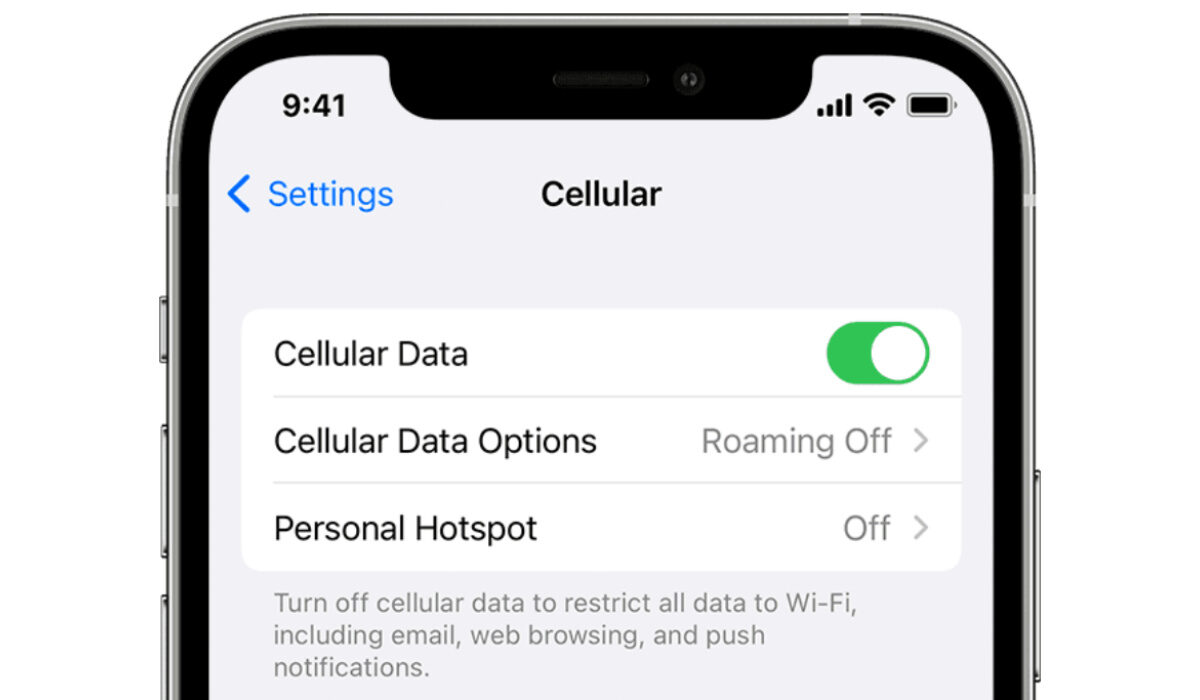
Another possibility is that you inadvertently turned off cellular data on your device. To check if this is the case, swipe down from the top right side of your phone’s screen. The antenna icon should be green when cellular data is on. If it is not green but greyed out, you need to turn it back on. Go to Settings > Cellular, and toggle the switch next to Cellular Data at the top of screen. Problem solved. If this isn’t the issue, let’s move on to the next fix below.
3. Restart Your iPhone
Sometimes, a restart serves as a refresher of electronic systems and fixes issues. It has been known to fix cellular data problems. So, let’s restart your iPhone at this point. Hold down either of the volume buttons and the side button, then on your screen, slide to power off. When your device powers back on, check to see if cellular data now works. If it does, congratulations.
4. Check For A Software Or Carrier Settings Update
A software update from Apple, or an update from your carrier, is sometimes made available to fix issues of this sort.
- To check for software updates for your iPhone or iPad, connect to a Wi-Fi network (your cellular/mobile data isn’t working; remember?) and then go to Settings > General > Software Update . Run any available updates.
- To check for carrier updates, again connect to a Wi-Fi network, and go to Settings > General > About : if a carrier update is available, you’ll see a pop-up that says “ Carrier Settings Update ”. Click Update to accept and run it.
After the update(s) have been downloaded and installed, and your iPhone restarts, turn off the Wi-Fi and then check to see if you are now able to use mobile data.
5. Reset Network Settings
Your Apple iPhone has the option to allow you to reset network settings. This is the next option to fix the cellular data not working issue. First, backup your settings: if you have iCloud backup active, a backup should exist already. Do check to make sure before you proceed. You can also manually store your settings for safekeeping.
To carry out a network settings reset, on your iPhone, go to Settings > General > Transfer or Reset iPhone > Reset > Reset Network Settings . Then, tap Reset Network Settings when the confirmation pop-up appears. Your phone’s network settings will be reset, and the device will restart, hopefully with the cellular data not working issue fixed.
6. Factory Reset Your iPhone
A factory reset will erase everything on your device – photos, contacts, settings, videos, and other files. You should make sure that you have a backup of the data on your iPhone, so you don’t lose any important information. Then, go to Settings > General > Reset , and tap Erase All Content and Settings . Your phone should restart as good as new.
7. Contact Your Wireless Carrier
If none of the above fixes have helped, there is a chance that the issue is from your wireless carrier – perhaps a network fault, or a maintenance issue. Call your carrier’s customer support to lay a complaint and see if they can fix the cellular data not working issue at their end.
8. Contact Apple Support
Finally, if you have gone through all the above steps and your iPhone’s cellular data is still not working, perhaps your device has a hardware fault. In which case, it is time to contact Apple Support for them to have a look at it. All the best.
