Add MobilityArena as a preferred source on Google
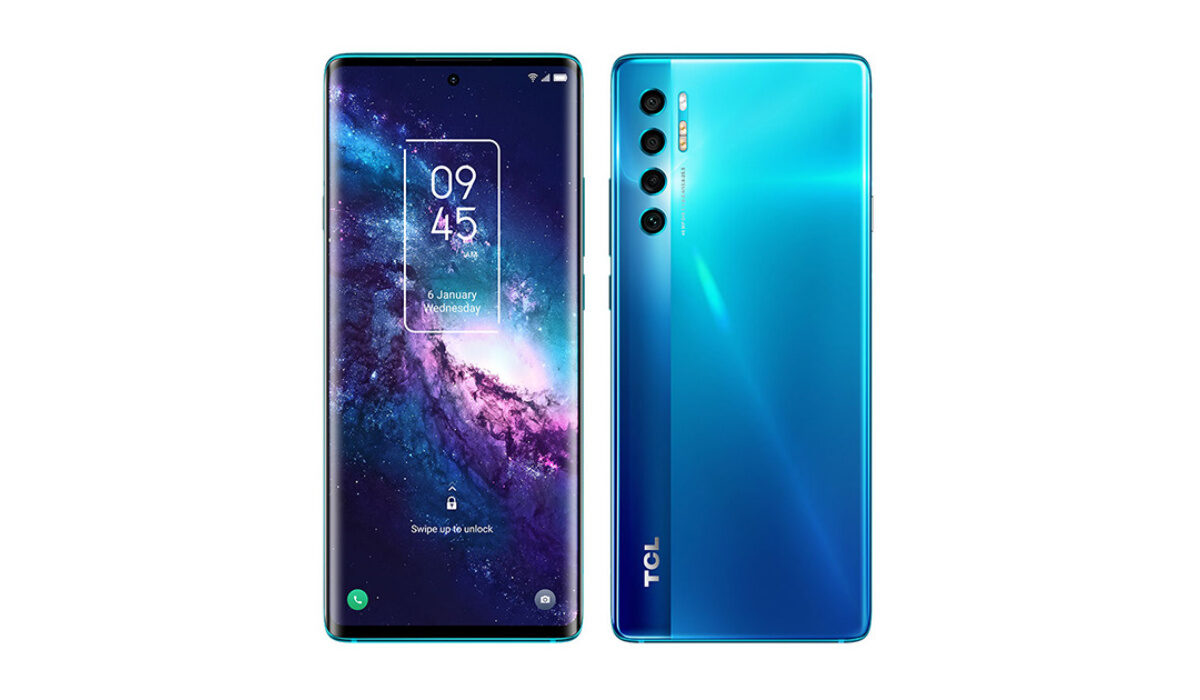
The TCL 20 Pro 5G is a mid-range smartphone that several users and non-users feel is a little overpriced for what it offers. It has some nice features that are usually only common with high-end smartphones and a slick design, but it comes with problems of its own. Let’s take a look at them.
TCL 20 Pro 5G problems: Notifications issue
One issue that has been quite common amongst users is a problem with the TCL 20 Pro 5G’s notifications. When some apps stop running in the foreground they will stop giving notifications. A temporary fix for this issue was to keep them running to bypass the problem but it doesn’t last. Users have tried tweaking their settings among other things to try to solve it but all were to no avail.
A way to solve this problem is to go into the phone’s app settings. Here you can change the notifications for every app. By default, it will be set to “Do not disturb”, you can customize it to make notifications available. If this doesn’t work, you can try a factory reset, although it also doesn’t guarantee that it will be any different.
TCL 20 Pro 5G problems: Google Assistant
There have been complaints about Google Assistant not working when the TCL 20 Pro 5G is turned off. This is a permission-related issue. To fix this problem, you need to go into the device’s app settings and grant background access to the Assistant. This will make sure your Google Assistant works when the phone is locked and on standby.
TCL 20 Pro 5G problems: Unresponsive touch screen
Having a smartphone that has some form of a problem when it comes to the screen being unresponsive to touch, can be downright annoying, to say the least. There are many causes of this problem but the most common reason is the device is physically damaged in one way or another. Another reason could also be the presence of some bugs or glitches that are caused by software updates. Here are a few ways to fix this problem on your TCL 20 Pro 5G.
Safe mode: Restarting your phone with safe mode usually returns your device to its original condition when it was first used. It is a feature that disables all third-party applications on your smartphone for a temporary period. To do this Press and hold the Power Button > Menu will pop up > Press and hold the Power off symbol for 3 to 4 seconds > You’ll see, “Reboot to safe mode” notification > Press Ok.
Restarting your phone : restarting your phone alone can help fix an unresponsive screen. It clears all processes running in the background and frees up the memory. It is one of the most common solutions to this problem, although it is also on the temporary side.
Side sensitivity: touching the screen sides of your TCL 20 Pro 5G, even slightly, will render the screen unresponsive. To solve this issue, go to Settings and disable Side sensitivity and it will be back to normal.
Factory reset: Doing a factory reset can also solve this problem. It will wipe all the data on your phone and make it seem like a new device. Although, there is no guarantee that it will solve the issue.
TCL 20 Pro 5G problems: Scrolling
The TCL 20 Pro 5G has a scrolling problem that a bunch of users have complained about. It is quite difficult to slide the settings bar down and even go back using the back button. Scrolling itself is quite choppy. If you are experiencing some of these issues it is probably because of your screen protector, if you have one. You can either change it or forget about screen protectors altogether and use your device without one.
If it is not the screen protector then it’s probably the system itself. Users have reported that there was an improvement after updating to Android 12. So if you have not updated your device yet, you probably should.
These are some of the most common TCL 20 Pro 5G problems that users experience. If you have any issues that were not mentioned, comment down below and we will get back to you.
Author:Flamez
Flamez loves basketball, art, gadgets and cars.
Add MobilityArena as a preferred source on Google
Monitoring phones used to be expensive and difficult to accomplish, but nowadays, it is easier and cheaper for any interested person to carry out. Which is why it is good to have an idea of what to look out for to know if your phone is being tracked.
This has made it much easier for malevolent individuals to trace your phone. Anyone can get access to different confidential details about you due to this, including the last time you used social media apps or your browsing history.
Now, if you’re like most people, we’re sure you don’t want your personal information to be used without your permission. This is why we’ve provided this guide, to show you ways to verify your suspicions when you suspect that someone is monitoring your phone against your consent.
Discovering Unwanted Apps on your Phone
If you suddenly discover certain apps on your phone that you did not download, there’s a chance that your phone has been tampered with. This unwelcome app may be an espionage program that is posing as another app.
If you discover any such apps, make sure to uninstall and delete them immediately from your device.
Faster Battery Drain
If you notice that the battery percentage on your cellphone is depleting more quickly than usual, there are two possibilities: it’s either your battery needs to be replaced or a secret spy program is monitoring your device’s data in the background.
It is possible that your phone is being tracked if it drains in a few hours despite having a battery health of 95 to 100 percent. However, if the battery health is at 80 percent or lower, it shouldn’t be shocking if it completely drains by the middle of the day.
The procedures for checking battery health are the same for both iPhones and some Android phones that have this functionality. However, it’s listed under Battery Usage on Android devices rather than Battery Health .
Remember that a rapidly depleting battery may not by itself be a significant indicator of the presence of spyware. That being said, there is a chance that you are being tracked if it also occurs in conjunction with the other indications we’ve described.
Strange Background Noises during Calls
Your phone may be tapped if you detect any differences in the content of your calls and discussions. If you also detect strange sounds during your calls, or see extra words or characters in your texts, or contacts showing up on your blacklist despite the absence of any action on your part to trigger this, these are all telltale signs.
You might also discover messages that were sent without your awareness because some spy software can also remotely transmit texts and chats from your phone.
Photos, recordings, and internet searches that you don’t recall performing are other warning flags to look out for.
Inexplicable Performance Deterioration
Mobile devices will inevitably slow down with time, especially if you don’t periodically remove unused apps, clear caches, and keep internal storage levels at a healthy level.
But if you consistently perform all of these things and still have unexpected lagging, touchscreen sluggishness, and prolonged boot-up and shutdown times, it can be because your phone is being tracked using unwanted spy software that is active in the background.
Spy software can consume a significant amount of your device’s processing power. It can cause your phone to overheat and rapidly deplete the battery in addition to leaving less processing capacity for other typical tasks, which leads to sluggish performance.
Unauthorized Activities
There’s probably an app operating in the background if your phone restarts unexpectedly, lights up even while not in use, and produces odd sounds or messages during calls or text messages are a few examples. Even the notification for the microphone or location could appear.
Some surveillance apps require a phone restart to install updates or implement setting changes. As a result, if your phone reboots on its own without being instructed to do so, it may be a clear indication that an app is starting the request in the background.
If your phone lights up even when you’re not using it, the same applies. This should only occur if your phone has sent you any notifications, such as calls, texts, or critical system alerts, that demand your immediate attention.
When you turn on your screen and discover that there is no justification for it to be lit up, spying activities may have been what caused the reaction.
Other ways by which you can tell if your phone is being monitored include:
- Abnormally increased data drainage
- Uncharacteristic overheating
- Noticing root permissions that you didn’t enable
What to Do if your Device is Being Tracked
If, at this point, you’ve confirmed that your device is being tracked via a combination of some or all the methods we’ve described above, there are some steps you can take to fix it:
- Reset your device: Your phone will be reset to factory settings if you perform a factory reset, commonly referred to as a master reset. It removes all of the old data, settings, and applications from the device. Therefore, you can remove the surveillance program as well.
- Update your gadget: You can do this after you’ve done a hard factory reset; you’ll be able to access any latest extra security features to secure your device from spyware
- Locate the spying application and remove it.
- Install a virus scanner: There are various trusted ones available online, install one as an extra protection for your device to detect
- Use a screen lock, password, PIN, or fingerprint to secure your phone.
Besides doing all these, it’ll also be beneficial to consult a trusted expert to find out ways to secure your device from further intrusions and monitoring.
Summarily , it’s never a good idea to leave your personal information susceptible to monitoring and privacy invasion. As such, you’ll benefit from the instructions we’ve provided in this guide if you think your device is being monitored.
If you’ve found this article helpful, don’t forget to recommend it to your friends and loved ones so that they can also benefit from it.
- Don’t miss our mobile phone reviews .
- Follow our news on Google News .
- Join our WhatsApp Group , to be notified of the most important articles and deals,
- Follow us on Instagram , Facebook , Twitter , and YouTube .
