Add MobilityArena as a preferred source on Google
It’s possible that you find reading news articles, blog posts, and books to be more enjoyable than listening to them get read aloud. However, there are still instances when listening to information you would normally read becomes important.
For instance, when cleaning, working, walking, driving, or engaging in other tasks that call for a little multitasking, it’s pretty easy to listen rather than actively read any bit of information. Doing this gets much easier with Apple’s text-to-speech service – called Speak Screen – which is available on your iPhone.
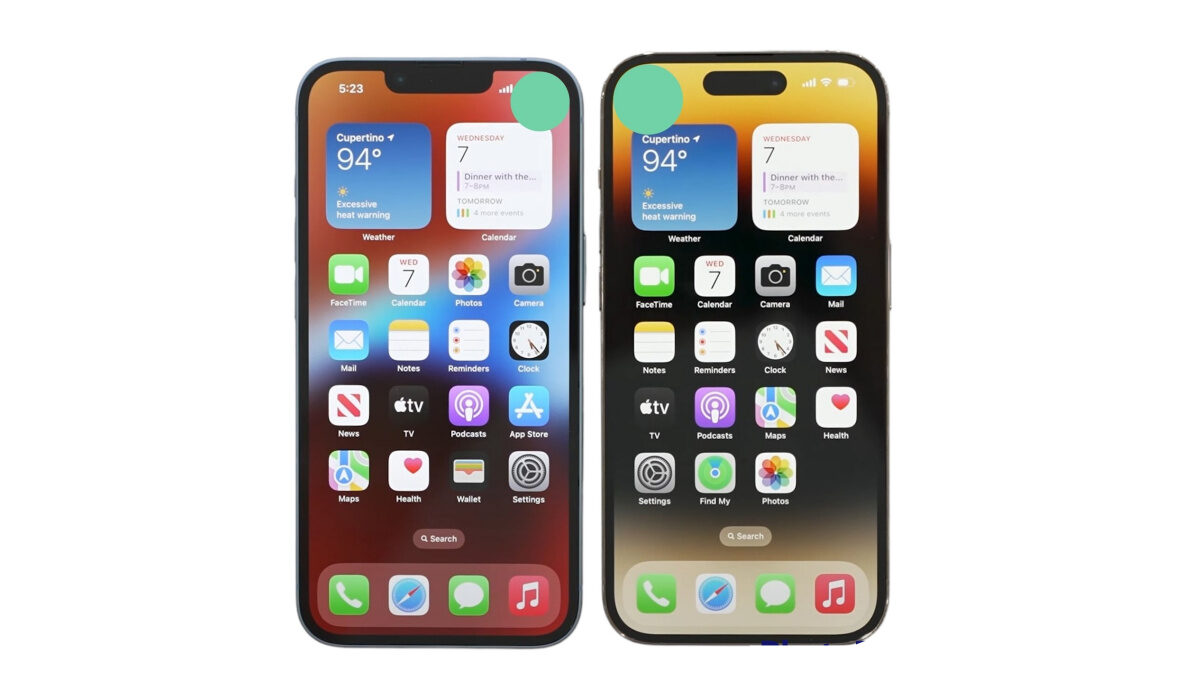
If you don’t know how to set up and use Apple’s text-to-speech feature, we’ll show you in this guide. Make sure to note every helpful tip we provide and follow instructions correctly.
What is Speak Screen?
The built-in accessibility feature Speak Screen, intended for people with vision impairment, can read on-screen material to you aloud. However, anyone with an iPhone is free to utilize them however they see fit, much like many other accessibility tools.
There’s also no need to spend a ton of money on audiobooks, as long as you already have the text-based version. This is because Speak Screen will let you automatically convert all of your e-books to audiobooks — easy and cost-free.
How Do I Use Speak Screen to Change Text-to-Speech?
The following steps will help you set up Speak Screen on your iPhone device, and use its text-to-speech conversion:
Step 1 : Visit the “Accessibility” menu in the Settings app. Toggle on “Speak Screen” after selecting “Spoken Content” in the Vision area. If you want to use the function right away, that is all you need to do for the time being.
Step 2 : To have your iPhone read you a book, PDF, or article, open it first. Then, swipe downwards with two fingers starting at the top of the screen. An alternative is to say “speak screen” to Siri or Hey Siri.
You can adjust the speaking pace, pause, resume, or stop the reading, as well as move ahead or backward, while Speak Screen is activated. Even better, you can activate “Speak on Touch” by clicking the finger button first, then clicking the text you want to hear. Usually, this will cause the program to begin reading at the start of the paragraph you touch.
If you don’t engage with the Speech Controller for a few seconds, it will automatically hide. The back button can be used to manually hide it as well. The Speech Controller will be removed and Speak Screen will be canceled.
Step 3 : If you’ve ever used the AssistiveTouch feature on an iPhone, you’re probably familiar with how the AssistiveTouch button always shows at the top of the screen, ready for use whenever you are. The button may be moved, and when not in use, its opacity can be set to a level that prevents you from being distracted from what you’re doing.
The AssistiveTouch button’s setup is the same for the Speech Controller. Toggle on “Show Controller” by going to Settings -> Accessibility -> Spoken Content -> Speech Controller .
Step 4 : Similar to AssistiveTouch, you can also click “Idle Opacity” and tweak the slider setting. However, the opacity only goes as low as 5% instead of AssistiveTouch’s lowest 15%.
Speech Controller only offers the double-tap and long-press gestures, whereas AssistiveTouch offers three gestures (single-tap and double-tap, as well as long-press) to expedite specific activities.
You can select the area of the screen where you want your iPhone to speak out loud by double-tapping the Speech Controller button, which activates Speak on Touch by default. All of the text on the screen will be read with a lengthy press. If you don’t like the triggers, you can switch them out or turn them off.
Step 5 : If you don’t like the talkback voice, you can change it. You can view a list of all the supported languages by selecting “Voices” under Settings -> Accessibility -> Spoken Content . Tap the language you want, then select the voice name for the relevant dialects to preview and/or download them. Each language has its unique set of accessible voices. After downloading, tap it once more to choose it and leave the menu.
Step 6 : Another option to activate through Settings -> Accessibility -> Spoken Content is the “Highlight Content” feature which — while using Speak on Touch — displays a brief border around the chosen piece. When speaking the entire screen, it will underline each word as it is uttered.
Once enabled, you can decide whether to underline just words, just sentences, or both words and sentences. You may also change the highlight style for sentences from underlining to background color and choose new colors for both words and sentences.
Counting English, Arabic, Bangla, Basque, Chinese, Catalan, Czech, Danish, Dutch, Finnish, French, Galician, German, Italian, Japanese, and many more, Spoken Content is available in more than 60 languages and regions as of iOS 16. So, feel free to customize the voice to your preferences.
Note that depending on which column the reader notices first, PDFs with columned text may occasionally be read out of order. When that occurs, try the Speak on Touch function.
To reduce the number of adverts, buttons, and other distractions that may be read aloud, enable ad blockers, reader views, and other reading tools that are available in apps and on websites.
In summary , you can enjoy all the information you would normally read in audio form by simply taking advantage of Apple’s text-to-speech feature. We’ve provided instructions for how to set it up in this guide, so make sure to follow them correctly.
Also, don’t forget to recommend this guide to anyone you think might be in need of it, you never know who you might be helping.
- Don’t miss our mobile phone reviews .
- Follow our news on Google News .
- Join our WhatsApp Group , to be notified of the most important articles and deals,
- Follow us on Instagram , Facebook , Twitter , and YouTube .
Author:Joan Agie
Add MobilityArena as a preferred source on Google
One of the most popular ways for singles to meet is through online and mobile dating. The majority of well-known dating sites are free, which makes it convenient, simple, and affordable for a variety of good reasons.
We’ve chosen our top online dating services from among the many that are offered. Here is a list of our best online dating apps and services, ranked according to their use, reputation, success rates, cost, and other attributes. Check them out.

Zoosk
Match
Since its debut in 1995, Match has become a well-known name in the dating world, and its app provides a similarly satisfying romantic experience. It has 3.2 stars out of 5 on iTunes and 4 stars out of 5 on Google Play. James Adkins, a satisfied user, described the app as “very versatile” and “easy to use.” You can use the app to view profiles, find matches, and flirt without having to provide any payment information.
Elite Singles
Eharmony
In spite of the fact that eharmony caters primarily to Christian-oriented, committed singles, you can still have fun while using it. Actually, the majority of the work you’ll have to do is complete the 29 Dimensions of Compatibility Questionnaire, after which you can relax and let the app take care of everything. If you’re unsure of how to start the conversation, you can also use eharmony Icebreakers, which is a fun image-based quiz.
ChristianMingle
OurTime
AfroIntroductions
For black and biracial people who are open to interracial dating, AfroIntroductions is a fantastic option. You should be able to register in a few minutes at most. The only information the app needs from you is some information about your personality, some photos, and your preferences regarding things like gender, sexual orientation, location, culture, background, ideology, race, and so on. AfroIntroductions is used by thousands of Black singles to focus their search for a hot date within the Black community.
- Tinder
Tinder revolutionized the dating industry with its GPS-based swipe and matchmaking process, and it is now responsible for billions of matches per day and millions of dates per week. The app has ratings of 4 stars and 3.9 stars on Google and iTunes, respectively, and is accessible in more than 190 countries.
The app has ratings of 4 stars and 3.9 stars on Google and iTunes, respectively, and is accessible in more than 190 countries. Consider this quote from Tinder: “The people we meet change our lives. Through the use of Tinder, users can establish new connections that were previously impossible.
- Bumble
Bumble was developed in order to enhance the experience women had with superficial dating apps- i.e., being bombarded with inappropriate messages and photos.
On this app, only female users can initiate conversation. Users have one day to send the initial message, and the recipient has one day to respond. The match disappears if that doesn’t take place. Bumble has 4.1 stars on the App Store and 3.5 stars on Google Play, proving how popular it is with singles.
- OkCupid
Since OkCupid has one of the most thorough matchmaking processes of any dating app, their matches frequently turn out to be perfect. You will provide the app with your answers to several questions about yourself and then specify how you would like potential partners and/or dates to respond to those questions.
In the end, you’ll assign a priority level to those responses (for example, very or somewhat). OkCupid has always been totally free, but if you’re interested, you can pay for some premium features like improving your profile’s visibility in search results.
- Don’t miss our mobile phone reviews .
- Follow our news on Google News .
- Join our WhatsApp Group , to be notified of the most important articles and deals,
- Follow us on Instagram , Facebook , Twitter , and YouTube .
