Add MobilityArena as a preferred source on Google
Perhaps like many other phone users, you have seen one or more messages about how the *#21# code is used to find out if someone is monitoring your cell phone. The claim is that when you type either of these two codes on your Samsung phone, other Android phone, or even an iPhone, if it displays that a list of features are enabled, that is proof that your phone has been tapped.
In some of these messages, users are told to discard their phones after this test returns positive. But is this claim true? I have been a mobile technology person since 2001 and I can tell you for certain that the claim is a hoax. Entering *#21# on your cell phone – any type – does not tell you whether your phone has been tapped or not.

*What is #21# used for?
What the *#21# code does on your phone
The question on your mind now must be, “What does the *#21# code do?” That specific code tells you if you have call forwarding enabled on your line. That is it. Call forwarding is a standard cell phone technology that diverts your calls to another number when your phone number is unreachable or unavailable.
For example, one popular use of call forwarding is to divert work calls to another number while you are on vacation, so another member of the team can attend to customers and service providers who need to reach the business. Call forwarding is a useful business feature.
As already mentioned, entering *#21# only shows which call forwarding types are active on your line. It does not reveal whether or not your cellular or mobile number has been tapped.
When I entered *#21# on my iPhone
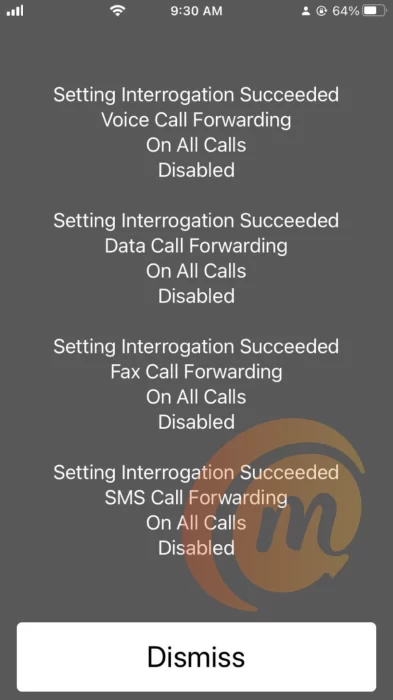
As a way of demonstrating this, I entered the *#21# code on my iPhone and the got the following results listed on the screen:
- Setting Interrogation Succeeded: Voice Call Forwarding On All Calls Disabled
- Setting Interrogation Succeeded: Data Call Forwarding On All Calls Disabled
- Setting Interrogation Succeeded: Fax Call Forwarding On All Calls Disabled
- Setting Interrogation Succeeded: SMS Call Forwarding On All Calls Disabled
The above results tell me that my voice calls, data calls, fax calls, and SMS text messages are not being forwarded. All my calls come directly to my line. Here is the screenshot:
What is the meaning of the ##21# code?
When you dial ##21# on your phone, what it does is erase all your call forwarding. If you have been looking for a way to disable or wipe out any existing call forwarding on your line, this is the code to dial.
How to disable call forwarding on your phone
If you dial *#21# and find that call forwarding is enabled in some way, there is no need to fret or worry. Most likely, you turned it on inadvertently. All you have to do is turn it off now, should you not need it. You can disable call forwarding by dialling ##21# or ##002# on your phone. Please do not dispose of your phone because a hoax says to.
- How To Use The *43# Code To Manage Call Waiting
- Understanding the ##4636## Code for Phone Diagnostics
Author:Mister Mobility
Digital Skills and Communication Coach | Mobile Phone Connoisseur since 2001 | Tech Blogging since 2004
Add MobilityArena as a preferred source on Google
This article will show you how to delete cookies on Android in different browsers. How many times have you entered a website and seen the prompt “Accept cookies”? They’re not the fun yummy kind, in case you were not sure, and your phone stores them over time.
Truly, cookies can be useful to remember your preferences and provide you with a personalized experience. But they can also take up storage space and even compromise privacy and security. So, by the end of this guide, you’ll be able to protect your personal information and keep your device running smoothly.
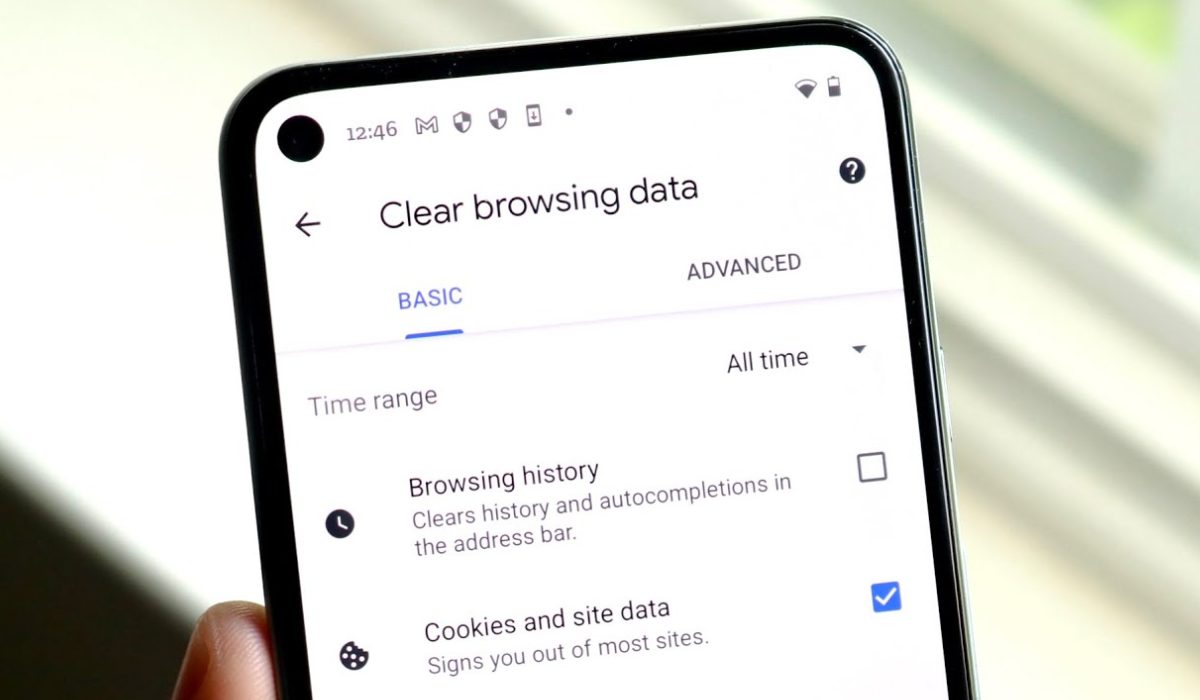
How Can You Delete Cookies on an Android Phone?
Cookies are little text files saved on your device by websites to improve your browsing experience. Under normal circumstances, Android devices shouldn’t be at risk from cookies. However, cookies from untrusted sources or websites that are not encrypted can cause your device to slow down or expose your personal data.
You can resolve these issues by deleting cookies from the most popular Android browser you use. So here’s how to remove cookies from Android on Vivaldi, Opera, Firefox, Chrome, and Samsung Internet.
How to Delete Cookies on Android from Vivaldi
The steps below can be used to clear cookies on Android in a Vivaldi browser:
- In the URL bar, tap the Vivaldi icon.
- Select Settings .
- Choose Security and privacy .
- Then select Clear browsing data .
- Check the box next to Cookies and site data .
- Click on Clear data .
How to Delete Cookies on Android in Opera

The steps below will show you how to remove cookies from Android in Opera:
- Click the profile icon at the bottom right of the screen in Opera.
- In the tab that opens at the bottom, tap the settings cog .
- Click Privacy .
- Choose Clear data and then check the box next to Cookies and site data .
- At the bottom right of the screen, select Clear Data .
How to Clear Cookies on Android in Firefox
Follow these simple steps to delete cookies in Firefox for Android:
- Tap the three-dot menu button in Firefox’s bottom right corner.
- Select Settings .
- Choose Delete browsing data .
- Next to Cookies , choose the checkbox.
- Press Delete browsing data .
How to Delete Cookies on Android Phone in Chrome
Follow these instructions to delete cookies from the Google Chrome app for Android:
- Tap the three-dot menu icon in Chrome’s top-right corner.
- Select Settings .
- Choose Privacy and Security .
- Select Clear browsing data .
- Select the checkbox next to Cookies and site data .
- At the bottom right of the screen, tap Clear data .
How to Delete Cookies for Specific Websites in Chrome on Android
You may notice that certain websites cause problems on your phone from time to time. In this case, there’s no need to remove all cookies in such instances. You can just delete cookies from these websites causing you difficulties.
- Launch Chrome and navigate to the website that is creating the problems.
- Launch the three-dot menu and select the ( i ) icon.
- Select Cookies and site data , then click the Trash button.
- To delete cookies for this website, click the Delete button.
How to Clear Cookies on Samsung Internet

You’re probably using the built-in Samsung web browser if you own a high-end Samsung smartphone. Here’s how to remove cookies from your Android smartphone through the Samsung Internet browser.
- Open the Samsung Internet browser and select the menu option in the lower-right corners.
- Go to Settings and select Personal browsing data .
- Select Cookies and site data from the Delete browsing data menu.
- Click on the Delete data button and confirm.
To conclude, I hope this guide on how to delete cookies on your Android phone was helpful! By clearing your cookies, you can protect your privacy and security while also freeing up storage space and improving your device’s performance.
However, you must keep in mind that removing cookies will log you out of all of your online accounts on that browser and will also erase all saved login information and website preferences.
After deleting cookies, you’ll also have to manually sign in back into your accounts on various websites and set your preferences. If you need other useful Android tips, check out this category .
