Add MobilityArena as a preferred source on Google
Key takeaway : Dialling *#62# on your Android phone or iPhone does not tell you whether or not your device has been hacked. It only lets you know if you have call forwarding active on your line. For more details, read on.
When it comes to smartphone usage, there are different aspects that several users may find quite confusing. A key example is certain short codes and how they work to perform different functions on our devices. One of them is *#62#.
We have observed questions on online forums depicting similar confusion about the *#62# code and what it does. Not to worry though, if you don’t know what this code is, this guide is for you. Here, we’ll describe everything there is to know about the *#62# code and what it does.
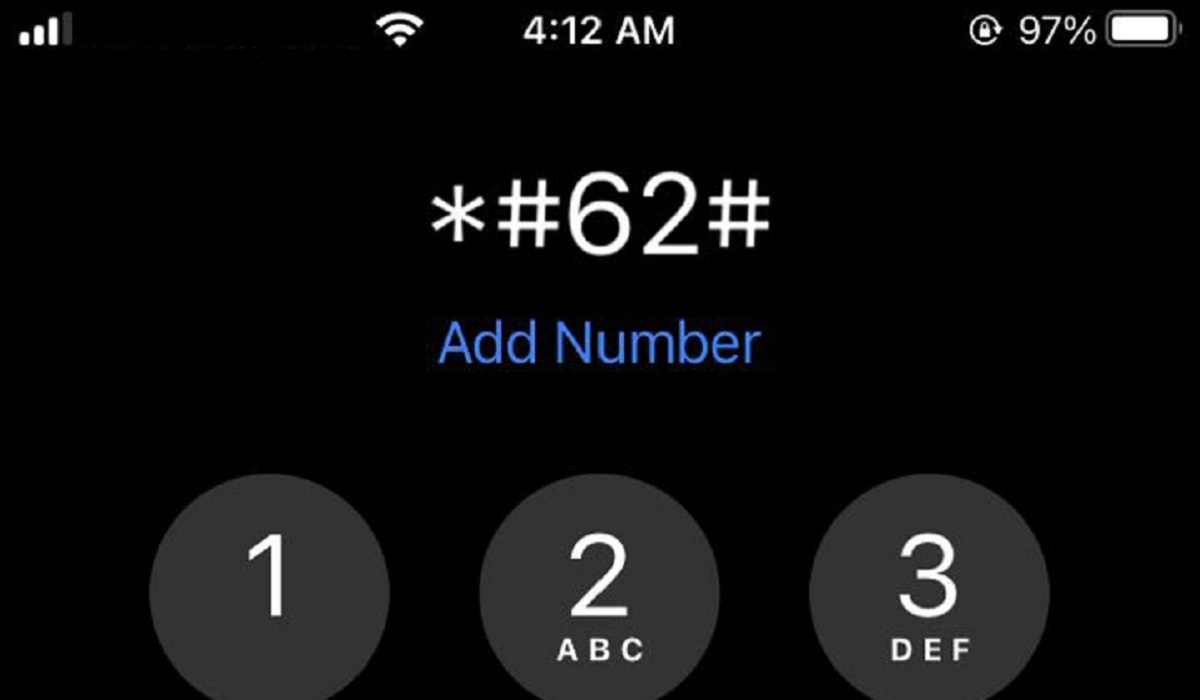
*What is #62# used for?
What is the *#62# Code?
Different people have made different assumptions and conclusions as to what this code does. However, *#62# is a USSD shortcode that lets you know if your calls and messages are being forwarded to another number without your knowledge.
What happens when you dial the *#62# code?
After dialling *#62#, your phone will display a list of forwarding statuses, including voice call forwarding when unreachable, SMS call forwarding when unreachable, among others. The status for each of them is either Enabled or Disabled. If your calls are forwarded without your knowledge, there is a chance that your line has been tapped.
There’s a certain possibility about this code that is worth keeping in mind. In some cases, your calls being redirected in this manner could be a sign that your phone is being tapped. Privacy experts sometimes recommend dialling the *#62# code to verify this.
So, dialing this code can help find out if your calls are being diverted. However, while this could be an indicator that your device has been tapped, it’s not always the case.
Some users have also reported seeing a 10-digit number after dialing the *#62# code. If you encounter this when you dial the *#62# code, the following scenarios could be at play:
At some point you can’t remember, you have personally directed your calls to a different number.
● You receive Missed Call Alert Services from your operator. In this instance, your operator will automatically route your calls to its server number when you can’t be reached, allowing it to record the caller’s phone number and send it to you through SMS later.
How Do I Prevent My Phone from Being Tapped?
If you dial the *#62# code and suspect that your calls are being diverted through no action on your part, there are several steps you can take to remedy the situation and prevent further tapping.
Get rid of suspicious apps
If the hacker has installed some form of app or software on your phone, there are a few ways to stop it from being tracked. You could manually remove any suspicious app from the Apps Manager in Settings if you notice one there that you don’t recall downloading.
Perform a factory reset
You can also do a factory reset or an OS update on your device. If there are no recent OS updates or if you can’t find the spy app, a factory reset is the best option.
Disable Bluetooth visibility and activate Airplane mode
Turning off Bluetooth visibility or briefly activating Airplane mode is something else to try. Your phone will become invisible to all other devices as a precaution.
Use your phone’s privacy settings
You can also use the additional operating system options on your smartphone. You should be able to turn off tracking for all apps on the majority of new Apple iPhone s (or individual apps). Similar functionality is provided by the Privacy Sandbox on Android, which stops monitoring behaviors from accumulating across apps.
Consult a professional
Of course, depending on the strategies being employed against you, these techniques might not be adequate.
If you have cause to believe that your phone is being tapped after dialing the *#62# shortcode, you might want to think about talking to a professional to check it out. They can accurately determine whether your phone is being tracked and act promptly to restore your privacy.
In summary , we hope you now have all your answers to what the *#62# code is used for. Also, take note of our helpful suggestions on what to do if you think your phone is being tapped.
Author:Joan Agie
Add MobilityArena as a preferred source on Google
Android phones are great, but they do not come without flaws. One common problem is that your Android screen goes black at random, and there could be several causes for this. Thankfully though, it’s easy to fix a black screen on Android devices.
In this article, we’ll go over all of the possible causes of the problem and then show you the easiest ways to fix a black screen on your Android device.
- Why Does my Phone’s Screen Go Black?
- How Can I Fix Black Screen on Android Phones?
Why Does my Phone’s Screen Go Black?
There are different causes of a blank phone screen, and the following are the most common:
● You’ve installed a malware that contains bugs and viruses or that is incompatible with your device
● Incompatible chargers causing insufficient charging
● The battery in your Android device is old
● Too many application caches, which could slow down Android running speed and cause the screen to go black
● Random crashes in the Android operating system
How Can I Fix Black Screen on Android Phones?
If there’s a black screen issue with your Android device, no need to fret. You can use some of the solutions listed below to fix your Android phone’s black screen.
Perform a Malware Check
When an Android device experiences the “black screen of death,” running a malware scan can help fix the black screen. Malware can cause a variety of issues on a device, including the screen going black and the device becoming unresponsive. The device may crash or freeze as a result of some malware, which can also prevent the device from properly booting up.
On an Android device, you can check for malware through different methods, including security apps made specifically to find and remove malware.
Update Bugged or Incompatible Apps
Updating the app to the most recent version can sometimes correct bugs and fix the black screen on Android. Updates are frequently released to address bugs and enhance the functionality of developer’s apps. Updating the apps can aid bug resolution and prevent or fix black screens.
If the black screen appears after installing a new app, uninstall it to see if it solves the problem. A new app may sometimes conflict with other apps or the phone’s operating system, resulting in a black screen.
Wipe Your Cache Partition’s Data
Another troubleshooting option to fix black screen on Android devices is to wipe the cache partition. Temporary files, including system files and app data, are kept on the device in the cache partition. These files can become corrupted or outdated over time, causing the device to malfunction. To clear the cache partition on an Android device, follow these steps:
● Turn the device off.
● The process varies among smartphones, so use the recovery mode shortcut that applies to your particular brand and model of phone. For instance, on some models, the process might require you to press and hold the Home button.
● Allow the Android system recovery screen to show up
● To select the Wipe Cache Partition option, press the power button after highlighting it with the Volume up or Volume down buttons.
● Highlight Yes and press the power button to confirm the action.
● Wait for the process to finish before selecting the Reboot System Now option and pressing the power button to restart the device.
Restore Your Device to Factory Settings
A factory reset restores the device to its default settings by erasing all user data, apps, and settings. Note that factory resets don’t always fix a black screen on Android. We only advise this method after exhausting all other options before sending your phone in for assessment.
Keep in mind that performing a factory reset will erase all personal data from the device; therefore, you should back up any crucial files before doing so to prevent data loss.
In conclusion , these suggestions will help you fix a black screen on an Android phone. Follow them correctly to get the best results.
