Add MobilityArena as a preferred source on Google
If you are shopping for affordable smartphones with good camera in the United States of America and Canada, we have just the list for you. Americans use the term “budget smartphone” to refer not to phones under US$200 or US$100, as used in some other regions of the world, especially in emerging markets.
When a US or Canadian resident says “budget phone”, they often use it to mean the sub-$400 price range. So, a smartphone that costs $250 is considered a budget device, though it is definitely expensive elsewhere. If you are a non-US, non-Canadian, and even non-European, resident reading this, you need to take this to heart.
This quick guide presents our editors’ selection of the most affordable smartphones with good camera – the best budget camera phones available in North American and European markets.
The Top 5 Affordable Smartphones With Good Camera
We are going to start this list with the most affordable of the best budget camera phones you can buy in the United States Of America. This list is also applicable in Canada, and to a large extent, countries in the European Union. All prices are in US dollars.
Google Pixel 3a
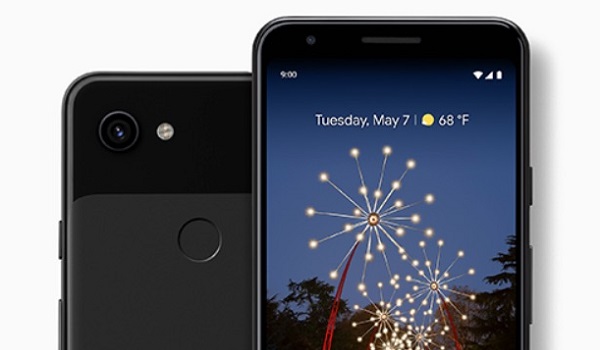
Google Pixel 3a is the most affordable of the best budget camera phones in North America and Europe
The Pixel 3a is the lower budget model of Google’s budget flagships, Pixel 3 and Pixel 3 XL. Coming in at about $250 now, it is the most pocket-friendly of the affordable smartphones with good camera available in mature markets worldwide. It is officially supported in those markets too.
Google Pixel 3a has a 12-megapixel single lens at the back and an 9-megapixel snapper in front. With a 5.6-inch display and a plastic body, it is lightweight and handy. It does have significant top and vottom bezels, giving it a mildly dated appearance. But it is the cheapest super camera phone you will find in the USA.
Google Pixel 3a XL
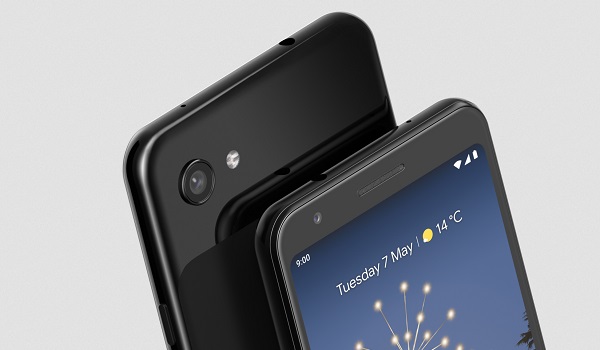
Pixel 3a XL is one of the best budget smartphones with good camera
Samsung Galaxy A71
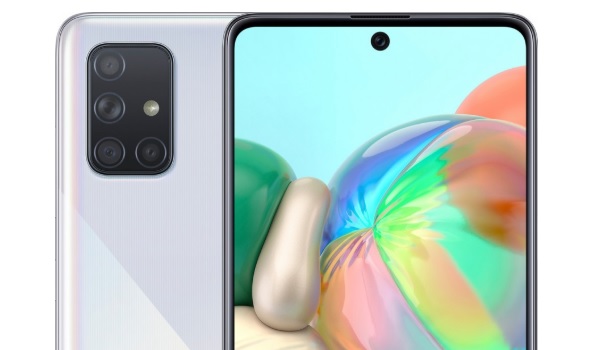
Samsung has a player in the game, and it is the Galaxy A71. It is packing a 64-megapixel rear camera. The other lenses include an 8-megapixel ultra-wide angle lens, a 2-megapixel macro lens, and a 2-megapixel depth lens. For selfies, there is a 32-megapixel lens in the punch hole.
It s interesting that Samsung’s A71 is the only budget camera phone on this list of affordable smartphones with good camera that has a multiple lens setup. All the others have single camera lens.
Samsung Galaxy A71 will set you back by US$350 only.
Google Pixel 4a
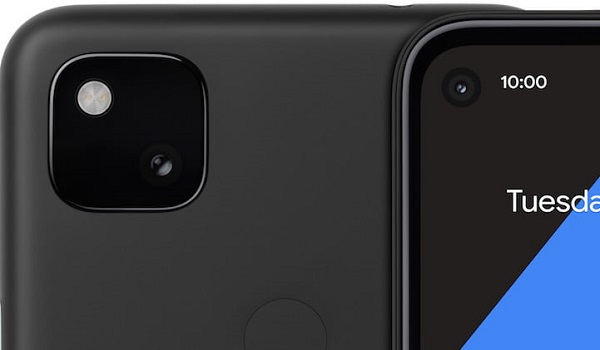
The Pixel 4a is the successor to the 3a, and it brings a more up-to-date design and apperance – minimal beels all round – and a punch hole selfie camera. The cameras are still specified the same as the 3a’s – a 12-megapixel snapper at the back and an 8-megapixel snapper in front. But they take better quality photos, so we think it is a worthy upgrade. Some disagree. But we shall leave that to you to sort out.
How much does the Google Pixel 4a cost unlocked? US$350 only. Not bad for a budget camera phone in its class.
iPhone SE 2020
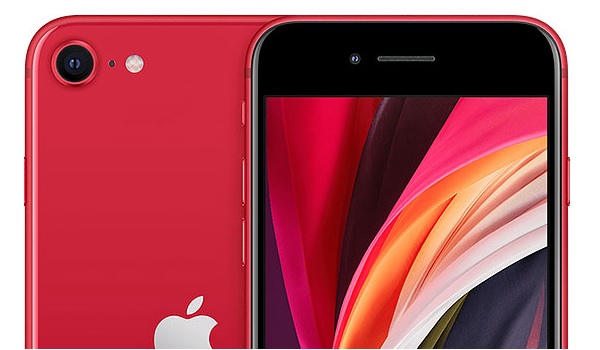
Apple iPhone SE 2020 is the most expensive of the affordable smartphones with good camera
The last and the most expensive of the affordable smartphones with good camera is Apple’s iPhone SE 2020 model. While the name suggests that it is a follow-up to the original iPhone SE, in terms of looks, it is a replica of the Phone 8.
The main camera of the iPhone SE 2020 is a single 12-megapixel lens, while the selfie camera has a 7-megapixel lens. And like the other smartphones listed on this page, it shoots great quality photos. How much does Apple iPhone SE 2020 cost? Just a little shy of the $400 mark. Just $399.
- Don’t miss our mobile phone reviews .
- Follow our news on Google News .
- Join our WhatsApp Group , to be notified of the most important articles and deals,
- Follow us on Instagram , Facebook , Twitter , and YouTube .
Author:InfoDesk
Add MobilityArena as a preferred source on Google
How did I come about writing an article on how to connect your wireless printer to your laptop and mobile phone? We have had a wireless printer lying around for many months without being put to use. Eventually a need arose and I had to set it up and put it to use.
Before then, we just never had any reason to use it. It is an HP Deskjet 2620 all-in-one printer. That means it prints, scans, and photocopies. For a long time, we didn’t have any reason to put it to use, so it just sat there in its box.
Eventually, when the need arose, I dragged it out for use. And that was when I found out that there was no printer cable included in the box, so the only option available to me was to use it wirelessly. What?! I had hoped that I’d be able to quickly get the document printed via a cable. But that was not to be. I had to set it up for wireless printing or go find somewhere to print the urgent document that I needed.
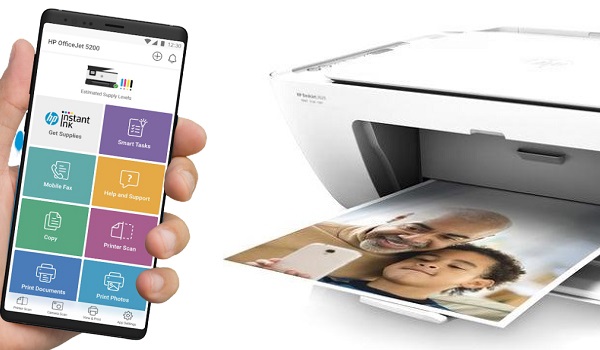
Connect your wireless printer to your laptop and phone with HP Smart app
Argh! Well, if you’ve got a task at hand, there is no point sitting down wishing you didn’t have it. Just get up and get it done. Which is what I did. I was able to connect the wireless printer to both my laptop and phone. And in sharing my experience, I also provide you with a guide on how to connect your wireless printer to your laptop and phone.
The steps presented below, obvously, are for connecting an HP wireless printer, but they can also serve as a guide for any other brand of wireless printer.
- How does a wireless printer work?
- How to connect your wireless printer to your laptop and phone
- How to print from your wireless printer from your phone
- How to print from your wireless printer from your laptop
How does a wireless printer work?
Instead of using a cable to connect to PC, laptop or smartphone, a wireless printer uses Wifi as the means of connecting. When powered on, it creates a wifi hotspot which you connect to with your PC, latop or cell phone.
How to connect your wireless printer to your laptop and phone
I plugged in the power cable and setup the physical aspects of the printer. Next, I clipped in the ink cartridges and pushed the power button to switch it on. I had printing paper ready. All I needed to do now was connect the printer to my laptop and smartphone.
I headed to Google Play Store and downloaded the HP Smart app and proceeded to make the connection. It was at that point that the app told me I needed to install another app, HP Print Service Plugin. This is supposedly the app that would let me connect my HP wireless printer to my laptop or smartphone.
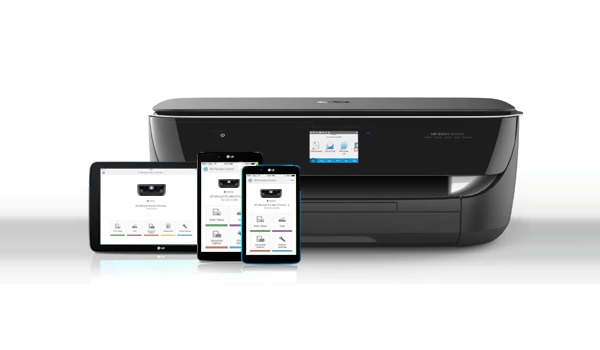
Errrr….so what was the HP Smart app for again? The Play Store info says you use the plugin to print, scan, share and manage your HP printer. This is a complicated relationship, clearly.
Anyway, you can download HP Smart app HERE , and the HP Print Service Plugin HERE . If you own a different brand of wireless printer, search the Play Store for their mobile printing app and install it. If you use an iPhone, the place to check is the App Store.
After I installed the plugin, my smartphone prompted me to connect to a Wifi network. Looking through the phone’s list of available Wifi networks, I spied one I had not seen before. It bore the printer’s model name. Apparently, the printer had created a wireless hotspot when I switched it on. I tapped it and my Android phone connected to it in a moment.
How to print from your wireless printer from your phone
- Make sure your wireless printer is on
- Turn on the Wifi on your phone and connect to the printer’s hotspot
- Open the document you want to print
- Tap the “ More ” icon and select “ Print “,
The document will be sent wirelessly to the printer and be printed out.
How to print from your wireless printer from your laptop
- Make sure your wireless printer is on
- Turn on the Wifi on your laptop and connect to the printer’s hotspot
- Open the document you want to print from your laptop
- Select “ Print ” from the menu and follow the prompts
The document will be sent wirelessly to the printer and be printed out.
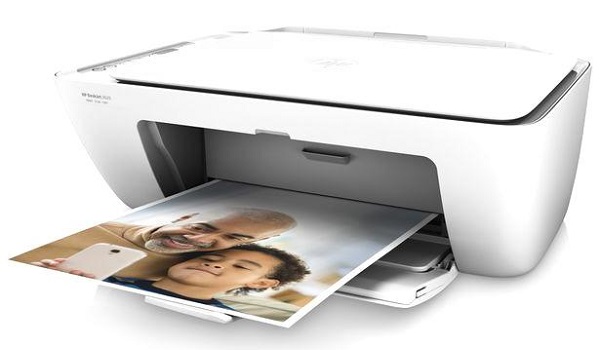
Note that the first time I tried to print a document, nothing happened; it didn’t go through. The HP Smart app then prompted me to print out and scan a Printer Alignment Page. If this happens to you the fist time, follow the app’s prompts to do this. Once you are done printing it and scanning it, the printer is ready for work and you may go ahead and print your documents.
The setup of a wireless printer can be a tad tasking, but with the above guide, you should suffer less from the process. I had no guide and had to find my way through on my own.
Author:Mister Mobility
Digital Skills and Communication Coach | Mobile Phone Connoisseur since 2001 | Tech Blogging since 2004
