Add MobilityArena as a preferred source on Google
If you’re like most Windows users, you’ve probably discovered that using the system search to look for a program, file, or folder takes longer than doing it manually. Despite the fact that Windows Search has always had a few cool tricks and hints, it has never been as advanced as the search capabilities of Mac or Linux. It is so poor that the best desktop search tools for Windows 10 PCs are 3rd party software.
Windows 10 has narrowed the gap in many respects, but it’s still quite slow and unreliable. This is why we’ve created this guide since you’ll be better off using one of the free third-party Windows search tools we’ve recommended as alternatives.
What are the best desktop search tools for Windows 10 computers?
7 Best Desktop Search Tools For Windows 10 Computers
Everything
Even if Windows 10’s Enhanced Search Mode is always reliable, third-party programs are still necessary. Everything is often regarded as being among the fastest Windows search tools. It’s quite easy to use: just install it, launch the software, and wait a little while for it to index your overall system (it can index a new Windows install in under one minute).
After completing that, you’ll only need to start typing anything into the text area to start seeing results right away. It will also always be instantaneous if you let Everything keep track of system changes in the background.
The best part is that it is small, using less than 5MB of RAM and 1MB of disk space. It’s definitely the most ideal option available for sluggish and older computers.
Listary
Listary’s design is really simple, and until you need it, it stays totally out of the way. You only need to start typing when you need to search, t That’s how simple it is.
Additionally, while you type, Listary will display a real-time list of all the files on your system that fit the query. Listary is also capable of carrying out tasks like Copy Folder Path and Open Folder. It even allows you to rapidly navigate to another folder by simply inputting its name.
Listary Pro, which costs $20, might be necessary if you’d like to enjoy some of its better features. You still get a great deal of flexibility and versatility with Listary Free, though, so it just might be good enough for you.
SearchMyFiles
At first sight, SearchMyFiles can appear ancient, but it’s surprisingly adaptable. Using filters and wildcards, you will be able to construct complicated search queries once you get beyond the small learning curve.
For instance, it lets you search all recently produced files that are between 300 and 600 bytes in size and contain the word error. You can also transport the application on a USB stick because it is small, portable, and doesn’t need to be installed.
Exselo Desktop
Exselo Desktop is a great free search tool for Windows 10, although it’s not as widely known as some other alternatives. It connects with Outlook, offers a straightforward user interface, supports robust search searches, and securely exchanges data.
Exselo is able to search network and cloud repositories in addition to local disks. The Free edition is feature complete, which is the best part. Support for numerous users is the only distinction between its Free and Enterprise options.
Registry Finder
The free program Registry Finder makes it easy to navigate through the registry. This tool is useful when you want to see all recent modifications made because it can search keys based on when they were last edited (such as for troubleshooting).
Despite Windows 10’s enhanced search capabilities, its registry is still very rudimentary and needs a lot of work. Finding keys can therefore be slow and laborious, whether you want to fix registry mistakes or make a few usability modifications. For this reason, Registry Finder excels among other options.
Launchy
A clever program called Launchy is designed to take the place of the Start Menu, Taskbar, and File Explorer, as well as desktop shortcuts. If you’ve used a Mac before, you might recognize a similarity between Launchy and Spotlight. Launchy indexes your entire system and enables you to quickly start files, apps, folders, and bookmarks.
Most people believe that Launchy can only start apps, however, if you enable the feature, it can also search files and folders. Start Launchy by pressing Alt + Space , selecting the gear symbol in the upper right corner, selecting the Catalog tab, selecting File Types on the right panel, and then clicking “+” to add additional file types and directories to the search.
Wise JetSearch
For Windows 10, Wise JetSearch is another great free search tool. It is capable of searching all important file kinds from local storage and removable media, including music, photos, documents, and videos.
Wise JetSearch is capable of searching all partitions and hard drives, including detachable and secondary disks. It is compatible with many drive types, including NTFS, FAT, and exFAT. Using a Wise JetSearch is a good substitute for the built-in Windows Search tool thanks to features such as Quick Search and Preview Pane.
In summary , the third-party programs we’ve described above are alternatives to laborious and time-consuming searches for files on Windows 10 devices. These desktop search tools for Windows 10 are head-and-shoulder above the built-in search. Feel free to try out any one of them and locate files much faster on your PC.
We’d also encourage you to share or recommend this guide to other Windows 10 users you know because they’ll benefit a lot from it.
- Don’t miss our mobile phone reviews .
- Follow our news on Google News .
- Join our WhatsApp Group , to be notified of the most important articles and deals,
- Follow us on Instagram , Facebook , Twitter , and YouTube .
Author:Joan Agie
Add MobilityArena as a preferred source on Google
If you’re an iPhone user, you probably perform some of the same actions on your device every day. Most daily tasks that require more than a few clicks can be turned into clever automations using iPhone shortcuts. Automating tasks this way can help you do more of other things and spend less time using your iPhone.
If you’d like to find out how to use shortcuts to automate iPhone tasks for your daily schedule, this guide is for you. We’ve described some of the best iPhone shortcuts to this effect, that will help you spend less time on the typical things you do on your iPhone every day.
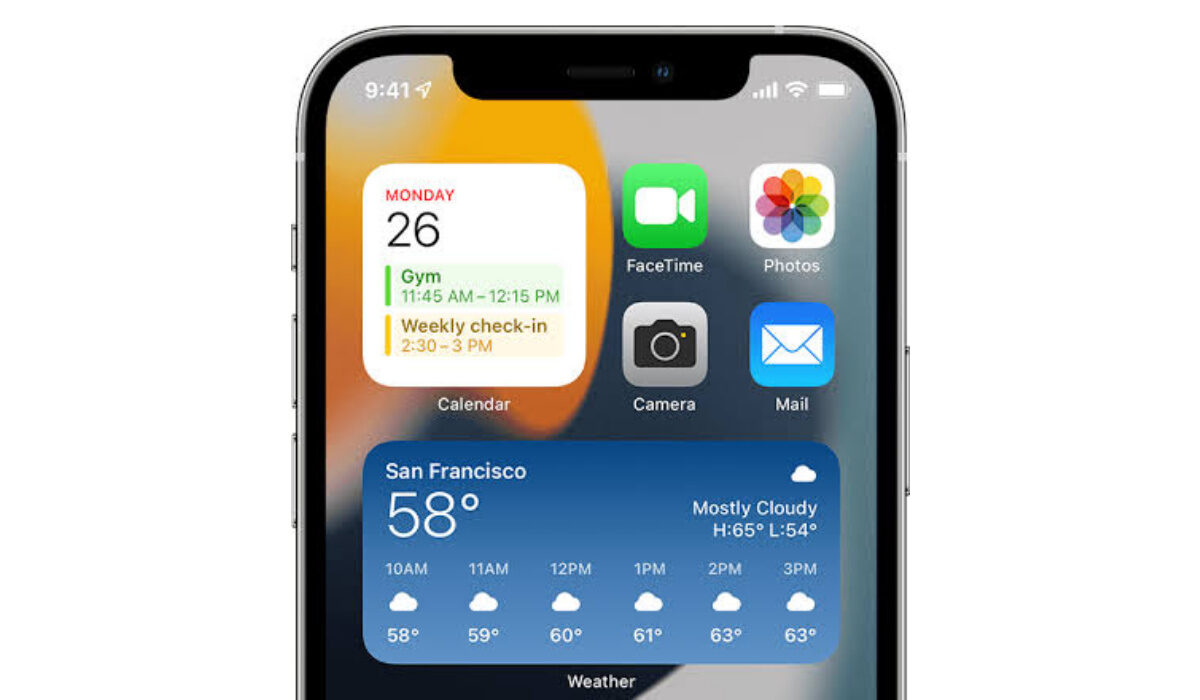
You can use the best shortcuts to automate iPhone tasks and boost your productivity
- What is the iPhone Shortcuts App?
- Automate iPhone tasks With The Best iPhone Shortcuts
What is the iPhone Shortcuts App?
With Apple’s automation program, Shortcuts, you can create shortcuts on your iPhone and create intricate workflows (actions that take place automatically once the shortcut triggers). Simply put, Shortcuts are a way to automate iPhone tasks. Four distinct methods can be used to launch a shortcut: directly from the Shortcuts app, through the Shortcuts widget, by using a personalized Siri phrase, or from the Share sheet.
For instance, you could make a shortcut that plays your preferred playlist while putting your iPhone on Do Not Disturb. To enable that shortcut when you get into your car, just say to Siri, “Let’s drive.” Alternatively, you can activate it by tapping the Let’s drive shortcut in the Shortcuts widget. In both instances, you were able to complete the task without using the Control Center or the Music app.
You can also import preexisting shortcuts using the Shortcuts app. The best iPhone shortcuts, thankfully, are shared by a community of like-minded users. Simply download and import any of your preferred iPhone automations listed below into the Shortcuts app.
Automate iPhone tasks With The Best iPhone Shortcuts
There are several task options that you can automate on your iPhone. We’ve described some of the most popular iPhone shortcuts below and how to use them to automate iPhone tasks:
- Create Multiple Alarms
Making a shortcut that sets many alarms at once makes sense if you require several alarms to wake up every day. When you use the Multiple Alarms shortcut, the “Toggle Alarm” action will first enable an existing alarm before performing the “Create Alarm” action. You can adjust the times after downloading the Multiple Alarms shortcut to suit your needs.
- Play a Playlist
You probably have playlists prepared for various tasks, such as driving, exercising, taking a shower, or simply unwinding. The Play Playlist shortcut is a basic yet cool iPhone automation that you can find directly in the Shortcuts Library. Simply choose a playlist from the ones offered and begin listening to your songs. Edit the shortcut by tapping it, then hit the arrow next to the Play Playlist action to bring up the options to choose Repeat or Shuffle. If necessary, you can add a Siri command to activate it verbally. If you are a lover of music, this is one of the best iPhone shortcuts around.
- Disable Wi-Fi Completely
Wi-Fi doesn’t switch off completely when you disable it from the Control Center. It restarts automatically at 5:00 AM the following morning, which can be annoying. With this iPhone shortcut , Wi-Fi is totally turned off in the settings, ensuring that you’re disconnected and not interrupted by incoming messages when you’re attempting to concentrate at work or go to sleep.
- Send a Predetermined Message
You may use the Messages app to send a prepared message to one or more contacts by employing the Send Message function in Shortcuts. Add recipients and text after adding the Send Message action. To turn this into a background process, turn off the “Show When Run” toggle. This iPhone shortcut can save you a considerable amount of time if you frequently send the same text message to the same people. To use this shortcut without ever touching your iPhone, add a Siri command.
- Add Song to Playlist
It typically takes a lot of tapping to add a great song to one of your favorite playlists while you’re browsing Apple Music. But it can get simpler with an iPhone shortcut. Use this shortcut to add any song you fancy to the end of the selected playlist while the song is playing.
- Set a Timer
Doing everyday tasks like laundry, making coffee, baking, and more benefit from the use of timers. This timing shortcut , which you can activate through the Shortcuts widget or Siri, is useful if you frequently drink many cups of coffee, for instance.
Saying “French press” to Siri, for instance, could start a four-minute coffee timer that would allow you to run other errands while you wait.
- Setting up a Customized Do Not Disturb Mode
Usually, you can enable Do Not Disturb on your iPhone in several ways using iOS, including enabling it for an hour or throughout the day. However, if you wanted to set it for only 15 minutes or an hour and a half, instead of manually turning it off or going to the trouble of creating a Focus schedule, you can use this iPhone shortcut .
Start the shortcut, enter the appropriate number of minutes or hours, then Do Not Disturb will go into effect for the specified amount of time.
In summary , iPhone shortcuts can make your life considerably easier and give you more time to attend to other tasks. Pay attention to the instructions we’ve provided to set them up and you’re good to go.
- Don’t miss our mobile phone reviews .
- Follow our news on Google News .
- Follow us on Instagram , Facebook , Twitter , and YouTube .
