Add MobilityArena as a preferred source on Google
If you are hunting for an iPhone 12 case with card holder, it says that you are willing to make a good investment in securing your phone and convenience. There are different types of card holder cases, based on your preference e.g durability, style, simplicity and capacity. You need a case that can hold as many cards conveniently, while still maintaining style and durability. So, we hunted around to give you a few recommendations. Which is the best iPhone 12 case with card holder for you?
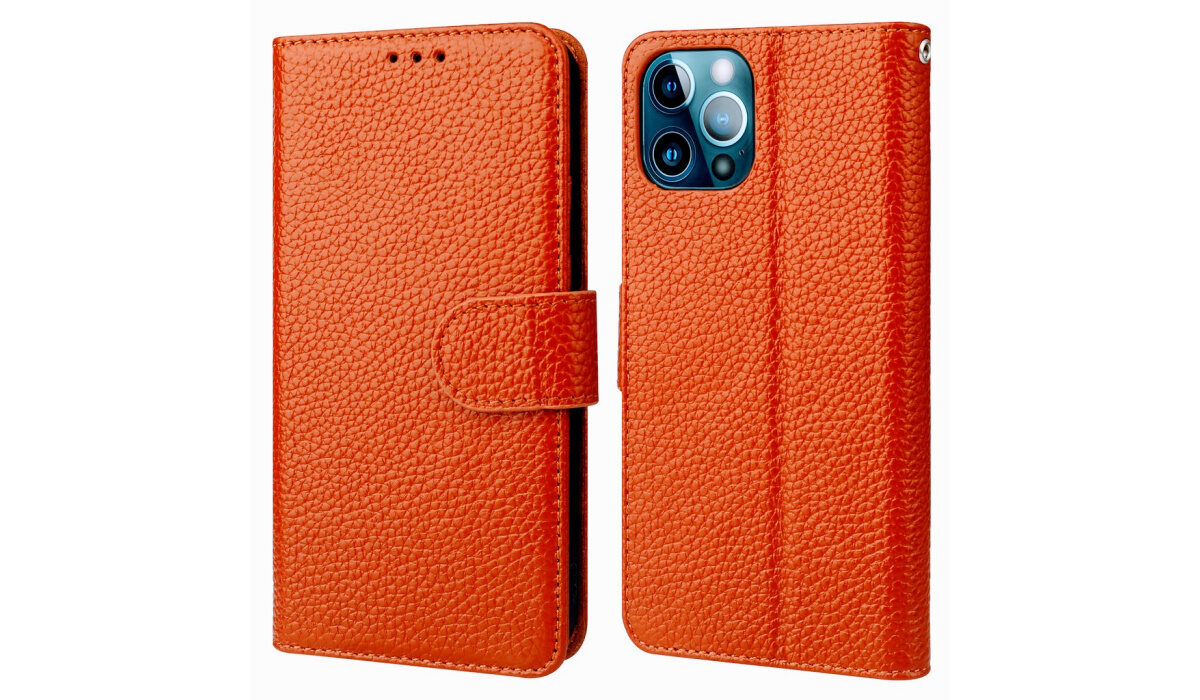
Onetop wallet case
- Onetop wallet case (the budget phone for you)
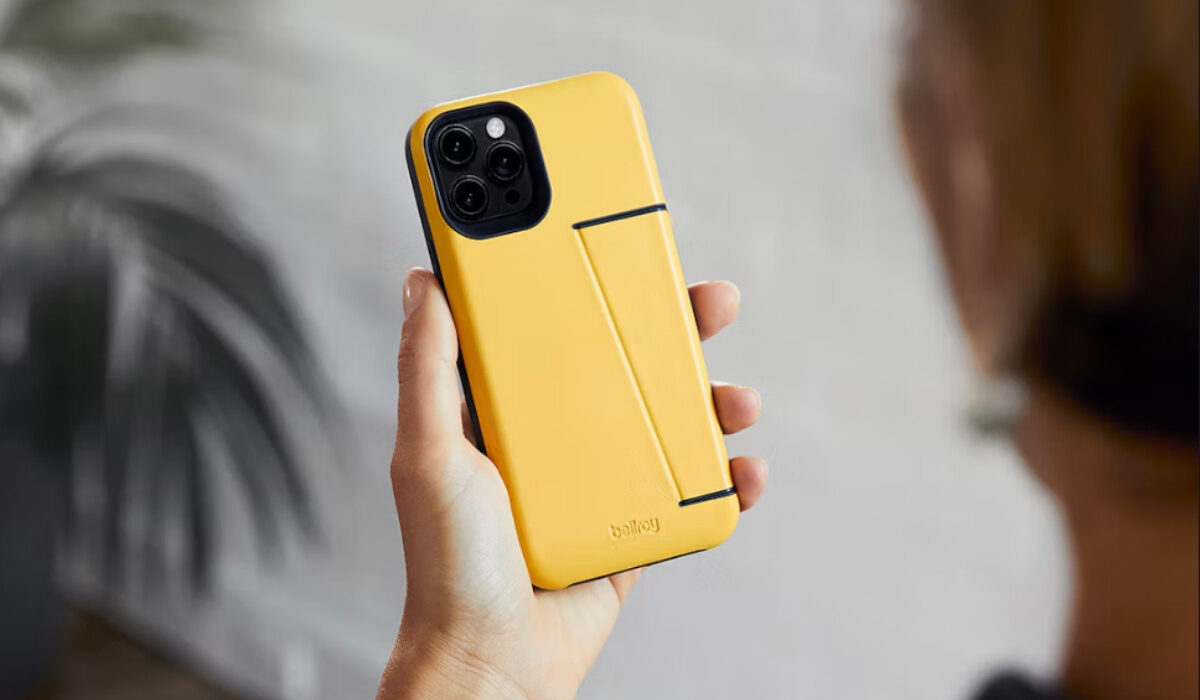
- Bellroy Wallet Case (the best hidden card holder case for your iPhone)
This minimalist case is made from premium leather and is eco-friendly. Another iPhone 12 case with card holder is the Bellroy wallet case. It has a card holder compartment at the back of the phone case which can hold 2 or 3 cards. That compartment is tucked into the side of the case which is not very noticeable. The Bellroy wallet case is one of the best iPhone 13 wallet cases with a card holder and is priced at $79 on Bellroy’s official site.
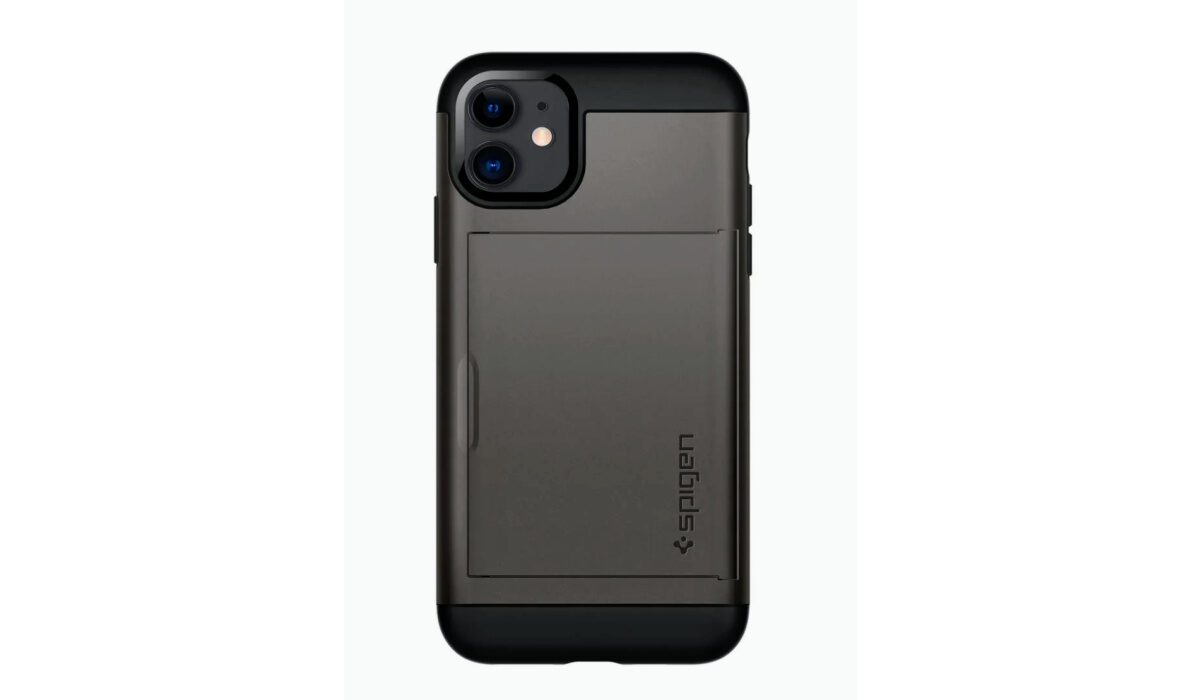
- Spigen Slim Armour ( the case with the best protection)
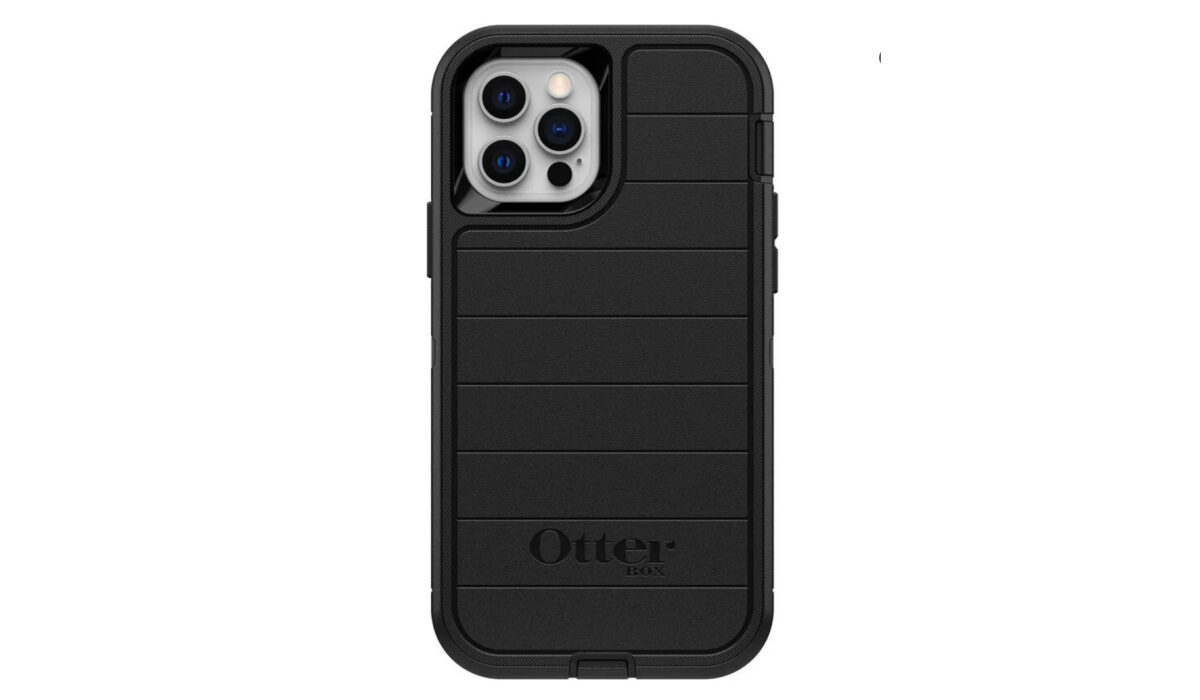
- OtterBox Premium Leather Case (a sturdy case with the best style)
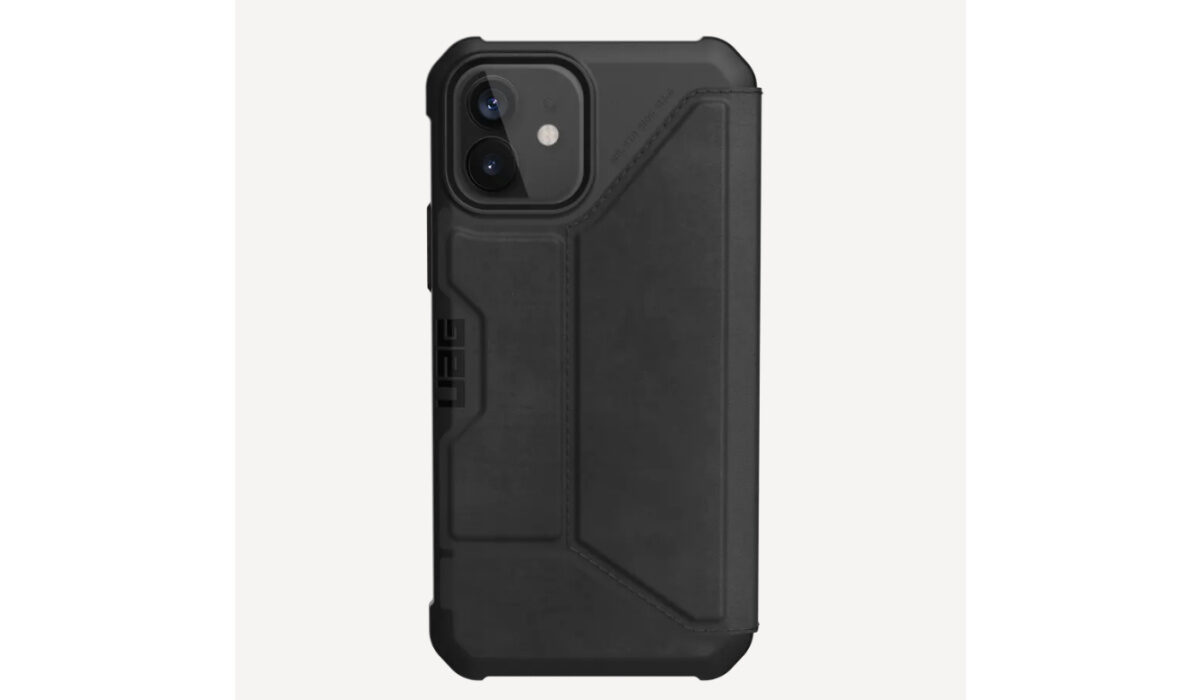
- URBAN ARMOUR GEAR UAG Case (the best shock protection case)
Which is the best iPhone 12 case with card holder?
These are the few recommendations we have given but there are still so many stylish, durable and protective cases with card holders out there. There are a lot of other cases like Nomad, Twelve South, Lucrin, Torro and many more. If you have no problem spending a little more on cases, the Nomad case or the Bellroy case is for you. If you want protection and style, the Spigen Slim Armor or the OtterBox case is a good investment. If you are on a budget, the Onetop case or the Spigen Slim Armor are good choices.
- Don’t miss our mobile phone reviews .
- Follow our news on Google News .
- Join our WhatsApp Group , to be notified of the most important articles and deals,
- Follow us on Instagram , Facebook , Twitter , and YouTube .
Author:Dun
Dun enjoys reading and writing, and is always on her smartphone. She currently uses a Google Pixel 3.
Add MobilityArena as a preferred source on Google
Not many people are aware of the fact that Google has access to a lot of information about their current and past whereabouts. This is particularly true for Android users because Google’s Timeline feature keeps track of every action you do, down to the minute it occurs.
The majority of Android device users inadvertently use this feature because Android phones tend to do so by default. However, there is a straightforward way to disable location services, make some changes to it, or delete it entirely depending on your preferences.
We’ve provided helpful instructions in this guide that will show you how to activate or disable location tracking on your Android smartphone. Feel free to follow these instructions if you’re unsure about the information you’re giving or simply want to remain anonymous.
Does Google Really Track My Location?
There are several ways by which Google functions on Android smartphones to keep track of its users’ locations. For instance, even though they function just fine without it, apps routinely ask for permission to access your location.
Your location services are used by many businesses, like Google, to give timely traffic occurrences and accurate weather forecasts. In other situations, apps could even ask for your location information just for market research.
Note that this is not necessarily a bad thing in itself, but sometimes, it just seems like too much and some people might get worried about how safe it is to have their location tracked all the time. If you also feel this way, pay attention to the instructions in the next sections to alter the location tracking settings on your Android smartphone.
Changing Location-tracking Access on your Android Phone or Tablet
Whether you prefer your location services to be enabled or disabled on your device, there is a way to get it done. The following instructions will help you change your location access on Android smartphones.
Enabling Location Services
Location Services are usually already enabled when your Android device is first set up. If, however, they’re turned off, you can enable them at a later time by carrying out the following actions:
- Open the Settings app on your device.
- The “Connections” or “Privacy” tabs should be selected at this point (the label will typically be different on different Android devices, for some devices you’ll need to just skip to the next step.)
- Click on “Location.”
- Toggle the switch to turn location ON .
Disabling Location Services
Due to the nature of Android versions and the range of interfaces that manufacturers layer over the software, the subsequent steps for disabling location tracking may vary depending on the smartphone you own. However, the process ought to be close enough to be followed.
- Open the Settings app on your device.
- The “Connections” or “Privacy” tabs should be chosen (the label is different on different devices, some devices just skip to the next step.)
- Choosing “Location.”
- Turn the switch from ON to OFF
Disabling Android Tracker for Specific Android Apps
You might not want to turn off location services if you frequently use Google Maps or another GPS-based app because doing so will make them less functional. Fortunately, it’s just as easy to disable a single app as it is to do it for all of them.
- Your location settings should have an App Permissions button, click on it.
- Pick the application you wish to prevent from seeing your location.
- Verify that the Deny option is activated. This will prevent the app from using your location services even if your location access is activated.
Turning Off Google Location Sharing
Google-specific location tracking will also typically be active in the background on any Android smartphone you own. You’ll also need to turn this off, so we’ve provided the instructions you’ll need to achieve this below:
- Open the Settings app on your device.
- The “Connections” or “Privacy” tabs should be selected here (the label will appear different on different Android device types, for some devices you’ll just need to skip to the next step.)
- Locate Emergency Location Service , Google Location History , Google Location Accuracy , Google Location Sharing , and Location in Search by selecting Location settings.
- If the service’s status is listed as ON , touch on it to toggle it OFF .
Summarily , whether you decide to allow Google to track your location or not, it’s all in your control. The instructions we’ve provided in this guide will help you achieve alter location-tracking services as you please, so that you can control how much your information can be accessed.
Make sure to recommend this article to others so they can also learn from it.
- Don’t miss our mobile phone reviews .
- Follow our news on Google News .
- Join our WhatsApp Group , to be notified of the most important articles and deals,
- Follow us on Instagram , Facebook , Twitter , and YouTube .
