Add MobilityArena as a preferred source on Google
After many months of spec leaks and renders, the Samsung S23 trio are finally official. The official announcement does not add much to the information we already have; it turned out that the leaks were mostly accurate. The question now is, which of the three is the best Samsung S23 model and which are you buying – Samsung S23 , S23 Plus , or S23 Ultra ?
While it is easy to thirst after the biggest of them, the Samsung S23 Ultra, things are not always that straightforward. It may not be the model that meets your needs the best. The three musketeers share a few common features – like the Qualcomm Snapdragon 8 Gen 2 chipset, IP68 dust and dust resistance rating, Dynamic AMOLED 2X, 120Hz, HDR10+ screen with Always-on display, Gorilla Glass Victus 2 protection, Armor aluminium frame with tougher drop and scratch resistance, 12 MP selfie camera, stereo speakers, under display, ultrasonic fingerprint reader, USB-C, OTG, Power Delivery 3.0 charging, and 4.5W reverse wireless charging. All of them also lack a 3.5mm audio port.
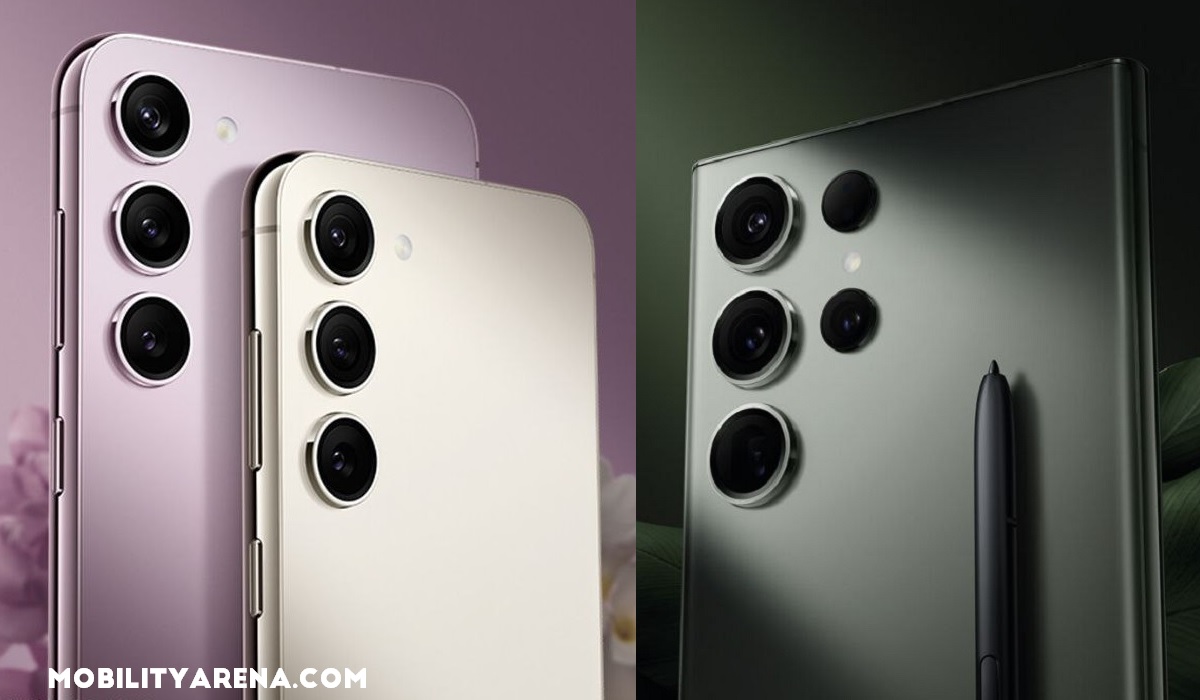
Which of the three is the best Samsung S23 model?
That is a handful of similarities, to be sure. To all intents and purposes, the Galaxy S23 series are triplets – identical in some ways and unidentical in others. For you to be able to decide which meets your needs, what you need to see are the differences. Luckily for you, I have been exploring those, too, and I share my findings in this comparison article.
The main differences between Samsung S23, S23 Plus, and S23 Ultra lie in the phone size, weight, screen size, battery capacity, rear camera, charging speed, memory configurations, and of course, prices. These are not a lot of differences, but they will be the factors that decide which Samsung S23 model you buy.
- Samsung S23 vs S23 Plus vs S23 Ultra Comparison
- Which is the best Samsung S23 model?
- My preferred Samsung S23 model
Samsung S23 vs S23 Plus vs S23 Ultra Comparison
| Samsung S23 | Samsung S23 Plus | Samsung S23 Ultra | |
|---|---|---|---|
| Screen Size | 6.1 inches | 6.6 inches | 6.8 inches |
| Phone Dimensions (mm) | 146.3 x 70.9 x 7.6 | 157.8 x 76.2 x 7.6 | 163.4 x 78.1 x 8.9 |
| Weight | 168g | 196g | 234g |
| Rear Camera | 50MP wide 10MP telephoto 12MP ultrawide | 50MP wide 10MP telephoto 12MP ultrawide | 200MP wide 10MP periscope 10MP telephoto 12 ultrawide |
| Battery | 3900mAh | 4700mAh | 5000mAh |
| Charging Speed | 25W | 45W | 45W |
| Memory Configurations | 8/128GB. 8/256GB. 8/512GB. | 8/256GB. 8/512GB. | 8/256GB. 12/256GB. 12/512GB. 12GB/1TB. |
| Stylus Support | No | No | Yes |
| Prices start from | $800 (USA) £849 (UK) €949 (EU) | $1000 (USA) £1049 (UK) €1199 (EU) | $1200 (USA) £1249 (UK) €1399 (EU) |
The above prices are for the smallest memory configuration of each model. You can check out the full prices for each model on these pages: Samsung Galaxy S23 , Samsung Galaxy S23 Plus , and Samsung Galaxy S23 Ultra .
Which is the best Samsung S23 model?
Having looked at the differences between the three different models, it is time to decide which Samsung S23 is the best. Overall, there is no question about it: the Ultra is the most capable of the lot. But is it the best for you? Is it the best for me? Let us explore a few different use cases.
If you want the best camera configuration of the three, the S23 Ultra has it. If you want stylus support , the S23 Ultra has it. But if, like me, you do not want a hunk, then you have to look away from the Ultra.
Lovers of compact smartphones will prefer the size and weight of the Samsung S23. It is compact and does not sacrifice raw power, since it uses the same processor. However, it has only the measly 25W charging speed, where the bigger two have the faster 45W charging. Sigh.
If you do not want a compact phone or a gargantuan one but prefer something in the middle , the S23 Plus is what you want. It offers a fair balance in terms of size and weight.
Lastly, and perhaps most importantly, your decision might boil down to price . If you want premium flagship performance and specs without breaking the bank, the vanilla Samsung S23 is what you will likely cast your vote for. One thing is sure: whichever one of these three you decide to buy, you will be getting top performance and specs from Samsung.
My preferred Samsung S23 model
My choice will be the vanilla S23. I love my phones compact and lightweight. I also do not believe in spending the most amount of money possible on a smartphone. The 25W charging speed is annoying, but I guess that is what I have to endure to have a phone that I find comfortable to use. Thankfully, it has a telephoto lens, though I am drooling over the periscope lens in the Samsung S23 Ultra. Oh, well. We love with our choices.
The question is, which is the best Samsung S23 model for you – the vanilla S23, S23 Plus, or S23 Ultra? Only you can decide that, and I shall leave it up to you. Happy shopping. Before you go, stop over to see my Samsung Galaxy S23 unboxing and first impressions .
Author:Mister Mobility
Digital Skills and Communication Coach | Mobile Phone Connoisseur since 2001 | Tech Blogging since 2004
Add MobilityArena as a preferred source on Google
Sometimes, you may find it hard to remember your Wi-Fi password when you need to provide someone with access to your home Wi-Fi. Thankfully, this may not always be necessary because there are simpler ways to share your Wi-Fi password on an Android phone.
The option to share your Wi-Fi network information with other devices is typically integrated into Android 10 devices and others that run newer versions. In this guide, we’ll show you the different options you have to easily share your Wi-Fi password on your Android.
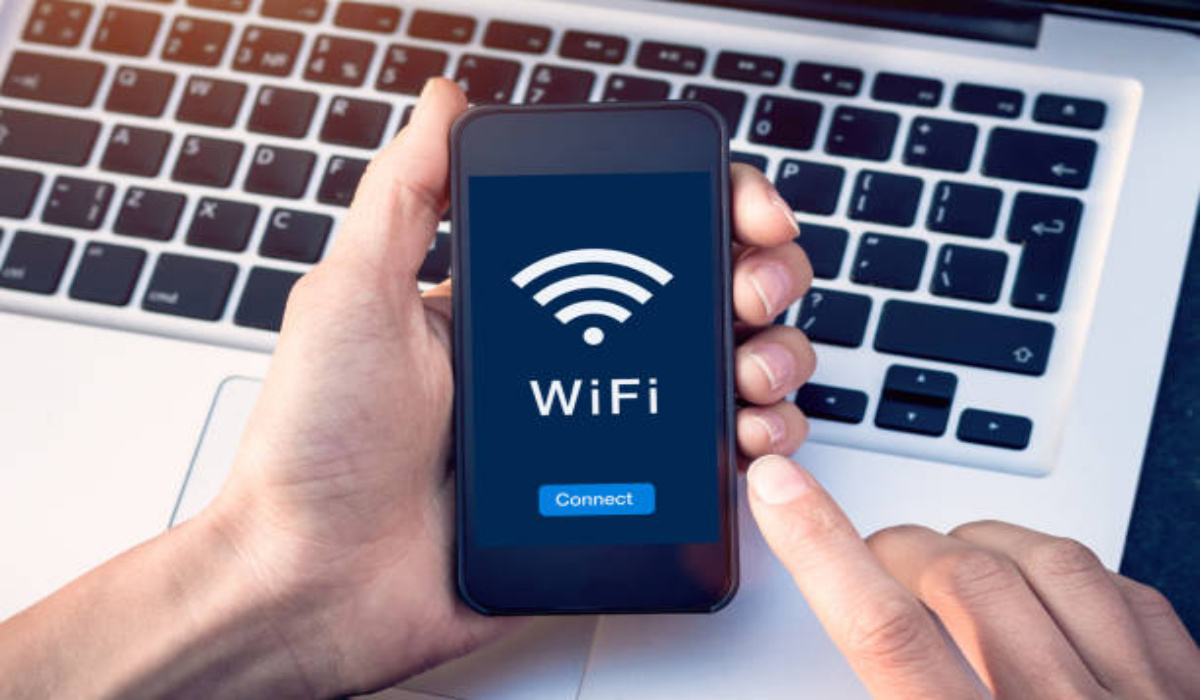
How Can I Share my Wi-Fi Password on Android?
There are two easy ways to share your Wi-Fi password on your Android device. Keep in mind though that some of the menu options may be somewhat different, but the methods we’ve described below should work on any Android smartphone even though they are specific for Samsung Galaxy devices.
Share Wi-Fi Password on Android with a QR Code
To share your Wi-Fi password on Android as well as other network information with other devices, you can create a QR code and avoid having to input the password.
Keep in mind though, that exchanging QR codes merely lets you share your password on Android without having to remember it, and it helps you avoid manually entering the information on another device. It does not conceal your password. Creating a network share QR code involves the following steps:
● Launch the App drawer , then select Settings . Alternatively, click on Settings after swiping down to reveal the Quick Settings window.
● To examine your connectivity options, click on Connection .
● Choose Wi-Fi .
● Verify that you are logged into the network you wish to share. Then click the gear icon next to the network name, which represents Settings .
● To make use of the share network feature, tap the QR code symbol.
● A QR code will show up on your screen. To display the QR code, enter your PIN when requested or verify with fingerprint scanning.
● There are several ways to share the QR code once it is ready. The built-in or external QR code reader on the visitor device can scan the code to display network information.
● Go to Settings > Connection > Wi-Fi on another device to use the built-in network scanner.
● To start the Scanner, tap the QR code icon in the top-right area.
● Scan the QR code for the network share, then wait for the device to recognize the network
Sharing a Wi-Fi password on Android is easy with this method. The network name and password will be included in the QR code’s network information. So, to connect your phone to the network without inputting network information, just click on the Connect option.
Take note that some older Android smartphones might not have a network QR code scanner built-in. Instead, you can do it by using a third-party program like QR & Barcode Scanner.
Share Wi-Fi Password on Android using Nearby Share
It’s also possible to share your Wi-Fi password on Android without scanning a QR code, you can simply use Nearby Share . This method does not require QR code scanning but it does need you to build a network share QR code.
The Android feature called Nearby Share enables wireless file and app sharing between devices. Also, it helps you exchange network information with nearby Android devices.
You’ll first need to enable and configure Nearby Share if you haven’t used it before. Below are the steps you need to follow:
● Tap Settings on your Android smartphone
● Click Google after you scroll down
● Click Devices & Sharing , then select Nearby Share
● Toggle the Use Nearby Share switch to the on position
● On your phone, enable Bluetooth and location
● Once finished, repeat the first method’s steps to produce a network share QR code.
● Select Nearby Share from the QR code screen, then hold your friends’ phones in close proximity to yours
● If necessary, click your friend’s phone name to accept the connection.
● After receiving the content, select Save network . The Android device will automatically save and establish a network connection.
● To close Nearby Share, tap Done .
In summary , either of the methods we’ve described above will help you successfully share your Wi-Fi password on Android. Ensure to follow the instructions correctly to get the right outcome.
- Don’t miss our mobile phone reviews .
- Follow us on Instagram , Facebook , Twitter , and YouTube .
