Add MobilityArena as a preferred source on Google
Apple’s AirPods Pro earbuds have been popular since coming out, and most people believe they are worthy competitors to other wireless headphones at comparable prices.
However, some AirPods Pro users have complained about disappointing bass, poor noise cancellation, or overall poor sound quality.
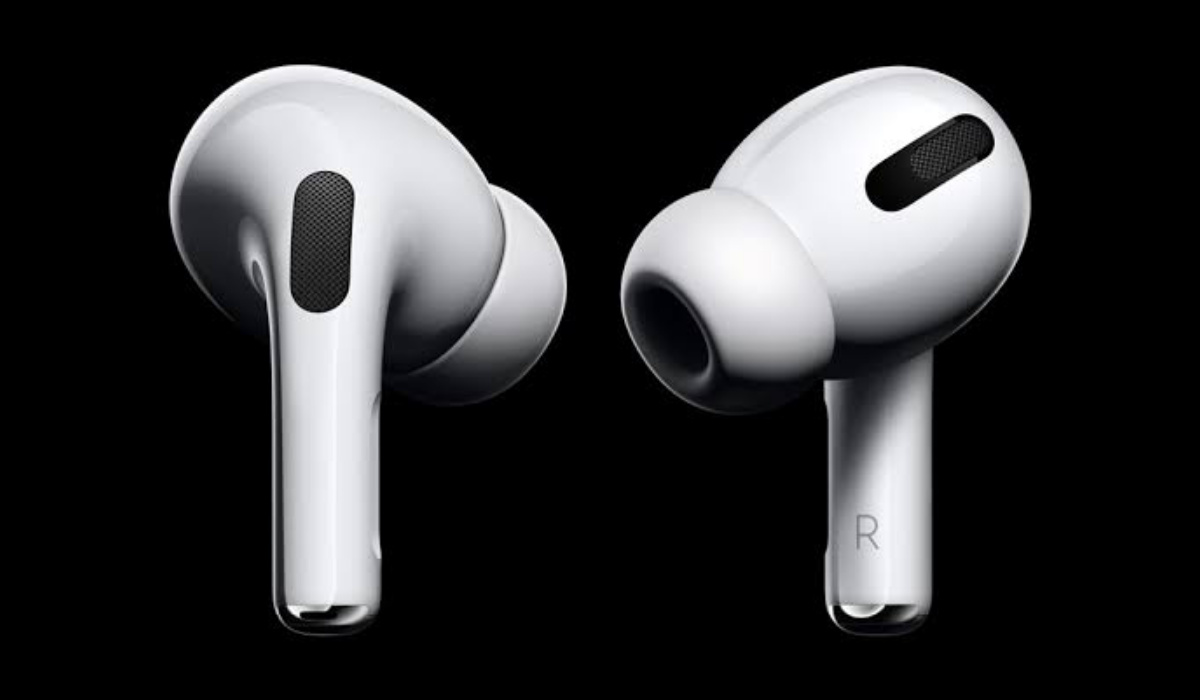
In this article, I will show you how to improve the sound quality of your AirPods Pro to get the most out of them. We’ll look at the best ways to improve the AirPods Pro’s bass, EQ, and some other important sound quality features.
How Can I Improve the Sound Quality of My AirPods Pro?
If you use AirPods Pro, you’ll know that the sound quality is noticeably better than standard AirPods. But did you know there are ways to improve the sound quality of your AirPods Pro even more? Follow these suggestions to get even better sound.
Update Your AirPods Pro
Our first tip to improve the sound quality of your AirPods Pro is verifying that they are updated. Apple issues firmware updates for the AirPods on a regular basis to tweak the equalizer and improve the sound quality.
Since the AirPods are set to update automatically in the background, you may not have noticed. You can, however, configure your AirPods to manually check for and install firmware updates.
Here’s how to update the firmware on your AirPods Pro:
● Ensure that your AirPods Pro are inside the charging case.
● Charge the case by plugging it in or wirelessly.
● Verify that your iPhone is connected to the internet.
● Maintain close proximity to your AirPods Pro or connect them to your iPhone.
Your AirPods Pro will automatically update, and the sound quality should improve depending on the update.
Perform the Ear Tip Fit Test
If your AirPods Pro still don’t sound right, it could be because the included ear tips are not properly sealing your ears. However, there’s an easy way to determine which size (small, medium, or large) is best for you.
On your devices, Apple includes a software-based Ear Tip Fit Test. This indicates which ear tip size best prevents sound from leaking into or out of your ears.
To locate the Ear Tip Fit Test and use it to improve the sound quality of your AirPods Pro, follow these steps:
● Connect your iPhone to your AirPods Pro.
● Go to Settings and then Bluetooth .
● Then, next to your AirPods Pro, press the i button.
● Scroll down to Ear Tip Fit Test and then follow the onscreen instructions.
● Try again with a different size ear tip if the first one doesn’t provide a good seal. Each ear may require a different size.
You will hear music playing during the test but this is part of the test to help determine what setting produces the best sound.
Change the EQ on Your AirPods Pro
Everyone has different ears, preferences, and levels of hearing loss. So what sounds great to someone else may sound horrible to you. As a result, Apple includes Headphone Accommodations , which allow you to customize the equalizer (EQ) on your AirPods Pro.
These settings are especially useful for people who have significant hearing loss, but they can also be useful for anyone looking for a good way to improve the sound quality of their AirPods Pro.
Here’s how to change EQ on an iPhone:
● Navigate to the Settings > Accessibility menu.
● Scroll to the bottom and select Audio/Visual .
● Enable the toggle at the top of the screen by tapping Headphone Accommodations .
● You can now select one of three presets that optimize the sound for Balanced Tone , Vocal Range , or Brightness .
This is an easy and effective way to improve the sound quality of your AirPods Pro. Alternatively, select Custom Audio Setup to run a quick hearing test and then adjust the EQ on your AirPods Pro based on the results. After finishing the test, select Audiogram from the EQ options.
Improve Sound Quality from your Streaming service
Did you know that your music streaming app may not be providing you with the best possible music quality? Fortunately, depending on which service you use, changing these settings is simple, so you can do that to improve the sound quality on your AirPods Pro.
We’ll cover how to do this in Spotify and Apple Music because those are the most popular music streaming apps.
Here’s how to improve Spotify Premium audio quality:
● Open Spotify and select the Settings option.
● Select Audio Quality .
● For each type of streaming and downloading, select High or Very High .
Choose your music quality in Apple Music by following these steps:
● Navigate to Settings > Music .
● Tap Audio Quality under Audio .
● Select High Quality from the Mobile Data Streaming menu. You can also activate Lossless Audio, but AirPods Pro don’t support it, so it won’t affect the sound quality when listening through them.
In conclusion , using the techniques we’ve listed above should help you adjust the right features to improve the sound quality of your AirPods Pro.
Author:Joan Agie
Add MobilityArena as a preferred source on Google
No one likes ad interruptions, but in today’s mobile gaming world, they’re a necessary evil. Ads help developers to offer their apps for free (or at least for a limited time) while still earning money for their efforts. You’re probably used to seeing ads because the vast majority of free Android and iPhone games and apps include them.

- How Do I Disable Ads in a Mobile Game?
- How to Disable Ads in Android Games
- How to Disable Ads in Mobile Games on iPhones or iPads
- How to Disable Ads in Mobile Games Using Third-Party Ad Blockers
How Do I Disable Ads in a Mobile Game?
There may not be much you can do to completely avoid ads in your preferred offline games, but there are certainly ways to disable ads in mobile games. This article provides recommendations below that apply to any Android smartphone or iPhone device.
How to Disable Ads in Android Games
You can disable ads in mobile games on an Android phone through numerous ways. Consider the following:
Disabling ads in mobile games can be this simple, but note that this method only works for some games because most of them require a constant internet connection to work.
● Use a VPN service: A VPN service reroutes your traffic and convinces a server that you are in another country. So if you choose a country where advertisers are less likely to target you, you can successfully disable ads in mobile games.
● Use a private DNS: This solution also works to disable ads in mobile games. First, find a reputable ad-blocking DNS server that you can rely on to intercept and filter your traffic. Then, in the Settings menu, choose Network & Internet or Wireless & Networks . Scroll down and tap Private DNS , then enter the DNS of your choice in the field Configure Private DNS .
● If offered, pay for a game or an ad-free subscription: This is the simplest and most legal method to disable ads in mobile games, but most games tend to overlook it. Even monthly payments to disable ads in mobile games do not appear to cover the revenue generated by showing said ads.
How to Disable Ads in Mobile Games on iPhones or iPads
Since iOS does not give its users the same level of freedom as Android, our recommendations for disabling ads in mobile games are significantly less for iPhone and iPad devices.
However, there are a few options that you can try.
● Switch off mobile data and WiFi.: This method of disabling ads in mobile games operates on the same principle as Android. In essence, no internet means no ads on your screen.
To begin, launch your favorite game and allow it to collect all updates. When it’s finished, go to your Control Center and turn off Wi-Fi and mobile data. Turn off the game, wait a few seconds, and then relaunch it.
● Disable internet access for a specific game: This method of disabling ads in mobile games allows you to stay online while preventing the game from connecting to the internet.
First, disable Wi-Fi. Now, navigate to Settings > Mobile Data . Scroll down and find a game or an app, and switch off the toggle next to it. Since this method only works with mobile data, you’ll need to disable Wi-Fi.
● In-app purchase to remove ads: Many games allow you to pay a few dollars to remove ads permanently. It’s worth the small fee to remove annoying ads from games you play frequently.
The cost of disabling ads in mobile games will seem even more reasonable when you consider the time you probably waste watching 15-second video ads and how you could use that time more effectively.
How to Disable Ads in Mobile Games Using Third-Party Ad Blockers
All you’d have to do is install AdLock on your Android or iOS device, turn it on, and go through a two-step setup process. AdLock will then remove ads from mobile games and applications.
● Navigate to Settings , then Safari .
● Click Extensions and enable all AdLock toggles.
● To enable ad-blocking, launch AdLock and toggle the Ad-free web browsing toggle. Wait a few minutes for AdLock to finish downloading all necessary filters.
● Select a plan by tapping the Premium toggle. You’ll get a 7-day trial
To set up AdLock for Android phones:
● Open AdLock, click the hamburger menu, then select Settings .
● In the next window, tap Check for Updates and then UPDATE .
In conclusion , in-game ads can be quite annoying; however, using the tips provided above, it is possible to effectively disable ads in mobile games.
