Add MobilityArena as a preferred source on Google
Nothing kills a user’s excitement faster than a setup freeze when setting up a new phone – an iPhone especially. That moment you are transferring data from your old device, only to find your iPhone stuck in an endless boot loop — a frustrating glitch that leaves many users scratching their heads. But don’t worry! I am here to break down why this happens and how to fix it so you can get back to enjoying your device. The iPhone 15 setup freeze can occur due to software glitches, incomplete data transfers, or connectivity issues during the initial setup process. If your device is unresponsive or keeps restarting, don’t panic—there are several troubleshooting steps to resolve it. From force restarting your iPhone to using recovery mode or updating iOS via iTunes, these solutions can help you bypass the iPhone 15 setup freeze and complete your setup smoothly. So, if you’re dealing with an iPhone 15 setup freeze, follow my step-by-step guide to fix the issue and start using your device without any hassle!

- What’s Causing the iPhone 15 Setup Freeze?
- How to Fix the Setup Freeze and Boot Loop Issue Force Restart Your iPhone Update Your iOS Use Recovery Mode (For Persistent Issues) Free Up Storage Space Disconnect Accessories Use Third-Party Tools for Advanced Fixes
- When These Fixes Come in Handy
- Conclusion
What’s Causing the iPhone 15 Setup Freeze?
This device is a powerhouse of innovation, but like any tech marvel, it’s not immune to hiccups. Here are the most common culprits behind the iPhone 15 setup freeze or boot loop issue:
- Data Transfer Bugs: A major cause of freezing occurs when transferring data from an older iPhone or Android device. Corrupted files or software mismatches can lead to system errors during setup.
- iOS Glitches: Outdated or buggy versions of iOS can cause instability during the setup process, especially if you’re restoring from a backup.
- Storage Overload: If your new iPhone is already packed with apps, photos, and other data during transfer, it might struggle to process everything at once.
- Hardware Accessories: Faulty Lightning cables or third-party accessories connected during setup can interfere with the process.
- Incompatible Apps: Apps that aren’t optimized for the latest iOS version can cause glitches during data migration.
How to Fix the Setup Freeze and Boot Loop Issue
Now that we know what’s causing the problem, let’s dive into some practical fixes. Follow these steps to get your iPhone 15 back on track:
Force Restart Your iPhone
When your iPhone is frozen or stuck in a boot loop, a force restart is often the quickest way to resolve it.
How To Do It:
- Press and release the Volume Up button.
- Press and release the Volume Down button.
- Press and hold the Side Button until the Apple logo appears.
This simple trick refreshes your system without erasing any data. Think of it as giving your phone a quick “nap” to reset its mood!
Update Your iOS

Apple frequently releases updates to fix bugs and improve system stability. If your setup freeze is caused by an outdated version of iOS, updating could solve the problem.
- Connect your iPhone to Wi-Fi.
- Go to Settings > General > Software Update.
- Download and install any available updates.
After updating, perform another force restart to ensure everything runs smoothly.
Use Recovery Mode (For Persistent Issues)
If a force restart doesn’t work, you might need to put your iPhone into Recovery Mode. This method reinstalls iOS but may erase some data if not backed up.
- Connect your iPhone to a computer using a Lightning cable.
- Open Finder (Mac) or iTunes (Windows).
- Force restart your phone (see Step #1) but keep holding the Side Button until you see the Recovery Mode screen.
- Choose “Update” in Finder/iTunes to reinstall iOS without deleting data.
Free Up Storage Space
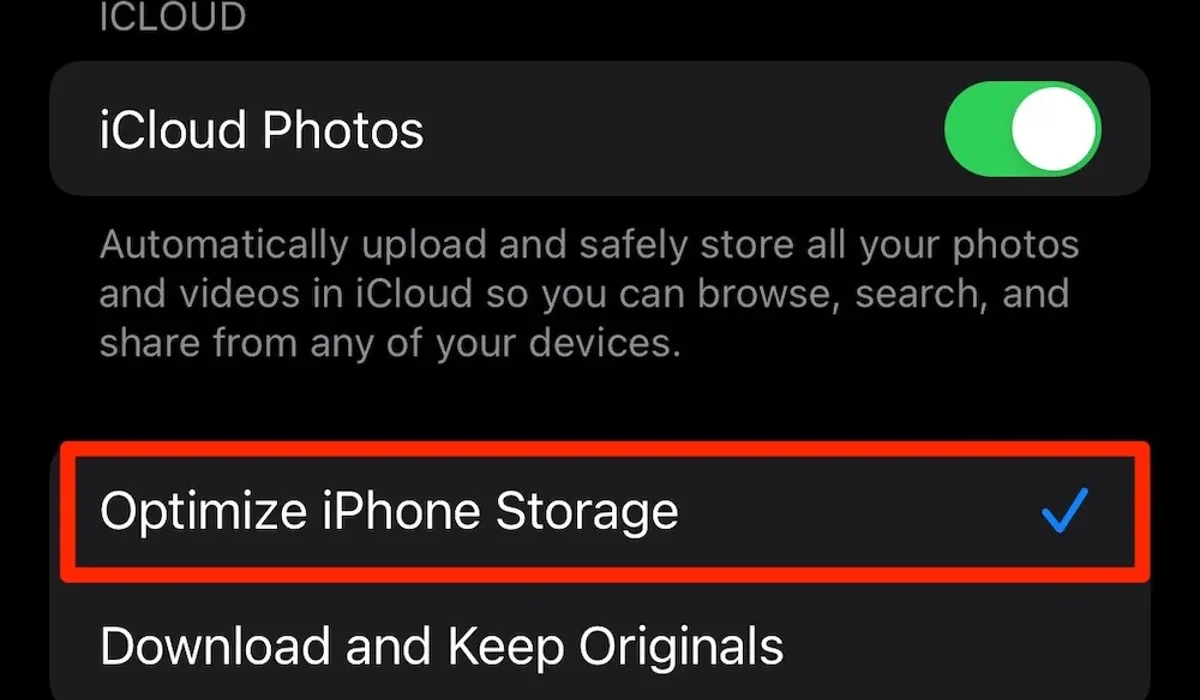
If storage overload is causing the iPhone 15 setup freeze, try clearing out unnecessary files or apps before transferring data.
On your old device:
- Delete unused apps.
- Back up photos and videos to cloud storage like iCloud or Google Photos.
This reduces the load on your new phone during migration.
Disconnect Accessories
Faulty Lightning cables or third-party chargers can interfere with setup. Unplug all accessories before restarting or transferring data.
Use Third-Party Tools for Advanced Fixes
If none of the above solutions work, tools like Tenorshare ReiBoot or UltFone System Repair can help resolve the iPhone 15 setup freeze without losing data.
- These tools guide you through downloading firmware and repairing system glitches step-by-step.
When These Fixes Come in Handy
- Switching from an Older Device: If you’re upgrading from an older model with years of accumulated data, these fixes ensure a smooth transition.
- Restoring from Backup: Avoid issues when restoring large backups by updating software and freeing up space beforehand.
- Frequent Travelers or Professionals: For those who rely on their phones for work or travel, knowing how to troubleshoot ensures minimal downtime.
Conclusion
The iPhone 15 is an incredible device, but even the best tech can run into a few hiccups. While dealing with an iPhone 15 setup freeze can be annoying, the good news is that most issues have simple fixes. With a little patience and the right troubleshooting steps, you’ll have your device up and running in no time. So, the next time you encounter the iPhone 15 setup freeze, don’t stress! Just follow these solutions, and you’ll be back to enjoying your new iPhone before you know it.
Author:Ifeoluwa Adeleke
Add MobilityArena as a preferred source on Google
The Galaxy S25 series introduces AI-powered camera technology that takes mobile photography to the next level. At the core of this innovation is the ProVisual Engine, a powerful AI system designed to enhance every shot with stunning clarity, detail, and precision. So, what makes this AI-powered camera technology so special? For starters, it intelligently adjusts settings in real time, ensuring perfect lighting, color balance, and sharpness in every photo. Whether you’re capturing a sunset, a fast-moving subject, or a dimly lit scene, the AI works behind the scenes to optimize every frame for professional-quality results. But it doesn’t stop there. Samsung’s AI-powered camera technology also improves zoom capabilities, reduces noise in low-light photos, and enhances portrait shots with natural-looking depth and detail. It’s a game-changer for photography lovers, social media creators, and anyone who simply wants their everyday moments to look incredible.

- What Is the ProVisual Engine?
- How AI Enhances Camera Performance
- Who Benefits from This Technology?
- Conclusion
What Is the ProVisual Engine?
The ProVisual Engine is Samsung ’s AI-powered camera technology, latest innovation in camera technology, designed to make your smartphone photos look like they were taken by a pro. Here’s what it does:
- AI-Driven Image Processing: This engine uses advanced AI algorithms to analyze and optimize every photo you take. It automatically adjusts settings like exposure, contrast, and color balance to ensure your images look stunning.
- Object-Aware Engine: This feature detects objects in your scene, allowing the camera to focus on what matters most—whether it’s a person, a pet, or a breathtaking landscape.
- High-Resolution Sensors: The Galaxy S25 Ultra boasts a 200MP wide-angle camera, a 50MP ultra-wide camera, and a 50MP telephoto camera with up to 10x optical zoom. These high-resolution sensors capture incredible detail, even in low-light conditions.
- 10-Bit HDR Recording: This technology provides richer color expression, making your videos look more vibrant and lifelike. It’s like having a mini film studio in your pocket!

How AI Enhances Camera Performance
AI is the magic behind the ProVisual Engine. Here’s how AI-powered camera technology makes your photos better:
- Automatic Adjustments: AI analyzes the scene and adjusts camera settings in real-time, ensuring optimal results without needing manual tweaks.
- Noise Reduction: The AI-powered noise reduction feature helps eliminate unwanted noise in photos, especially in low-light conditions, resulting in sharper images.
- Advanced Editing Tools: With AI-driven editing features like Expert RAW, you can adjust lighting, colors, and more after taking your photos, giving you professional-level control over your images.
Who Benefits from This Technology?
- Casual Photographers: Whether you’re capturing family moments or scenic views, the ProVisual Engine ensures your photos look great without needing extensive editing.
- Professional Photographers: The high-resolution sensors and advanced editing tools make the Galaxy S25 series a viable option for pros looking for a portable camera solution.
- Social Media Enthusiasts: With AI-enhanced image quality, your social media posts will stand out, making it perfect for influencers and content creators.
Conclusion
In conclusion, Samsung’s AI-powered camera technology is revolutionizing mobile photography by making it easier, more intuitive, and incredibly powerful. Whether you’re a seasoned photographer or just love snapping life’s moments, the ProVisual Engine in the Galaxy S25 series is a game-changer.
