Add MobilityArena as a preferred source on Google
The mobile phone market in the US is largely polarised between two top brands and a handful of much smaller players. The top two control about 80% of the market in terms of sales. And it is from one of these two that the most popular cell phone in America in 2021 springs from.
As far as sales go, iPhone 12 Pro Max was the most popular cell phone in the US for most of the year 2021. Research company, Statista, reported that as of April 2021, Americans preferred the top iPhone model above all other phones on sale in the country.
It accounted for 13% of cell phone sales in the country, a significant figure, considering that the USA is awash with scores of mobile phone models that include prominent names like Apple, Samsung, Motorola, Google, Nokia, LG, OnePlus, TCL, CAT, and BLU, among others.
Even more impressive is the fact that Statista says that the top iPhone models all put together make up a whopping 36% of sales in the country.
Counterpoint puts Apples share of the US market in Q1 2021 at 55%, and Samsung’s at 28%. Samsung is the 2nd largest smartphone brand in the country. Together, Apple and Samsung own the vast majority of the US cell phone market.
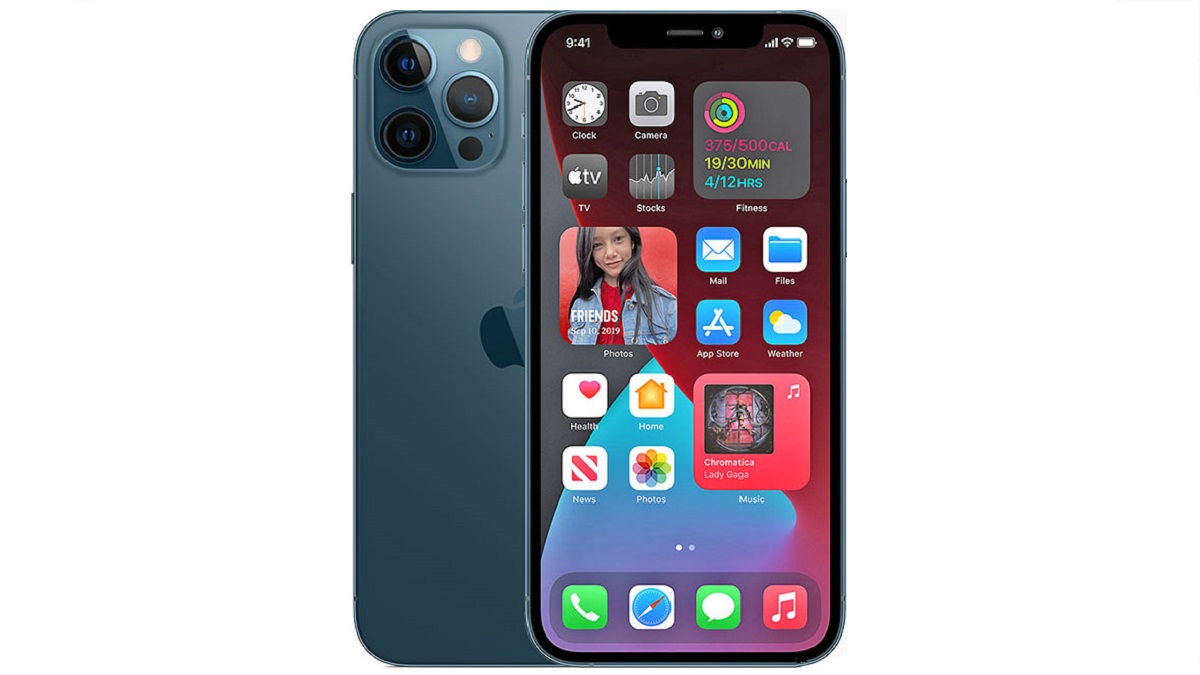
Apple iPhone 12 Pro is the most popular cell phone in America in 2021
The top 5 best selling smartphone brands in America in 2021
Listed below are the best selling phone brands in the United States as of 2021.
- Apple
- Samsung
- LG
- Motorola
- Google Pixel
It is also noteworthy that this year, LG announced its exit from the smartphone business. LG, along with a handful of others, was a key player in the entry-level smartphone market in the USA, holding 3rd place as at 2021.
Brands like Motorola, Nokia, and OnePlus will scramble to take LG’s place in the market. Each of these brands hold less than 4% market share.
As popular as Xiaomi is in many other regions of the world, the brand is a niche player in the USA.
- Don’t miss our reviews .
- Join our WhatsApp Group , to be notified of the most important articles and deals,
- Follow us on Instagram , Facebook , Twitter , and YouTube .
Author:InfoDesk
Add MobilityArena as a preferred source on Google
Android 12 is here and millions of Google Pixel phone owners around the world are updating their devices. Also, Pixel 6 and 6 Pro units, running Android 12 out of the box, are now shipping. Of you own one of these Android 12 Pixel phones, there are a few things you can do to get the best user experience out of them.
Having used an Android 12 Pixel device for a while now, I have had to make some modifications to make it work for me. Chances are that you will find that information useful too.
The tweaks listed below can be applied to any Google phone running Android 12 – Pixel 3, 3XL, 3a, 3a XL, 4, 4 XL, 4a, 4a 5G, 5, 5a with 5G, 6, and 6 Pro .
- Get The Best Out Of Your Android 12 Pixel Phone With These Tips Enable Camera Storage Saver for Pixel 6 and 6 Pro Enable Smart Storage Enable Live Caption Disable Bubbles Disable Smart AutoRotate Enable Notification History Disable Icon Theming
Get The Best Out Of Your Android 12 Pixel Phone With These Tips
Seeing that Pixel phones are famed for their photography capabilities, let’s start with a few tweaks in the department. Some tweaks are applicable only to the Pixel 6 and 6 Pro, and are duly stated.
Enable Camera Storage Saver for Pixel 6 and 6 Pro
If you have purchased a Pixel 6 phone, you are likely a shutterbug, snapping away ever so often. That eats up your phone’s storage space. Google introduced Camera Storage Saver to help you store your photos in more space-efficient formats
To enable it, launch the Camera app > Tap the cog icon in the top left corner > More settings > Device storage . The toggle is in there. Enable it to enjoy some space saving.
This is available for Pixel 6 and 6 Pro devices only.
Enable Smart Storage
Smart Storage tells your Android 12 Pixel phone to delete any photos older then 60 days in Google Photos. I am not sure I want to do that, because Photos is a great way to keep an unlimited archive of photos I have taken over the years.
But if saving storage space is your primary concern, Smart Storage is the feature designed just for you. To enable it, go to your phone Settings > Storage > Free up space > tap on the hamburger menu at the top left of the screen > Settings . You will find the toggle in there.
Enable Live Caption
Live Caption adds sub-titles to video content to help visually impaired persons. Everyone matters and you should turn it on. You never know who will be interacting with that video you want to record and share.
To enable Live Caption in your Android 12 Pixel phone, go into Settings > Sound & vibration > Live Caption.
Disable Bubbles
I have always disliked heads-up notifications. They are intrusive and annoying. In Android 12, Google has attempted to make them less so by making them bubbles instead. Bubbles are tiny versions of chatheads and heads-up notifications – like….small bubbles.
Nice try, Google, but they still annoy. To disable pesky Bubbles notifications in your Android 12 Pixel phone, go to Settings > Notifications > Bubbles, and toggle it off. Peace and calm.
Disable Smart AutoRotate
I know that lots of people keep auto-rotate enabled on their smartphone, but I have never been a fan of it. I dislike how the display orientation changes at random because you tilted your hand or body a little this way or that way.
Anyway, Google introduced smart auto-rotate, which is supposed to act smarter than regular auto-rotate. In theory, it uses the front camera to keep track of the alignment of your head while using the phone, so it can keep the screen orientation aligned with your head no matter what position you take. Sounds cool. But it doesn’t do it most of the time. So, I turned it off.
To join me until Google fixes it so it works better, go to Settings > Display > Auto-rotate screen . You will find the option that says “Enable Face Detection” in there.
Enable Notification History
Notification History is a new feature that is self-explanatory: it gives you a historical list of notifications you got on your device. It can come in quite handy if you are the forgetful type as need to figure out a timeline of events.
To turn on Notification History, go to Settings > Notifications > Notification history . The toggle is right there waiting for you.
Disable Icon Theming
Colour Schemes and Income Themes are cool customisation features that let you make your Android 12 Pixel phone yours. While I find the Colour Scheme work well, Icon Themes are a different kettle of fish.
Why? Pretty much only the default Icons get themed when you use it. The 93 other apps you installed from Google Play Store mostly keep their icons. The result? A less than pleasant look in the absence of uniformity.
The whole idea of Theming is uniformity, so what is the point? Thankfully, it is not enabled by default. This is me giving you a heads-up about it should you be considering enabling it. You’re welcome.
It Is A Wrap
Those are the tweaks I have for you for now for your precious Android 12 Pixel smartphone. Some of these tweaks might work on non-Pixel phones too, but are there any of those with Android 12 yet?
Author:Mister Mobility
Digital Skills and Communication Coach | Mobile Phone Connoisseur since 2001 | Tech Blogging since 2004
