Add MobilityArena as a preferred source on Google
There are several reasons anyone could need to block any contact, but it mostly stems from wanting to avoid calls, texts, or messages of any form from such contacts.
So, whether you’re dealing with a friend or relative you’ve fallen out with, or avoiding spam calls from cold callers or telemarketers, it’s great that you have the option of blocking phone numbers on your iPhone. n this guide, we’ll show you different ways to block a contact on your iPhone. Keep reading to learn how.
- How Can I Block a Contact on My iPhone? Block the Number in your iPhone’s Phone App Block the Contact in your iPhone’s FaceTime App Block the Contact in your iPhone’s Messages App Can I Unblock After Blocking A Contact?
How Can I Block a Contact on My iPhone?
Let’s examine the different ways you can block any phone number on your iPhone to stop recurrent spam calls or keep someone from reaching you.
Block the Number in your iPhone’s Phone App
A “ Scam Likely ” function is offered by mobile service carriers like T-Mobile to alert users of spam calls. Nonetheless, it’s still possible that you’ve answered one or more of these spam calls despite not knowing who the caller was.
Thankfully, you can easily block a number from the Phone app on your iPhone through the following steps:
- Get the Phone app open.
- Click Recents .
- Locate the contact or number you want to block.
- Click or tap the Information (i) symbol.
- Click on Block this Caller , you’ll need to scroll down to find the option.
This is one of the ways to block a number on your iPhone and you’ll agree that it’s quite straightforward.
Block the Contact in your iPhone’s FaceTime App
It’s also possible to block contacts on your iPhone through its FaceTime app. It’s an equally simple process, just follow these steps:
- Start the FaceTime app.
- Find the person whose contact you wish to block.
- In front of the contact, click on the Information (i) symbol.
- Click on Block this Caller after you locate the option by scrolling down.
Block the Contact in your iPhone’s Messages App
Here’s yet another option to block contacts on your iPhone. On your iPhone, you may have previously employed helpful techniques to block unwanted spam emails. However, scammers may still try to get in touch with you offline by sending texts, which is an old-fashioned strategy.
To stop this from happening, use these steps below to block contacts in your iPhone’s Messages app:
- Launch the Messages app.
- Click on a message sent to you by the person whose phone number you want to block.
- Click or tap the sender’s name or phone number.
- Click Info
- Tap Block this Caller after scrolling down to find the option.
You can also use third-party apps to identify spam callers and block their calls before your phone rings.
Can I Unblock After Blocking A Contact?
There’s no need to worry if you have unintentionally blocked the wrong person. The Phone , Messages , FaceTime , and Mail apps on your iPhone all access the same Blocked Contacts list.
So, all you have to do to unblock any contact you’ve wrongfully blocked on your iPhone is take their information out of this Blocked Contacts list. Below are the steps to unblock numbers or contacts on any iPhone, regardless of whether you have a newer model or an older device like an iPhone 6:
- Access Blocked Contacts by navigating to Settings > Phone on your device.
- On any blocked contact you’d like to unblock, swipe left to reveal the Unblock button.
- As an alternative, you can also unblock by selecting Edit , and then clicking the Minus (-) icon next to the blocked contact.
- To remove the contact from your list of Blocked Contacts , select the Unblock option.
In summary , it’s very easy to block any contact on your iPhone through the Phone, FaceTime, or Messages app. If you change your mind about blocked contacts afterward, we’ve also provided instructions to unblock them easily.
Author:Joan Agie
Add MobilityArena as a preferred source on Google
The Apple Pencil is a versatile and innovative tool that has revolutionized the way we use our iPads. This digital stylus was first introduced in 2015 with the original iPad Pro and has since become an essential accessory for artists, designers, and note-takers alike. In this article, we will explore the uses and benefits of using one.
Which iPad models is the Pencil compatible with? Apple Pencil is compatible with the sixth-generation iPad (2018) and newer, the third-generation iPad Air (2012) and newer, and the first-generation iPad Pro (2015) and newer. You can use a Pencil with any of these models.
- What are the benefits of using the Apple Pencil?
- How much is the Apple Pencil?
- Apple Pencil alternatives
What are the benefits of using the Apple Pencil?
- Precise and Natural Drawing and Writing
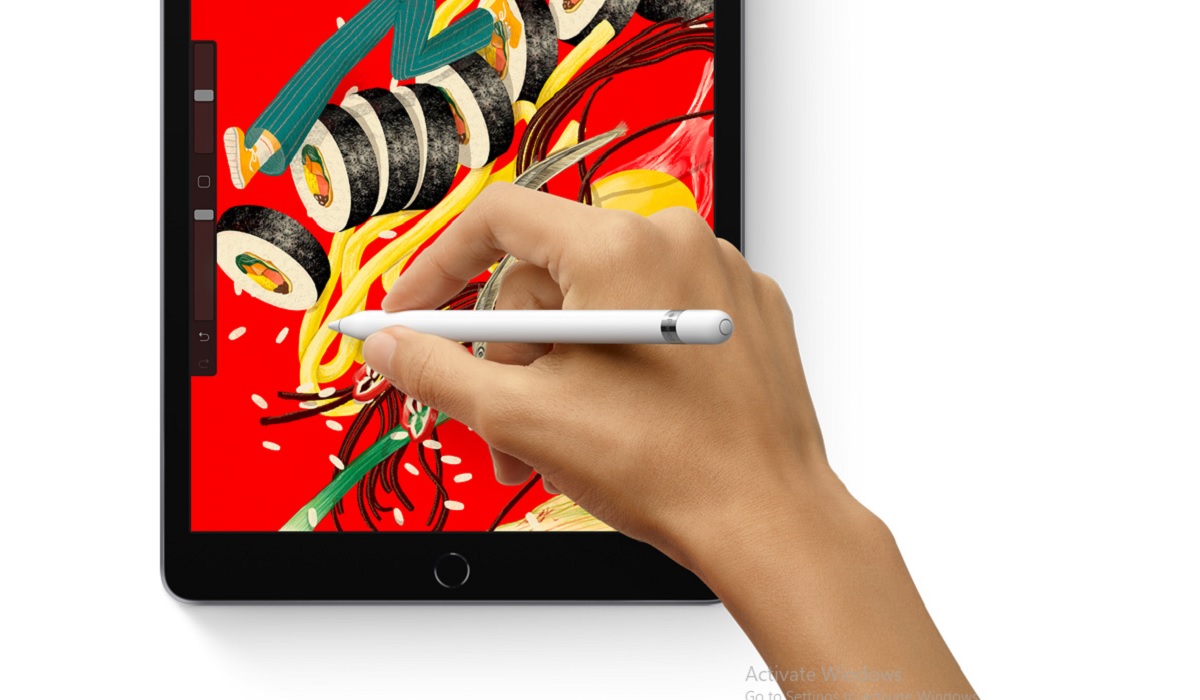
The Pencil is the perfect tool for artists and designers who want to create digital artwork or sketches. It offers precision and control that simply cannot be matched by a finger or a regular stylus. The pressure sensitivity and tilt recognition features make drawing and writing feel natural and effortless.
- Faster and More Accurate Note-Taking
For students, professionals, or anyone who needs to take notes quickly and accurately, the Pencil is a game-changer. It allows you to write and draw directly on your iPad screen, just as you would on paper. You can take handwritten notes, annotate PDFs, or sketch out ideas in real-time. The Apple Pencil makes note-taking faster and more efficient, eliminating the need for a keyboard or a separate notepad.
Perfect for Marking up Documents and Images
Great for Digital Coloring and Editing
Whether you are a professional graphic designer or just love to color in your free time, the Apple Pencil is an excellent tool for digital coloring and editing. You can use it to select colors, shade, and add special effects to your artwork. The pencil is also great for precise image editing, such as removing blemishes or adjusting brightness and contrast.
- Easy to Use and Long-lasting
The Apple Pencil is easy to use and connects to your iPad via Bluetooth. It is also incredibly long-lasting, with a battery life of up to 12 hours. Additionally, it charges quickly and can be fully charged in just 15 minutes.
In conclusion, the Apple Pencil is a must-have accessory for anyone who wants to take their creativity or productivity to the next level. It offers precise and natural drawing and writing, faster and more accurate note-taking, great document and image markup features, excellent digital coloring and editing capabilities, and is easy to use and long-lasting. With all these benefits, it’s no wonder that the Pencil has become such a popular tool for iPad users around the world.
How much is the Apple Pencil?
The first-generation Pencil costs $99, while the second-generation model costs $129. They can be purchased directly from Apple’s website or an Apple store.
Apple Pencil alternatives
There are a number of Apple Pencil alternatives available in the market, should you want to explore those. How good are they? Some of them are mere inches away from being as good as Apple’s own original product.
- Adonit Note+ ($66)
- Adonit Pixel ($75)
- Adonit Pro 4 ($26)
- JamJake K10 Stylus Pen ($50)
- Logitech Crayon ($70)
- Meko Universl Stylus ($16)
- MoKo Stylus ($27)
- Zagg Pro Stylus ($45)
As you can see from the above list of Pencil alternatives to consider, price is a key factor: they are much more affordable than the original product from Apple. This makes them quite attractive, especially if you have to replace a lost Apple Pencil .
Author:Mister Mobility
Digital Skills and Communication Coach | Mobile Phone Connoisseur since 2001 | Tech Blogging since 2004
