Add MobilityArena as a preferred source on Google
The Google Pixel 9 Pro Fold is one of the smartphones that can be classified as sophisticated because of the innovative foldable design with impressive features. It is safe to say it is one the smartphones making waves in the tech world right now. However, like any new technology, it comes with its share of challenges. Let me walk you through into the most common issues users face and explore practical solutions to enhance your Pixel 9 Pro Fold experience.
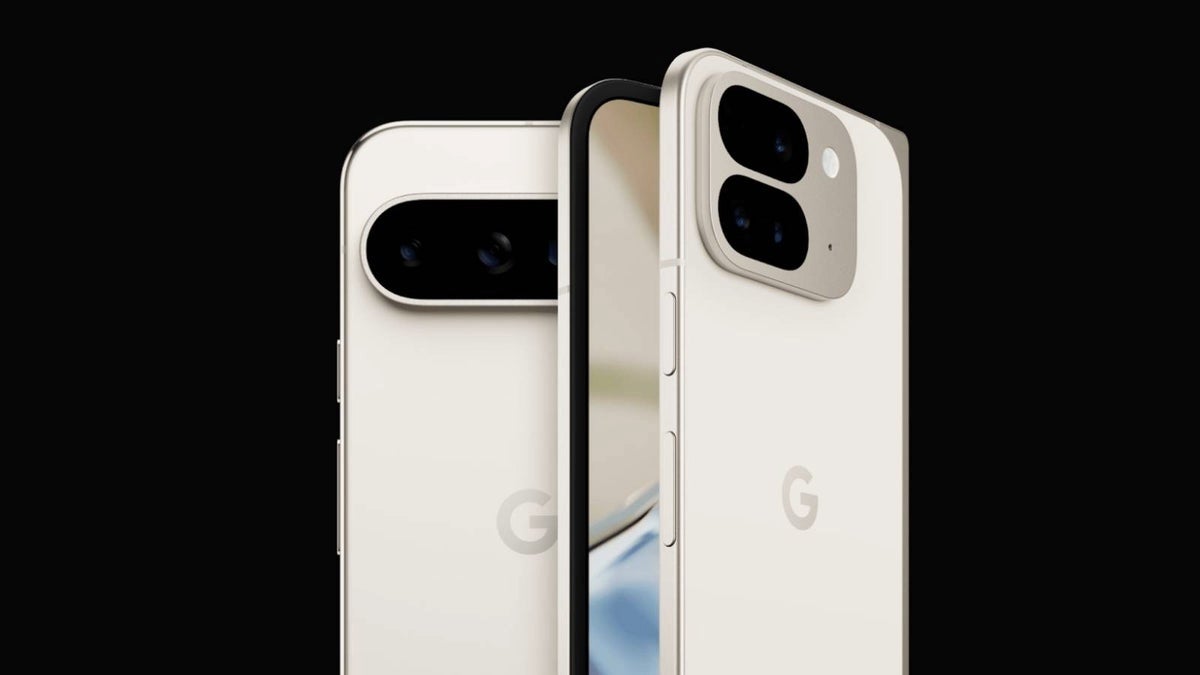
- 4 Google Pixel 9 Pro Fold Challenges & Solutions Display Dilemmas The Crease Conundrum The Display Brightness Design Decisions Asymmetrical Annoyance Opening Obstacles Performance Lag Overheating Battery Life Camera Compromises Conclusion
4 Google Pixel 9 Pro Fold Challenges & Solutions
Display Dilemmas
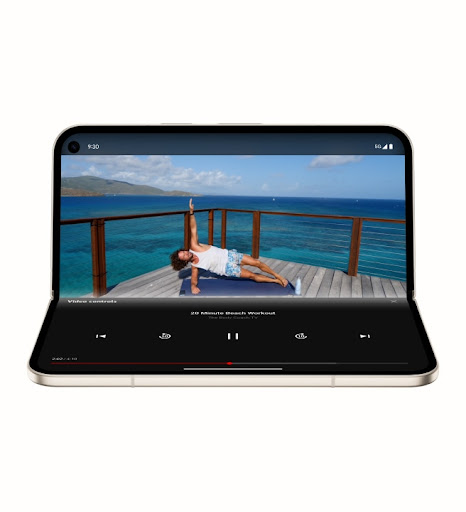
One of the most trending issues of the Pixel 9 Pro Fold is its display. While the 8-inch foldable LTPO OLED screen offers vibrant colors and a smooth 120Hz refresh rate, some users have reported concerns about the crease conundrum and the display brightness.
The Crease Conundrum
The visible crease on the inner display has been a point of contention for many users. While it’s a common issue with foldable phones, the Google Pixel 9 Pro Fold’s crease seems more noticeable compared to its counterpart. This simple solution can be of help:
- While you can’t eliminate the crease entirely, using darker wallpapers or themes can help minimize its visibility. Additionally, adjusting your viewing angle slightly can reduce the crease’s prominence during use.
The Display Brightness
Some users have reported that the display’s brightness, topping out at 1,050 nits for the outer screen and 950 nits for the inner screen, falls short of expectations. There’s a solution for almost everything:
- While we can’t increase the hardware’s capabilities, ensuring your adaptive brightness is enabled can help optimize visibility in various lighting conditions. In extremely bright environments, finding shade or adjusting your position can improve screen visibility.
Design Decisions
The Google Pixel 9 Pro Fold’s design has received mixed reviews, some praising its sleekness while others point out potential ergonomic issues. Let’s take a look at these issues.
Asymmetrical Annoyance
The asymmetrical design, particularly noticeable when the Google Pixel 9 Pro Fold is closed, has been a source of frustration for some users, especially left-handed individuals. One of the quickest ways to handle this is to consider using a case that evens out the edges, providing a more symmetrical feel. For left-handed users, exploring different grip techniques or using the phone unfolded more frequently might improve comfort.
Opening Obstacles
Some users find it challenging to open the device due to the small edge available to grip. Consciously practice the opening motion to find the most comfortable technique for you. Some users find success by using their thumbnail to initiate the opening process.
Performance Lag

While the Pixel 9 Pro Fold boasts impressive specs, some users have reported performance concerns about the device.
Overheating
The device tends to get hot during heavy usage, likely due to limited space for heat dissipation.Try to avoid running resource-intensive apps for extended periods. Taking short breaks during heavy use can help manage heat buildup. Consider using a phone cooler accessory for prolonged gaming or video editing sessions.
Battery Life
With a 4650mAh battery, some users might find themselves needing to charge more frequently, especially with heavy use of the large inner display. Utilize the device’s battery-saving features, such as adaptive battery and dark mode. When possible, use the outer display for quick tasks to conserve energy.
Camera Compromises

Despite Google’s reputation for excellent smartphone cameras, some users feel the Google Pixel 9 Pro Fold’s camera setup is a downgrade from the standard Pixel 9 Pro. While hardware limitations can’t be overcome, staying updated with the latest software updates can improve camera performance through enhanced processing. Experimenting with third-party camera apps might also yield better results for specific shooting scenarios.
Conclusion
The Google Pixel 9 Pro Fold represents a significant step forward in foldable smartphone technology. While it faces some challenges, many of these can be mitigated with thoughtful use and optimization. As Google continues to refine its foldable offerings, we can expect future iterations to address these concerns more comprehensively. Remember, the key to enjoying your device is to embrace its unique features while finding creative ways to work around its limitations. With these solutions in hand, you’re well-equipped to make the most of this innovative device.
Author:Ifeoluwa Adeleke
Add MobilityArena as a preferred source on Google
Performance Issues on the Samsung Galaxy Z Flip 6 is one of the major complaints reported by the users of the Z Flip 6 device. I extensively expose how to solve the performance lag in this article. The Samsung Galaxy Z Flip 6 has made waves in the smartphone market with its innovative foldable design and powerful features. However, like any cutting-edge device, it’s not immune to performance hiccups. Some users have reported occasional lag or sluggishness, which can be frustrating for a premium device. Let’s dive into the potential causes of these performance issues and explore effective solutions to keep your Z Flip 6 running smoothly.
- Understanding the Root Causes of the Performance Issues on the Samsung Galaxy Z Flip 6
- Powerful Solutions to Boost Performance Update Your Software Manage Your Apps Clear Cache and Data Optimize Device Settings Manage Background Processes Free Up Storage Space Factory Reset (Last Resort)
- Preventive Measures for Long-term Performance
- When to Seek Professional Help
- Conclusion
Understanding the Root Causes of the Performance Issues on the Samsung Galaxy Z Flip 6
Before we jump into solutions, it’s important to understand what might be causing performance issues on the Samsung Galaxy Z Flip 6:
- Resource-intensive apps: Some apps, particularly games or those with heavy graphics, can strain the system resources.
- Background processes: Too many apps running in the background can slow down your device.
- Software bugs: Occasional glitches in the operating system or app updates can lead to performance issues.
- Storage saturation: As your phone’s storage fills up, it can impact overall performance.
- Outdated software: Running an older version of the operating system or apps can lead to compatibility issues and lag.
Powerful Solutions to Boost Performance
Now that we’ve identified potential causes, let’s explore solutions to optimize your Z Flip 6’s performance.
Update Your Software
The number one solution to the performance issues on the Samsung Galaxy Z Flip 6 is to keep your device up-to-date. It is crucial for optimal performance. Follow these easy steps to fix that:
- Go to Settings > Software update > Download and install
- Ensure automatic updates are enabled for both system and apps
Manage Your Apps
Take control of your app ecosystem. It is essential to optimizing your device’s performance. These simple steps will handle your apps management:
- Uninstall unused apps
- Update all apps regularly
- Use the built-in Device Care feature to optimize app performance
Clear Cache and Data

Clearing cache regularly can often resolve performance issues:
- Go to Settings > Apps
- Select problematic apps and tap Storage
- Tap Clear cache and Clear data (be cautious with the latter as it may delete app settings)
Optimize Device Settings
Simply adjust your phone’s settings for better performance:
- Lower the screen resolution (Settings > Display > Screen resolution)
- Reduce animation scales in Developer options
- Use the “Light” performance profile (Settings > Battery and device care > Battery > More battery settings > Performance profile)
Manage Background Processes
Restrict and limit apps running in the background. This will really help in solving the performance issues on the Samsung Galaxy Z Flip 6. To do this:
- Go to Settings > Battery and device care > Battery
- Tap Background usage limits
- Add power-hungry apps to the “Deep sleeping apps” list
Free Up Storage Space
Simply maintain an ample free storage:
- Use the built-in Storage analyzer to identify large files
- Move photos and videos to cloud storage or an external device
- Clear app caches regularly
Factory Reset (Last Resort)
If all else fails, a factory reset can often resolve persistent issues. If you’re not sure how to do that, simply follow this steps:
- Backup all your data
- Go to Settings > General management > Reset > Factory data reset
- Follow the on-screen instructions
Preventive Measures for Long-term Performance
To keep your Z Flip 6 running smoothly in the long run, engage in these preventive measures:
- Restart your phone regularly (at least once a week)
- Avoid installing unnecessary apps or those from unknown sources
- Use Samsung’s built-in optimization tools regularly
- Keep an eye on app battery usage and restrict background activity for power-hungry apps
When to Seek Professional Help
If you’ve tried all these solutions and still experience significant lag or performance issues, it may be time to contact Samsung support or visit an authorized service center. There could be a hardware issue that requires professional attention.
Conclusion
The Samsung Galaxy Z Flip 6 is a powerful device capable of handling most tasks with ease. By following these optimization tips and being proactive about device maintenance, you can ensure a smooth, lag-free experience. Remember, occasional minor hiccups are normal for any smartphone, but persistent issues should be addressed promptly to maintain the device’s longevity and your satisfaction. With these strategies in your toolkit, you’re well-equipped to keep your Galaxy Z Flip 6 performing at its best, allowing you to fully enjoy its innovative features and capabilities
