Add MobilityArena as a preferred source on Google
You already know that you can buy and use Xiaomi phones in the UK. The question is, how popular are they there? Xiaomi has been making lovely smartphones with top-tier performance and fantastic cameras for a while now, whether it is a cheap buy or something a little pricier.
Xiaomi is dominating the smartphone market, which is impressive for a business that only emerged from the shadows in 2017. It is sweeping through Europe and steadily gaining a large number of clients. But is Xiaomi a popular brand in the UK? I answer this question in this article, so you’ll find out how popular Xiaomi is, as well as which of its devices are the most recognised in the UK.
- How Popular are Xiaomi Phones in the UK?
- Do Xiaomi phones in the UK have Google Play Store?
- What are the Most Popular Xiaomi Phones in the UK?
- Where to Buy Xiaomi Phones in the UK
How Popular are Xiaomi Phones in the UK?
The answer? Xiaomi is largely popular in the UK consumer environment. In fact, Xiaomi customers in the UK are spoiled for choices, as the brand sells a variety of models in that market.
There are more budget-friendly Redmi models like the Poco line, as well as gaming-focused Black Shark smartphones and top-tier flagships bearing the full Xiaomi label. Whatever series you want, the bulk of Xiaomi phones is less expensive than comparable Samsung or Apple models while providing a comparable set of features and hardware.
Do Xiaomi phones in the UK have Google Play Store?
Yes, all Xiaomi smartphones released in the United Kingdom have Google Play Store, Google Mobile Services, and Google apps built-in and supported, and you can install millions of Android apps from the Store.
What are the Most Popular Xiaomi Phones in the UK?
Picking the top-tier Xiaomi phones can be difficult because there are so many to choose from in the UK. Also, more money doesn’t always equal better value. In order to save you time, here are the top three Xiaomi devices in the UK:
- Xiaomi 12 Pro
The Pros, Pluses, and Ultras are typically considered high quality in the smartphone world, and Xiaomi is no exception. The Xiaomi 12 Pro is one of the most popular Xiaomi smartphones in the UK. It essentially features fewer dimensions than the Xiaomi Mi 11 in favor of better specifications.
It features a new 50MP telephoto zoom camera that is accompanied by a second 50MP primary lens and a 50MP 118-degree super wide camera. The front of the device features a colorful AMOLED display with excellent color representation and brightness, and the internals deliver all-around quick performance.
Another benefit of the Xiaomi 12 Pro is its quick charging capabilities, which gets you from 0 to 100% in below 30 minutes. The main drawback is its premium price, however, the 12 Pro is the ultimate option if you want only the best Xiaomi.
- Xiaomi Redmi Note 11 Pro 5G
This is another popular Xiaomi smartphone in the UK. In addition to its superior quad camera array, which includes a sizable 108MP primary sensor, and its silky-smooth 120Hz screen, the Xiaomi Redmi Note 11 Pro also boasts a faster 67W charging port, 5G connection, and a better Snapdragon 695 processor.
As a whole, the Note 11 Pro isn’t significantly better than the Note 10 Pro, so if having these things doesn’t bother you, you can save a little bit more. Nonetheless, if you want to extend the lifespan of your next smartphone, we advise spending a little bit more for the latest model, particularly if it has 5G connectivity.
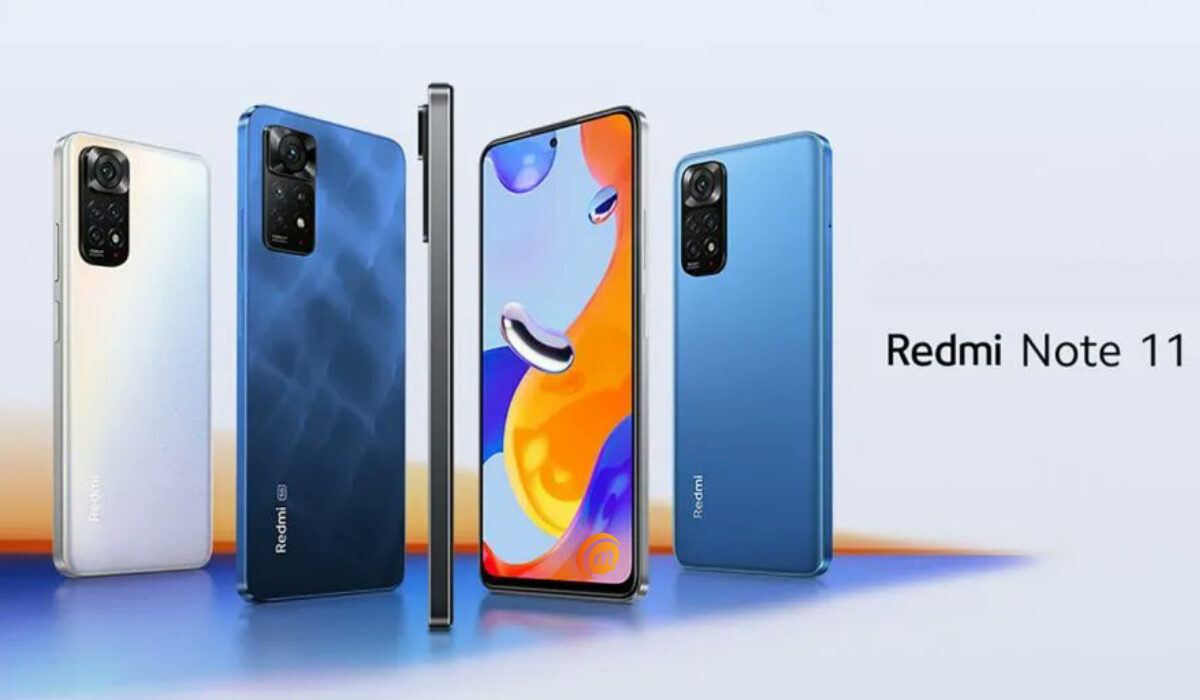
- Xiaomi Redmi Note 11
This is a budget-friendly and thus popular Xiaomi smartphone in the UK. The Redmi Note 11 is one of the finest smartphones that can be had for less money, despite the fact that most smartphones these days seem to cost over four figures.
Due to its speedy Snapdragon 680 CPU, this inexpensive Xiaomi performs better than phones that cost considerably more. Also, the phone has a gorgeous 6.43-inch FHD+ screen with a 90Hz refresh rate on the front and a quad-camera array on the back.
There are several other popular Xiaomi smartphones in the UK , including the Xiaomi 12 Lite, Xiaomi 12T, and the Xiaomi Poco F4, among others. This means the UK smartphone market has different Xiaomi products to choose from, so it is a reasonably respectable brand in the UK consumer environment.
Where to Buy Xiaomi Phones in the UK
In summary , we hope this article has helped you figure out how popular Xiaomi is in the UK, as well as which of its products are topping the UK market.
Author:Joan Agie
Add MobilityArena as a preferred source on Google
Screenshots are necessary to record a variety of important data, such as concert tickets, flight information, or relevant messages. There are different ways to take a screenshot on a Samsung device and if you’re not familiar with them, this guide is for you.
As a matter of fact, there are at least 7 ways to take a screenshot on a Samsung mobile device, whether it is a Samsung Galaxy A03 , Samsung Galaxy A03 Core , or a Samsung Galaxy A04e . In this article, we’ll walk you through each of these different ways to take screenshots on your Samsung phone or tablet.
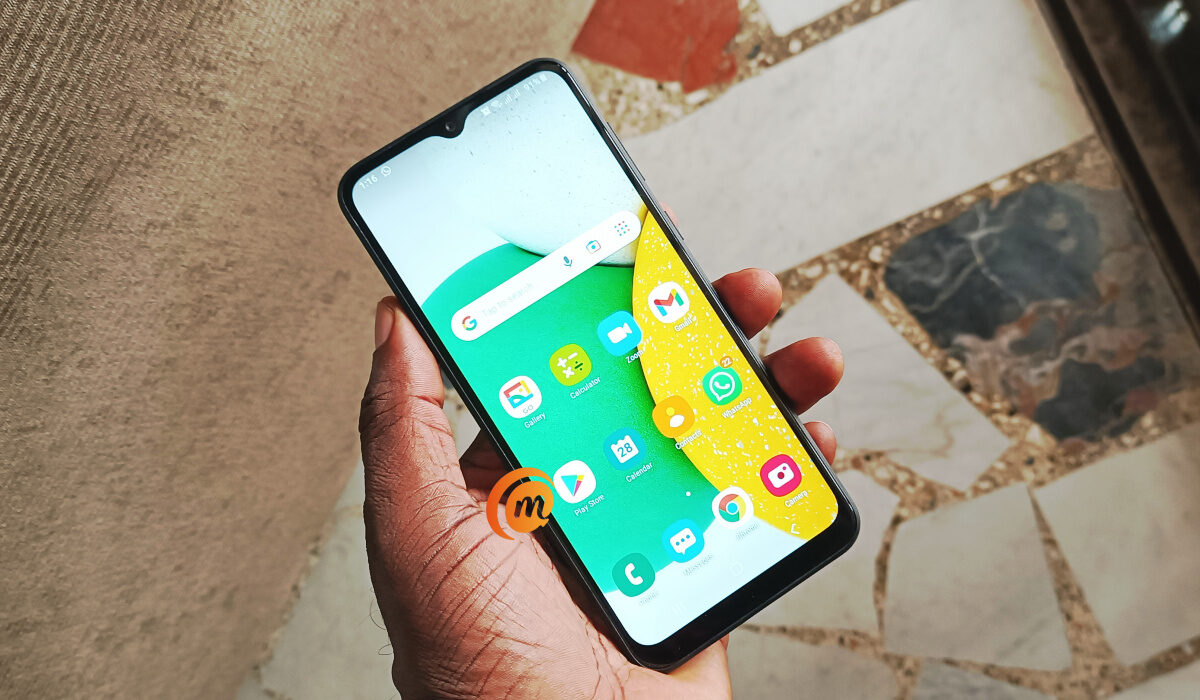
How To Take a Screenshot on a Samsung Phone or Tablet
- How To Take a Screenshot on a Samsung Phone or Tablet Use the Volume Down and Power Buttons Capture with a Palm Swipe Using the Smart Select Edge Panel Use of the Quick Settings Panel Ask Google Assistant or Bixby Use the S Pen Use Screenshot whole pages with Scroll Capture
- How Do I Access My Samsung Screenshots?
How To Take a Screenshot on a Samsung Phone or Tablet
The steps for taking a screenshot on Samsung devices are similar regardless of which Galaxy phone or tablet you have. However, they may still differ slightly depending on the type of device you have. Here are a few options to take screenshots on Samsung phones or tablets.
Use the Volume Down and Power Buttons
For most people, this is the simplest way to take a screenshot on a Samsung device. Simply hold down the Power (or Side ) and Volume down buttons at the same time.
The precise location of these buttons will be determined by your device. Both of these buttons are located on the right side of the Samsung Galaxy S22. The Volume button is on the left and Power button is on the right of the Samsung Galaxy S8.
Holding these buttons for a second or two is all that is required. When you take a screenshot, the screen will flash white. You can watch a video demonstration of this here on YouTube .
Capture with a Palm Swipe
Another way to take a screenshot on a Samsung device is by swiping your palm across the screen. Palm swipe to capture can be turned on under Settings > Advanced features > Motions and gestures . To take a screenshot, swipe the edge of your hand across the screen from left to right.
Note, however, that this technique is a little tricky and takes a few tries to master, not to mention how messy your screen gets if your hands are not dry.
Using the Smart Select Edge Panel
Edge panels on Samsung devices can be set up and used for a variety of tasks. One of these tasks is taking screenshots on Samsung devices. To take screenshots using the edge panel, do the following:
● Toggle it on by going to Settings > Display > Edge panels .
● Choose the Smart select panel from the Panels menu. Open the edge panel after adding it and swipe until you reach the Smart select panel.
● Choose either Rectangle or Oval , then drag to select the area to screenshot. Tap the Done button, then the Save button (the down arrow).
Use of the Quick Settings Panel
One of the updated features in One UI 5.1 is the one-tap ability to take screenshots directly from the Quick Settings panel, which is probably simpler than the previous method.
To do so:
● Customize the Quick Settings panel and add the Take screenshot button from the available buttons grid to it.
● After you’ve added it, press the button to take a screenshot.
● To view screenshot settings you might want to modify, you can also long-press the button.
Ask Google Assistant or Bixby
Google Assistant is standard on all Android phones, but Samsung phones also include Bixby, an alternative voice assistant. To take a screenshot on Samsung devices without having to use your hands, you can simply say “Hey Google, take a screenshot” or “Hey Bixby, take a screenshot,” and the assistant will do just that.
Use the S Pen
You can also take a screenshot with a Samsung phone that has a S Pen stylus built in, such as the Galaxy S22 Ultra or the Galaxy S23 Ultra .
Take the S Pen out of the device, select Screen write by tapping the Air command menu icon. This will result in a full screenshot. The screenshot can then, if desired, be edited using the tools on the screen. When finished, press the Save button.
Use Screenshot whole pages with Scroll Capture
You don’t have to take multiple screenshots on a Samsung device if you want to capture a long webpage or app. Instead, you can create a single large screenshot using Samsung’s Scroll Capture Feature.
A screenshot toolbar will show up at the bottom of the screen after taking a standard screenshot. Tap the Scroll Capture icon (two downward arrows that bounce) on this.
With a single tap, the page is scrolled down once and the screenshot is stitched to the bottom of the first. Continue tapping the icon until you’ve captured everything you want on the page.
How Do I Access My Samsung Screenshots?
After taking a screenshot on your Samsung phone or tablet, you may be wondering where it is saved and how you can access it. This is not difficult at all.
Open the Gallery app and choose Albums from the bottom menu. You will then see a Screenshots album, which you can manage just like any other photo album.
In conclusion , we hope you now understand how to take a screenshot on a Samsung phone or tablet. Choose the method that is the simplest and quickest for you, as they all produce the same result.
