Add MobilityArena as a preferred source on Google
The mobile wireless carrier, Verizon, came into existence in 2000. It was the product of a joint venture between two telecommunications companies, Bell Atlantic US, and Vodafone UK. The telecom company provides wireless mobile phone, wireless home telephone, and mobile broadband and Wi-Fi Internet services. It is incorporated in Delaware, but has its headquarters in New York, United States.
Verizon was traditionally a CDMA wireless operator, meaning that in the early years, only CDMA phones could access the telecom operator’s 2G and 3G networks. But the company has added 4G LTE and 5G wireless networks over time, in keeping up with global developments in the industry.

The Verizon logo
- 2G Network
- 3G Network
- 4G Network
- 5G Network
- Coverage and Subscribers
- MVNOs
- Official Website
2G Network
Verizon kicked off services exclusively with CDMA (Code Division Multiple Access). In December 2021, Verizon decommissioned its 2G (and 3G) wireless networks, leaving only 4G and 5G networks running.
3G Network
In 2002, Verizon launched its 3G wireless network and service, also based on CDMA technology. In December 2022, Verizon decommissioned its 3G wireless network, leaving only 4G and 5G networks running. From January 2023, only 4G and 5G compatible smartphones and devices work on all Verizon’s wireless services.
4G Network
In December 2010, Verizon Wireless launched its 4G LTE (long-term evolution) network in multiple cities across the country. The company launched Voice over LTE (VoLTE) in September 2014.
5G Network
In April 2019, Verizon launched 5G services on the millimeter wave spectrum and added sub-6 GHz spectrum shortly after.
MVNOs
- Net10
- Red Pocket
- Straight Talk
- TracFone
- Ting
- Twigby
- US Mobile
- Xfinity Mobile
- Spectrum Mobile
- Page Plus
- Pix Wireless
- Credo Mobile
- Lively
Official Website
The telecommunication company’s official website is: Verizon.com .
Author:MobileChic
That motivated, gadget-loving geeky chic who tries to stay on top of things. Unapologetic iFan.
Add MobilityArena as a preferred source on Google
If you have ever wished or wanted to take a screenshot of a particular text or content you came across but it was too long and you had to capture it all with multiple screenshots, then you know how much stress and storage space all that takes. A scrolling screenshot is all you need to capture all of that content.
What is a scrolling screenshot? In essence, a scrolling screenshot is a single screenshot of long content that requires you to scroll down your phone screen to read. As such, a scrolling screenshot is longer than regular or normal screenshots.
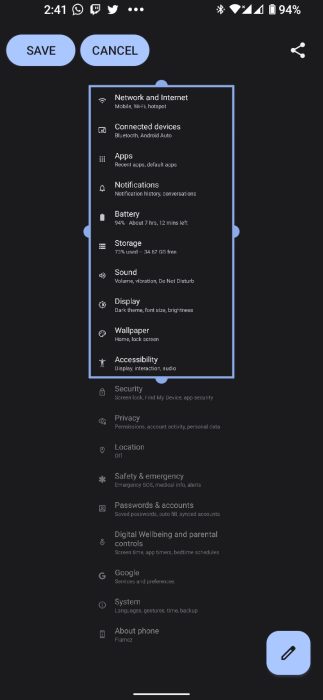
All modern Android phones give you the ability to take a single scrolling screenshot of whatever content you want to save and/or share. For instance, a long document, a long text on a website, or a chain of pictures you saw on a social media app. Of course, this long screenshot capturing has its limits, it does not have an infinite length of all the things it can capture. The available maximum length should be able to capture the long text/page you need to save.
How to take scrolling screenshots on any Android smartphone
If you have Android 12 or later installed and running on whatever Android smartphone you own, you already have access to this feature. It does not matter whether it is a low-end device or a flagship device, the same steps apply. If you do not have Android 12 installed, and your device is compatible with it, get it installed.
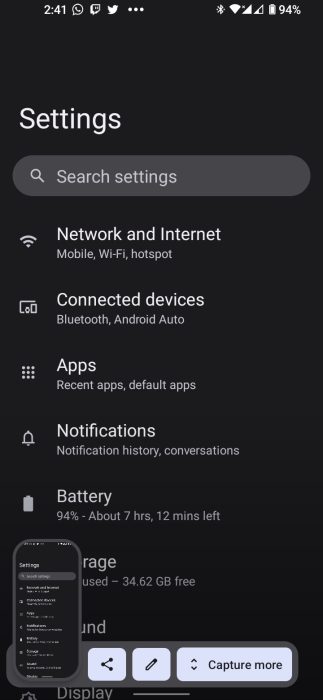
When you take a screenshot, it will appear at the lower end of your device’s screen for you to review. Beside this picture are the options to “Share” and “Edit” as well as one more that says “Capture more”. This feature is what you need to select to take a scrolling screenshot. Let’s take a more detailed look at how to go about this;
•To take the initial screenshot, tap the “Power” and “Volume down” buttons.
•You will then see a little preview of the screenshot. A little bar with the words “Capture More” next to the thumbnail of the screenshot you captured.
•Tap on it to open a page in which you’ll see a cropping tool with which you can lengthen the amount of content you want to save and share.
•Adjust the portion of the page you want to include in the screenshot. The Capture More feature lets you add both contents above and below the page you screenshot.
•When this is done you can now select Save to save the screenshot.
•When you have done all of this, you can then save the scrolling screenshot and use it for whatever you have planned.
How to take scrolling screenshots on a Samsung smartphone
Different Android devices have different methods of taking scrolling screenshots. As for the case of Samsung devices, it is not much different from the steps mentioned.
•Take the screenshot using the combination of the “Power button and Volume down”.
•A bar at the bottom of your screen with multiple options. Select the option with two downward arrows to capture a scrolling screenshot.
•The content on your screen will start to scroll down. Tap and hold the double-arrow icon till you reach the required point. let go of your hold on the icon and it is done.
•When this is done, you can now access it in your gallery/images.
How to take scrolling screenshots on a OnePlus/Oppo device.
•Take the screenshot using the combination of the “Power button and Volume down”.
•When the screenshot is taken you will see a preview of the screenshot as well as an icon that says “Scroll”. You have to tap on it to go to a new page in which you’ll see the content scrolling down.
•You can either tap on the screen to manually scroll the content or select “Done” to save the content captured.
Every Android device falls under any one of these steps or has largely similar instructions. Follow them and you will easily be able to capture whatever content you need.
- Don’t miss our mobile phone reviews .
- Join our WhatsApp Group , to be notified of the most important articles and deals,
- Follow us on Instagram , Facebook , Twitter , and YouTube .
Author:Flamez
Flamez loves basketball, art, gadgets and cars.
