Add MobilityArena as a preferred source on Google
If you are getting an error that says, “There was a problem communicating with Google servers” or “Cannot connect to Google servers” on your Android smartphone, you are not alone. A lot of Android smartphone owners are too. This quick guide spells out how to solve the problem .
Every now and then when trying to use a Google app, Android smartphone users get an error message that says, There was a problem communicating with Google servers . They cannot connect to Google servers and so are unable to use any of those apps.
It is a very annoying problem that is fairly common. Thankfully, it isn’t a problem without a solution. We have compiled some solutions that have worked for different people and different devices. There is no way to tell which will work for your device, but one of them should and get rid of the error messages.
To make the process easy for you, we present the easy fixes first. If the first one doesn’t work, try the next, and work your way through the three solutions that way. Don’t panic; the first two are relatively easy, and you should have no trouble implementing them.
- Fix 1: There was a problem communicating with Google servers / Cannot connect to Google servers
- Fix 2: Problem communicating with Google servers / Cannot connect to Google servers
- Fix 3: Problem communicating with Google servers / Cannot connect to Google servers
- Fix 4: Problem communicating with Google servers / Cannot connect to Google servers
Fix 1: There was a problem communicating with Google servers / Cannot connect to Google servers
- If you are already signed in to a Google Account on your device, remove it.
- Go to Settings -> Apps, and clear cache and data of the following apps: Google App, Google Play Store, and Google Play Services.
- Go back to Settings –> Account, and sign in to your Google account again.
You should be able to login to use any Google services now without that problem communicating with Google servers error popping up. If this does not fix the problem, go on to the next process below.

Fix 2: Problem communicating with Google servers / Cannot connect to Google servers
Basically, what this solution does is reinstall Google Play Services. It is a simple process. Follow these steps:
- Go to Settings -> Security -> Check Unknown sources
- Head over to this APK Mirror page to get the version of Google Play Services that is applicable to your Android version.
- Download and install.
- Now sign in to your Google account again.
You should be able to use any Google apps and services now without that error popping up. This is the solution that solves the problem most times and should get you sorted too.

Fix 3: Problem communicating with Google servers / Cannot connect to Google servers
This solution is more complicated and requires that you root your Android device. This means you are at risk of damaging your phone. If you are not technically inclined, please do not use this. If you do choose to root your device, you do so at your own risk.
- Go to Settings -> Accounts, and remove your Google account.
- Run a search for ES File Explorer or Root Explorer apps. Download either and install it to your device.
- Open Root Explorer. In the main window, use the mount option to mount it as read and write
- Go to Device Root–system–etc–Press hosts file and “open in text editor”
- Erase everything in that file and replace it with: 127.0.0.1 localhost.
- Save the file and exit
- If you do not have Google Play Services installed on your phone, click on this APK Mirror link to get the version that is applicable to your Android version.
- Now sign back in to your Google account.

Fix 4: Problem communicating with Google servers / Cannot connect to Google servers
We have feedback from one of our readers. In his case, the problem seemed to start happening when he switched his home from a standard router to a Mesh system. What seemed to fix it for him was switching his device to a different Internet connection, adding the Google account, and then switching back to the home network. Do give that a try to see if it solves the problem for you.
You should be able to use Google apps without getting any more “ There was a problem communicating with Google servers ” errors and prompts.
Author:InfoDesk
Add MobilityArena as a preferred source on Google
While it might be easy for the avid smartphone enthusiast to spot a fake iPhone 6 from the genuine thing, it isn’t so easy for others. We have a few pics shared by someone on Twitter. Apparently, someone made a purchase that turned out to be fake.
Photos of a fake iPhone 6
First up, so here is the iPhone 6 booting:
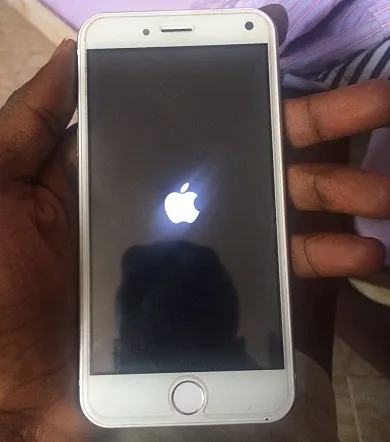
That looks like the authentic thing; right? So far, so good. Of course, if you look closer, the design elements are a bit different. Once booted, though, what you see an Android-style lock screen and matching wallpaper:
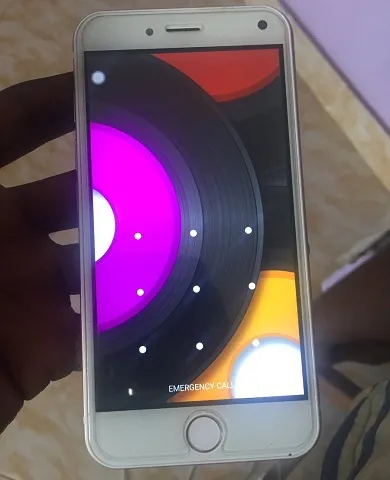
Dead give-away. There is no way that is an authentic iPhone 6. Finally, if you flip it over and have a look at the back:
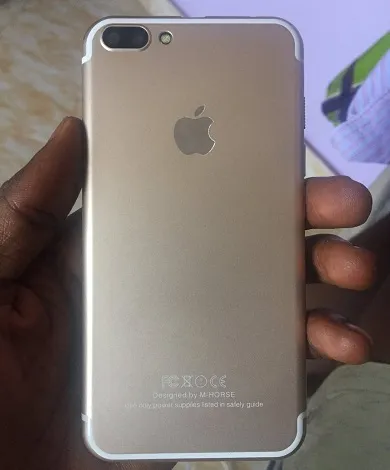
If you take a closer look at the bottom section of the rear cover, you will see this:
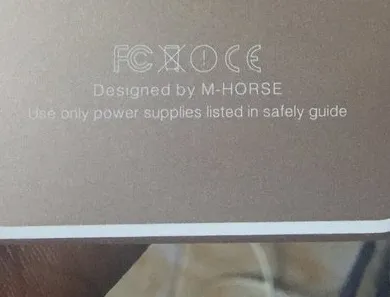
Yes; “Designed by M Horse”. Certainly not designed by Apple. This “iPhone” is a knock-off that runs Android OS.
Who is M Horse?
M Horse is a Chines mobile phone manufacturer of Android smartphones. Behind almost every fake iPhone model is an obscure Chinese manufacturer. No offence to other credible Chinese manufacturers who do not produce knock-offs. Do keep an eagle eye open when shopping for smartphones. There are fake models of every successful brand out there. If ever in doubt, walk away.
Source
- Don’t miss our reviews .
- Follow our news on Google News .
- Join our WhatsApp Group , to be notified of the most important articles and deals,
- Follow us on Instagram , Facebook , Twitter , and YouTube .
Author:Mister Mobility
Digital Skills and Communication Coach | Mobile Phone Connoisseur since 2001 | Tech Blogging since 2004
