Add MobilityArena as a preferred source on Google
The product page on AliExpress has an impressive render of the phone with “S22 Ultra 5G” printed in bold on the display. Your eye spies the “100% original” label at the top right corner of the render, before moving down to the price listed in bold just below the image. Your eyes dilate quite a bit when you see “US $75.33 – 98.83”. That is an incredible bargain for what appears to be a Samsung Galaxy S22 Ultra.
But if you are a smartphone initiate, like I am, you can already tell from the image that this is not the original Samsung Galaxy S22 Ultra . But that is no problem to the makers and sellers of this phone. They are banking on a few thousand out of the millions of people around the world who do not know any better. They are counting on ignorance to help sell this fake Samsung S22 Ultra and other knock-offs.
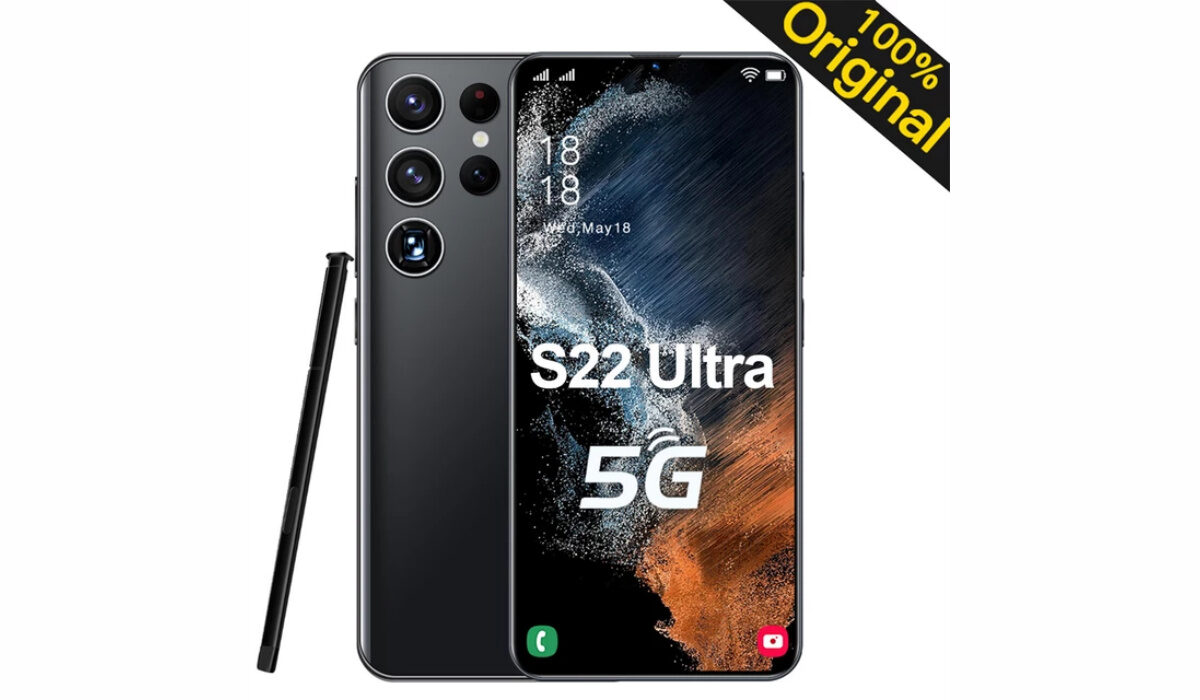
To be sure, the marketing avoids the mention of the name, Samsung. But the objective is clear. It is a clever trick. The description of the fake Samsung S22 Ultra says it is a “6.8 HD Screen 4G 5G Dual SIM Cell Phone Original Android 12 Unlocked Mobile Phones 64MP 6800mAh Celulares”. That is quite a mouthful. The objective is to impress by confusing. Impressive words all through, none of which will amount to much under scrutiny.
There are three configurations available – 8 GB RAM with 256 GB storage, 12 GB RAM with 512 GB storage, and 16 GB RAM with 1 TB storage. It is when the device gets to you after spending $75 for the lowest variant, or anything between that and $98 for either of the other two, and you power on the phone and find out that none of those specs are valid. You will more likely find resources in the range of 2 GB RAM and 32 GB storage in them. I am also betting that this dud does not run Android 12.
Did I mention that the detailed description says that this fake Samsung S22 Ultra is powered by a Snapdragon 888+ chipset? If you believe that, I have landed property on Mars to sell to you for $5,000. I stake two decades of experience to assure you that a low-end MediaTek processor is waiting to be discovered in this clone. And that chipset is definitely not 5G-compliant. You will be lucky to find 4G support in this cell phone.
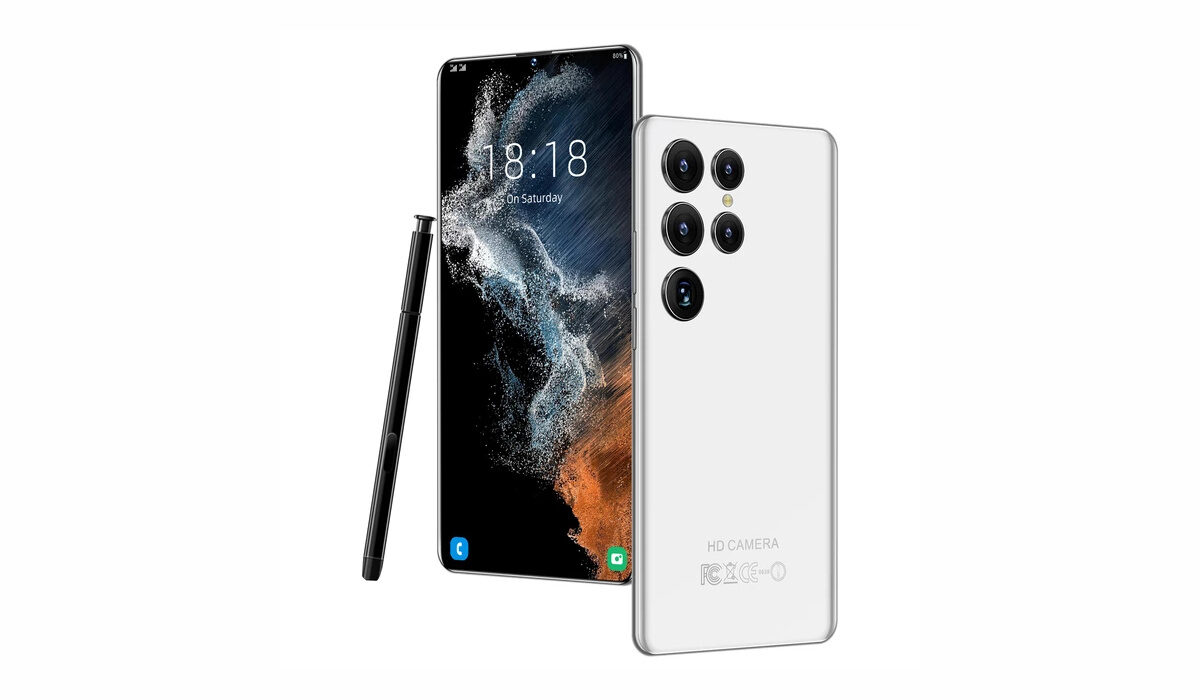
Our fake Samsung S22 Ultra strikes a deceptively pleasant-looking pose
I assure you that you will not find OneUI on the inside, and that the cheap stylus that ships with this fake Samsung S22 Ultra might not work with it at all. Digging further into the detailed description, I see that it mentions “Samsung” as a “compatible brand”. What does that even mean – that this knock-off will wag its tail if it means the real McCoy?
Anyway, do not let the nicely done marketing images and big sounding specs fool you. The phone does not look anywhere as good as the renders. Thankfully, a few buyers were good enough to share photos of the device on AliExpress. This is what our S22 Ultra 5G looks like. Cheap, plasticky, uninspiring. I told you. It is nothing but a cheap pretender to the name.
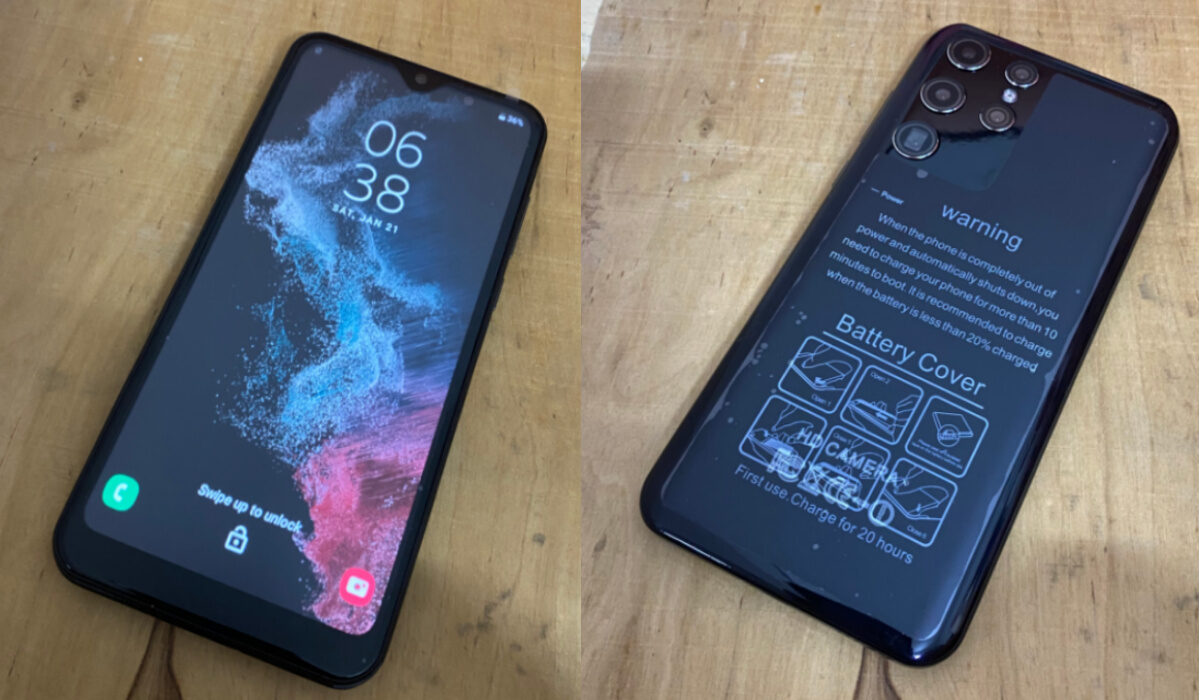
Real photos of the fake Samsung S22 Ultra, posted on AliExpress by buyers
As I have alluded to already, the user experience will frustrate you. And if you have used a real Samsung cell phone before, getting your hands on this fake Samsung S22 Ultra will only bring you pain and tears. Unlimited sorrow. By all the gods of humanity, real and imagined, I beseech you to not plug in its charger to your mains, to avoid burning down your house or office. May the Force be with you.
$75 to $98 for a fake Samsung S22 Ultra is a good bargain, if we are being honest, though. You get what you pay for. So, if you are feeling adventurous and would like to get your hands on this poor attempt of a copy job, make my day. Knock yourself out. Head over to AliExpress to order your copy. May the gods of your ancestors be with you.
Author:Mister Mobility
Digital Skills and Communication Coach | Mobile Phone Connoisseur since 2001 | Tech Blogging since 2004
Add MobilityArena as a preferred source on Google
There are many advantages to turning on Location Services on a Mac. To function properly and effectively, some programs, websites, and system functions may require knowledge of your precise location.
For instance, in order to set up and use the Find My Mac feature on your Mac device, Location Services must be enabled and functional. This is due to the fact that Find My Mac will make use of Location Services to find your friends or trace your belongings (such as an Airtag or an iPhone, iPad, or Mac) in the event that they are lost or stolen.
Now, there are sometimes when it appears like Location services aren’t working on your device and you’re not sure what to do to fix the issue. Thankfully, we’ve put this guide together with this question in mind, to help you fix Location Services and get it working properly on your Mac.
- Enable Location Services on your Device
- Enable Location Services for your Mac’s Apps
- Check your Mac’s Date and Time Settings
- Restart your Device
- Update your Mac Device
Enable Location Services on your Device
When it appears that Location Services is not working on your device, it’s important to first verify whether you’ve previously enabled Location Services on your Mac in order to address this problem.
Your precise location is used by a large number of native and third-party apps, including Microsoft Teams and Slack. This is where you should start if your apps are having trouble determining where you currently are, so follow these steps:
- Open Spotlight Search by pressing Command+Spacebar , then type “ System Preferences ” and hit Return .
- Select Security and Privacy .
- At your screen’s bottom left corner, tap on the lock symbol.
- Use Touch ID or a password to confirm your action.
- Verify that Location Services are turned on. Check the box next to “ Enable Location Services ” if it isn’t already checked.
- Scroll down, then click on Details to check System Services after that has been enabled.
- To receive Siri and Safari suggestions on your Mac, turn on location-based suggestions.
- Additionally, you can enable Significant Locations to let your Mac identify key locations. The Calendar app and Apple Maps will then offer recommendations.
- For modifications to be saved, click Done .
- To save changes, click the Unlock symbol.
Once you turn on this function, your Mac will use your IP address to determine where you are when it’s connected to Wi-Fi.
Enable Location Services for your Mac’s Apps
The second thing you should verify is whether or not you’ve given installed Mac apps the necessary permission to view your location. Sometimes, we install an app without giving it permission to view our location.
Due to this, the app is unable to retrieve the information or material that is appropriate for your location. Find My, which is linked to your iCloud account, is the most significant app that needs access to your location. To enable Location Services for your apps, follow these steps:
- Open Spotlight Search by pressing Command+Spacebar , then type “ System Preferences ” and hit Return . You can also select the System Preferences icon from the dock.
- Select Security and Privacy .
- At the bottom, click the lock icon.
- Use Touch ID or a passcode to confirm your action.
- Select the checkbox beside the name of the app you want to turn on location services for.
- To save changes, tap the Unlock icon in the lower left corner.
There you go, you should be able to use the location services for your apps now.
Check your Mac’s Date and Time Settings
The date and time settings on your Mac need to reflect your current location. Your apps won’t function properly or offer you relevant suggestions till then. Check your Mac’s date and time settings by following these steps:
- On the Dock, click the Launchpad icon.
- Select the System Preferences icon.
- Then select Date and Time .
- To access the features, tap on the lock icon at the bottom-left corner of the Date and Time window.
- Use Touch ID or a passcode to confirm your action.
- Toggle on Automatically Set Date and Time by clicking.
- Click the Time Zone tab after that.
- Choose Time Zone Automatically Using Current Location by clicking on it.
- To save changes, click the Unlock symbol.
Restart your Device
We advise restarting your device after enabling Location Services for your Mac, and its programs, and reviewing the Date & Time Settings . Your system will get a new start after you’ve applied the settings. To restart your Mac, follow these easy steps:
- In the top-left corner, click the Apple icon.
- Choose Restart .
Update your Mac Device
Your last option is to update macOS if you continue to experience problems with Location Services on your Mac. There is a possibility that this problem on your device is caused by a software flaw. This is especially if you are using an outdated model, so you should seriously think about updating the macOS version.
By heading to System Preferences > Software Update on your Mac device, you’ll be able to check for updates. Click the Update Now button if there’s a later version you need to update to.
Summarily, turning on Location Services on your Mac device is crucial to proper functioning, especially to access all your preferred web content and to track your other devices. If your Mac’s Location Services are not working, try any of the fixes we’ve suggested in this article. Also, don’t forget to recommend this article to your friends and loved ones.
- Don’t miss our mobile phone reviews .
- Follow our news on Google News .
- Follow us on Instagram , Facebook , Twitter , and YouTube .
