Add MobilityArena as a preferred source on Google
Making eye-catching graphics that appeal to the public is crucial in the real world, where visual and audiovisual content is what commands attention. We are aware that creating good design requires a lot of effort, and occasionally we lack the creativity and design know-how to create attractive, high-quality images. You can use graphic design apps or applications to accomplish this, so don’t worry. You can always do this on your smartphone.
The top 10 smartphone graphic design apps are included in the list below:

1. Adobe Illustrator
In a straightforward, user-friendly, and contemporary style, Adobe Illustrator provides vector drawing tools and functionality and is easily one of the best graphic design apps you can use on your smartphone or tablet.
With the help of one of the top design apps, you can skilfully create beautiful designs from any inspiration or concept. The perspective guidelines, which enable the creation of 3D environments from 2D designs, deserve special attention.
Another intriguing choice is the ability to launch Adobe Capture from this program, allowing you to generate new shapes and have them instantly available on your Draw canvases. Additionally, because it is a member of the Adobe family, the program enables you to easily refine your drawings on your computer by sending them straight to Illustrator.
2. Procreate
You will benefit much from this vector graphic editing program for digital painting. It was created and released by Savage Interactive for iOS and iPad with the intention of extending the iPad’s artistic potential and can be helpful for both experienced and novice artists.
Due to the fact that it offers several extremely user-friendly tools that work with pencils, this program has grown to be very well-liked among designers and artists over time. One of the simplest ways to study illustration, it offers a highly intriguing feature for making time-lapse recordings of your works.
3. Font maker
With Fonts Maker, you can quickly make a handwritten font, submit it by email, and turn it into a TTF file. It costs 8.99 euros and is a specific iPad application. You must use this design app if you enjoy typography.
4. Figma
Figma is a vector graphic design app and prototype tool that is mostly web-based. However, desktop apps for macOS and Windows allow for additional offline functions. It has evolved into a necessary tool, and many organizations now provide Figma courses to educate designers on how to use this program.
This program stands out from others since it streamlines web page design using elements that are necessary for any tool of this type, including automatic design or changeable themes. Additionally, it enables teams to concurrently collaborate online on the same project.
5. Snapseed
For iOS and Android, Snapseed is a photo-editing app that lets users snap pictures and add digital effects. It was developed by Nik Software and is now owned by Google. It is one of the best photo editing apps, along with Pixlr. Among its many options, which will enable you to create an amazing look on your photos, are the removal of objects, adjusting perspectives, enlarging images, sharpening to enhance details, and restoring burned backgrounds and shadows. It is unquestionably one of the top 10 design applications.
6. Sketchbook
This program is excellent for creating digital sketches. The application is currently free for all users as well. The user interface (UI) of this program is hidden until you pick up a pencil, pen, marker, or brush. It has a drawing engine that can work with a canvas of 100 mpx while preserving the intimacy of traditional sketching.
7. Photoshop
PhotoShop is a leading graphic design tool, so much so that words like “photoshopping” have gained fame in the general lingo. By the way, we don’t believe that this will make the RAE very humorous. Photoshop has a lot more intriguing functions than just photo retouching though.
8. Pixlr
Pixlr lets you experiment with a wide range of effects, borders, and overlays if you require images for your social media accounts, website, or articles. You may trim, resize, and fix annoying red eye with this utility. Additionally, you may use text and overlapped photos to make images.
9. Canva
Canva is a tool that beginners can use because it allows them to complete many types of high-quality work from their smartphones without having any prior understanding of graphic design. This graphic design app includes templates for making resumes as well as brochures, logos, posters, business cards, flyers, and book covers. It offers a subscription plan in addition to being free, giving you access to premium templates.
10. CorelDraw
- Don’t miss our mobile phone reviews .
- Follow our news on Google News .
- Follow us on Instagram , Facebook , Twitter , and YouTube .
Author:Moses Udah
Creative, teacher, web content writer, copywriter, and student.
Add MobilityArena as a preferred source on Google
Every operating system hides some files from its users, but macOS tends to do this considerably more. This helps prevent the deletion of crucial files and as a bonus , it guards against systemic harm.
Nonetheless, occasions might arise where you require access to some of these “invisible” files on your Mac device. It could be required for manual system cleaning, troubleshooting, altering system files or program settings, and in various other situations.
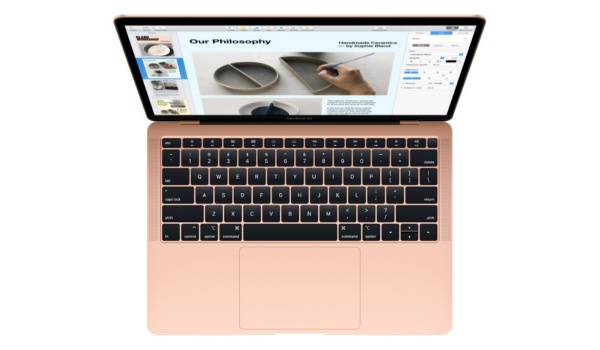
If you’d like to find out how to access hidden files on your Mac device, we’ve created this easy guide for you. Read through and pay attention to the crucial instructions we’ve outlined here, and you should be able to access the files you need pretty easily.
How Do I See the Hidden Files on my Mac?
There are several different methods that can help you get this done, some more complex than the others. We’ll start with the simplest ones, so take note of the instructions below:
Use a Shortcut
One of the simplest ways to find hidden files on a Mac is by using the necessary shortcuts to access them. The shortcut keys to “show hidden files” are also fairly simple to recall:
- Navigate to any folder where hidden files might be located from the Finder on macOS (for instance, the Macintosh root directory)
- To switch instantly and view hidden files, press Shift + Command ( ⌘ ) + Period.
That’s it, it’s that easy!
Use a Terminal Command
A typical Apple software called Terminal can be found in Launchpad and can prove useful in locating hidden files on a Mac. Using certain commands, this application assists with carrying out numerous activities on Mac devices.
You’ll need to follow the actions listed below in order to locate and make visible any hidden files on your Mac:
- Launch the Terminal program.
- The following command should be copied and pasted into the Terminal window:
“defaults write com.apple.finder AppleShowAllFiles -bool true killall Finder”
Keep in mind that you’ll have to repeat the process in order to hide the files again.
Use AppleScript
The scripting language employed in macOS is called AppleScript. An application named Script Editor can be used to view and alter it. In our case, its usefulness is demonstrated by the creation of commands that enable the display of macOS hidden files and folders.
This approach, however, is arguably more difficult than those previously described in this guide. Below, we’ve provided a clear explanation that will make the process easier for you if you’re using it for the first time.
- Launch the Script Editor program using Launchpad.
- Choose “New document” from the menu.
- The following code should be copied and pasted into the editor’s window.
“ display dialog “Show all files” buttons {“TRUE”, “FALSE”}
set result to button returned of result
if result is equal to “TRUE” then
do shell script “defaults write com.apple.finder AppleShowAllFiles -boolean true”
else
do shell script “defaults delete com.apple.finder AppleShowAllFiles”
end if
do shell script ‘killall Finder ’’
- Press the Run button.
- To reveal hidden files, click True ; to conceal them, click False .
- Save this document for later use.
Use the “ ~/Library ” Folder
Another method for viewing hidden files is through the “~/Library folder.” To locate hidden files on your Mac via this method:
- Either click on the desktop or launch the Finder.
- Next, pick Go To Folder by clicking Go in the menu bar. Hold the Option key down while choosing Go from the Finder’s menu.
- From the drop-down list, select Library .
- Alternatively, you can enter the Go To Folder option by pressing Ctrl + Shift + G on your keyboard. Put “~/Library” in the path field.
The ~ /Library folder houses crucial information and files needed for Mac user accounts and applications to run. As such, you should ensure that you use it with caution at all times. Also, keep in mind that the user-level and system-level “~/Library folder” are distinct from one another.
Use File Managers
Apart from the methods we’ve described above for viewing hidden files, it’s also possible to use file managers for this purpose. One such third-party file manager for macOS is called Commander One. Commander One contains a dedicated switcher in its upper panel for this purpose, making it exceptionally easy to view hidden files.
In summary , feel free to take advantage of the instructions and tips we’ve provided in this guide to locate and access hidden files on your Mac device. These steps should be pretty easy to follow, and if one method does not work, it’s a good thing there are other options to try.
Also, don’t forget to share or recommend this helpful article to other Mac users you know who might benefit from the information in it.
- Don’t miss our mobile phone reviews .
- Follow our news on Google News .
- Join our WhatsApp Group , to be notified of the most important articles and deals,
- Follow us on Instagram , Facebook , Twitter , and YouTube .
