Add MobilityArena as a preferred source on Google
If you are a fan and follower of trends in the electric vehicle (EV) industry, you definitely know the name Tesla. You might know a few other names among the biggest electric car companies. This page tracks the progress on the electric car industry, to keep you updated.
July 2022 : Chinese electric car brand, BYD, overtook Telsa in total sales of EVs, thanks to its performance in the first half of 2022, to become the world’s largest electric car maker. According to a Financial Times report, BYD sold 641,000 vehicles in the first six months of the year, against Tesla’s 564,000 vehicles.
Q1 2023 : Tesla is back in the lead ahead of BYD, making Tesla the biggest electric car company in the world.
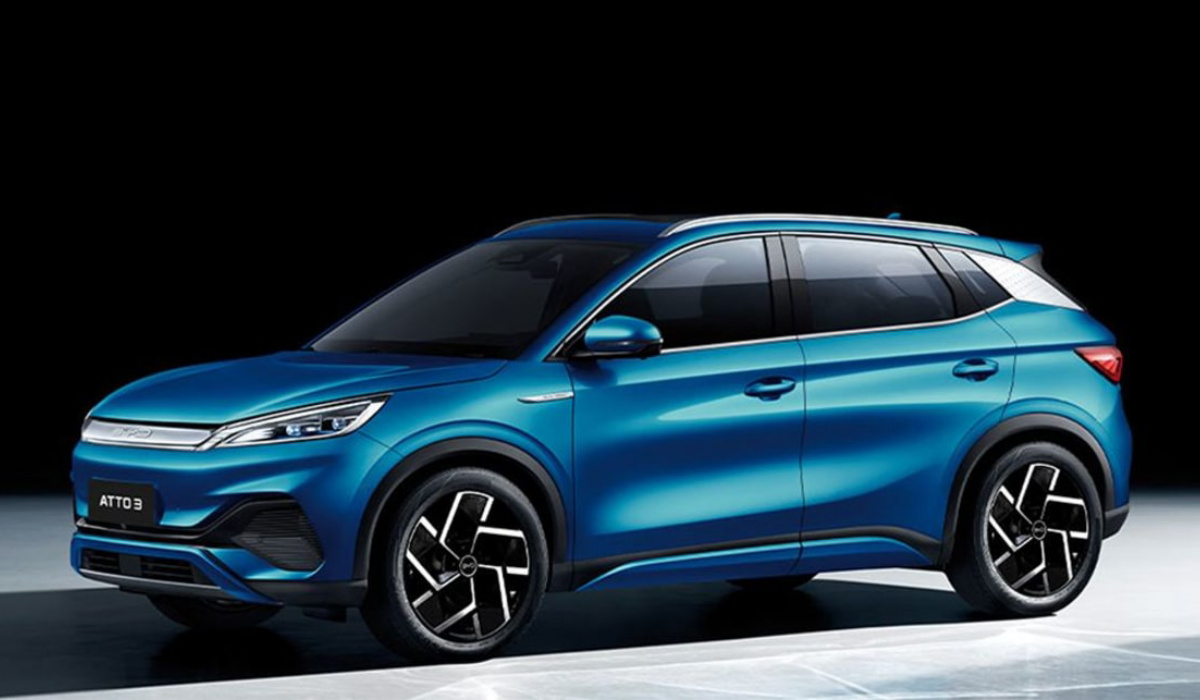
BYD is one of the world’s biggest electric car companies by sales
- Who is the top electric car maker in the US?
- Who is the biggest electric car company in China?
- Who makes the most electric cars in Europe?
- List of the top electric car companies globally
Who is the top electric car maker in the US?
Tesla remains the biggest electric car maker in the United States, though. Its hold on the US market is not under a threat, at the moment, as almost all of BYD’s sales happens in China.
Who is the biggest electric car company in China?
BYD is the largest EV manufacturer in China. BYD is to China what Tesla is to the USA.
Who makes the most electric cars in Europe?
Which is the top EV company on the old continent? That honour goes to the Volkswagen Group, which has about 25% of the EV market in Europe.
List of the top electric car companies globally
This list is according to number of cars sold, and is constantly updated.
- Tesla
- BYD
- Volkswagen Group (Volkswagen Group includes Volkswagen, Audi, Skoda, and Porsche)
- Toyota
- General Motors (GM)
- SAIC-GM-Wuling Motors
- BMW
- Nissan
- Hyundai
- Ford Motors
These are the 10 electric car companies in the world. The top two spots continue to be a swinging battle between American Tesla and Chinese BYD. Volkswagen Group is firmly in the third place.
Electric vehicles use an electric motor in place of a combustion engine (gasoline/petrol or diesel). For more details, read our instructive article: What are Electric Cars? Are They More Efficient Than Fuel-Powered Cars? Plus 5 Facts And More .
Author:MobileChic
That motivated, gadget-loving geeky chic who tries to stay on top of things. Unapologetic iFan.
Add MobilityArena as a preferred source on Google
With the increasing popularity of remote work in recent years, many people – web developers, gamers, and graphic designers, to name a few – have grown quite fascinated with dual monitor setups. Unarguably, standard computer settings are primarily fine for daily tasks. Nevertheless, once you realize all the advantages of having multiple screens, you wouldn’t want to have any less.
Since most computers only have one screen, very few individuals are familiar with how to build these innovative systems. This is why we have provided this guide to help you conveniently set up your dual monitor system with your Windows device in your workspace.
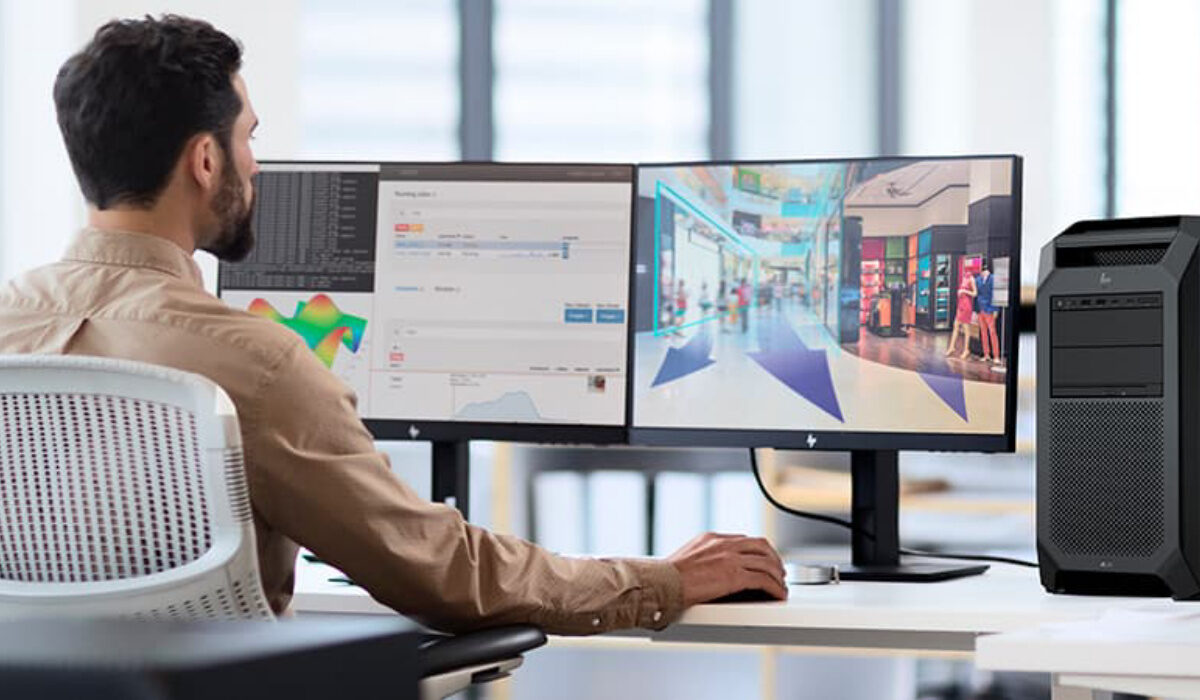
A Dual Monitor System. Image courtesy of HP.
We’re providing this guide on the assumption that you already have all your components (monitors, monitor stands, etc.) ready for the setup process. As you shop for the components you’ll need for your setup, keep in mind that you’ll need to conduct your research on some technical issues (especially device compatibility) that you need to be aware of. To make the process much easier, ensure that you already have all of your cords and tools close at hand.
Find the perfect spot
Finding the ideal spot for both screens is the first step in setting up your dual monitor system. You’ll need to be a little inventive and rearrange all the other components of your workspace till you’re happy with it because most workstations are not made to support two monitors. Remember that you can very easily purchase additional monitor stands to assist with this setup process.
Plug in your Monitors
Making sure to position all of your cables correctly is the next step. You can have different cable management systems to help you accomplish this and keep your workspace as organized as possible. Once everything is in position, plug all the cables into the appropriate outlets. However, before you do this, please check to ensure they are all securely connected to prevent power loss during your working or gaming sessions.
You can now power on your gadget to check that everything is operating as it should.
Set up your Monitors in Windows
You can quickly set up a second monitor if you have a Windows device because all you need to do is locate the taskbar, which will walk you through the setup procedure. Only a few simple actions need to be taken to make sure everything goes as smoothly as possible.
After confirming that your computer can see both monitors, you must access the desktop and locate the display settings. Then, a window with many controls will appear, allowing you to use your screens and select from a variety of display options. The following list includes some of the more popular display types:
The most typical sort of display simply designates each monitor with a one or a two, as appropriate, so that you always know which one you’re using.
The multiple display option with which you can show one of the following displays:
Show identical pictures on both screens
Make the image bigger and the two screens work as one.
Use only one of the monitors.
Adjust the Positioning
It’s time to use the box at the top of the window to move your monitors into position. This enables you to move your mouse between both monitors. As such, it is ideal if you arrange your monitors to match your display position because this will make it much more intuitive for you and cut down on the learning curve.
Note that you can drag the boxes to reposition them whenever you’d like until you reach a position that feels natural.
Determine your Primary Monitor
The final display setting is to choose a default monitor to serve as the main screen on which all programs will be shown. It will also include all of your gadgets, including your clock and other taskbar icons.
By combining dual-monitor choices with your standard monitor settings, you can still use one monitor. To meet your preferred visual experience, each monitor can have various resolutions and general settings.
If you don’t have a Windows device…
You can set up your two-monitor laptop system with alternative third-party software if you don’t have a Windows device. The most popular methods for doing this use graphic card providers and apps of a similar nature. These will let you put different settings on your monitors to make sure they’re functioning properly.
Finally, it is good for you to know that dual-monitor configurations may also be installed on iOS, Android, macOS, and Linux devices, because we are aware that not everyone uses Windows-based computers. Additionally, these operating systems have quite similar installation procedures, although the specifics will typically vary based on the device you’re using. We’re sure you’ll find this article very helpful, so don’t hesitate to recommend it to your friends, family, and colleagues.
- Don’t miss our reviews .
- Follow our news on Google News .
- Join our WhatsApp Group , to be notified of the most important articles and deals,
- Follow us on Instagram , Facebook , Twitter , and YouTube .
