Add MobilityArena as a preferred source on Google
Without contest, Apple’s iPad is the world’s most successful and most popular tablet device. It has outsold every other single tablet by any other manufacturer, and it has outsold many of them combined together. Yet, while it remains a popular choice, there are several notable iPad alternatives available in the tablet market.
The iPad enjoys the exclusivity of being the only tablet that runs iPadOS software. All the available alternatives run either Android OS or Windows OS. Bear this in mind when shopping. If you have a software preference, be sure to ask and make sure you buy a tablet that uses that software.
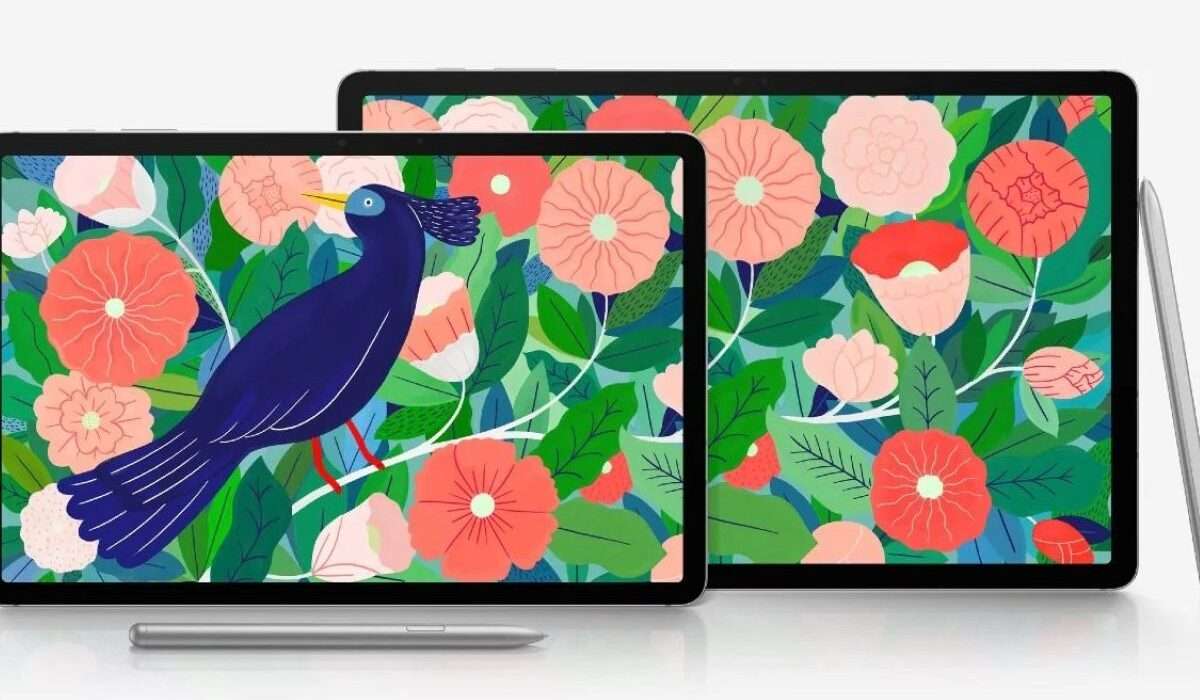
Explore Apple iPad alternatives
- The Top iPad Alternatives Samsung Galaxy Tab Microsoft Surface Lenovo Tab Google Pixel Tab Amazon Fire HD
The Top iPad Alternatives
Here are some of the best iPad alternatives you can buy today.
Samsung Galaxy Tab
Samsung is the world’s biggest Android device manufacturer and in many markets, it is the closest contender to Apple’s devices. As such, the Galaxy Tab range is one of the most solid iPad alternatives you can explore. For example, the Samsung Galaxy Tab S7+, Samsung Galaxy Tab 7, Samsung Galaxy Tab S6 5G (which was the world’s first 5G tablet ), Samsung Galaxy Tab Lite 2022 and others like them offer a stunning Super AMOLED display, powerful hardware, and an included S Pen for note-taking and drawing.
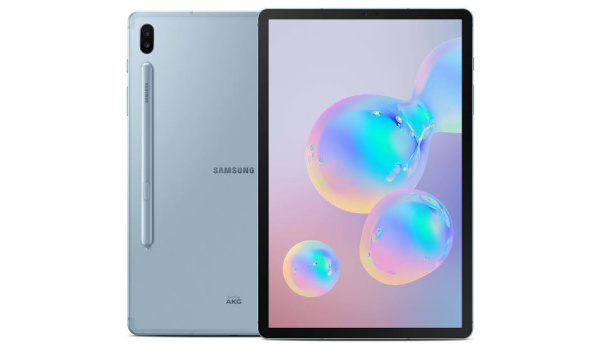
Samsung Galaxy Tab S6 5G is one of the iPad alternatives from Samsung
Lastly, Samsung has the widest range of tablets for you to pick from. No other manufacturer has that range. There is literally a Samsung tablet for every size and price point.
Microsoft Surface
If you want a capable tablet that runs Windows operating system, Microsoft Surface tablets offer great versatility and functionality that make them ideal for productivity and creative tasks. Content creators, in particular, will find them to be excellent tools on the job. An examples is the Surface Pro 7. Microsoft also has foldable Surface devices in their product catalog. A case in point is the Surface Duo 2 . Microsoft Surface devices are pricey, but then you just might find that every dollar is well spent.
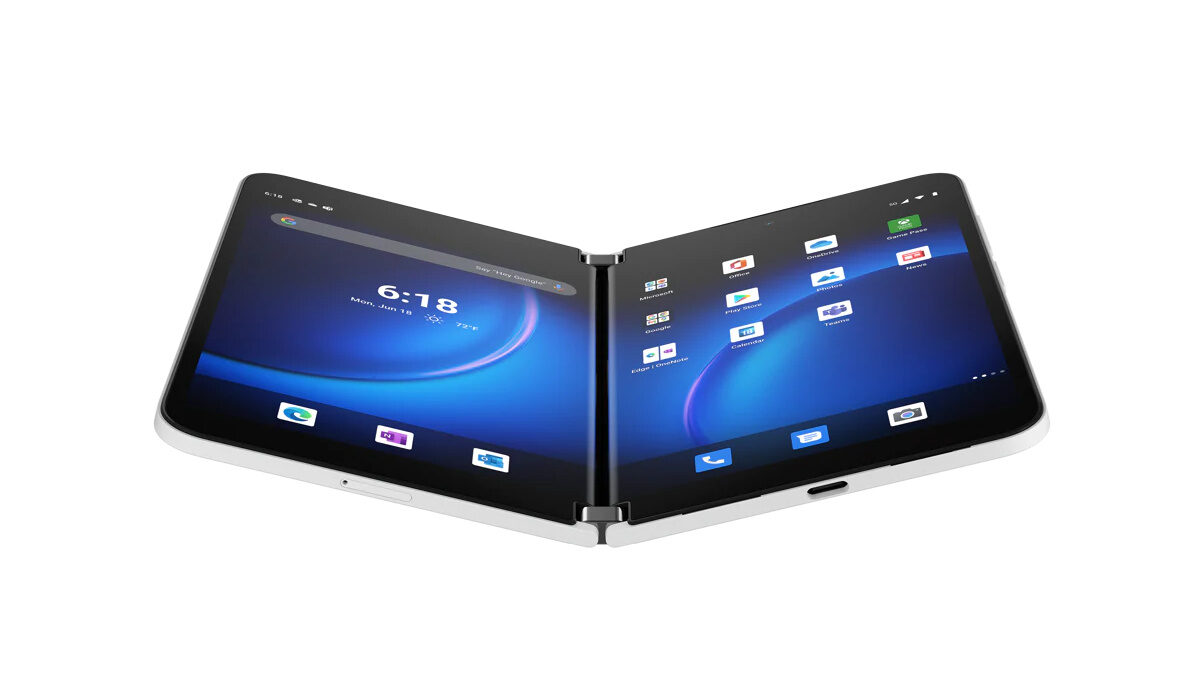
The Surface Duo 2 is one of the available iPad alternatives from Microsoft
Lenovo Tab
Lenovo makes a range of Android-powered tablets with high quality displays, impressive performance, and support for the Lenovo Precision Pen, the brand’s take on stylus. Lenovo tablets are known for their premium designs and multimedia capabilities. Examples of iPad alternatives from Lenovo are the Tab M9, Lenovo Tab P11 Pro 2, and Lenovo Tab Extreme.
Google Pixel Tab
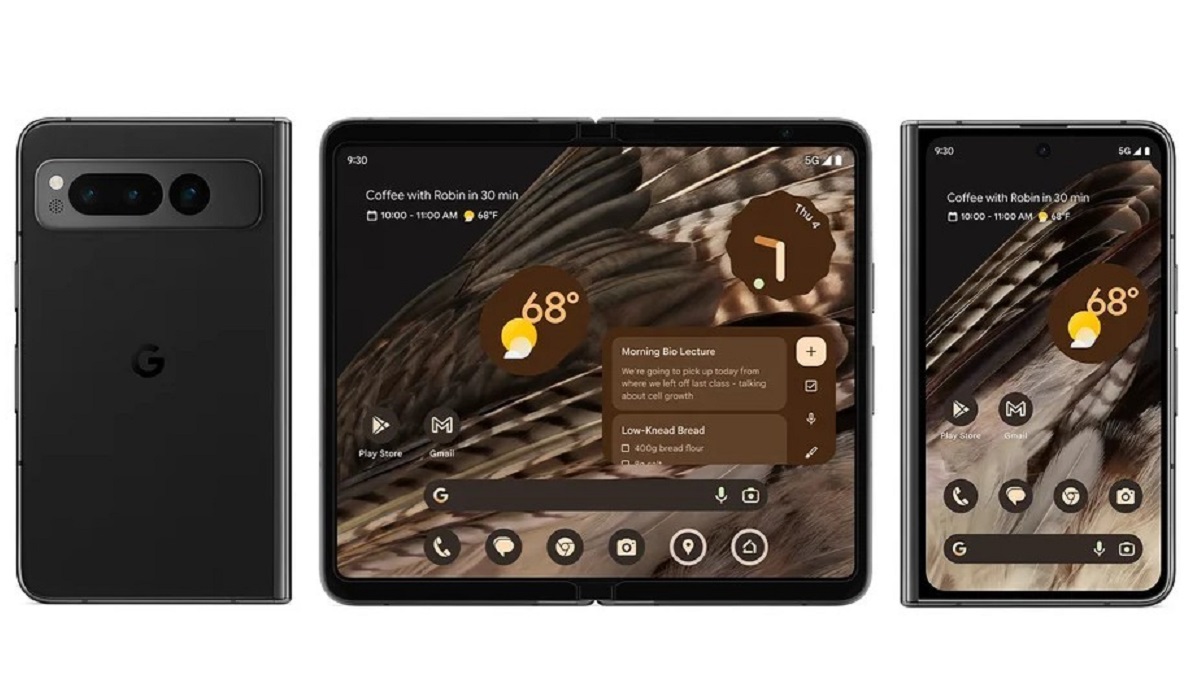
Google’s first foray into tablet territory was not quiet the success that they hoped it would be. Released in 2018, the Pixel Slate was a Chrome OS tablet that had a sharp display, excellent speakers, and compatibility with a detachable keyboard and stylus for enhanced productivity. It is history now, bot Google has only recently announced the Pixel Tablet in May 2023. This one runs Android operating system. If you want a foldable, the Google Pixel Fold is also new in the market.
When choosing an iPad alternative, consider factors such as operating system preference, desired features, performance, ecosystem compatibility, and budget. Each alternative offers its own strengths and caters to specific user requirements, so it’s essential to assess your needs to find the best fit for you.
Author:Mister Mobility
Digital Skills and Communication Coach | Mobile Phone Connoisseur since 2001 | Tech Blogging since 2004
Add MobilityArena as a preferred source on Google
Whether you’re watching a movie or taking an important business call, it can be really frustrating when your AirPods won’t connect to your device. Normally, they are supposed to connect to your phone, iPad, and other devices without difficulty.
In this article, I’ll walk you through various ways to fix when AirPods won’t connect. So if you’re wondering why your AirPods aren’t connecting, read on to learn how to fix it.
- How Can You Fix When AirPods Won’t Connect? Charge Your AirPods Update Your Software Turn your Bluetooth on and off Clean Your AirPods Try a single AirPod Restart Your Device Connect the AirPods to Another Apple Device Reset and Re-Pair AirPods With Device
How Can You Fix When AirPods Won’t Connect?
There are numerous causes for why your AirPods may not be able to connect with your Bluetooth devices. A low battery charge, Bluetooth troubles, software update issues, hardware damage, debris on the AirPods or charging case, and other factors are some of the potential causes.
Here are several techniques you can try to fix when AirPods won’t connect to your device.
Charge Your AirPods
When your AirPods aren’t connecting or even functioning properly, this is the simplest thing to try. Put your AirPods back in the charging case and use a Lightning cable, wireless charger, or MagSafe charger to power everything. Wait until the case’s light turns green. That indicates that your AirPods and case are fully charged. Check afterward to confirm that this tip has helped to fix when AirPods won’t connect.
Update Your Software
Updating your iOS or iPadOS software is also a good idea for troubleshooting any AirPods issues. So, apply any pending updates to see if it helps to fix when AirPods won’t connect.
You can do this on your iPhone or iPad by navigating to Settings > General > Software Update . If you need to update your software, simply follow the on-screen instructions. You can rule out any problems with your device by using the most recent software.
Turn your Bluetooth on and off
Bluetooth connections fail sometimes. Toggle your Bluetooth connection on and off to quickly determine if that is the root of your AirPods connectivity troubles. There are several ways to do this and fix when AirPods won’t connect, the simplest one is to access the Control Center and toggle Bluetooth on and off.
On your device, go to Settings > Bluetooth to switch Bluetooth on or off. Fans of Apple’s virtual assistant Siri can also turn Bluetooth on and off with a simple voice command.
Clean Your AirPods
Through regular use, debris like dirt and grime and even worse can gather on the AirPods and even the charging case. You may need to thoroughly clean everything if you’re having trouble getting the earbuds to connect to your device.
Any dirt or debris, no matter how small, could be interfering with charging or doing other things.
Clean your AirPods with a gentle microfiber cloth. Do the same for the charging case. You can use a wet towel, but ensure no liquid enters the AirPods’ openings or the case’s charging port.
Reconnect after making sure everything is dry, clean, and fully charged, and check to see if you’ve been able to fix when AirPods won’t connect.
Try a single AirPod
You may not know, but each AirPod may function separately from the other one. Remove one AirPod at a time from the charging case and check to see whether they connect individually to your device. This can help you determine if the problem is isolated to a particular AirPod. If only one of them connects to your device while the other does not, you’ll have a better notion of where the problem is and how to fix when AirPods won’t connect.
Restart Your Device
Next, it’s time to restart your smartphone if, at this point, you’re still unable to fix when AirPods won’t connect. Depending on how old your iPhone or iPad is, there are many ways to accomplish this.
- Press the volume up button on a modern iPhone, then immediately press the volume down button. Press the Side button after that.
- To turn off the iPhone, swipe across the screen. Press the side button again to restart. The start-up process starts as soon as the Apple logo appears.
When using an iPad without a home button, the procedure is the same. After restarting the device, check to see if the AirPods connect and you may resume your music session.
Connect the AirPods to Another Apple Device
There’s always the possibility that your AirPods are fine but the device you’re attempting to connect to is having a problem.
You’ll need to get a different iPhone, iPad, Mac, or even an Apple Watch and try pairing the AirPods to rule the possibility out. If it works to fix when AirPods won’t connect, you’ll know that the issue is with your main device and not the AirPods.
Reset and Re-Pair AirPods With Device
If the problems persist, it is time to take more serious actions to fix when AirPods won’t connect. A factory reset will totally erase the memory of the AirPods and return them to their original state.
- Place the AirPods in the charging case and close the lid to begin the process. Wait for another 30 seconds.
- The charging case’s lid should then be opened and kept open.
- Next, go to Settings > Bluetooth on your iPhone or iPad.
- Locate the name of your AirPods and press the More Info ( I ) button next to it.
- Choose Forget This Device , then click Confirm .
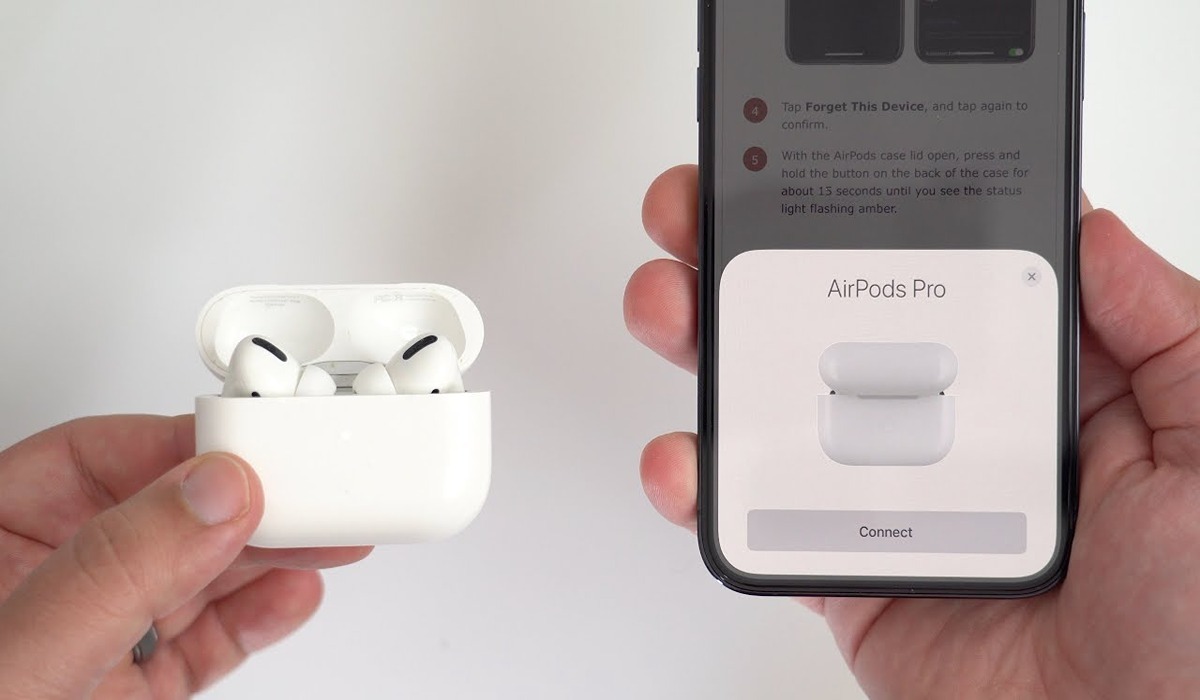
- Press the setup button on the back of your AirPods case for about 15 seconds with the lid open. Wait for the status light to first flash amber and then white.
It’s time to try to re-pair your iPhone with the AirPods after they have been factory reset.
- Place them close to an iPad or iPhone after opening the lid.
- If successful, the screen will display a pop-up. To connect the AirPods and add them to your iCloud account, by following those instructions.
Please note that the third-generation AirPods and any model of AirPods Pro can only be linked to a single Apple ID. If you want to use AirPods that were previously linked to another Apple ID, the other user must delete them from their account.
To conclude, with the aforementioned fixes, your AirPods should connect to your device without a hitch so you can listen to music and podcasts without interruption.
If you’ve tried these troubleshooting suggestions to fix when AirPods won’t connect and you’re still unable to connect your AirPods to a device, it’s best to contact Apple for assistance. You can check out this guide if your AirPods are not switching automatically between Apple devices.
