Add MobilityArena as a preferred source on Google
Nowadays, watching movies has become so simplified, such that you can enjoy the experience with just your mobile device and an internet connection. There are countless movies and TV series available online, but it may still be difficult to locate a reliable streaming service that won’t populate your screen with adverts or unsafe links.
It might therefore be much better to download legitimate free movie apps, so that you’ll be able to watch all of your favorite movies anytime and anywhere you please. You’ll need to know the top free movie apps you should try out for this purpose, and that’s why we’ve created this guide.

- What are the Top Free Movie Apps to Try Out? Tubi TV Popcornflix Crackle Peacock Pluto TV
What are the Top Free Movie Apps to Try Out?
There are several movie apps that offer a great streaming experience. However, the options we’ve described below are the top free movie apps you should try out if you’re looking for good recommendations.
Tubi TV
Tubi TV is a top recommendation when it comes to the top free movie apps to try out. Free movies are neatly categorized by category on Tubi TV, including romance, horror, and comedy. Additionally, you can go through the most prominent and featured films. The movies are of good quality, and the movie player functions without any hitches.
You’ll also notice that all movies on Tubi TV are available with subtitles. You’ll typically be able to access your queue of movies on all platforms, including Tubi TV’s web interface, after logging in. You can also choose to screencast if you want. Tubi TV is available on Android and iOS platforms, so feel free to try it out if you’re looking to enjoy the benefits of the top free movie apps.
Popcornflix
A fantastic selection of movies is available on Popcornflix, and it is highly regarded among the top free movie apps to try out. The app shows you a screen of free movies that are categorized and arranged by new releases first.
Popcornflix also offers a line of original programming known as Popcornflix Originals. The streaming is seamless and the movies are of high quality. The movie player is also smooth and feature-rich, but it may be a little overpowering at times. Popcornflix also allows for free streaming of TV series. It is also available on Android and iOS, among other platforms.
Crackle
Another available option among the top free movie apps you should try out is Crackle. It comprises recent blockbusters as well as timeless classics, so Crackle’s library of free movies is classified among the best options.
Peacock
Peacock has a premium subscription option, but it also has several thousands of hours worth of free content. As such, it’s still qualified to be named among the top free movie apps you should try out. Peacock’s platform also offers free live TV channels. The variety of series and movies available make it worthwhile to register an account, but doing this isn’t mandatory to use the service.
Pluto TV
Our final pick among the top free movie apps you should try out is Pluto TV. It has several features, but the user interface is kept simple and straightforward. When you launch the app, Pluto’s free TV channels are displayed, along with a separate page for free movies and TV episodes.
In addition to free TV stations with various entertainment options, there are live channels where you can view free movies as they are being shown. It is also an organized platform, and there are subtitles available for most free movies. To make Pluto TV more suited to your requirements, it’s advisable to sign in.
Another fantastic reason that ranks Pluto TV highly among the top free movies you should try out is that it doesn’t require registration. You’ll also find it vailable on iOS and Android devices
In summary , you’ll love all our recommendations for the top free movie apps you should try out. Choose one or more of our suggestions and get ready to enjoy a satisfying movie experience.
Author:Joan Agie
Add MobilityArena as a preferred source on Google
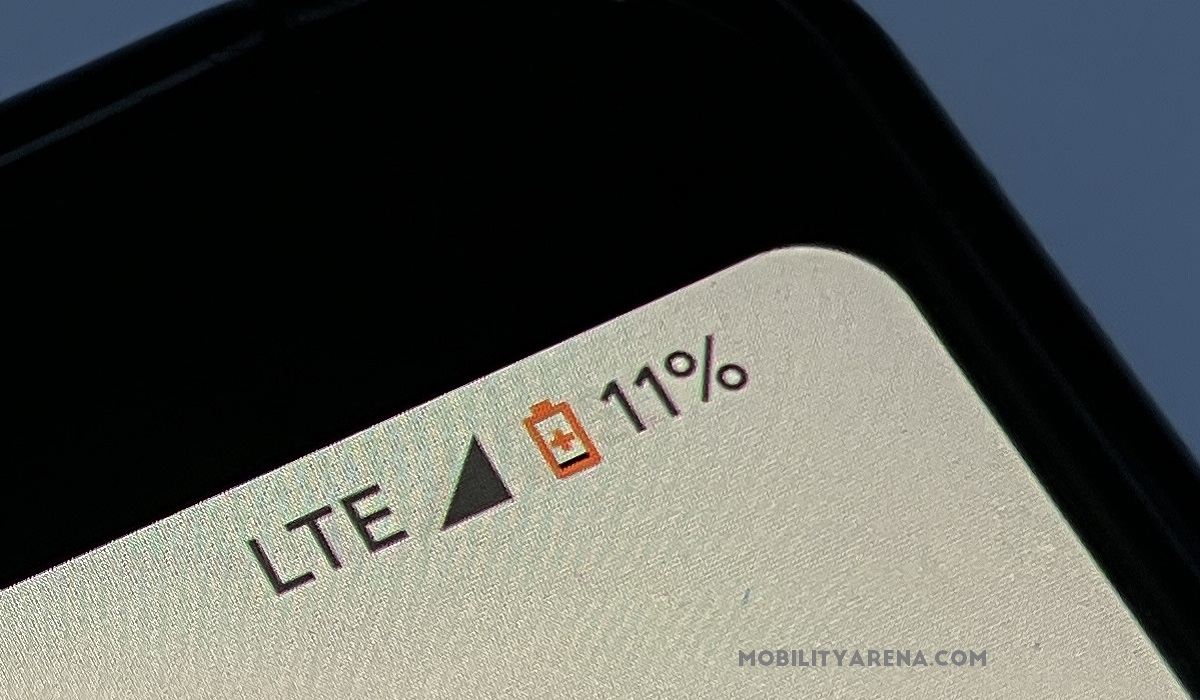
An active data connection optimizes the performance of your smartphone. When Wi-Fi is unavailable, you’ll inevitably need to rely on your mobile data to access the internet, even in the most remote locations. However, what if your Android’s cellular or mobile data stops working or starts to behave strangely?
By definition, mobile data includes all kinds of Internet access provided by your mobile network operator or carrier: EDGE, 3G, 4G LTE, 5G, etc. The good news is that it’s easy to fix mobile data not working on Android. You’ll just need a few helpful tips to figure the process out easily, and we’ve provided them in this guide.
- How to Tell if Mobile Data is Not Working on Android
- How Can I Fix Mobile Data Not Working on Android?
How to Tell if Mobile Data is Not Workingon Android
There are some telltale signs that will let you know if the mobile data on your Android is not working. Here are some of the most common signs:
● Downloads fail to begin, or stop loading at 0%.
● The Google Play loading screen won’t move.
● Browsers become unable to load web pages.
● Difficulty in using internet-dependent apps, such as apps for streaming music or videos, playing online games or using GPS navigation.
If you notice any of these signs, try any of the suggestions in the next section to fix mobile data not working on Android.
How Can I Fix Mobile Data Not Working on Android?
Below, we’ve outlined several solutions you can try to fix mobile data not working on Android.
Verify your Data Plan
This is one of the first places to look when trying to fix mobile data not working on Android. Before you begin troubleshooting, make sure your data plan is active. You’ll typically experience slower speeds if your data plan has a usage cap. If after checking you find that your data plan is exhausted, you may need to purchase a new one to regain access to the internet.
Toggle airplane mode on and off
When you have mobile data turned on but no internet connection, sometimes all you need to do is turn Airplane Mode on and off to fix mobile data not working on Android. The toggle for Airplane mode is typically located in the Quick Settings on Android devices. Alternately, you can go to Settings > Network & Internet > Airplane mode to do this.
Activate the proper network mode
Mobile data may not function if your phone uses a network service type that is not available where you are. So this is something else to consider when you’re looking to fix mobile data not working on Android.
For instance, you can try changing the network type to 3G if you’re in a distant area without access to 5G or 4G. To select the correct network mode for your device, follow the instructions below:
● Go to Settings > Network& Internet > SIM & Mobile Network.
● Select Preferred network type
● Set it to the highest available network in Automatic mode for the best experience. If you have a 4G smartphone, for instance, you should choose 2G/3G/4G auto or anything comparable.
Reset the APN settings on your device
Your Android’s ability to connect to your carrier’s network is facilitated by the APN (Access Point Name), which contains crucial parameters including IP addresses, gateway information, and others. So, when trying to fix mobile data not working on Android, you might need to perform a reset if there’s a problem with APN settings, or if you’ve recently changed carriers or data plans. Follow these instructions:
● Launch the Settings app on your smartphone
● Click on Network & Internet (it may present as SIM card and mobile network on some brands)
● Choose the SIM card that you use for mobile data if you have two SIM cards. E.g. SIM 2.
● Select Access Point Names or APN next.
● Tap the three-dot button in the top right corner.
● From the drop-down menu, select Reset access points
Modify the APN Protocol
You should also attempt to alter the APN protocol if mobile data still does not function after the APN has been reset. Even though IPv4 is the basic protocol for most internet interactions, some sophisticated servers could need IPv6 to function properly.
To change the APN protocol to IPv4 or IPv6 and fix mobile data not working on Android, follow the steps below:
● Open your device.
● Select the Network & Internet button (or SIM card and mobile network on some devices.)
● Choose the SIM card that you use for mobile data if you have two SIM cards. E.g. SIM 1.
● Choos e Access Point Names or APN next.
● Select the first active APN.
● Then, choose APN protocol by scrolling down.
● Select IPv4/IPv6 under the APN protocol option.
● Finally, click the three dots in the top right corner.
● You might get a prompt for caution. To accept the changes, press OK.
On your Android device, mobile data should now operate without issue after following the above instructions.
Reset your phone’s network settings
Network problems with Wi-Fi, voicemail, mobile data and other services might result from improperly designed networks. You can easily restore all the settings to their original state by performing a network reset, which may help to fix mobile data not working on Android.
Just keep in mind that this should only be used as a last option. In the process, you’ll lose all previously saved Wi-Fi networks, Bluetooth connections, and other network settings. Follow these instructions:
● On your Android device, go to Settings and choose System .
● To access the Reset options, expand Advanced . Select Reset Bluetooth, mobile, and Wi-Fi.
● Tap the Reset settings option to finish.
In conclusion , your mobile network should be able to reconnect to the internet if you try all the tips and suggestions provided in this guide to fix mobile data not working on Android. If none of the other options work, ask your network provider for help or try a different network to see if it helps to fix mobile data not working on Android.
- Don’t miss our mobile phone reviews .
- Follow us on Instagram , Facebook , Twitter , and YouTube .
