Add MobilityArena as a preferred source on Google
If you are switching phones, moving data from an iPhone to a new Android smartphone is something that you need to be able to do. Why? You could have pictures, videos, documents, work-related data, account information, etc, in your iCloud storage that you will most definitely need on the new phone. Transferring data from an old iPhone to a new Android phone is relatively easy, and stressless, for the most part.
Moving your data from an iPhone to a new Android phone requires you to move your photos and videos from iCloud to Google Photos. You can do it using a cable, wirelessly over Wi-Fi, or via an Apple feature that lets you request for transfer of data. Note that whatever photos and videos you transfer does not get removed from iCloud. Photos and videos you acquire and store in iCloud after the transfer will not sync automatically.
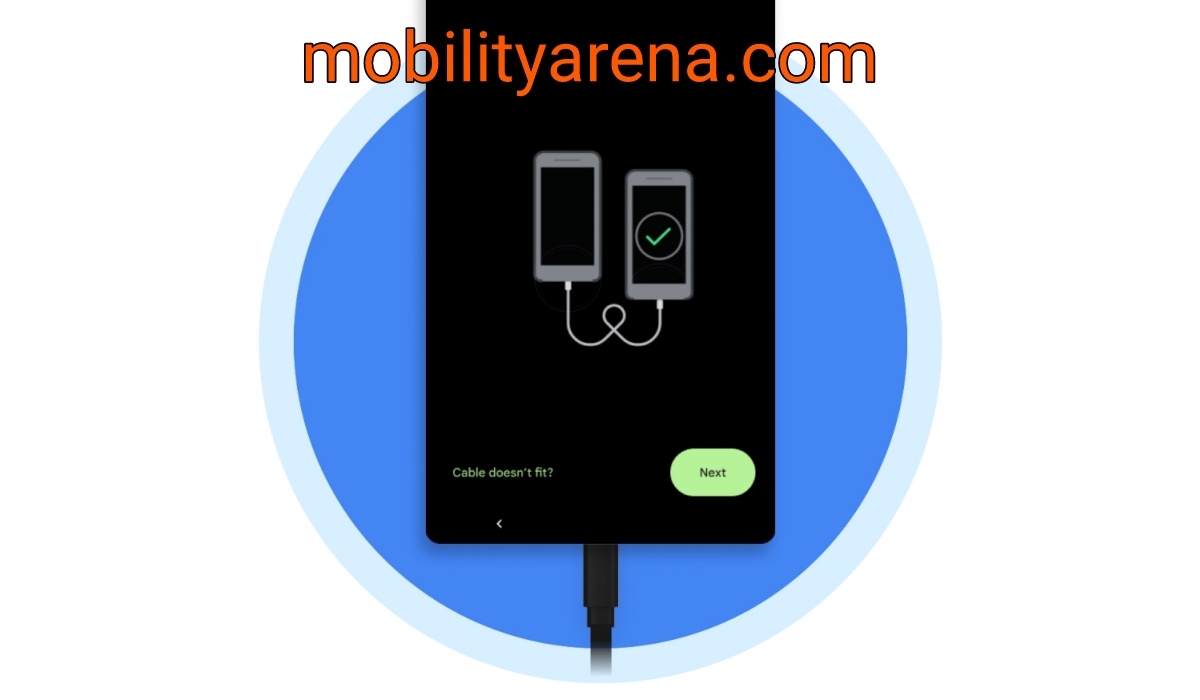
Transfer data from an iPhone to a new Android phone via USB cable
Simply connect the two phones with a cable, select what data you want to copy – contacts, messages, photos, videos, and start the transfer. As soon as the files are moved, they are synced to the respective Google service (if you are already signed into your Google account on the Android phone): contacts to Google Contacts, and photos and videos to Google Photos. Easy pie.
Transfer data from an iPhone to a new Android phone, wirelessly via Wi-Fi
When setting up your new Android phone and you want to transfer data via Wi-Fi, ensure that both phones are connected to a Wi_Fi network. Your new Android phone will ask you if you want to copy apps and data from your old phone. Yes, you do. It will prompt you and you should select the option that says, “No cable?”, and then the option to copy from an iPhone. Complete the process to have your files moved over from the old iPhone.
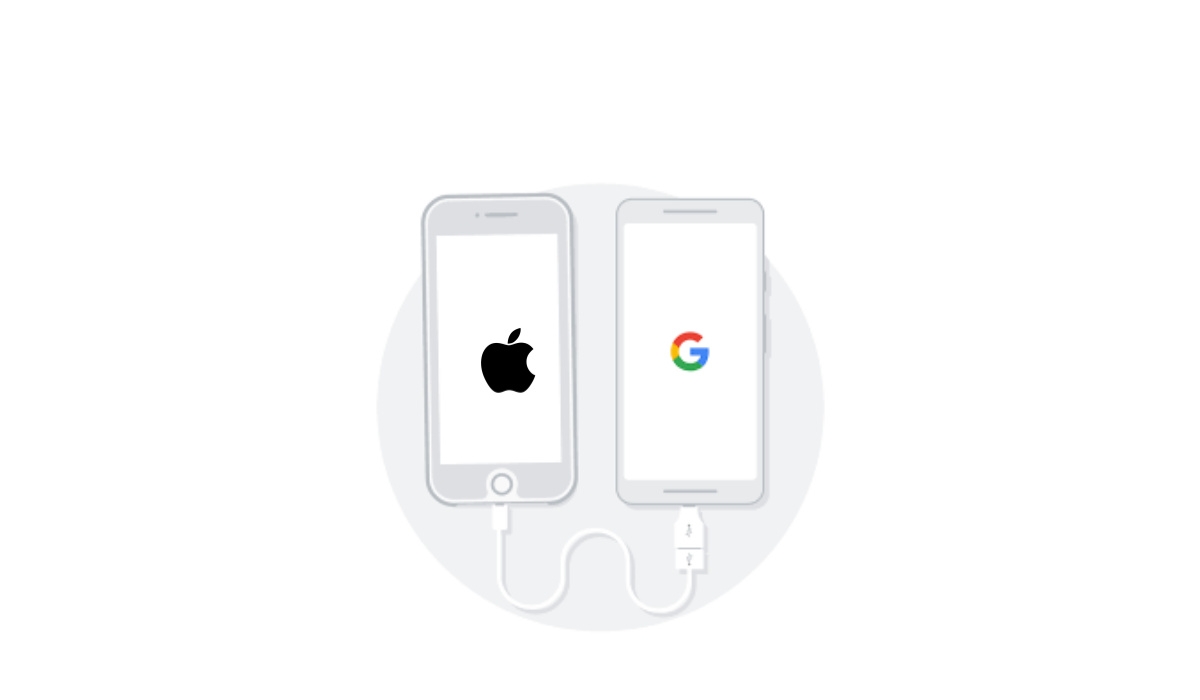
Transferring your data from iCloud to Google Photos via Apple request
As already mentioned, Apple has a feature that lets you request to transfer a copy of your data from iCloud to Google Photos. There are only a handful of countries that have the transfer service available. They include:
- Australia
- Canada
- Norway
- Switzerland
- United Kingdom
- United States
- New Zealand
- Lichtenstein
- Iceland
- European Union
If you are not based in these countries, you are out of luck for now, but the list is expected to grow with time, to cover more countries. Note that some types of content will not transfer from iCloud to Google Photos during the process, they include;
- Shared albums.
- Live Photos.
- Photos and videos not stored in iCloud.
- Smart albums.
- Photostream content.
Things to check before you start to transfer data from an iPhone to a new Android phone
- Check that you use iCloud Photos to store your photos and videos
- Ensure that your Apple ID uses two-factor authentication.
- Ensure that your Google Account has enough storage available to store all the data from the transfer.
- The required storage that you will need for the transfer process will be displayed by Apple.
- Head to “your Drive storage” to see how much space you have in your Google Account.
- If you do not have enough storage, you can buy more storage.
How to request your photos and videos transfer
To request a transfer from iCloud to Google Photos, follow these steps;
- Use privacy.apple.com to sign onto your Apple ID.
- Tap on “Request to transfer a copy of your data.”
- Sign into your Google Account to start the transfer process.
- Follow the on-screen instructions to finish your request.
The process takes 3-7 days to complete. If you stop the transfer request before it is finished, the data that had already been copied will show in Google Photos.
Note
- If possible, photos are transferred within their respective albums. Videos will be transferred separately, and not in albums.
- If a photo or video already exists in Google Photos, only one copy of the photo or video is kept.
- Only the most recent edits of photos and videos are transferred.
Don’t forget that the request process takes time, and you have to do some waiting for the transfer to be fully complete. The time it takes depends on the size and volume of files that you are moving. It is much faster to transfer your files via USB cable, and that is the option that I recommend the most.
- Don’t miss our mobile phone reviews .
- Follow us on Instagram , Facebook , Twitter , and YouTube .
Author:Flamez
Flamez loves basketball, art, gadgets and cars.
Add MobilityArena as a preferred source on Google
Our smartphones are now more intelligent than ever thanks to being able to download services and apps that increase their utility. Every modern smartphone has preinstalled apps that perform the bare minimum of functions, but users can also access a limitless supply of services by downloading third-party apps, especially on Android devices.
Millions of apps and games, both free and for purchase, can be found in the Google Play Store for Android devices. This guide will show you how to download and update apps on Android from the Google Play Store.
Downloading and updating Apps on Android from the Google Play Store is an easy process.
What is the Google Play Store?
The Google Play Store, formerly known as the Android Market, is the standard way to download and update apps on Android, basically any third-party program you fancy. With a few geographical exceptions, every Android smartphone normally comes pre-installed with the Google Play Store.
The Play Store has expanded to provide more than just games and applications over time. Within the Google Play app, you can now buy or rent movies, books, and TV shows as well as manage your subscriptions.
There are many categories where you can find apps and games, and there is a special Offers page where you can look for discounts on purchased apps and games. You can also play some games directly without having to install the whole bundle.
All of these features of the Play Store are great but don’t forget that you must first set up a Google account on your Android smartphone in order to access the enormous Play Store app catalog, and so you can easily download and update apps on your Android device.
How Can I Download Apps on Android from the Google Play Store?
The procedure to download apps on Android from the Google Play Store is a rather simple and straightforward one.
Here’s how to do it:
- Go to your phone’s Play Store app and open it. You can find it on your home screen or in the app drawer (swipe up from the home screen’s bottom).
- Enter the game or app you want to download in the search box at the top by tapping on it. To find new apps, you can also browse the Play Store’s various categories.
- Tap on Install after selecting the correct app from the search results.
- The time it takes for the app to download and install depends on the speed of your internet connection and the storage capacity of your phone. To access your recently installed app or game, tap on Open or Play .
Note that you’ll first have to set up a payment method on the Google Play Store in order to purchase some paid Android apps and games. If you’d like to prevent unintentionally overspending on games in the future, you can set a biometric verification requirement to authenticate your purchases.
In a similar manner, you can remove a previously downloaded app through your phone’s Settings app or by going to its app page on the Play Store and tapping on the Uninstall button.
How Can I Update Apps on Android from the Google Play Store?
If you’re connected to a reliable Wi-Fi network, you’ll find that the Play Store does a great job of keeping apps up-to-date when necessary. To manually search for and update apps on Android from Google Play Store:
- On your phone, access the Google Play Store.
- Next to the search box, tap on your profile photo.
- From the popup menu, click on the option to Manage apps and device .
- You will be notified if any of your phone’s current apps have updates available under the Overview page. To install all currently available app updates on your phone, tap Update All .
- You can also click See Details to update specific apps.
In summary , this guide has described how to download and update apps on Android from the Google Play Store. Follow the instructions correctly to get your favorite apps on your device.
- Don’t miss our mobile phone reviews .
- Join our WhatsApp Group , to be notified of the most important articles and deals,
- Follow us on Instagram , Facebook , Twitter , and YouTube .
