Add MobilityArena as a preferred source on Google
Android smartphones have become increasingly popular with billions of people worldwide both young and old getting to grips with this technology. Android phones are the proverbial “jack of all trades” for smartphones, as these phones offer amazing photography, top-notch gaming experience and an amazing internet connectivity.
However, there are time when your apps keep crashing without any prior warning, interrupting the previous activity on the app and making your smartphone a bit difficult to operate. In this piece, we will consider why apps crash unexpectedly and what to do when your apps keep crashing.
The major factors that make apps crash without warning hover around the chipset and memory. If your Android’s memory is low, certain apps may close up unexpectedly, as they will require more memory to operate properly. Also, a weak chipset may not be able to adequately sustain the strain associated with certain apps or games. In a brief moment, we will look at some of the fixes for this rather common Android bug.
- Restart your device: Restarting your android device can help you take care of this glitch, as this move will kill and restart the process run by the system, creating a fresh start for your Android device when your apps keep crashing. To restart your Android device, hold down the power button and wait for a number of options, click on restart and wait for your device to reboot.
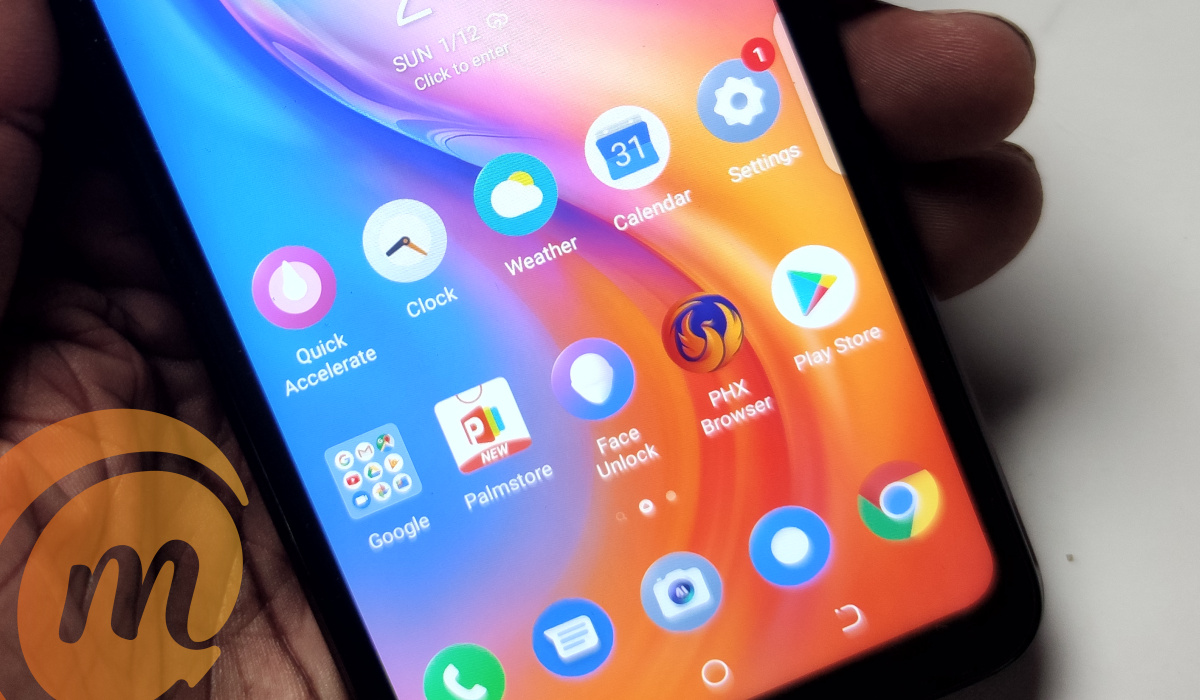
Check App permission: You may have apps that are not properly coded and may demand that you do not deny app permissions for the apps to work. Ideally, apps are supposed to work on your device even when their permissions are denied. If you have one of such apps on your device, go to Settings > Apps and choose the app you want to work on, now click on Permissions and grant the ones you may have denied earlier.
Keep your apps updated: This is a no-brainer, as updated apps contain bug fixes which can help to solve app crashes.
Clear Cache: Sometimes, certain apps can have rather large caches, taking up space for important information. Clearing your app cache can help you improve your device’s performance and halt app crashes. To do this, go to Settings > Storage and click on cached data, you can clear cache from there.
Try a force stop: One of the easiest things to do when your apps keep crashing is to try a force stop. To do this, go to Settings > Apps, then click on the app that keeps crashing. Click on the app’s name then tap ‘Force stop’. This should decidedly take care of this glitch when your apps keep crashing.
Free up some memory: As earlier mentioned, one of the major causes of app crashes is insufficient memory, as certain apps require more memory to operate properly. To make these apps work more smoothly, you need to free up some memory on your Android device, letting these apps work better. To do this, go to Settings > Apps , then select the games or apps you no longer need and uninstall.
These fixes are particularly helpful and can get your device working back at optimum levels in no time.
- Don’t miss our mobile phone reviews .
- Follow our news on Google News .
- Join our WhatsApp Group , to be notified of the most important articles and deals,
- Follow us on Instagram , Facebook , Twitter , and YouTube .
Author:Alfa Baye
Staff Writer
Add MobilityArena as a preferred source on Google
Samsung launched the Galaxy Tab S7 series in August of last year, joining the Tab S6 as part of the company’s tablets. Now, certain reports reaching our stables suggest that we may see its predecessor, the Galaxy Tab S8, earlier than expected. This is because the Galaxy Tab S8 Enterprise Edition appeared on Samsung’s Support page of the Ireland’s website.
This may not mean what we think, but information on this page talks about a device called the Samsung Galaxy Tab S8 Enterprise Edition which houses a nano-SIM card and supports microSD cards up to 1TB. It also shows that there would be two variants, a 4G and 5G variant, while the Samsung Galaxy Tab S8 Enterprise Edition may offer up to 12GB of RAM and 512GB of onboard storage.
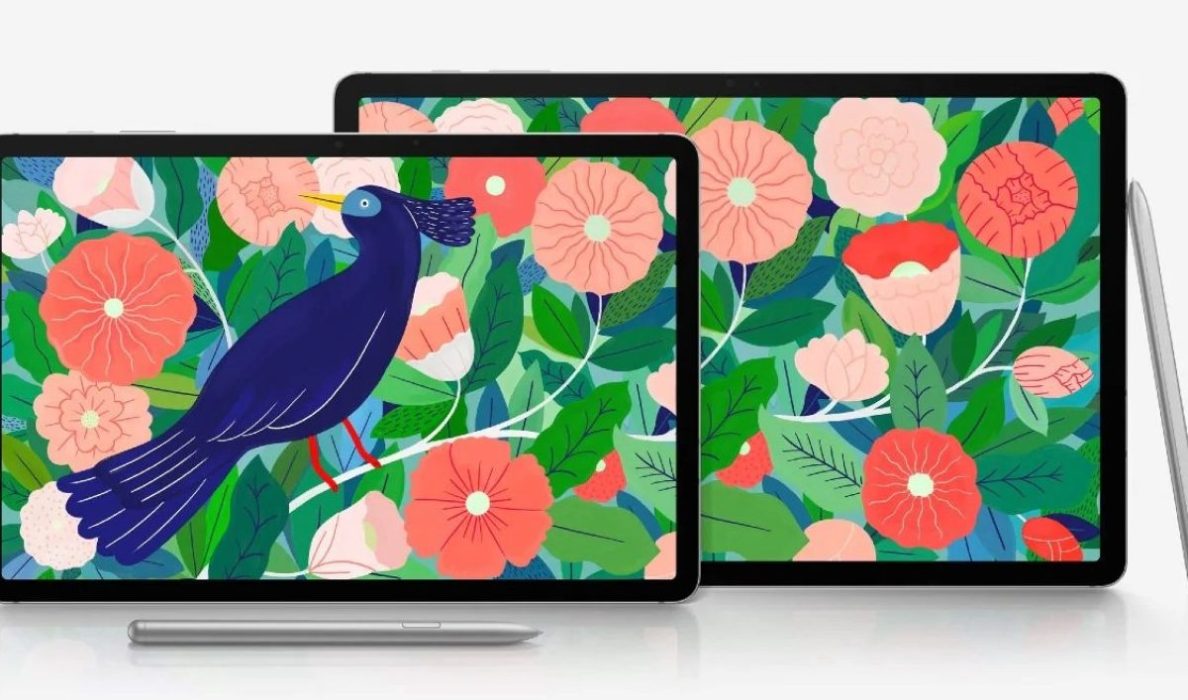
Samsung Galaxy Tab S7, the predecessor to the S8
While this may be an error on the company’s part, it could also be a tip pointing towards a potential Galaxy Tab S8 series release in the coming days. Just so you know, Samsung’s Enterprise Edition devices are normally sold to partners through a number of distribution channels, with end users also able to purchase them for their small businesses.
The major difference between an Enterprise Edition and a regular version of a device is an extended, 4-year security update schedule, a year of Samsung Knox and enhanced protection. However, these enhanced capabilities cost a bit more for users who would want to pick up the Enterprise Edition.
References
- Source ;
- Source .
Author:Alfa Baye
Staff Writer
