Add MobilityArena as a preferred source on Google
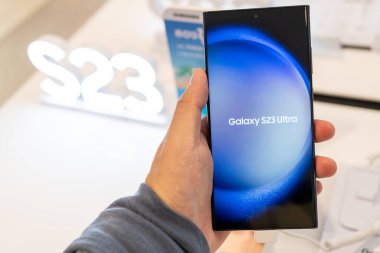
The Samsung Galaxy S23 has made waves in the smartphone market, especially with its awesome features, but it hasn’t been without its share of issues. Users have reported several problems, particularly following the One UI 6.1 update, including fingerprint scanner malfunctions, charging inefficiencies, and connectivity issues. If you’re experiencing these challenges, this article is for you. I have put together practical solutions to help you get the most out of your device.
- Fingerprint Scanner Malfunctions
- Charging Problems
- Connectivity Issues
- Conclusion
Fingerprint Scanner Malfunctions
Many Samsung Galaxy S23 users have encountered frustrating issues with the fingerprint scanner failing to recognize their fingerprints on the first attempt. This often requires multiple tries to unlock the device. To address this issue:
- Clean the Sensor: Ensure that the fingerprint sensor is clean and free from dirt or moisture. Use a soft, dry cloth to wipe the area gently.
- Re-register Your Fingerprint: Go to Settings > Biometrics and Security > Fingerprints. Delete the existing fingerprint and re-add it, ensuring your finger is clean and dry when registering.
- Restart Your Device: Sometimes, a simple restart can resolve minor software glitches affecting performance.
- Keep Software Updated: Regularly check for software updates under Settings > Software Update to ensure you have the latest fixes from Samsung.
Note that Samsung has acknowledged these issues and is reportedly working on a software update to improve fingerprint recognition, so keeping your device updated is crucial.
Charging Problems
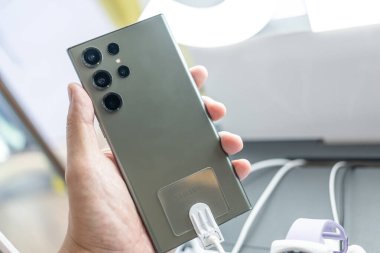
One of the major complaints among users is that their Galaxy S23 charges at only 15W instead of the expected 25W, leading to longer charging times. To troubleshoot this issue:
- Use Original Charger: Ensure you’re using the original charger and cable that came with your device, as third-party accessories may not support optimal charging speeds.
- Check Charging Port: Inspect the charging port for any debris or lint that may obstruct proper connection. Clean it gently with a soft brush or compressed air.
- Disable Fast Charging Features: Sometimes, disabling fast charging in Settings > Battery and Device Care > Battery > More Battery Settings can help reset charging behavior.
If these steps don’t resolve the issue, consider reaching out to Samsung support for further assistance.
Connectivity Issues

Some users have reported problems with Android Auto functionality and Wi-Fi connections, experiencing difficulties connecting or maintaining stable connections. Here’s how to address these:
- Reset Network Settings: Go to Settings > General Management > Reset > Reset Network Settings. This will reset all network-related settings, including Wi-Fi and Bluetooth connections.
- Clear Google App Data: If you’re facing touchscreen issues related to Google services, clear the data of the Google app by going to Settings > Apps > Google > Storage > Clear Data.
- Reboot Your Device: A simple reboot can often resolve connectivity issues by refreshing all network connections.
Conclusion
In conclusion, we can all agree that the Samsung Galaxy S23 is an impressive device, it’s essential to address these common issues proactively. By following these practical solutions for fingerprint scanner malfunctions, charging problems, and connectivity challenges, you can enhance your user experience significantly. Remember to keep your device updated with the latest software from Samsung for ongoing improvements and fixes. If problems persist, don’t hesitate to reach out to Samsung support for further assistance. With these tips in hand, you’ll be well-equipped to enjoy everything your Galaxy S23 has to offer!
Author:Ifeoluwa Adeleke
Add MobilityArena as a preferred source on Google
The Samsung Galaxy S23 has made waves in the smartphone market, especially with its awesome features, but it hasn’t been without its share of issues. Users have reported several problems, particularly following the One UI 6.1 update, including fingerprint scanner malfunctions, charging inefficiencies, and connectivity issues. If you’re experiencing these challenges, this article is for you. I have put together practical solutions to help you get the most out of your device.
- Fingerprint Scanner Malfunctions
- Charging Problems
- Connectivity Issues
- Conclusion
Fingerprint Scanner Malfunctions
Many Samsung Galaxy S23 users have encountered frustrating issues with the fingerprint scanner failing to recognize their fingerprints on the first attempt. This often requires multiple tries to unlock the device. To address this issue:
- Clean the Sensor: Ensure that the fingerprint sensor is clean and free from dirt or moisture. Use a soft, dry cloth to wipe the area gently.
- Re-register Your Fingerprint: Go to Settings > Biometrics and Security > Fingerprints. Delete the existing fingerprint and re-add it, ensuring your finger is clean and dry when registering.
- Restart Your Device: Sometimes, a simple restart can resolve minor software glitches affecting performance.
- Keep Software Updated: Regularly check for software updates under Settings > Software Update to ensure you have the latest fixes from Samsung.
Note that Samsung has acknowledged these issues and is reportedly working on a software update to improve fingerprint recognition, so keeping your device updated is crucial.
Charging Problems
One of the major complaints among users is that their Galaxy S23 charges at only 15W instead of the expected 25W, leading to longer charging times. To troubleshoot this issue:
- Use Original Charger: Ensure you’re using the original charger and cable that came with your device, as third-party accessories may not support optimal charging speeds.
- Check Charging Port: Inspect the charging port for any debris or lint that may obstruct proper connection. Clean it gently with a soft brush or compressed air.
- Disable Fast Charging Features: Sometimes, disabling fast charging in Settings > Battery and Device Care > Battery > More Battery Settings can help reset charging behavior.
If these steps don’t resolve the issue, consider reaching out to Samsung support for further assistance.
Connectivity Issues
Some users have reported problems with Android Auto functionality and Wi-Fi connections, experiencing difficulties connecting or maintaining stable connections. Here’s how to address these:
- Reset Network Settings: Go to Settings > General Management > Reset > Reset Network Settings. This will reset all network-related settings, including Wi-Fi and Bluetooth connections.
- Clear Google App Data: If you’re facing touchscreen issues related to Google services, clear the data of the Google app by going to Settings > Apps > Google > Storage > Clear Data.
- Reboot Your Device: A simple reboot can often resolve connectivity issues by refreshing all network connections.
Conclusion
In conclusion, we can all agree that the Samsung Galaxy S23 is an impressive device, it’s essential to address these common issues proactively. By following these practical solutions for fingerprint scanner malfunctions, charging problems, and connectivity challenges, you can enhance your user experience significantly. Remember to keep your device updated with the latest software from Samsung for ongoing improvements and fixes. If problems persist, don’t hesitate to reach out to Samsung support for further assistance. With these tips in hand, you’ll be well-equipped to enjoy everything your Galaxy S23 has to offer!
Author:Ifeoluwa Adeleke
Add MobilityArena as a preferred source on Google
I currently juggle between two smartphones as my primary devices. One has a regular candy bar form factor and costs about $400. The other is a clamshell foldable – a flip smartphone – and it costs a little over $500. Both of them have 45W fast charging and fully charge up in less than one hour.
- How fast does the Google Pixel 9 Pro Fold charge?
- Charging Speeds of Google Pixel 9 Pro Fold Alternatives
- References
How fast does the Google Pixel 9 Pro Fold charge?
But the $1,800 Google Pixel 9 Pro Fold is fitted with a mere 21W fast charging and fully charges up in 1 hour and 40 minutes. That’s madness. Absolutely insane.
If you want to manufacture a cutting edge premium device, put in everything it takes for it to be truly cutting edge. There is absolutely no point building a Ferrari that has a top speed of 500 miles per hour but an acceleration of zero to 100 in 30 minutes. That’s not cutting edge; that’s a crippled super car.
The Google Pixel 9 Pro Fold is a crippled device. Against most of the competition, it stands no chance, and it isn’t just about how slow it charges. But since this rant is about charging, let’s stick to that. Below is listed how fast competing foldables from other manufacturers charge up.
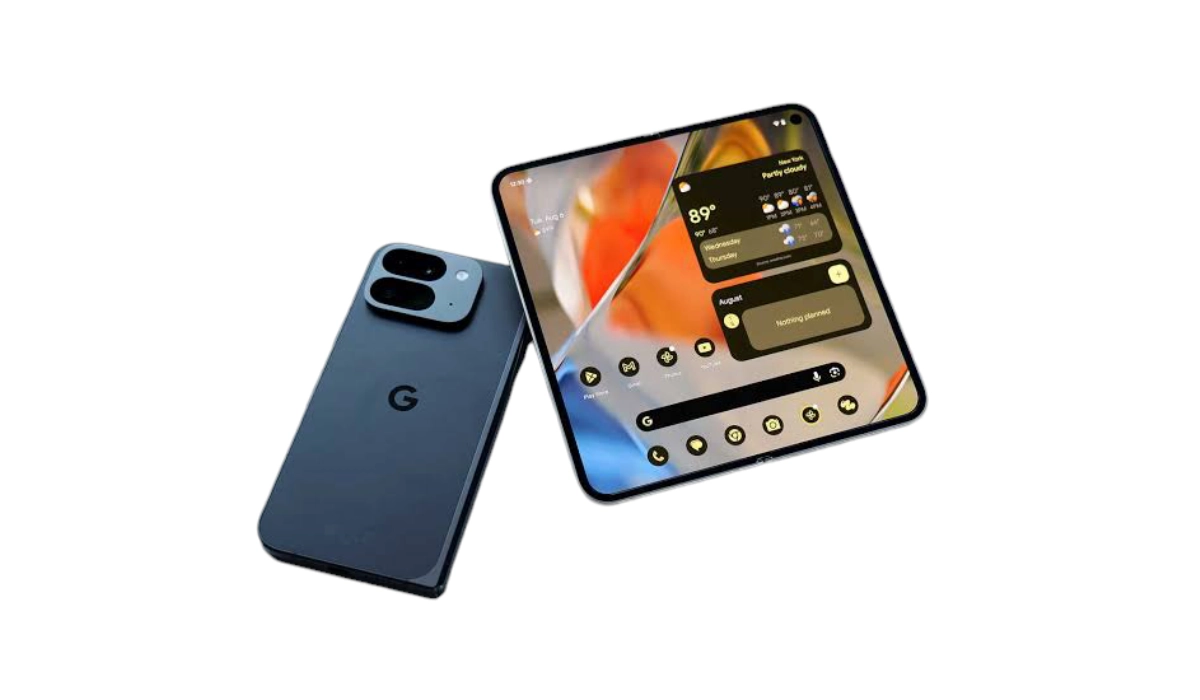
Google Pixel 9 Pro Fold is crippled by extremely slow charging.
Charging Speeds of Google Pixel 9 Pro Fold Alternatives
How long does it take to charge these Google Pixel 9 Pro Fold alternatives? Have a look.
- Huawei Mate X3 : 48 minutes
- Xiaomi Mix Fold 3 : 50 minutes
- Honor Magic V2 : 52 minutes
- Samsung Galaxy Z Fold5 : 1 hour 24 minutes
- Samsung Galaxy Z Fold6 : 1 hour 26 minutes
When it comes to fast charging, the US smartphone market gets the short end of the stick a lot. The main players here are clearly sworn to keep consumers tied to the charger for as long as possible. Apple is guilty of it. Samsung is guilty of it. Google is guilty of it. These three brands are the triumvirate of slow charging. There is no question about it that whenever Apple makes a foldable device, it will also be crippled with slower charging.
The key problem for US consumers is that these alternative devices are not readily available in the market. Were brands like Xiaomi and OnePlus to establish themselves further in the US and make their devices more widely available, it would only be a matter of time before more savvy users flock to them.
Elsewhere in the world – across Europe, South America, Africa, and Asia, other cell phone brands have embraced more cutting edge charging speeds that provide users of their devices with super convenience. Here in the United States, phone users get charging speeds from 2020 in 2024.
Anyone should feel scandalized to be offered 21W fast charging for a device that costs from $1,800 upwards. Seriously. Consumers should be up in arms and flocking to the competition.
Also, one has to ask: why is it that the Pixel 9 Pro XL supports 37W, and the Pixel 9 Pro and Pixel 9 support 27W charging, but the Pixel 9 Pro Fold gets only 21W? In my opinion, 27W charging is still too slow for any phone in the Pixel 9 series’ categories. At the very least, all of them, including the Google Pixel 9 Fold, should support no less than 37W charging.
It just doesn’t make any sense. Not to mention that I suspect that despite crippling the Pixel 9 Pro Fold this way, we shall soon start getting reports of how the device overheats at the slightest opportunity, something that has become a Google Pixel staple , year after year.
References
- Google Pixel 9 Pro Fold has the lowest charging speed of the series ( source )
Author:Mister Mobility
Digital Skills and Communication Coach | Mobile Phone Connoisseur since 2001 | Tech Blogging since 2004
