Add MobilityArena as a preferred source on Google
Troubleshooting sophisticated devices like the Samsung Galaxy Tab S9 FE helps to better understand the problems reported by users and how to proffer solutions to these problems. The Tab S9 FE has garnered attention for its impressive features, but users have reported several issues that can hinder their experience. I have gathered based on the reports of users, these problems and I discuss practical solutions to enhance your tablet usage in this article.
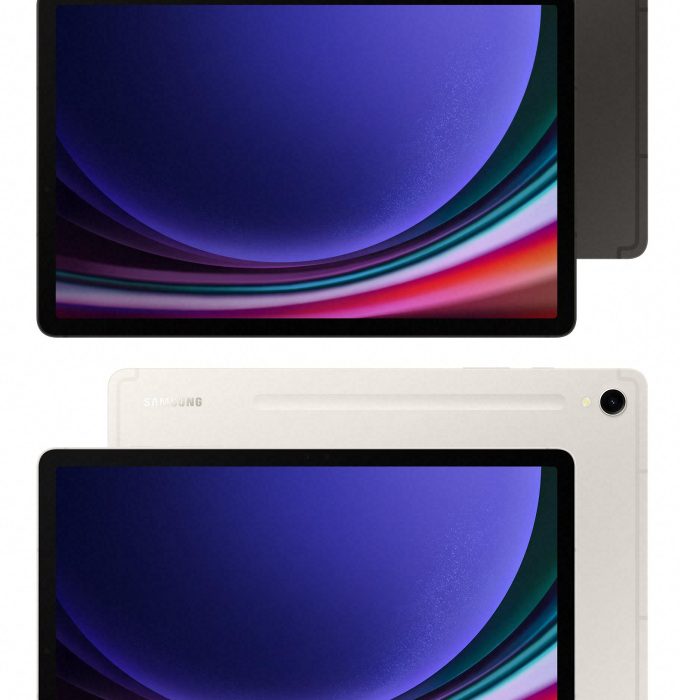
- Some Troubleshooting Steps and solutions Rebooting and Charging Issues App Crashes Performance Concerns S Pen Compatibility Heating Issues
- Conclusion
Some Troubleshooting Steps and solutions
Rebooting and Charging Issues
Quite a number of users have faced unexpected reboots while charging their Galaxy Tab S9 FE, often getting stuck at the boot logo. This is a frustrating experience. The solutions to fix this glitch is provided below:
- Uninstall Problematic Apps: Usually, the common app that causes this problem is the Samsung Notes app. Users have found that uninstalling it can resolve the rebooting problem. To do this, go to Settings > Apps > Samsung Notes > Uninstall.
- Safe Mode: Boot your device in Safe Mode to determine if third-party apps are causing the issue. To enter Safe Mode, press and hold the power button, then tap and hold “Power off” until you see the option to restart in Safe Mode. If the problem does not occur in Safe Mode, it is likely due to a third-party app.
- Factory Reset: If issues persist, consider performing a factory reset. Ensure you back up your data first, as this will erase all information on the
App Crashes

Some users have reported frequent crashes, particularly with Samsung Notes and other applications. I recommend the following solutions to handle this:
- Update Apps: Ensure all your apps are updated to their latest versions. Go to the Google Play Store, tap on your profile icon, and select “Manage apps & device” to check for updates.
- Clear Cache: Clearing the cache of problematic apps can also help. Navigate to Settings > Apps > [App Name] > Storage > Clear Cache.
- Reinstall Apps: If an app continues to crash, try uninstalling and reinstalling it.
Performance Concerns
The Exynos 1380 chipset has been reported to be underperforming during gaming or multimedia tasks. You can solve this issue following the simple steps below:
- Limit Background Processes: Close unnecessary background apps that may be consuming resources. You can do this by accessing the recent apps screen and swiping away apps you are not using.
- Performance Mode: Enable Performance Mode by going to Settings > Battery and Device Care > Battery > More Battery Settings > Performance Profile and selecting “Optimized” or “High Performance.”
S Pen Compatibility
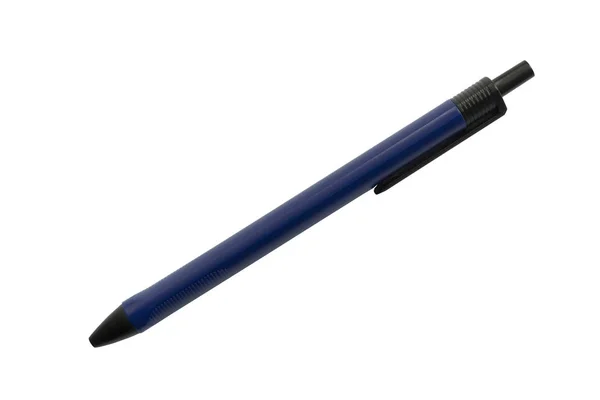
The S Pen included with the Tab S9 FE has been reported to lack advanced features like air actions. Simply check Compatibility, ensure that you are using the correct model of S Pen that supports all features. If you require advanced functionalities, consider upgrading to a compatible S Pen model that supports air actions.
Heating Issues
Another problem reported by some users is that the tablet can become warm during use, even with light tasks. To avoid the tablet been warm like this or even over overheating, I recommend you:
- Ensure that your tablet has proper ventilation when in use. Avoid using it on soft surfaces like beds or couches that can block airflow.
- Regularly close apps running in the background to reduce processor load and heat generation.
Conclusion
While the Samsung Galaxy Tab S9 FE has its share of issues, many can be resolved with simple troubleshooting steps. By following these solutions, users can enhance their experience and make the most out of their device. If problems persist despite these efforts, contacting Samsung support for professional assistance may be necessary.
Author:Ifeoluwa Adeleke
Add MobilityArena as a preferred source on Google
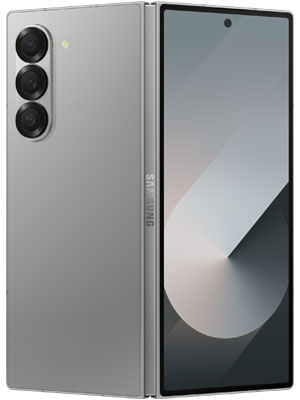
The Samsung Galaxy Z Fold 6 is one of, if not the top of the best Samsung phones of 2024. It is a remarkable device that combines the functionality of a tablet with the portability of a smartphone. However, even the most advanced device with the best of technology can encounter issues that affect user experience. Stay through as I explore common problems reported by users and provide practical solutions to enhance your Samsung Galaxy Z Fold 6 experience.
- Broken Display and Hinge Durability of the Samsung Galaxy Z Fold 6
- Delayed Notifications
- Wi-Fi and Bluetooth Connection Problems
- Battery Drain Issues
- Signal Performance Issues
- App Functionality Issues
- Crease Visibility on Display of the Samsung Galaxy Z Fold 6
- Conclusion
Broken Display and Hinge Durability of the Samsung Galaxy Z Fold 6
Many users are scared and have expressed their concerns about the durability of the display and hinge, which are critical components of foldable devices. Do not fret, if you’re reading this and you feel the same, that tells you, you’re not alone. These precautions will help:
- Handle with Care: Always open and close the device gently to avoid putting excessive stress on the hinge.
- Regular Cleaning: Keep the hinge area clean to prevent dirt and debris from causing damage. Use a soft cloth to wipe it down periodically.
- Contact Support: If you notice persistent issues, consult Samsung support for professional assistance or warranty service.
Delayed Notifications

Another glitch that users have reported is that notifications are delayed or it only appears after opening the respective app. This can make one lose important updates. The highlighted solutions below can help:
- Adjust Battery Optimization Settings: Navigate to Settings > Device Care > Battery > Background Usage Limits and ensure affected apps are not set to “Sleeping” or “Deep Sleeping.”
- Clear App Cache: Go to Settings > Apps > [App Name] > Storage and tap on Clear Cache to resolve any temporary glitches.
- Unrestricted Battery Usage: For specific apps, go to Settings > Apps > [App Name] > Battery and select Unrestricted.
Wi-Fi and Bluetooth Connection Problems
Users may experience issues with Wi-Fi connectivity and Bluetooth pairing. If this happens to you, simply do the following:
- Restart Devices: Restart both your Galaxy Z Fold 6 and the Bluetooth device you are trying to connect.
- Reset Bluetooth Connection: Turn off Bluetooth in the Quick Access menu, then turn it back on. Re-pair your devices if necessary.
- Check for Interference: Ensure there are no other devices causing interference and try connecting in a different location.
Battery Drain Issues
Some users have reported unexpected battery drain, which can be frustrating. I will specifically write about optimizing the battery of your Samsung Galaxy Z Fold 6. But in the meantime, you can follow the highlighted steps:
- Close Background Apps: Regularly close apps running in the background to conserve battery life.
- Change Performance Profile: Go to Settings > Device Care > Performance Profile and select “Light” to reduce power consumption.
- Check for App Updates: Ensure all apps are updated as outdated apps can sometimes cause excessive battery drain.
Signal Performance Issues

This is also an issue that users have noted. The Z Fold 6 has weaker signal reception compared to previous models, leading to connectivity issues. Follow these steps to solve the problem:
- Restart Your Device: A simple restart can often resolve temporary connectivity issues.
- Check for Software Updates: Go to Settings > Software Update and ensure your device is running the latest software version.
- Contact Support: If problems persist, reach out to Samsung customer support for further assistance.
App Functionality Issues
Some applications may freeze, crash, or become unresponsive, particularly when multitasking. If you have been experiencing this with your Samsung Galaxy Z Fold 6, follow these steps to handle it:
- Update Apps Regularly: Ensure all your apps are up-to-date from the Google Play Store.
- Clear App Cache/Data: For problematic apps, navigate to their settings in the app menu and clear cache or data as needed.
- Reinstall Apps if Necessary: If an app continues to malfunction, uninstall it and reinstall it from the Play Store.
Crease Visibility on Display of the Samsung Galaxy Z Fold 6
The crease on the foldable display may or will become more noticeable over a period of time. I recommend the following steps to handle this:
- Adjust Screen Brightness: Sometimes adjusting brightness can make the crease less visible. Experiment with different settings.
- Use Dark Mode: Enabling dark mode can help minimize the appearance of the crease against lighter backgrounds.
- Accept as Normal Wear: Understand that some visibility is typical for foldable screens; many users adapt over time.
Conclusion
In conclusion, no doubt the Samsung Galaxy Z Fold 6 offers innovative features and a unique user experience, but it is not without its challenges. By following these practical solutions, users can troubleshoot common problems effectively and enjoy their device to its fullest potential. Whether you’re handling durability concerns or optimizing performance, these tips will help you master your Galaxy Z Fold 6 experience!
