Add MobilityArena as a preferred source on Google
If you are resident in the US and shopping for a new carrier, you should have a look at FreedomPop. Also. if you are travelling to the United States of America for business or pleasure, you will need a means of keeping in touch. There are two options: you can roam your line from your originating country, or you can get a SIM card from a US wireless carrier.
Either option has pros and cons. Roaming is usually the more expensive option, especially if you intend to use a lot of mobile data. To avoid expensive roaming charges, getting a local SIM is the preferred option.
- Whose network does FreedomPop Use?
- FreedomPop’s 4G LTE and 5G Networks
- Get the OTT mobile app for free calling and texting
- FreedomPop APN Configuration Settings
Whose network does FreedomPop Use?
FreedomPop is a US wireless Internet and mobile virtual network operator (MVNO) with nationwide coverage. As an MVNO in the United States, this carrier rides on the back of T-Mobile’s and AT&T’s networks.
FreedomPop’s 4G LTE and 5G Networks
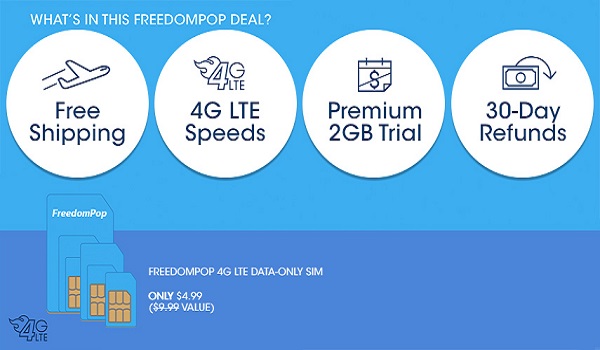
This wireless carrier offers nationwide 4G LTE and 5G services and it is good enough for streaming, should you need to do that. However, note that you have 2GB free Internet only during the free trial. After your first 14 days, you can downgrade to the free basic plan and enjoy 200MB data, 200 minutes calls, and 500 text, all free. You pay only $0.01 to signup. Shipping of your SIM pack is free. If you need more than that, there are paid plans available from $12.99 monthly upwards.
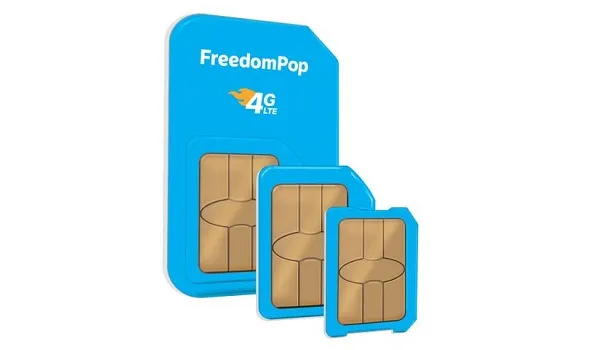
FreedomPop offers bundles that include free voice, SMS and 4G mobile data. The carrier runs an internet-based operation, so you can order your SIM from their website. Delivery can take a few days to two weeks, so do order early or have someone order for you before your arrival. That way, you can have an active phone line for voice, SMS and Internet and be reachable almost as soon as you settle in.
Once you have your FreedomPop SIM card in your phone and it is activated for the voice and data plan of your choice, you will need APN configuration settings to be able to use the network’s mobile data, and we have them for you.
Get the OTT mobile app for free calling and texting
You will need the mobile app to enjoy free calling and texting on the network. The app is available for both Android OS and iOS phones. Once installed and setup, you can do free text messages and calls over both mobile data and WiFi.
But to use the app or any FreedomPop Internet service at all requires proper configuration of your phone. We are assuming that you are travelling with your own smartphone. Should your phone not get automatically provisioned after you put in your SIM card, check the section below for the infomation required to manually configure the APN settings.
FreedomPop APN Configuration Settings
Go to your phone’s Mobile Networks menu under the Settings menu and select the option to create a new APN. Then follow these steps:
- You can give the APN settings any name, but it is logical to name it “FreedomPop”.
- Under APN, enter: fp.com.attz .
- Under NAME enter: FreedomPop .
- Leave the Password field blank.
- Leave all other fields blank.
- Save the APN settings.
- Now, choose the FredomPop APN for use.
That is it. You can now browse, manage your email, chat and share your travel selfies to your social networks. You will find FreedomPop to be one of the most affordable mobile carriers in the US.
PS : You can access the FreedomPop website HERE .
Author:Mister Mobility
Digital Skills and Communication Coach | Mobile Phone Connoisseur since 2001 | Tech Blogging since 2004
Add MobilityArena as a preferred source on Google
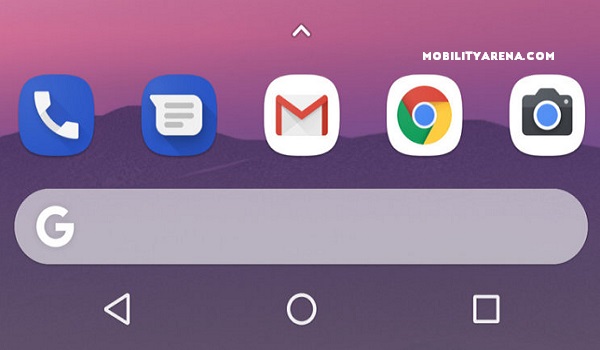
If you own an Android smartphone with a custom user interface but would love to explore the simplicity of Google’s Pixel Launcher, there is good news for you. The launcher is now available for anyone to download, and it does not require you to rot your cell phone.
The app is not available in Play Store though, meaning that someone went through the trouble to extract it for you to download.It also means that you have to grant your smartphone permission to install apps from “unknown sources”.
How to Install Google Pixel Launcher
Here is how to go about installing the Pixel launcher – and indeed any other app not available in the Play Store:
- Go to your cell phone’s Settings menu -> Security -> Enable ‘ Unknown Sources ’.
- Download the app to your Android smartphone. In this case, download the Pixel Launcher HERE .
- Tap on the downloaded APK notification to install the app.
- Tap your phone’s Home button, and you will be prompted to choose a default launcher. Select Pixel launcher. If tapping your home button does not prompt you, go to Settings -> Home app, choose Pixel launcher as your default launcher there.
That is it. Your Android smartphone should now run using the Google Pixel Launcher.
The above download source provides two options, an Android Go optimised version and a stock Android version. In my testing, I did not quite notice any differences in the two, but the idea is that the Android Go version should be lighter and use less resources.
Do try both versions out on your device and share your experience here. Have fun!
Author:MobileChic
That motivated, gadget-loving geeky chic who tries to stay on top of things. Unapologetic iFan.
