Add MobilityArena as a preferred source on Google
Windows has a Battery Saver option that lets you use your laptop while using less power. This can effectively boost the battery’s operating time. However, some features, such as app performance or background app updates may not work properly if battery saver mode is turned on. If you need those services, you can also turn it off.
You’ll learn how to turn Battery Saver on or off on Windows in this guide. So, follow this guide to take advantage of Windows’ Battery Saver mode to increase or decrease your battery’s operating time.
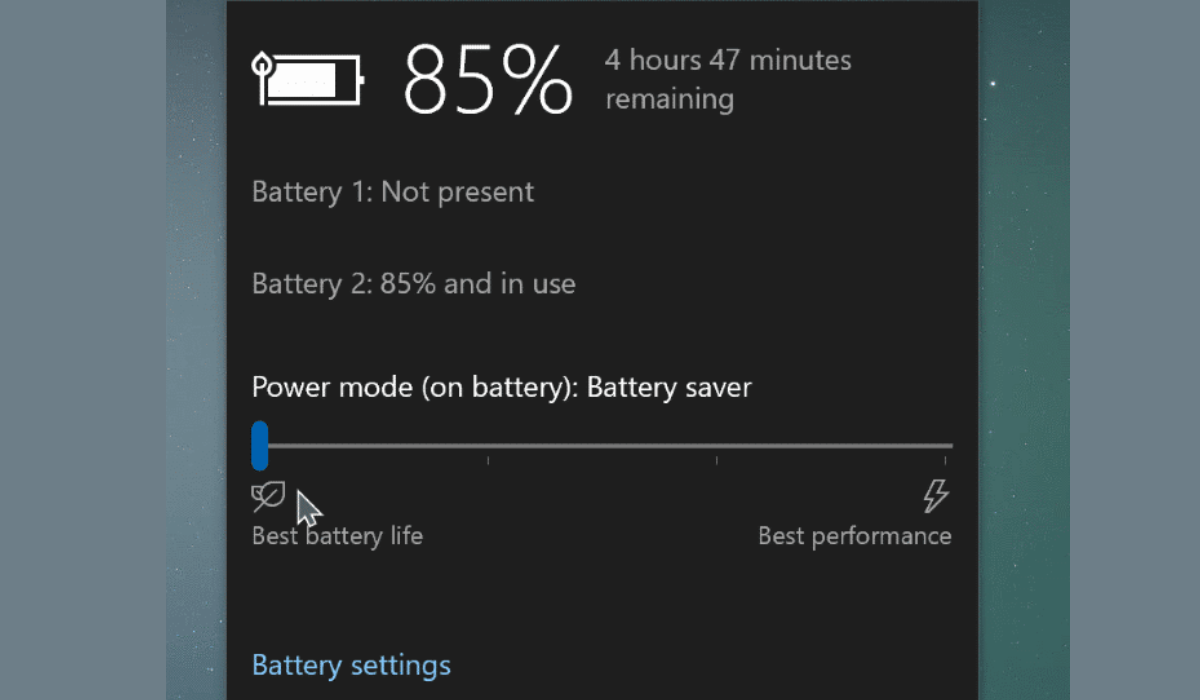
How Can You Turn Battery Saver On or Off on Windows?
You can extend the battery life of your Windows laptop by using its convenient battery saver mode. Windows compresses this by reducing screen brightness, minimizing the number of background processes, and turning off specific visual effects and animations.
Here are different ways to turn Battery Saver on or off on Windows 10 or 11 computers.
Turn Battery Saver On or Off on Windows Through Quick Settings
In Windows, the Quick Settings panel provides access to frequently used services such as Wi-Fi, Bluetooth, and Airplane Mode, among others. You can also access this panel to quickly enable or disable the battery saver mode.
To turn Battery Saver on or off on Windows through Quick Settings , press Win + A to enter the Quick Settings panel, and then select the battery saver symbol.
In case the Battery Saver icon is not already there, you can manually add it. Press the pencil symbol at the bottom, and then pick Add > Battery Saver .
Turn Battery Saver On or Off on Windows Through the Settings App
The Settings app is another way to turn Battery saver on or off on Windows. To accomplish this, follow these steps:
- Right-click the Start button and pick Settings from the list of options.
- Select Power & Battery from the System tab.
- Click on Battery Saver to expand it under Battery .
- To enable power saver mode, click the Turn on now button.
If the battery saver mode is enabled, the Turn off now button will appear instead. Additionally, plugging your laptop into a power source disables the battery conservation function.
Automatically Turn Battery Saver On or Off on Windows Through Settings
If you don’t want to manually turn Battery saver on or off on Windows all the time, you can set this up to happen automatically. Windows can automatically enable battery saver mode when the battery level falls below a certain percentage. You can set it up by using the Windows Settings app. Follow the steps listed below.
- To access the Settings app, press Win + I .
- Go to System > Power & Battery .
- To expand it, click on Battery Saver .
- Click on the drop-down menu next to Turn battery saver on automatically at and choose your preferred battery level.
You can also prevent Windows from automatically turning on battery saver mode by choosing Never . Alternatively, if you want the battery saver option to be on all the time, select Always .
Automatically Turn Battery Saver On or Off on Windows With A Command Prompt
While the Settings app is the most often used method to automatically turn Battery Saver on or off in Windows, it is not the only alternative. You can also set the battery saver mode to switch on automatically using a command-line program such as Command Prompt or Windows PowerShell . The steps are as follows.
- Open the Command Prompt or PowerShell on your PC
- In the console, type the following command and hit Enter : powercfg /setdcvalueindex scheme_current sub_energysaver esbattthreshold
In the above command, replace < BatteryPercentage > with the percentage below which you want the battery saver mode to activate automatically. Unlike the Settings app, the command line technique allows you to provide a custom battery level percentage between 0 and 100.
To conclude , Battery saver mode in Windows can come in handy when you’re away from a power source. So, with the above guidelines, I believe you can easily turn Battery saver on or off on Windows. You can also check Windows help center for more helpful information.
However, it’s important to note that leaving battery saver mode on all the time can impact certain features, such as notifications and background app sync. Hence, it’s best to enable battery saver mode only when necessary.
Author:Joan Agie
Add MobilityArena as a preferred source on Google
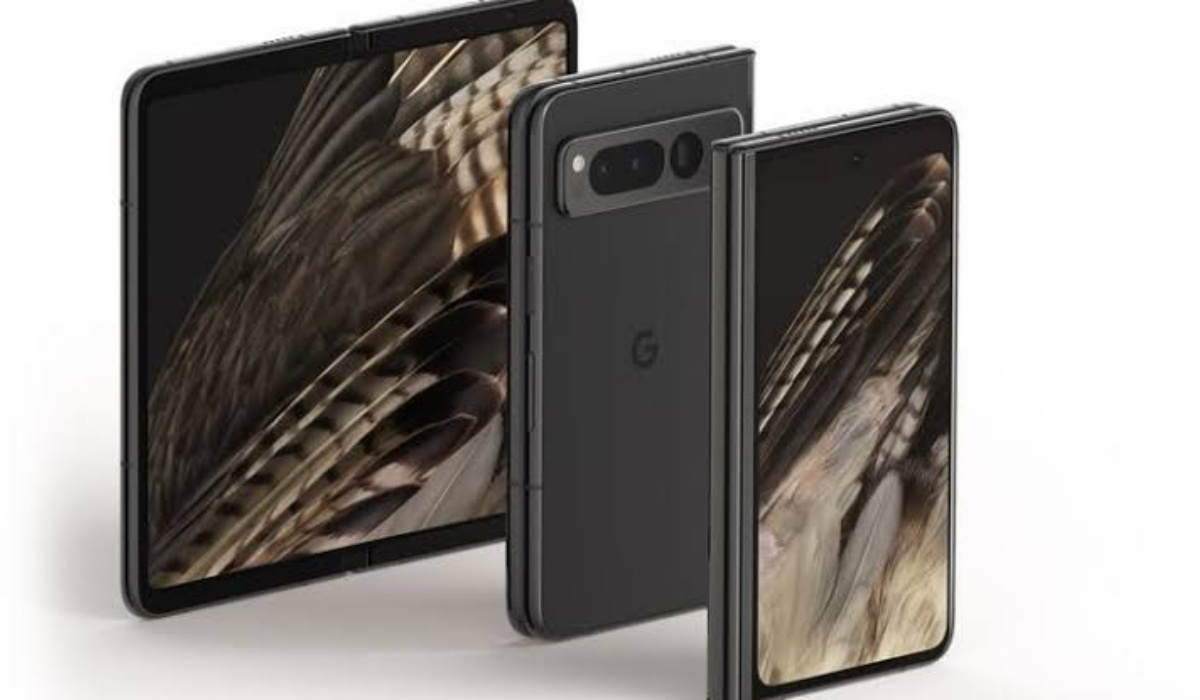
Get the best Google Pixel Fold trade-in deals, if you own an iPhone, Samsung, or Pixel phone
The much-anticipated Google Pixel Fold is official and already available for pre-order in the United States. It comes at a hefty price of $1800 for the 256GB base storage variant and $1920 for the 512GB variant. As such, and you might not be excited about spending that amount of money to get one. If you own one of a number of iPhones, Samsung phones, and even Pixel phones, you can trade it in for a Pixel Fold.
Of course, the trade-in value differs from one phone to another, because their selling prices differ. The iPhone models offer the best trade-in value, followed by Samsung galaxy phones, and lastly Pixel phones. If you own phones from other brands like OnePlus, Nokia, and Motorola, sorry, you are not able to trade-in your device for a Pixel Fold.
- The Best Google Pixel Fold Trade-in Deals
- Or get $700 off in credit bills on Google Fi
The Best Google Pixel Fold Trade-in Deals
Listed below are the best trade-in deals towards the Pixel Fold, if you own any of the listed iPhones, Samsung phones, or Google Pixel phones. The specified prices are for the minimum storage variant of each phone.
| Trade-in Devic e | Trade-in value |
|---|---|
| iPhone 14 Pro Max | $900 |
| iPhone 14 Pro | $900 |
| iPhone 14 | $350 |
| iPhone 13 Pro Max | $900 |
| iPhone 13 Pro | $850 |
| iPhone 13 | $230 |
| Samsung Galaxy Z Fold 4 | $900 |
| Samsung Galaxy Z Fold 3 | $800 |
| Samsung Galaxy Z Fold 2 | $725 |
| Samsung Galaxy Fold | $625 |
| Samsung Galaxy S22 Ultra | $750 |
| Samsung Galaxy S21 Ultra | $650 |
| Samsung Galaxy Z Flip 4 | $700 |
| Samsung Galaxy Z Flip 3 | $600 |
| Pixel 7 Pro | $380 |
| Pixel 6 Pro | $216 |
| Pixel 7 | $295 |
| Pixel 6 | $150 |
I wonder why Samsung Galaxy S23 Ultra is not included in this Pixel Fold trade-in. I imagine that owners would be able to get even better trade-in value for it than is available for the Galaxy S22 Ultra .
Or get $700 off in credit bills on Google Fi
The Pixel Fold is sold unlocked and so can be used on any carrier, but if you choose Google Fi Wireless, you get $700 off the price in credit bills. Not a bad deal, if you don’t mind switching carrier.
To take advantage of any of these Google Pixel Fold trade-in deals, and discount offers, head over to the Google Store . Note that this is for US residents/orders.
Author:Mister Mobility
Digital Skills and Communication Coach | Mobile Phone Connoisseur since 2001 | Tech Blogging since 2004
