Add MobilityArena as a preferred source on Google
Storage optimization of your iPhone 15 Pro not only frees up space but also enhances overall performance of the device. The iPhone 15 Pro is a powerhouse of technology, even at that, most advanced devices will operate better when there’s proper storage management. I have put together a guide to effectively optimize your iPhone 15 Pro’s storage for peak performance.
- A Better Understanding Of Your iPhone 15 Pro’s Storage
- Storage Optimization Techniques Make Use of The iCloud Photos Offload Unused Apps Clear Safari Cache and Website Data Manage Messages and Attachments Optimize Music and Podcast Storage Use “Optimize Storage” for TV Shows and Movies Review and Delete Large Files Utilize Third-Party Cloud Services Regularly Update Your Apps and iOS
- Conclusion
A Better Understanding Of Your iPhone 15 Pro’s Storage
Before we dive into optimization techniques, it’s crucial to understand how your iPhone uses storage. To know this, go through the following steps:
- Go to Settings > General > iPhone Storage
- Here, you’ll see a breakdown of your storage usage by category (apps, photos, system data, etc.)
- Review the recommendations provided by iOS for potential space savings
Storage Optimization Techniques
Below are the Storage optimization techniques I have put together to help you enhance the performance of your iPhone 15 Pro.
Make Use of The iCloud Photos

One of the major tools for optimizing your iPhone 15 Pro is the iCloud Photos. It is a powerful tool for managing your photo library, besides, your photos are securely saved in the iCloud and can be accessed anytime, anywhere on any Apple device. Simply follow these steps to optimize your device via the iCloud photos:
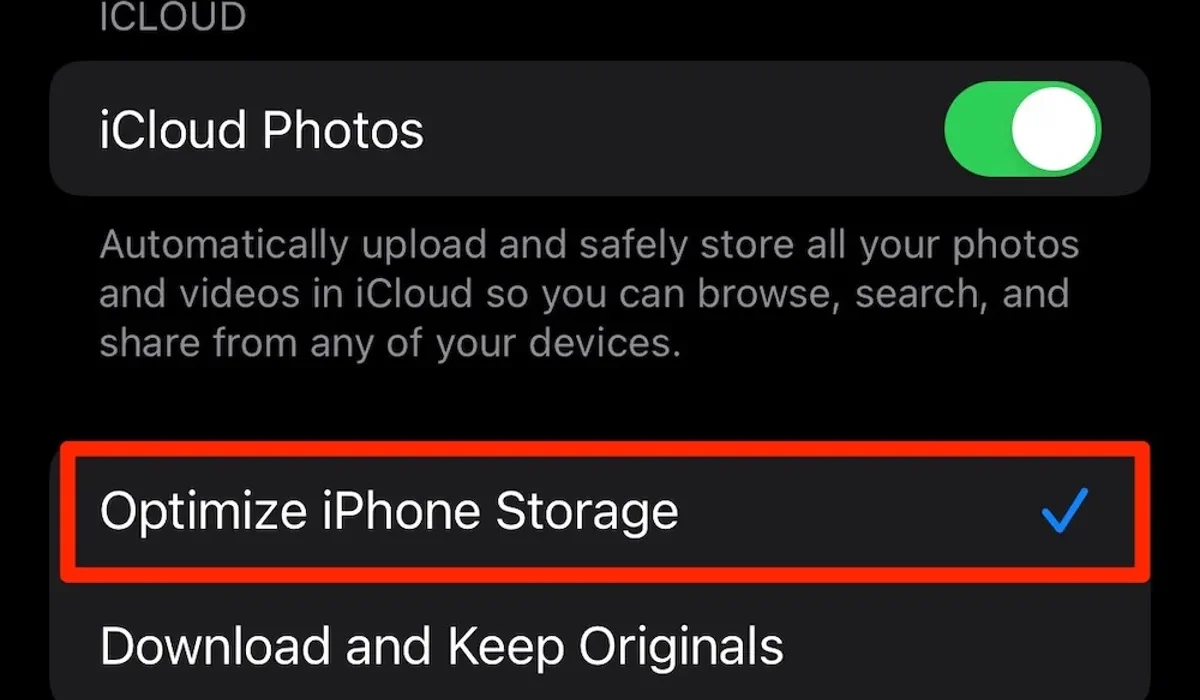
- Go to Settings > [Your Name] > iCloud > Photos
- Enable “iCloud Photos”
- Select “Optimize iPhone Storage”
This setting keeps full-resolution photos and videos in iCloud while storing space-saving versions on your device. You can always download the originals when needed.
Offload Unused Apps
Sometimes, there are apps that are really not needed on your device and just occupying space. Another way to optimize your device is to offload these unused apps. The iOS offers a feature to automatically offload unused apps. To do this, follow the steps below:
- Go to Settings > App Store
- Enable “Offload Unused Apps”
This removes the app but keeps its documents and data. The app icon remains on your home screen and can be quickly re-downloaded when needed.
Clear Safari Cache and Website Data

Web browsing can accumulate significant data over time. Clearing the Safari cache will even enhance the internet surfing on your device. You can clear the caches by following these steps:
- Go to Settings > Safari
- Tap “Clear History and Website Data”
Remember, this will log you out of websites, so ensure you know your login credentials.
Manage Messages and Attachments
I bet you keep loads of unnecessary messages on your device. Messages can take up surprising amounts of space. Properly managing this will enhance your device performance. You can manage this by simply doing the following:
- Go to Settings > Messages
- Under “Message History,” select “Keep Messages” for 30 days or 1 year instead of “Forever”
- Enable “Auto-Delete Old Conversations”
Sometimes you have lage message attachments. To delete large attachments:
- Go to Settings > General > iPhone Storage > Messages
- Review “Top Conversations” and delete large attachments
Optimize Music and Podcast Storage
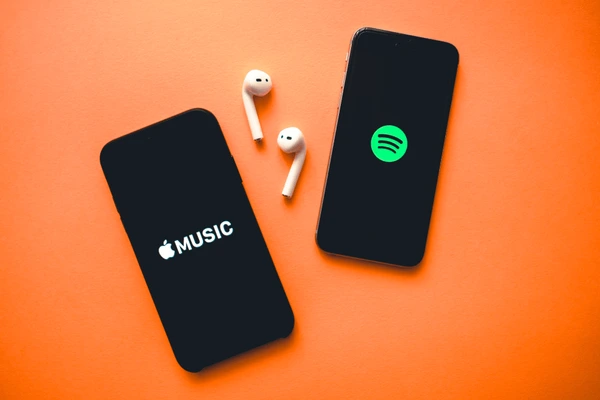
Another option to consider to enhance your device is the Music and Podcast optimization. Simply do the following:
- Go to Settings > Music
- Enable “Optimize Storage”
For podcast enthusiasts:
- Open the Podcasts app
- Go to Settings > Automatically Delete
- Choose “After Playing” or “When Space is Needed”
Use “Optimize Storage” for TV Shows and Movies
This is for movie and TV show lovers. If you are the type that downloads content from Apple TV+, stored up videos might slow down the performance of your device. To optimize, simply:
- Go to Settings > TV
- Enable “Optimize Storage”
This automatically removes watched videos when storage is low.
Review and Delete Large Files
This is another option to consider to optimize your device storage. The iOS 15 and later versions offer an easy way to find and delete large files. Follow these steps given below:
- Go to Settings > General > iPhone Storage
- Scroll through the list of apps
- Tap on apps with large file sizes to review and delete unnecessary content
Utilize Third-Party Cloud Services

Creative background, the image of the hologram of the cloud, blue background. The concept of cloud technology, cloud storage, a new generation of networks. Mixed media.
There are other third-party cloud options to also consider, they are as effective as iCloud. You can make use of services like Google Photos, Dropbox, or OneDrive to offload photos, videos, and documents from your device.
Regularly Update Your Apps and iOS
You can never go wrong with ensuring that your device is regularly running on update iOS. Keeping your apps and iOS updated can improve efficiency and sometimes reduce storage usage. You can do this by following this steps:
- Go to Settings > General > Software Update
- Enable “Automatic Updates”
Conclusion
Optimizing your iPhone 15 Pro’s storage is an ongoing process. Regularly reviewing your storage usage and implementing these strategies will ensure your device maintains peak performance. Remember, a well-managed iPhone not only has more space but also runs more efficiently, providing a smoother user experience.
By following these steps, you can enjoy the full potential of your device, making the most of its advanced features without being hindered by storage constraints.
Author:Ifeoluwa Adeleke
Add MobilityArena as a preferred source on Google
The Apple AirPods have revolutionized the way we listen to music and communicate wirelessly. However, among the different models available, the AirPods Pro and 3rd Generation AirPods have gotten the most trending complaints from users. Read through this article as I explore the most common problems users face with these models and provide effective solutions to enhance your AirPods experience.
- Common Complaints with Apple AirPods Pro and 3rd Generation AirPods Imbalance of Audio Production on Apple AirPods Pro and 3rd Generation AirPods Background Noise on Apple AirPods Pro and 3rd Generation AirPods Connectivity Glitch Battery Problems Poor Sound Quality Unexpected Music Pause
- Conclusion
Common Complaints with Apple AirPods Pro and 3rd Generation AirPods
Imbalance of Audio Production on Apple AirPods Pro and 3rd Generation AirPods
Audio imbalance is one of the most frequently reported issues, especially with the 3rd Generation AirPods. Users have noted that one of the AirPod pairs, often the left one, can sound significantly louder than the right one, leading to an unsatisfactory listening experience. Below are a few steps to solve this:
- Check the audio balance settings by going to Settings > Accessibility > Audio/Visual and ensuring the balance slider is centered.
- If the problem persists, try resetting your AirPods by placing them in the charging case, closing the lid, waiting for 30 seconds, and then reconnecting them.
Background Noise on Apple AirPods Pro and 3rd Generation AirPods

Background noise can frustrate the beautiful moment of listening to good music. Users have reported that the 3rd Generation AirPods give more background noise compared to previous models, making it difficult to enjoy music or podcasts. These steps I have highlighted might help resolving this issue:
- Ensure that the AirPods are properly seated in your ears. A secure fit can help improve sound isolation.
- Consider using the AirPods Pro, which features Active Noise Cancellation for a more immersive listening experience.
Connectivity Glitch
Another major complaint from users is the difficulty connecting their AirPods to devices, especially after software updates. This can be frustrating, particularly when trying to use them on the go. You can use these steps to troubleshoot and fix:
- To troubleshoot connectivity issues, try turning Bluetooth off and on again on your device.
- If that doesn’t work, forget the AirPods in your device’s Bluetooth settings and then reconnect them.
Battery Problems
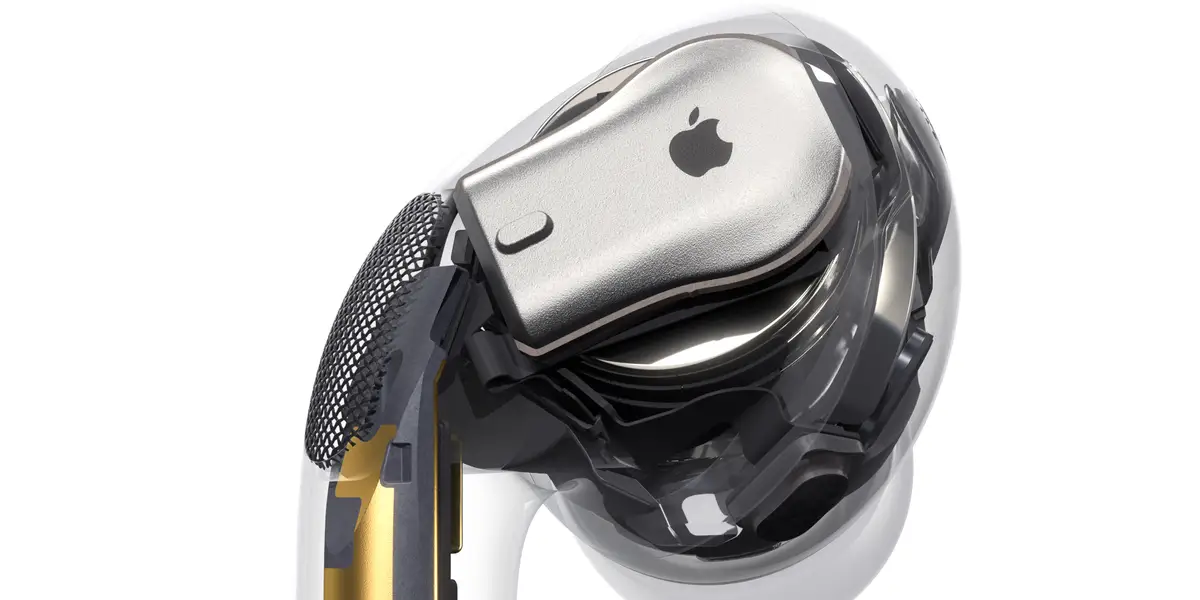
Battery life is another common problem, some users reported that their AirPods Pro case dies faster than expected or that one AirPod doesn’t charge properly. I recommend you do the following:
- Make sure the charging contacts on both the AirPods and the case are clean. Use a soft, dry cloth to wipe them down.
- If the issue persists, consider contacting Apple Support for potential battery replacement options.
Poor Sound Quality

There is also the report about crackling or static sounds, particularly in noisy environments, which can detract from the listening experience. To enjoy your device:
- Ensure that your AirPods are updated to the latest firmware. You can check this in Settings > Bluetooth, then tap the “i” icon next to your AirPods.
- If you experience sound issues during calls, try resetting your network settings by going to Settings > General > Transfer or Reset iPhone > Reset > Reset Network Settings.
Unexpected Music Pause
Another common complaint, particularly with the AirPods Pro, is that the music or audio keeps pausing unexpectedly. This can be caused by accidental touches or issues with the in-ear sensors. Simply:
- Clean the in-ear sensors to ensure they are free from debris or earwax.
- Adjust the touch controls in the Bluetooth settings to prevent accidental pauses.
Conclusion
The Apple AirPods, particularly the AirPods Pro and 3rd Generation models, are pretty much celebrated for their innovative design and sound quality, nonetheless, users have reported a range of issues that can affect their experience. Understanding these common complaints and following the provided solutions, you can enhance your AirPods functionality and enjoy a seamless audio experience. If you continue to encounter problems despite trying these solutions, don’t hesitate to reach out to Apple Support for further assistance. With the right care and troubleshooting, you can maximize the performance of your AirPods and enjoy the premium sound quality Apple is known for.
