Add MobilityArena as a preferred source on Google
Digital wellbeing, what is it? How can it help me in the usage of my Android device?
Firstly, what is Digital Wellbeing? You can find a narrowed down and brief explanation by Mister Mobility in this article , there he defined digital wellbeing as “a suite of apps that help you manage your smartphone usage and disconnect when you need to.”
It is no longer news that as we interact more often with our devices to get most activities done we might find ourselves getting a bit distracted, this can be really bad since we are now in an era where things are carried out virtually and our devices are slowly and gradually becoming our offices.
We have seen a lot of changes in most sectors most of which became more rapid after the COVID-19 pandemic sectors such as education, business and even health have had to adapt to this change. We have seen the rise of digital applications that have set the new norm when is comes to communicating of ideas, learning and socializing with no need for physical presence, such applications like Google Meet we talked about in this article .
Secondly, how can digital wellbeing features on Android help you in your device usage? Like we said earlier digital wellbeing can be said to be a suite of applications that help manage our phone usage, digital wellbeing applications on Android do just that.
Asides from the pre-installed wellbeing features that come native to Android devices Google also has a host of wellbeing applications that can also help us to disconnect and curb excessive device usage. We will look into these features or applications and how they can be of benefit to us.
How To Access And Use Digital Wellbeing Features On Your Android Device.
Digital Wellbeing Features On Android.
Even if you do not work remotely, your device can still pose a big threat to you and sidetrack you away from being productive. So first, ask yourself how many hours you spend on your device in a day, you might come to realise that you need to cut down on your device usage.
Digital wellbeing features were first introduced in Android Pie (Android 9) in 2018, so if you have a device running Android 9 and above you are going to have access to these features as well.
Accessing the native digital wellbeing features on your Android device is quite simple and straight forward. Head over to your device settings and type digital wellbeing in the search bar.
You will be taken straight to the digital wellbeing interface, I will advice that you ensure that in the interface settings it is set to display the app icon along with your other applications for easy access.
What features are present on the digital wellbeing interface?
On the application interface you are greeted with a chat that shows you how long you have used your device and which applications you have used. You also have a host of other useful features like:
- Dashboard : This feature helps you set a timer for any application on your devices. This timer tells how long the application can be used during the day and the moment the time elapses the application is closed for the rest of the day.
- Focus Mode : With the help of this feature you can set a particular time of the day when you will need no interruptions from particular applications and within that time period the chosen applications are deactivated completely.
- Manage Notifications : We can all agree that notifications can be very distracting as we will want to check exactly what the notification is about the moment it comes in. With the manage notification feature you can pick selected application that you do not want to receive notifications from (mostly the applications with high chances of distracting you e.g WhatsApp). It also let’s you in on the applications that send you notifications often.
- Do Not Disturb : At particular times in the day we might want to be free from distraction from our device, possibly while at the office, at school or while spending quality time with friends and family. By turning on do not disturb feature you block all interruptions that might be coming into your devices in form of calls, text messages, notifications and so on. You can as well alter the settings of this feature as well as the others mentioned above to suit your needs.
- Heads Up : This is one feature that I have personally found to be helpful. Most people have the attitude of using their devices while walking on the road, which can lead to an accident. What heads up does is to remind you to look up while walking and using your phone. You still need to keep alert as this feature does not replace paying attention to your environment.
- Parental Control : We talked about parental control features on Android in this article . Digital wellbeing also acts as a window to keep.track of your child’s device usage and set limits for them.
Google Stand Alone Digital Wellbeing Applications.
The features mention above are available on your Android device (they come with your Android device). But asides from these Digital health settings Google also has a few applications on PlayStore that helps boost digital wellbeing. These applications are as follows:
- We Flip : Reduce distraction and disturbance from your device when you are with family and friends or even attending a meeting. Everyone joins the we flip session via WiFi and all devices are put on do not disturb mode automatically.
You can download the application from Google PlayStore here .
- Desert island : Have you ever taught about what applications you will need if left on a desert island? This application simply asks the same question and you get to pick the applications you can not live without and put the remaining applications on you phone into
You can download it from Google PlayStore here .
There are a few other digital wellbeing stand alone applications designed by Google that you can get on the Google PlayStore by visiting the Google Creative Lab by opening PlayStore and typing “Google Creative Lab” into the search bar. With these features and applications you will be able to take control of your digital activities and also keep track of device usage.
Author:KittysTech
Tech analyst, Collins Eshiet, writes about technology. Follow me on Twitter @KittysTech.
Add MobilityArena as a preferred source on Google
The keyboard and the mouse are two essential devices that make a PC complete. If one gets faulty, or it gets misplaced, it can impair your use of the computer. However, there is nothing to worry about because I will show you how to use a phone as a keyboard or mouse on a PC, at the same time.
To use your phone to control a computer via USB, all you need to get is an OTG, but you can connect only one device at a time. To be able to use both at the same time, what you will need is an app and wifi or Bluetooth connectivity.
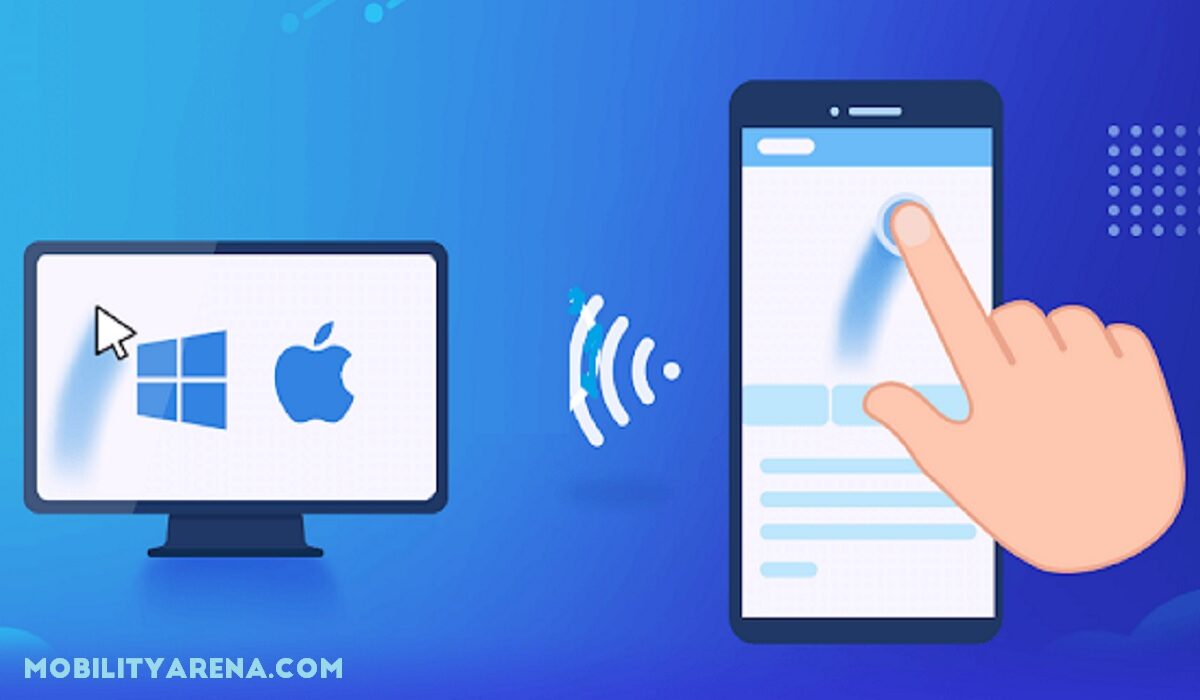
There are two popular apps you can use to connect your phone to your PC — Unified Remote and Remote Mouse.
• Unified Remote
This is one of the oldest apps to use in pairing your phone to your computer. You can use this app to control Linux PC, Windows, and Mac. Moreover, it works on both Android and iPhones. There is a standard version that is free and then a paid version with extra specialized functions.
The standard version will work well for you if you are only trying to use your phone as a mouse and keyboard. To use this app as the medium to connect your phone with your computer, you will need a Bluetooth or Wi-Fi connection.
- Install Unified Remote on your computer
Unified Remote has a server for computers and you will need to install it. Visit www.unifiedremote.com you will see the server there and follow the instructions on how to install it.
- Launch it
After the installation, launch the app if it doesn’t automatically launch. You can check the Chrome notification area or Chrome download page to access the software. You can also access it by going to “File Manager”.
- Install it on your phone
Visit the Google play store to access the Unified Remote app for Android, while for iPhones you will visit the app store. Download and install it.
After the installation, launch the app then tap on the button on the screen that says I have installed the server
Wait a few minutes until it finishes searching and sees your local network as well as the server running on your computer. Tap on the server.
- Start using it
Your phone and computer should have connected successfully, so you can start using your phone as a mouse and keyboard.
To use it as a mouse, just move your finger around your phone, and the direction you move your finger is where the mouse will go.
To use it as a keyboard, open word document, Google docs, or any other writing and editing software you have on your computer. Then launch your phone keypad at the bottom left corner of your phone screen and start typing.
- Use it for media function
Apart from typing and using it as a mouse, you can also use your phone as a media controller for your computer. You can increase the volume, reduce the volume, mute sounds, forward, backward, stop, pause and play. If you are watching a movie or listening to songs on your computer these media functions will come in handy.
• Remote Mouse
Another app you can use is called Remote Mouse. Once connected, you can use your phone as a keyboard, mouse, or for media control with the in-app media functions.
This app works for both Android and iOS users, but it works more seamlessly for iOS and macOS users, so I will be showing you how to use it for both your iPhone and Mac. This is one of the few apps that allow you to use the iPhone as a keyboard for a PC. 1. Download and install it on your computer
Visit www.remotemouse.net then navigate around the screen. You will see a button for downloading the software, tap on it, and install the software. For the software to work on your computer, you need to give the software permission to some functions and features of your computer.
If you have an anti-virus, it might consider this app a virus. There is no need to worry because the app doesn’t behave the way a virus does. However, make sure you only download and install the software from their official website for safety reasons.
- Launch it
When you launch the software, your computer will become a host server.
- Connect your iOS
You will connect your iPhone to the same hotspot or wi-fi connection as your computer.
- Download and install it
Download and install Remote Mouse on your iPad or iPhone. After installation, open the app.
It will start looking for your computer automatically and it will connect to it because your computer is the host network. However, if it doesn’t do it automatically, then you will have to connect manually.
To connect manually, launch the Remote Mouse software on your computer and go to Preferences Settings. You will see Disable Auto-Detection, click on it. Now you will have to connect via QR or IP code.
Top Apps that allow you to use your phone as keyboard and mouse for PC
The two best apps to use is Unified Remote and Remote Mouse. However, for one reason or the other you might not be able to use them (which is seldom the case), so here are two other apps that work seamlessly too —
1 . Wi-Fi mouse
This is another well-used app. You can use it to turn your phone into a wireless keyboard, mouse, and trackpad. Apart from these, you can also use it as a media controller, remote file explorer, and presentation controller. It also supports voice input, so you can use your voice to control its in-app features.
- Remote Link (PC Remote)
This app works well with Android tablets and mobile phones. It allows you to control your computer remotely. The major remote features it offers are — keyboard remote, media remote, presentation remote, and touchpad remote. You can also connect it to ASUS ZenWatch if you have one. Connecting it to a ZenWatch will allow you to control your PC via your ASUS ZenWatch with very simple gestures. So without a phone, you can still utilize the app.
It also supports voice commands.
The only downside of this app is that the developers no longer run maintenance on it. The last time this app was updated was on the 25th of December 2016. So there is a chance most of its other features might not be as responsive as you want.
Moreover, it doesn’t support newer ASUS notebooks that have Precision Touchpad. You can use it on only older ASUS notebooks with Smart Gesture, or use it with other laptop brands.
Conclusion
Now you know how to use a phone as a keyboard or mouse for a PC, and I should also add that you don’t need to break the bank just to make it work. Even if you are settling for an OTG or a paid version of the apps, it will cost you just a few pennies and in no time you should be back on your computer.
