Add MobilityArena as a preferred source on Google
Unihertz Tank 2 is the successor to the original Tank , trading a few features for some new ones, and maintaining some of its predecessor’s specs. Tank 2 has more RAM, a higher resolution night camera, and a higher screen refresh rate, uses the same processor (bummer), and has a smaller battery capacity. We love the Tank’s legendary battery life and are sad to see that reduction in battery capacity. The Tank 2 keeps the looks of its predecessor, though.
Other specs include a 6.81-inch display protected by Panda Glass MN228, a Gorilla Glass alternative . The upgrade in the display is that it now has 90Hz refresh rate. The main camera and fast charging remain the same. The really new addition is a 720p laser projector with 40 lumens brightness, so you can project the movie on your Tank 2 to a big screen. Who needs a trip to the cinema any more?
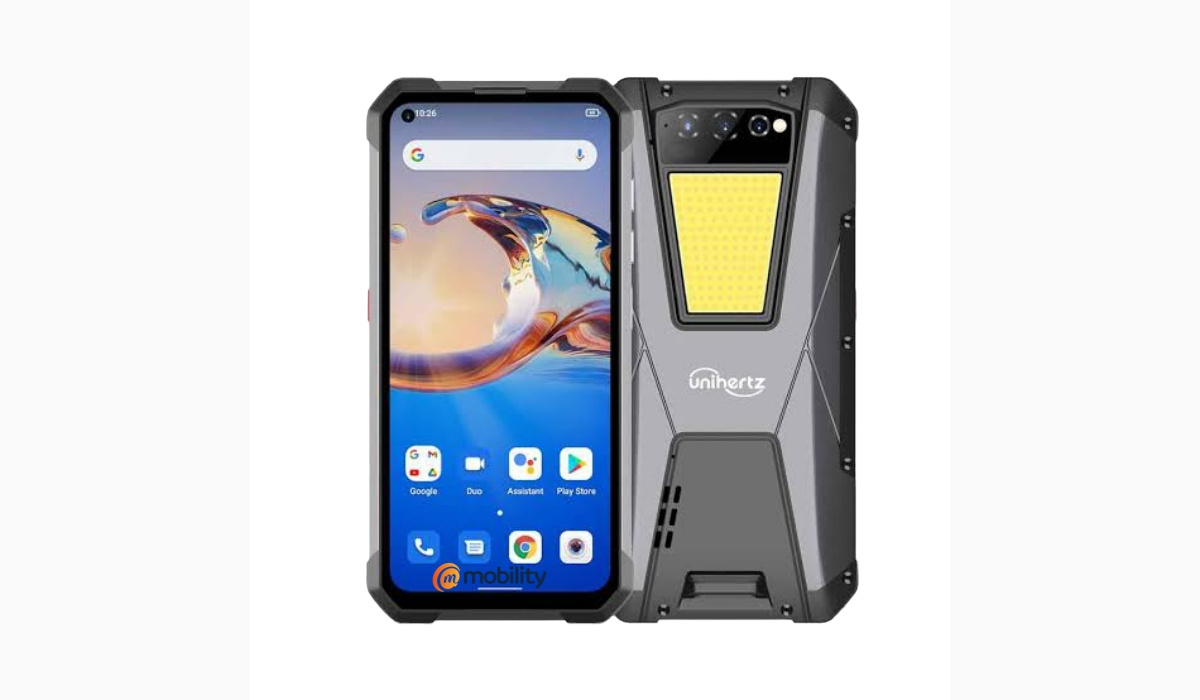
Unihertz Tank 2
As a rugged smartphone, there is full water and dust protection, as well as shock protection. There is a 108MP rear camera with the bumped up infrared night vision, as well as a powerful flash with multiple modes. Lastly, there is a toolkit providing features to help you navigate the great outdoors. In all, Unhertz Tank 2 is slightly taller, wider, and thinner than its predecessor. And it weights 30g less.
- Unihertz Tank 2 Specs
- Unihert Tank 2 Availability
- Unihertz Tank 2: Price And How To Buy
- Frequently Asked Questions about Unihertz Tank 2 Is Unihertz Tank 2 waterproof? How much does the Tank 2 phone weigh?
- Buyer’s Guide Verdict
- Alternatives And Competition
Unihertz Tank 2 Specs
- 2G mobile network bands : GSM, GPRS, EDGE 850 / 900 / 1800 / 1900 MHz. TDSCDMA (Band 34/39)
- 3G mobile network bands : UMTS, WCDMA, HSDPA 850 / 900 / 2100 MHz. CDMA2000 (Band BC0/BC1)
- 4G mobile network bands : LTE-FDD 1/2/3/4/5/7/8/12/13/17/18/19/20/25/26/28A/28B/66), LTE-TDD (Band 34/38/39/40/41).
- 5G mobile network bands : No
- SIM Card Type : Dual Nano SIM Card
- Dimensions: 179 × 86 × 23 mm
- Weight: 530 g
- OS: Android 13
- Display: 6.81 inches , 2340 × 1080 pixels, 90Hz refresh rate, Panda Glass MN228 protection
- Build : IP68 water and dust resistance. Shock resistance. MIL-STD-810H military standard.
- CPU: MediaTek MT6789 Helio G99 Octa-Core 2.0-2.2GHz
- RAM Memory: 12GB
- Extended RAM : 8GB
- ROM/Storage Memory : 256GB LPDDR4
- Micro SD: No
- Rear Camera: 108MP Main Camera + 64MP Night Vision Camera + 16MP Wide Angle Camera
- Front Camera: 32MP
- Sensors: Fingerprint (side-mounted), G-Sensor, Gyroscope, Proximity, Ambient Light Sensor, Compass, Baroceptor
- Facial Recognition: Yes
- Infrared Port: Yes
- USB: USB Type C, OTG
- Programmable Key: Yes
- Loudspeaker: Mono
- 3.5mm Headphone Jack: Yes
- FM Radio: Yes
- NFC : Yes
- Wi-Fi: WLAN 802.11 a/b/g/n/ac 2.4GHz/5GHz, Wi-Fi Direct, WI-FI Display, Wi-Fi Hotspot (V2.0)
- Bluetooth: Bluetooth 2.1+EDR, Bluetooth 3.0+HS, Bluetooth 4.1+HS, Bluetooth 5.1
- NFC: Yes
- GPS: GPS + GLONASS + BeiDou + Galileo
- Battery: Non-Removable 15,500mAh
- Charging Speed : 66W fast charging
- Wireless Charging : No
Unihert Tank 2 Availability
Unihertz ships to USA, Canada, UK, the European Union, and the Oceania region only.
Unihertz Tank 2: Price And How To Buy
Here are a few commonly asked questions about the Unihertz Tank 2.
Is Unihertz Tank 2 waterproof?
Yes, the Tank 2 is waterproof. It has an IP68 ingress rating, meaning that it can survive being dunked in water of up to 1 and half metres for up to 30 minutes.
How much does the Tank 2 phone weigh?
Unihertz Tank 2 is quite a heavy smartphone, weighing in at 530 grams.
Buyer’s Guide Verdict
Is Unihertz Tank 2 an upgrade to its predecessor? Not quite. We are not quite sure what to make of the Tank 2. It is difficult to call it a proper upgrade to the original Tank smartphone. Why? It uses the same design, has the same chipset, and has a smaller battery capacity. On a brighter note, it has faster battery charging, more RAM, and a higher refresh rate display. Lastly, we come to the projector, which appears to be its main selling point, as that is lacking on the first Tank.
Our honest opinion here at MobilityArena is that Unihertz Tank 2 ought to have been equipped with a more capable chipset, preferably one that supports 5G connectivity. If you do not need the projector, Unihertz Tank 2 is no upgrade from the original Tank.
Our Buyer’s Guide Verdict is a recommendation based on the specs of the device and a general guide to help you understand how much value a device offers for its price. It is not an endorsement of the device. Ask questions and use your judgement when buying any device; MobilityArena takes no responsibility for your buying decisions .
Alternatives And Competition
The first competition is the original Unihertz Tank itself. And you should see our detailed Unihertz Tank review , as well.
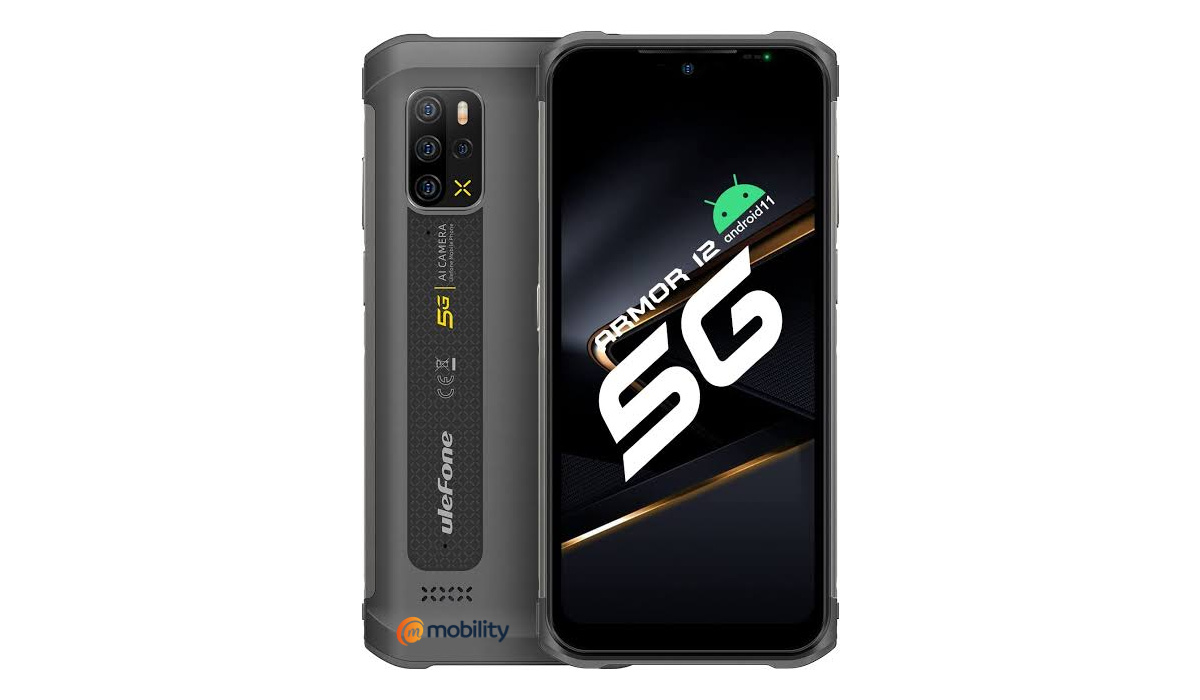
UleFone Armor 12 5G is a more powerfulrugged smartphone
A competing rugged smartphone in the same price range at this time: UleFone Armor 12 5G, which shows up with a more powerful, more advanced processor that supports 5G networks and underwater photography. Both are rated IP68 MIL-STD-810. It has more RAM – 12GB, but is a downgrade in screen resolution (only 6.52 inches, 720 x 1600 pixels) and protection (no toughened glass), battery size (only 5180mAh), and battery charging (only 18W). It costs $399.99, which is the same as the Unihertz Tank.
In January 2023, DOOGEE introduced the DOOGEE V Max , and it is identical to Unihertz Tank in many ways, including in having a 22000mAh battery and a 108-megapixel camera. The V Max supports 5G networks, though, which is missing in the Tank.
If what you want is the most powerful rugged smartphone available at this time, look at the AGM G2 Guardian , which sports a Qualcomm QCM6490 5G chipset, up to 12GB RAM, and a 7000mAh battery, and costs twice as much.
Lastly, if you are buying the Unihertz Tank 2, you definitely do not want to be holding up a 530g phone to your head for phone calls; you should buy earbuds and/or a wired earpiece for your telephone calls. Otherwise, prepare to experience cramps in your arm and hand.
Author:InfoDesk
Add MobilityArena as a preferred source on Google
I use Safari for every search I carry out on my iPhone, so it shocks me a bit whenever I can’t find it on my device. And Safari can’t get exactly deleted on iPhones, it’s a native iOS app. If Safari ever vanishes like this from your iPhone home screen, it’s normal to think you may have uninstalled it by accident. However, that’s not the case most times.
I’ll show you in this guide how to get Safari back on iPhone. So whenever you can’t find Safari on your home screen, use the instructions in this guide to learn how to put Safari back on iPhone easily.
- How To Get Safari Back on iPhone How to Get Safari Back on Home Screen Use Siri Search Use the App Library How to Put Safari Back on iPhone If Deleted Re-download Safari from the App Store Reinstall Safari Through a Home Screen Reset
How To Get Safari Back on iPhone
When you’re trying to figure out how to get Safari back on iPhone, it’s good to first understand the situation at play. For instance, the app could just be hiding and not visible on your Home Screen. In this case, you’d just have to find the missing app and move it to your phone’s Home Screen again.
Sometimes, however, a software glitch could cause the Safari app to uninstall totally from your device. It’s a rare case but it’s not impossible. In this case, you’d need to reinstall the app from the App Store.
Regardless of the situation, I’ve provided different sets of instructions below that should help you figure out how to get Safari back on iPhone.
How to Get Safari Back on Home Screen
Like I mentioned earlier, your Safari app could just be missing from your Home Screen. If this is the case, you have two options to put the safari icon back on iPhone. You can either use Siri to find and move Safari back to your Home Screen, or use the App Library. Here’s what you need to do.
Use Siri Search
Siri Search offers an easy way to find and get Safari back on your iPhone’s Home Screen. To use this function to get Safari back on iPhone, follow these step:
- To access Siri Search from your Home Screen, slide down from the top of the screen.
- Safari should appear immediately after you type it in the search bar
- From there, drag the Safari icon to the bottom of your screen by pressing and holding it.
- You’ll reach the Home Screen due to this action. Once you release the app icon, your Home Screen will now show the Safari app.
- Press and hold the Safari app and drag it to the bottom of your screen if you wish to add it to your dock.
The Siri Search function makes it pretty easy to get safari back on your iPhone Home Screen.
Use the App Library
If you’d rather use the App Library to get Safari back on your Home Screen, follow these steps:
- Swipe left on your iPhone’s Home Screen, until you reach the App Library
- Press and hold the Safari app if you see it here, then drag it to your screen’s left border
- If Safari isn’t instantly visible on this page, tap the search box and enter the app’s name
- Tap and hold its icon once you find it, then drag it to the left border of your screen
- This dragging action should take you to your phone’s Home Screen. Once you take your finger off the app’s icon, your Home Screen will now include it.
- If you’d like the app to show up on your phone’s dock (it’s more easily accessible this way), press and hold the Safari icon and drag it to the bottom of your screen
Easy-peasy, you’re all done! The App Library is great to organize your phone’s screen so you can always use it to find and get Safari back on your Home Screen.
How to Put Safari Back on iPhone If Deleted
Remember I talked about rare cases in which a software glitch could cause Safari to delete from your device?
If you’re unable to get Safari back on iPhone with the instructions above, you may be dealing with a similar issue. Nonetheless, there are several workarounds available.
Re-download Safari from the App Store
Follow these steps to download Safari again from the App Store:
- Launch the App Store app on your device
- Click the search icon at the bottom-right corner
- Type Safari into the search field, click Search
- Choose the Safari app when it comes up in the search results
- If Safari has uninstalled from your phone, you’ll see a Get option. If it reads Open instead, it means Safari is still installed on your device so you need to try the above instructions again to find and move it back to your Home Screen.
If none of the above suggestions have worked so far, I have one last trick for you to try. Read below.
Reinstall Safari Through a Home Screen Reset
If nothing else works, you could reset your iPhone’s Home Screen to get it back to the way it was before you introduced any changes and customizations. Doing this will restore your Home Screen to the factory version.
This is sure to work because you’ll always find Safari on the default Home Screen. So, follow these steps to get it done:
- Navigate to Settings > General > Transfer or Reset iPhone > Reset
- Here, click Reset Home Screen Layout . Then, confirm your choice by clicking Reset Home Screen
- Afterward, swipe up to close the Settings app.
When you return to your Home Screen, you should see the Safari app icon in the dock. It may seem extreme, but this method sure does work. But when you’re figuring out how to get Safari back on iPhone, I’ll suggest this method as a last resort if you’re big on Home Screen customizations staying the way you want them.
All in all, it’s not hard to get Safari back on iPhone if you know the right instructions to follow. I’ve provided them in this guide, and I hope you find them useful to navigate this issue. If Safari is not working on your iPhone, check out this helpful guide .
