Add MobilityArena as a preferred source on Google
Smartphones with a QWERTY keyboard are a rare sight in 2022. Once upon a time, thanks to Nokia and BlackBerry, they were the toast of the world. That time is past. But a small, dedicated set of mobile phone users still swear by hardware QWERTY keyboards. This Unihertz Titan Slim review will appeal to this set of users.
Unihertz Titan Slim has a candy bar QWERTY form factor, like the BlackBerry Keyone and KEY2 range. That is to say, it is a touchscreen-based Android smartphone with a portrait-oriented, fixed hardware keyboard. It is a slim version of the older Unihertz Titan .
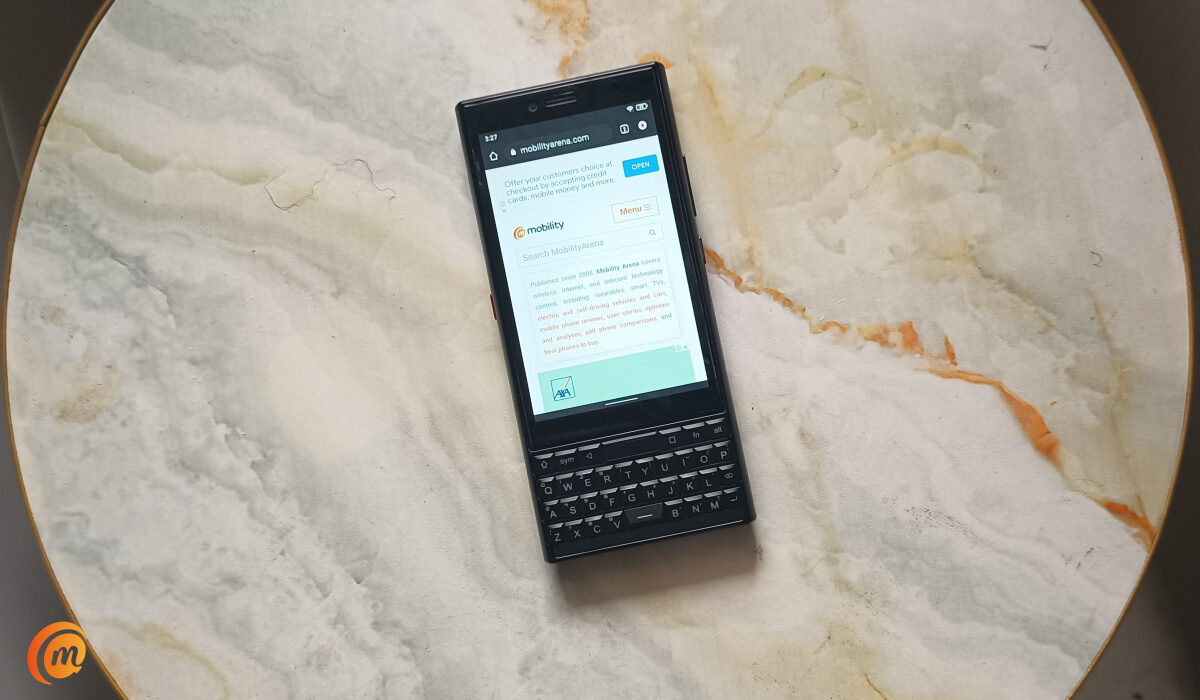
One very important question, though, is: Does anyone still want this form factor in 2022? Apparently. Unihertz ran a Kickstarter campaign to raise HK$ 392,476 for the Titan Slim and raised a whopping HK$ 4,598,276 instead from backers. It looks like quite a number of people are interested.
- Specs
- Unboxing
- Design
- Software
- Network
- Multimedia
- Camera, photography, and video recording
- Performance
- Battery
- Our Verdict
Specs
The Titan Slim has a 4.2-inch touchscreen display with a 768×1280 pixel resolution, below which is located the hardware QWERTY keyboard. This is a 4G LTE, dual SIM phone running Android 11. It is powered by a fairly dated entry-level Helio P70 chipset. Things get better with the 6 GB RAM and 128 GB built-in storage. There is no external memory option.
For photography and video capture, we have an 8 MP front camera and a 48 MP rear camera. The fingerprint scanner is built into a touchpad at the top of the hardware keyboard. The touchpad doubles as a Home key. Push it while anywhere, and the phone returns to the home screen.
The last major specifications include the 4100 mAh battery. The specs make it clear that this is not a power-horse. The entry-level processor paints a good picture of what to expect. It makes the Titan Slim slightly less powerful than the BlackBerry Key2 from 2018.
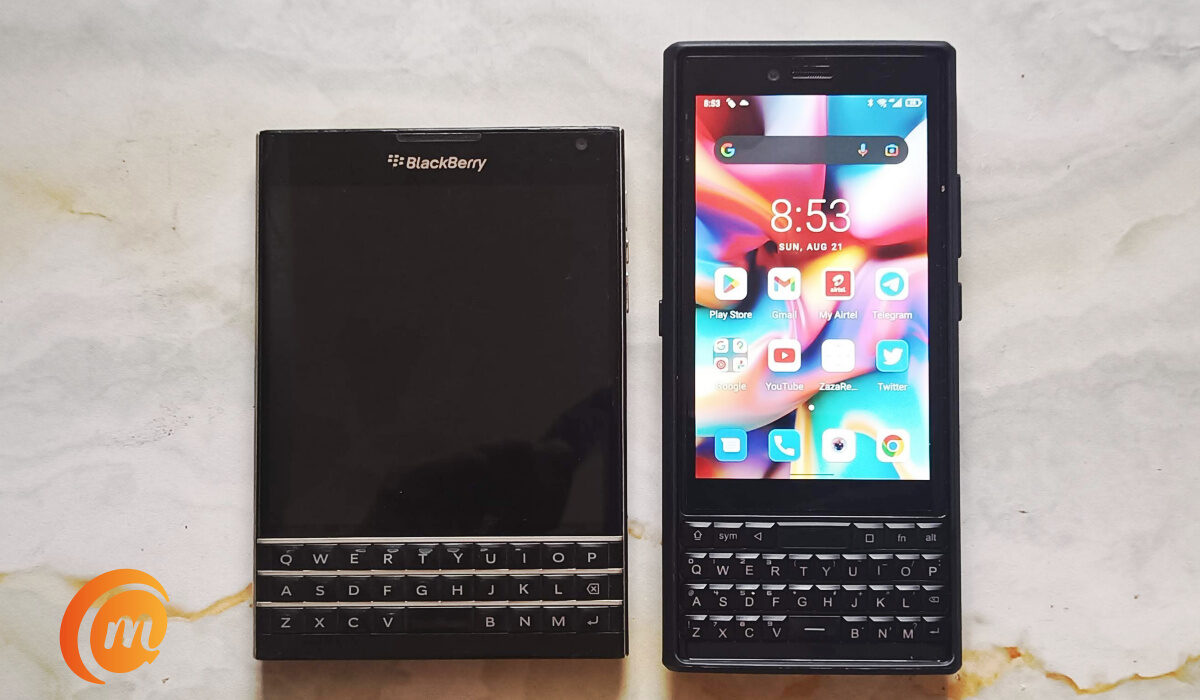
Blackberry Passport beside Unihertz Titan Slim
Unboxing
As soon as our review unit arrived from Unihertz, we pried it open like excited kids with a new toy. In the box, we found a screen protector and a SIM card ejector. Then the phone itself which already had a phone case and thin film screen protector on. Also in the box were a 10W charging block, a USB-C charging cable, an earphone jack adapter, and lastly, a warranty card.
Design
We have had the Titan Slim for over two weeks now, and if you were ever a Blackberry lover, you can’t help that nostalgic feeling when looking at the Titan Slim. The phone reels you in at the first glance, thanks to the comeback of the QWERTY physical keyboard.
The Titan Slim is narrow and tall (which is where the name “Slim” is derived). But it is also thick, and many people will find that an irony, considering the name. Everyone of us who handled it out of the box were not expecting the thickness. But some thought appears to have gone into the design, because the chunkiness does not make it feel uncomfortable in use. On the contrary, the phone provides a smooth, even, and light grip which makes it enjoyable to hold. We imagine that the thin and tall aspect ratio is where the magic is.
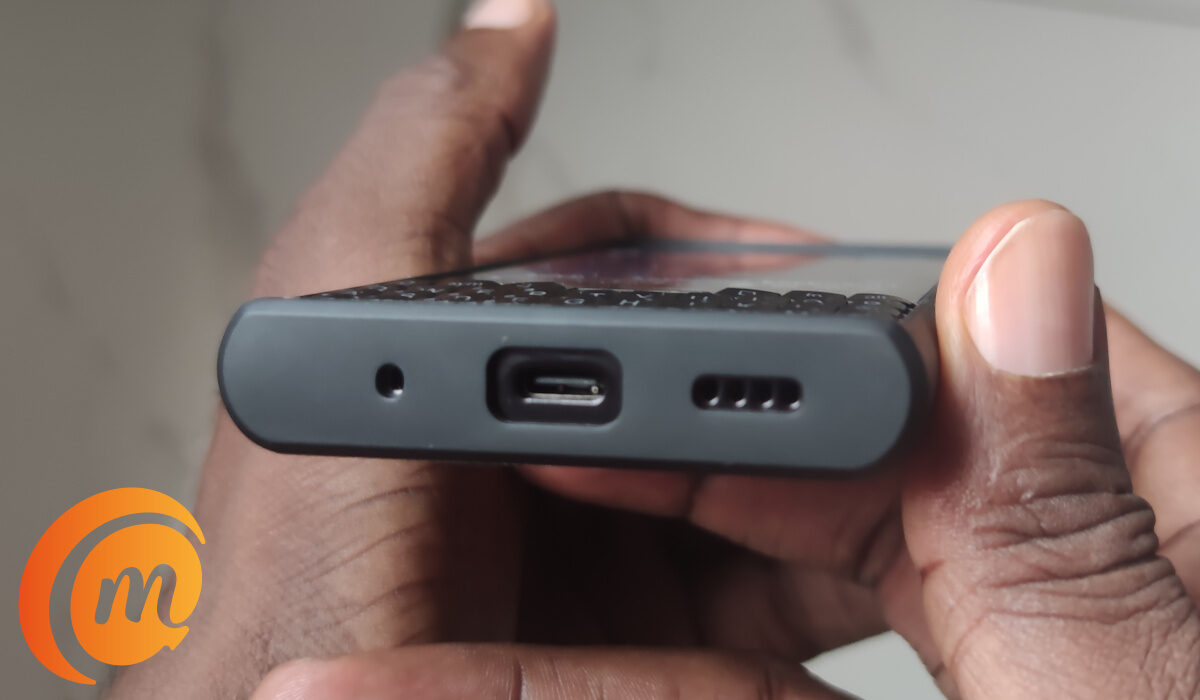
The back panel of the has a glossy, plastic finish. The plastic finish is quite solid. The front of the phone is glass and the sides have a plastic frame. There is also The QWERTY physical keyboard that is almost an exact replica of a Blackberry. The display is 4.2 inches in size and uses IPS LCD technology. The phone has only 60Hz refresh rate, but that doesn’t take away from how good the display is. Once we took off the pre-applied screen protector film, gosh! Beautiful.
The Titan Slim has an infrared blaster located at the top of the phone, a good location for pointing it at your TV, a/c, or other device you wish to control with it. There is a built-in remote controller app. I am familiar with using these. Setting it up to control the LG DVD player in my study wasn’t difficult.
This is a dual-SIM smartphone. Contrary to what we see mostly, there are two separate SIM card slots and trays, instead of one slot and tray that houses both SIMs. There must be a practical reason why this was done. Below the SIM slots, which are located on the left side of the phone, is a red button that serves to turn on and off the LED light at the back of the phone for use as a flashlight in the dark. On the right side of the Titan Slim are the volume and power buttons.
Unihertz have gone with Apple and Samsung, and not included a 3.5mm audio port here. You can use the adaptor in the box to connect an audio headset, though. At the top right section of the phone is an LED notification light. It has been a while we saw one last on a phone.
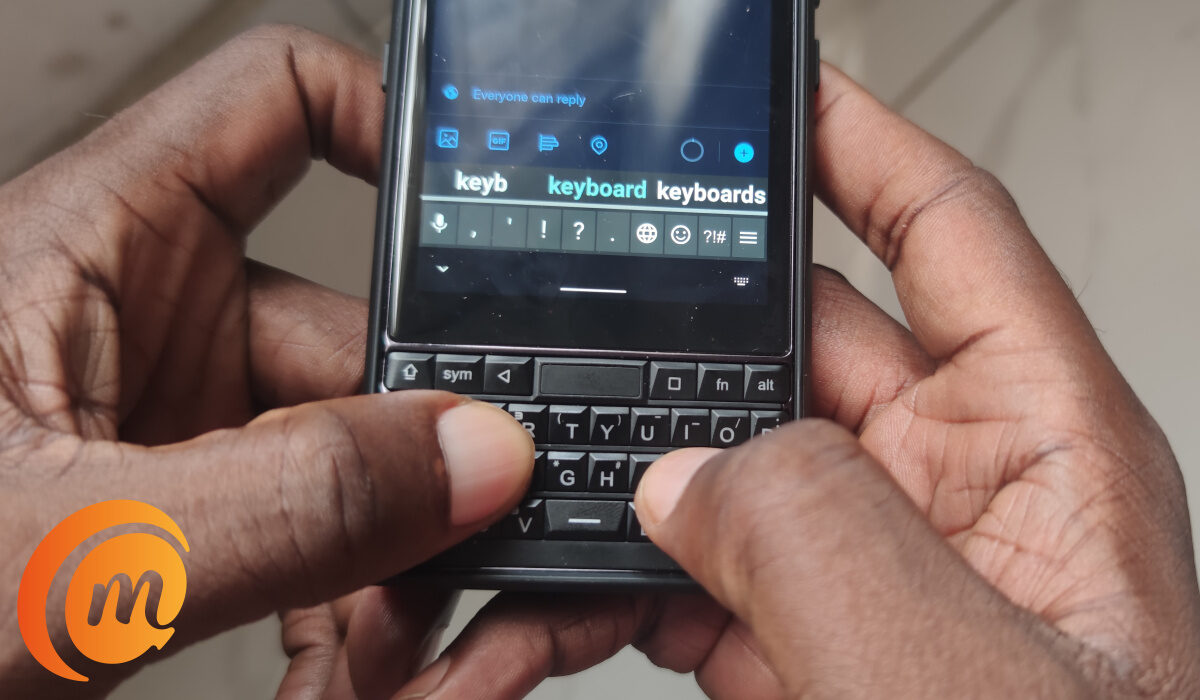
Now, let’s talk about the hardware QWERTY keyboard, which is the main selling point of this device. The keys are small and take some getting used to. You enter special characters by tapping a bar at the bottom of the screen, right above the keyboard, to select the character you need. The keys are backlit.
Above the keyboard is a touch navigation bar. That is where the fingerprint scanner is located too. Tap/press it to return to the home screen. Press and hold to activate Google Assistant. It is a functional feature that you will use a lot.
Software
The TItan Slim runs stock Android OS which looks good. It came with version 11 out of the box. We checked and there was no Android 12 update waiting for it. So, we asked Unihertz whether it was in the works, and they replied that it will be updated in the future. Sorry; we have no timeline.
Network
This is a dual SIM 4G phone. It supports the nano SIM card standard. Using mobile data on it is without issues. It holds on to a signal well. Connecting to Wifi networks have been without issues.
Multimedia
In-call audio is solid – one of the better ones out there. Voices are clear at both ends. Music playback over the built-in loudspeaker is just fine; It is nothing fantastic, and nothing that will have you tearing your hair out. The speaker audio is noticeably hollow. Watching video on the display is a pleasant experience. And, yes; you can watch in landscape mode, which is the better way.
Camera, photography, and video recording
The single camera on the back of the Titan Slim is a 48 MP sensor, while there is an 8 MP unit in the front. The camera is neither spectacular nor terrible. You be the judge by taking a look at some sample photographs taken with the Titan Slim.

Taken with the selfie camera of the Titan Slim
Sometimes, the pictures are not very sharp, especially the front camera but it does a decent job. This is for both the front and back cameras. But, again this is normal behaviour for cameras at this price point, so don’t take it too personally. The video recording supports 1080p@30fps.
Performance
We were apprehensive about the Helio P70 chipset powering the Titan Slim. Why? It is a few years old and not exactly a powerhorse. But after using the Titan Slim for days, it occurred to us that we hadn’t experienced a hiccup yet. The phone has gone on working without us getting frustrated with its performance. Interesting. Did Unihertz do some optimization work to make this happen, or is it only due to the fact that the 4.2-inch display puts little strain on the processor? Whatever it is, performance has been smooth, and we love it.
Battery
Battery life is one of the areas that the Titan Slim shines brightly. Pairing a 4.2-inch display with a Helio P70 chipset and a 4100mAh battery is the perfect recipe for long battery life. And that is exactly what we got, in our use. The included charger is a 10W piece, so you get slightly faster charging than regular.
Our Verdict
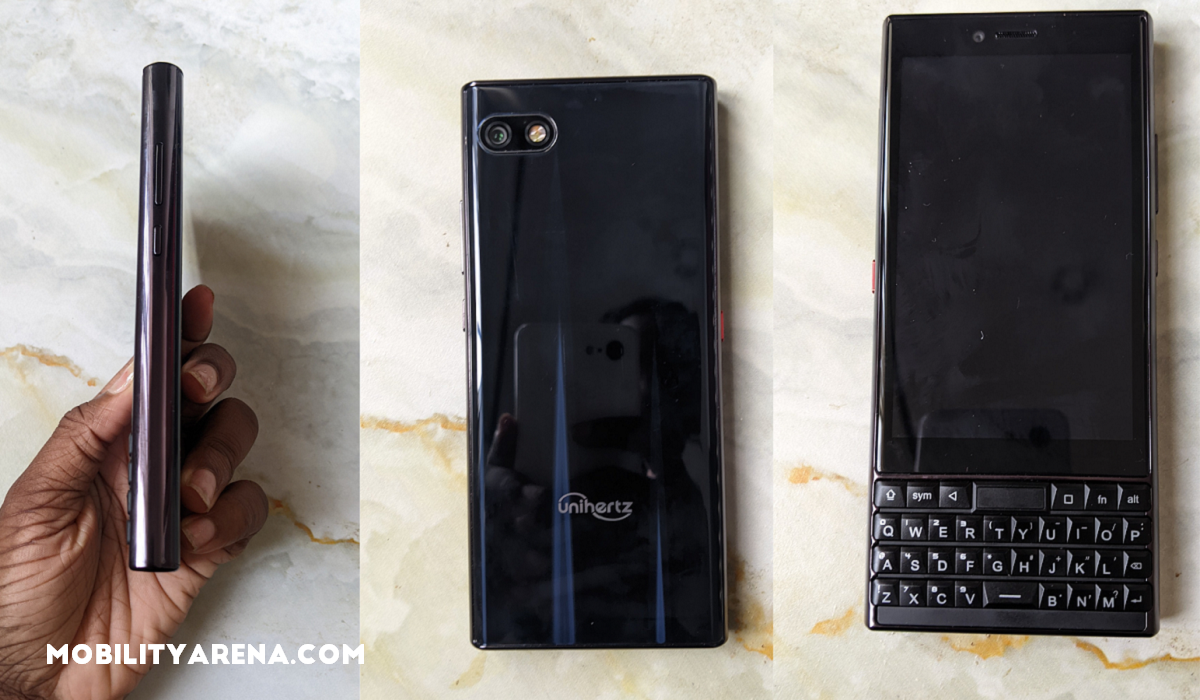
The Unihertz Titan Slim is a decent smartphone that gets the job done. It offers some uncommon features, like an IR blaster, hardware flashlight key, and a versatile QWERTY keyboard. At the end of the day, that keyboard is its defining feature.
This phone is clearly targeted at those who must use a physical QWERTY keyboard – which is mostly people who are sad that BlackBerry phones are no more and still long for that keyboard experience. It is a small niche of the smartphone market, but it exists, and it is good to see a manufacturer cater to them.
If you belong in that niche, this phone will appeal to you. If you don’t, nothing we say about it will. If you want a candy bar Android smartphone with a physical QWERTY keyboard, Unihertz Titan Slim is as good as it gets today. It has everything you need and does what you need it to do. You can get a 10% discount on your order by using this link .
- Don’t miss our mobile phone reviews .
- Follow our news on Google News .
- Follow us on Instagram , Facebook , Twitter , and YouTube .
Author:Dun
Dun enjoys reading and writing, and is always on her smartphone. She currently uses a Google Pixel 3.
Add MobilityArena as a preferred source on Google
The Samsung A02 was released on the 2uth of January 2021 as one of Samsung’s latest entry-level smartphones. There, largely, have been positive feedback from users with a handful that have similar problems. These problems are what we are going to look at today.
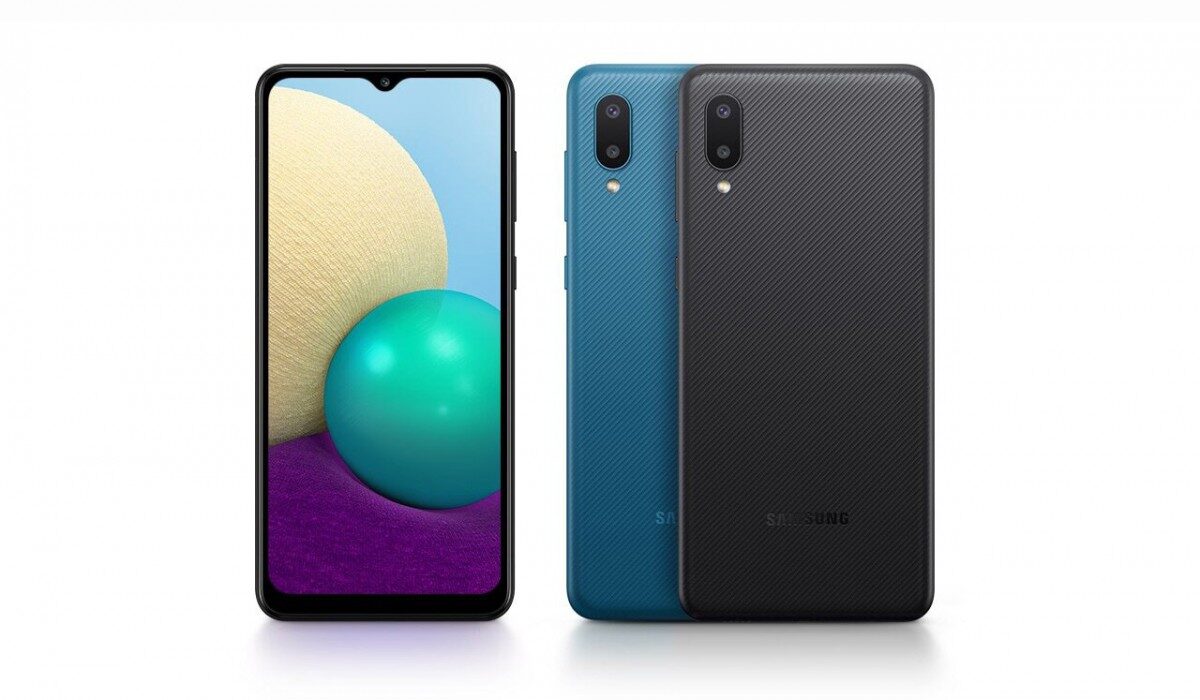
Samsung A02 problem:Slow or Laggy UI
This is one of the most common issues that users have encountered while using the Samsung A02. Issues like these are common with old phones with little space but can also occur in newer phones because of the size of the RAM. Here are the reasons as well as the ways to fix this issue.
•Antivirus app and junk cleaner: if you have an Antivirus or junk cleaner app installed on your Samsung A02, delete them. These apps might clean up your junk and free up space but cause overheating and lag on your device, just by being run.
•Storage space: if you do not have enough space for your device to run, your device will inevitably start to lag. You need to make sure that you have more than enough space on your Samsung A02 to run smoothly. Try freeing up space on your device by deleting pictures, videos, and apps that you do not necessarily need.
• Custom theme: Sometimes using a custom theme on your smartphone can cause this issue. It is better to revert to a normal theme and optimize your device’s performance than use one that will make your user interface laggy.
•Third-Party launcher: using a third-party launcher can also be the cause of lag on your Samsung A02. Uninstall the third-party launcher and make use of the original launcher on your smartphone.
•Software update: Keeping your Samsung A02 updated consistently can fix the lag. Software updates usually fix whatever bugs and problems your smartphone might have. So, constantly check for updates on your smartphone. If there are updates available, install them. To check: Go to Settings » Software update (System updates) » Then Tap on the Download and install, or Check for system updates.
•Update all installed apps: using outdated apps on your smartphone can cause your device to lag. Go to your App store and update the affected app, if they are not updated already.
•Restarting your device: a simple restart could go a long way in reducing or fixing lag. as a minor firmware issue could be causing your phone to slow down, which can be fixed with a restart.
Samsung A02 problem:Screenshots
Another common issue that users have come across is a problem with screenshots on the Samsung A02. Be it the lack of knowledge on how to take a screenshot or the presence of an actual problem blocking the screenshot feature, we are going to shed light on them both. Pressing the Power and Volume down buttons should do the trick on most phones. But if you get an error like “Can’t take screenshot” or the screenshot appears blank, this post will help you.
If you receive a “can’t take screenshot” message when attempting one, it is because that page contains personal information messages. This means that the app/page has restricted the screenshot capability, or your device is from your company or school/college. It has nothing to do with your phone. To fix it, you can either contact the department that issued your phone or use Google Assistant to take screenshots in restricted apps. If you are still facing problems with taking screenshots follow these steps below.
•Clean all of your opened apps. You can do this by opening the recent apps tab and selecting “close all apps” or “clear all apps”. You can also swipe up and close each one at a time.
•Restart your device. You can fix this issue by simply restarting your phone. A service could be interrupting the screenshot functionality which can be resolved by restarting it.
•Check your internal storage. Sometimes having low internal storage could be the cause of your inability to take screenshots. Free up space by deleting what you don’t need on your Samsung A02.
•Turn off Incognito mode. Now, I think a lot of people have fallen victim to this one. If you are carrying out activities in Incognito mode, you will not be able to take a screenshot of any page.
•Enable media storage. If you have your media storage app disabled on your Samsung A02, then you will have problems taking screenshots. To enable it;
Go to settings and select “Apps”
Go to the “All apps” section. Tap on the three-dot icon at the top and choose Show system apps. On your Samsung A02, tap on the Sort icon and enable the toggle for Show system apps.
Look for Media storage. Tap on Enable, if available
•Use Safe mode. Safe mode disables all third-party apps because they could be the reason for the screenshot problem. To do this press and hold the Power button until you see the Power menu. Touch and hold the Power off option. Then tap on Safe mode. Your phone will then restart and boot into Safe mode.
•Resetting your settings can also be a good fix if none of these things work. To do so, navigate to Settings > System (General Management) > Reset > Reset all settings (Reset app preferences).
- Don’t miss our mobile phone reviews .
- Follow our news on Google News .
- Join our WhatsApp Group , to be notified of the most important articles and deals,
- Follow us on Instagram , Facebook , Twitter , and YouTube .
Author:Flamez
Flamez loves basketball, art, gadgets and cars.
