Add MobilityArena as a preferred source on Google
Connecting your USB device with your computer essentially helps you to carry out useful activities such as transferring files, data backup, and recovery, among others. However, it’s also possible to run into issues when attempting to connect your computer with a USB device.
If you ever experience such an issue, for instance seeing an error message that reads “Unknown USB Device (Device Descriptor Request Failed),” it’s easy to get confused. However, there’s no need to be since we’ve provided all the instructions you need to get past this error message and fix connectivity issues between your Windows 10 computer and USB device.
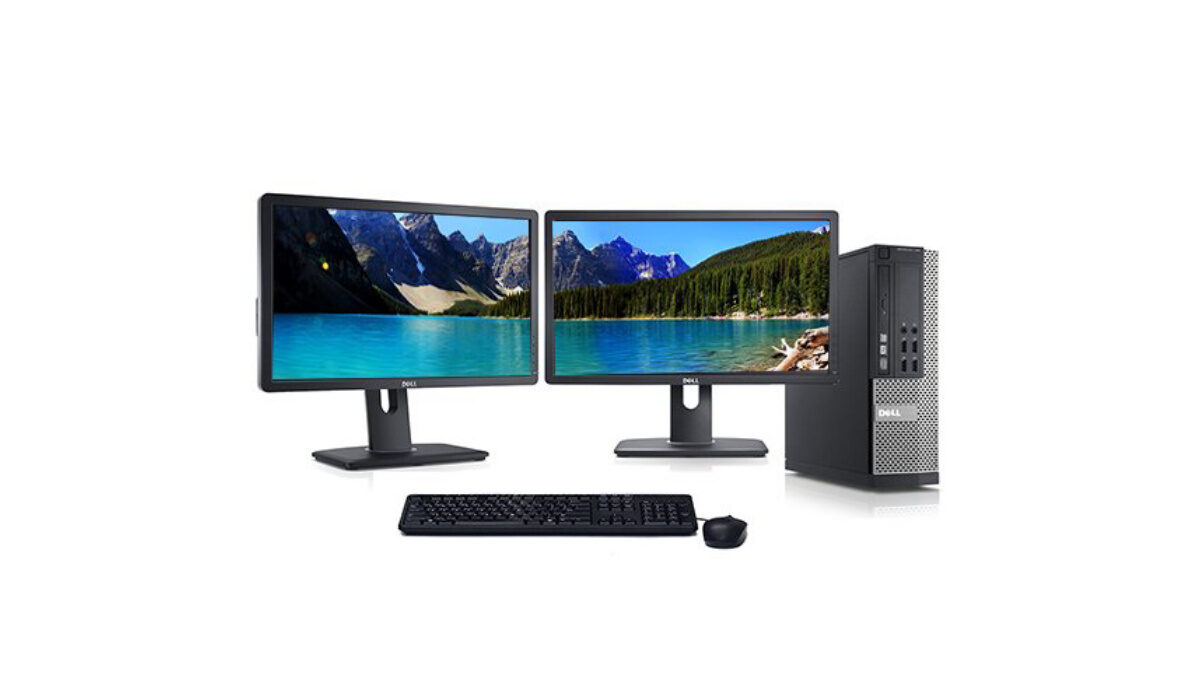
So, make sure to pay attention to all the helpful tips, suggestions, and instructions we’ve provided in this guide.
What is USB Device Descriptor Failure?
When using a USB device on a computer and connecting it, Windows 10 Home users might sometimes run into problems. The “Unknown USB Device (Device Descriptor Request Failed)” error message that appears in Device Manager is one of these frequent problems.
You are essentially being informed by this error message that the attached USB device cannot be used by the computer. This is a problem if you want to use anything that connects to your USB port, such as a memory card, Android smartphone, game controller, or USB flash drive.
Hardware or system-specific issues may be to blame for the current situation. No matter what caused it, the goal of this guide is to help you quickly fix the Device Descriptor Request Failed (Unknown USB device) problem.
Different Methods of Fixing Device Descriptor Failure – Unknown USB Device (Device Descriptor Request Failed)
If you’re ever faced with a device descriptor failure issue when attempting to connect your Windows computer with a USB device, you can try one or more of the troubleshooting options we’ve provided below.
Examine your Computer for Hardware Issues
It’s possible that you can’t use your USB device because of a hardware issue, in which case the issue is with your computer’s hardware rather than the operating system. Here are two quick tests to see if this is the case, which can quickly establish whether you should consider having your computer restored or whether you can continue using the techniques listed below to resolve system-related problems.
- Use a different USB port to connect : Try using the USB ports on your back. If the device suddenly starts functioning, the USB port you were using before is probably damaged. It is advised to either flag this port as broken or to start looking into replacing it right away.
- Connect to a separate laptop : See if the hardware itself has any problems by attempting to use the same hardware on a different computer. If it functions properly on another machine, you’re probably dealing with a system problem alone. However, it is very possible that the gadget is broken if it still doesn’t function. Look for a replacement or a repair.
You can decide whether or not to continue with the steps below after testing these two items. Each of the new methods tries to resolve software problems, which are difficulties specific to the operating system of your computer.
Unplug your computer from the Power Supply
It’s only when you’re using a portable device, like a laptop that you should try this method. Connecting the problematic equipment to your computer after briefly unplugging your power source may resolve the Unknown USB device problem on Windows 10.
Simply unplug all of your laptop’s charging wires until it is powered solely by its internal battery. The USB device should be plugged in at this point to see if your system can detect it.
If using this approach doesn’t resolve the USB device problem, the power supply can be ruled out as the cause. If the USB does begin to function, try looking into getting a new charger.
Remove the USB Driver in Device Manager
Follow these instructions to get it done:
- On your keyboard, simultaneously press the Windows + R keys to launch the Run application.
- Without using quotation marks, type “devmgmt.msc,” then press OK. The Device Manager will open in a different window as a result.
- The Unknown USB Device (Device Descriptor Request Failed) can be found by expanding the area for Universal Serial Bus controllers and choosing it from the list.
- Select Uninstall from the context menu by performing a right-click on the selected USB device. To remove the gadget, adhere to any on-screen directions.
- Restart your PC after the removal process is finished. It will correctly replace the drive automatically, which might help you stop getting the error you’ve been getting.
Disconnect USB and Scan for Hardware Changes
Take note of the following instructions:
- Using the procedures in Method 1, remove the faulty USB device.
- Remain within the Device Manager.
- Click Action from the header menu, and then from the menu choose Scan for Hardware Changes.
- When the system has had a chance to register all hardware modifications, plug your USB in once more to see if it now functions.
Disable Fast Startup Option
You can disable the fast startup option with the instructions below:
- On your keyboard, simultaneously press the Windows + R keys to launch the Run application.
- Without using quotation marks, type “control,” then click OK. This will open the traditional Control Panel in a new window. (The new Settings should not be confused with this app.)
- In the window’s right-hand corner, switch your view mode to Large Icons, then pick Power Options from the list of options.
- Choose the “Choose what the power buttons do” link on the window’s left side.
- Choose the “Change settings that are currently unavailable” link. You’ll need to grant administrator permission for this, which might entail providing your admin password.
- Take a look at the Shutdown settings area. Check to make sure the box labeled “Turn on fast startup (recommended)” is not ticked. Delete the checkmark by clicking on the box if it is.
- As soon as you’ve clicked on the “Save changes” option, restart your device.
In summary , the fixes we’ve suggested in this article will help you correct USB descriptor device failure if you ever run into the error message when you try connecting your Windows device with a USB device. If you know anyone who might benefit from this article, also make sure to recommend this article to them.
- Don’t miss our mobile phone reviews .
- Follow our news on Google News .
- Join our WhatsApp Group , to be notified of the most important articles and deals,
- Follow us on Instagram , Facebook , Twitter , and YouTube .
Author:Joan Agie
Add MobilityArena as a preferred source on Google
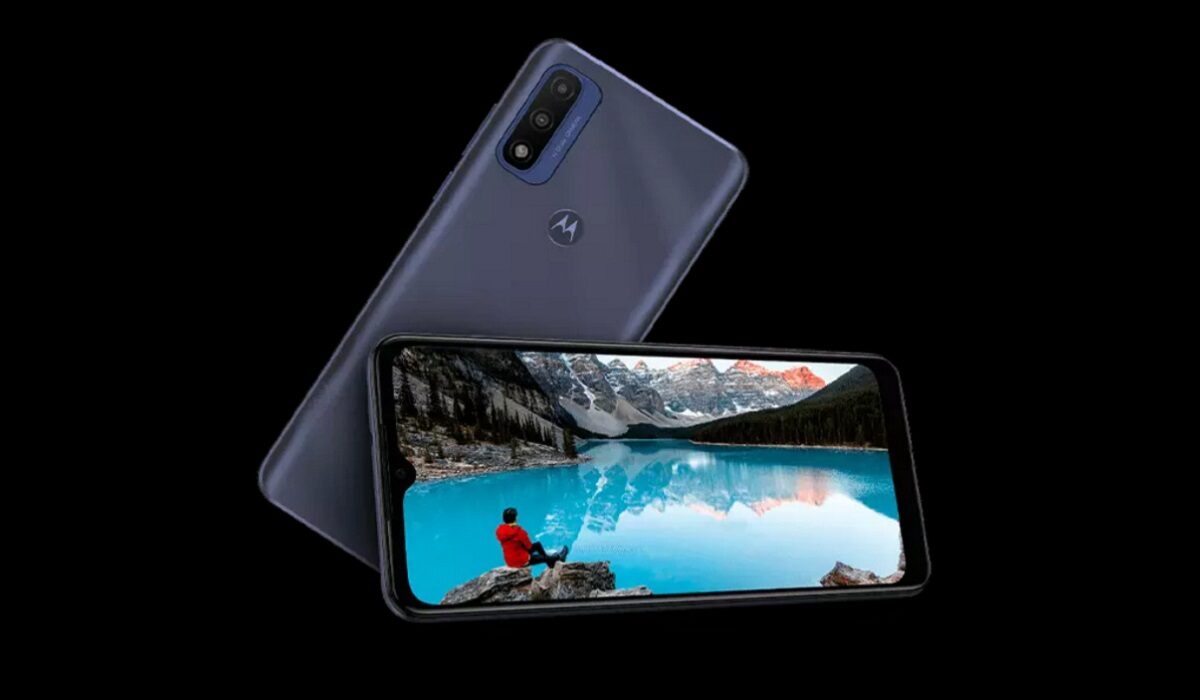
The Motorola Moto G Pure is one of Motorola’s latest entry-level smartphones that was released in October 2021. The device has a 6.5″ max vision HD+ display, a 13MP main camera, a 5 MP selfie camera, and a 4,000mAh battery that lasts for up to 2 days. The processor on the Moto G Pure is the MediaTek Helio G25. It also has 3GB of RAM and 32GB of internal storage.
Now, if you are looking to make your Moto G Pure run faster and smoother, here are some ways to make that possible.
Delete Unused apps
Any smartphone user would love to have all their desired apps installed. This might lead to large amounts of apps piling up on the device, over time. It is important to form a habit of uninstalling unused apps and games. Having lots of these apps will hinder and slow down the performance of your device.
Especially when you have some of them running in the background. They also become so many and have so much data on each one of them, that there is barely any storage space left for your device to run as smoothly as you may have liked.
Clear App Cache
Cleaning the cache of the app on your Moto G Pure is important in terms of sending up your phone. Clearing the cache of an app can make that particular app run faster and smoother than it did before, and reduce possible lag. Clearing cache is also very important for entry-level devices too to help them improve their performance. As they are not as powerful as high-end devices. You can clear the cache of any app by long pressing the app icon, selecting App info , and then Storage . There will be an option to Clear the cache . Select that and you’re good to go.
Updates
It is important to keep your Moto G Pure updated. This is because, with every new update, there might be security enhancements (which are crucial) but there might also be performance improvements added to the update that can make your overall experience, and device speed, better.
Restarting your Device
It is well known that any device can perform faster and better simply off of a restart. The same holds for the Moto G Pure. Doing this should address most of the performance issues, as it deletes temporary files to speed up the phone and clears the phone’s memory.
Use the Lite Version applications
Lite versions of apps are the shortened versions of these said apps. Apps Tit Tok, Facebook, e.t.c. The lite versions are usually limited in comparison to the actual applications and don’t offer as many features. These lightweight apps, that do not work your device as hard as the main ones, are designed for entry-level smartphones and designed for users who want to keep their apps simple or use something simple. They help boost the performance of your device and lower your data and charges.
Hard Reset
If you are looking for a simple method on how to Make Moto G Pure Run Faster, it may be the most effective. If you do a hard reset on your Moto G Pure, then all the phone data will be deleted, and the phone’s storage will be clean. At the same time, the random-access memory of your Moto G Pure will start working like new again. However, you need to back up all the data before performing a hard reset.
The main reason for this is a hard reset because all the data in your Moto G Pure storage will erase. This will increase the performance of your Moto G Pure phone compared to its previous state before the reset. But it bears too much of a cost for some. If you are fine with having all your data lost, you can go for this option. It will certainly improve the phone’s performance and feel like you just bought a new phone.
- Don’t miss our mobile phone reviews .
- Follow our news on Google News .
- Follow us on Instagram , Facebook , Twitter , and YouTube .
Author:Flamez
Flamez loves basketball, art, gadgets and cars.
