Add MobilityArena as a preferred source on Google
In a world where our lives are increasingly busy and information overload is the norm, having the right tools to stay organized can make all the difference. Enter Samsung smartphones with Note Assist, a feature designed to streamline your note-taking experience and enhance productivity. Imagine this: you’re in a meeting, jotting down ideas and important points, but instead of struggling to keep your notes neat and tidy, your smartphone does the heavy lifting for you. With capabilities like summarization, auto formatting, translation, and spelling correction, Note Assist transforms your chaotic notes into organized, easy-to-read documents. Let’s dive into how this innovative tool works and explore some of the best Samsung smartphones with Note Assist available in the U.S. that come equipped with this game-changing feature. Whether you’re a student, a professional, or someone who simply loves to stay organized, these devices are designed to meet your needs while making your life easier. From capturing ideas on the go to ensuring your notes are polished and presentable, Samsung smartphones with Note Assist are here to revolutionize how you manage information.

- What is Note Assist? Why Choose Note Assist?
- How to Enable Note Assist
- Top 2024 Samsung Smartphones with Note Assist Samsung Galaxy S24 Ultra Samsung Galaxy S24+ Samsung Galaxy S24
- Conclusion
What is Note Assist?
Note Assist is a powerful feature integrated into Samsung’s Notes app, utilizing Galaxy AI to help users manage their notes more effectively. Whether you’re taking handwritten notes with an S Pen or typing on your device, Note Assist simplifies the process by offering functionalities like summarization, formatting, translation, and spelling correction—all with just a few taps.
Why Choose Note Assist?
Imagine having an assistant that can instantly organize your thoughts, correct your spelling mistakes, and even translate notes into another language. This is what Note Assist brings to the table:
- Summarization: Quickly condense lengthy notes into key points, making it easier to review important information.
- Auto Formatting: Transform messy notes into clean, structured documents with headers and bullet points.
- Translation: Convert your notes into over a dozen languages instantly.
- Spelling Correction: Automatically fix typos and grammatical errors for polished notes.
With these features at your disposal, you can focus on what truly matters—your ideas!
How to Enable Note Assist
Getting started on Samsung smartphones with Note Assist is simple. Here’s how U.S. users can enable this feature on their:
- Open the Settings App: Navigate to your device settings.
- Select Advanced Features: Scroll down and tap on “Advanced features.”
- Tap on Advanced Intelligence: Find the option for Samsung Notes.
- Toggle On Note Assist: Turn on Note Assist to activate its functionalities.
Once enabled, you’re ready to take full advantage of everything Note Assist has to offer!
Top 2024 Samsung Smartphones with Note Assist

Now that you know what Note Assist can do, let’s explore some of the top Samsung smartphones available in 2024 that come equipped with this innovative feature.
Samsung Galaxy S24 Ultra
First on the list of Samsung smartphones with Note Assist is the Galaxy S24 Ultra. It is the flagship model that combines cutting-edge technology with powerful performance. Key features:
- Display: A stunning 6.8-inch QHD+ Dynamic AMOLED display that brings content to life.
- S Pen Integration: The included S Pen makes note-taking a breeze, allowing for precise input.
- Galaxy AI: With advanced AI capabilities, Note Assist works seamlessly to enhance your note-taking experience.
Imagine effortlessly jotting down ideas during a brainstorming session while your smartphone organizes everything for you—this device is built for productivity!
Samsung Galaxy S24+

For those who want premium features without going all out on size, the Galaxy S24+ offers an excellent balance of performance and usability on the list of Samsung smartphones with Note Assist. Key features:
- Display: A vibrant 6.7-inch FHD+ Dynamic AMOLED display provides stunning visuals.
- Enhanced Battery Life: With all-day battery performance, you won’t have to worry about running out of power during important tasks.
- Note Assist Functionality: Enjoy all the benefits of Note Assist alongside powerful multitasking capabilities.
Picture yourself using this phone in meetings or classes—taking notes has never been easier!
Samsung Galaxy S24

The standard Galaxy S24 is perfect on the list of Samsung smartphones with Note Assist, for users seeking a compact yet powerful device equipped with essential features. Key features:
- Display: A crisp 6.1-inch FHD+ Dynamic AMOLED display that fits comfortably in your hand.
- Efficient Performance: Powered by the latest processor for smooth operation across apps.
- Note Assist Ready: Utilize all the features of Note Assist without sacrificing portability.
Imagine being able to capture ideas on-the-go while having access to intelligent note management right in your pocket!
Conclusion
In 2024, Samsung smartphones with Note Assist are revolutionizing how we take and manage notes. With features designed to enhance productivity—such as summarization, auto formatting, translation, and spelling correction—these devices are perfect for students, professionals, and anyone looking to stay organized in a fast-paced world. So why wait? If you’re ready to elevate your note-taking experience and streamline your workflow, consider investing in one of these remarkable Samsung smartphones with Note Assist. With their advanced technology and user-friendly interfaces, you’ll be well-equipped to tackle any task that comes your way while enjoying the convenience of intelligent note management!
Author:Ifeoluwa Adeleke
Add MobilityArena as a preferred source on Google
In our fast-paced world, where multitasking has become a way of life, Google Text-to-Speech (TTS) is a powerful tool that can simplify our daily tasks and enhance our experiences. Imagine this: you’re cooking dinner, and instead of stopping to read a lengthy recipe or email, you can simply listen to it being read aloud. Whether you’re using it for accessibility, convenience, or just for fun, Google Text-to-Speech is here to make your life easier. This feature converts written text into spoken words, allowing you to absorb information without needing to focus on the screen. Let’s dive into how this innovative tool works and explore how U.S. users can make the most of it.
- What is Google TTS? Why Use Google TTS?
- Setting Up Google Text-to-Speech on Android Step 1: Open Settings Step 2: Enable Text-to-Speech
- Using Google Text-to-Speech in Different Apps Reading Text Messages Aloud Using TTS in Google Chrome Listening with Google Translate
- Advanced Features of Google Text-to-Speech Customization Options Integration with Other Apps
- Conclusion
What is Google TTS?
Google Text-to-Speech is a feature available on Android devices and within various Google applications that allows users to convert text into natural-sounding speech. It’s designed to assist users in a variety of ways, from reading articles aloud to helping those with visual impairments or learning disabilities.
Why Use Google TTS?
Imagine being able to listen to your favorite articles, messages, or even books while you’re on the go. Here are some compelling reasons to use Google TTS:
- Accessibility: It provides a lifeline for individuals with visual impairments or reading difficulties by allowing them to hear text read aloud.
- Convenience: Listen to text while multitasking—cooking, exercising, or commuting—without needing to stop and read.
- Language Learning: Helps with pronunciation and comprehension when learning new languages.
With these benefits in mind, let’s explore how you can set up and use Google Text-to-Speech on your devices.
Setting Up Google Text-to-Speech on Android
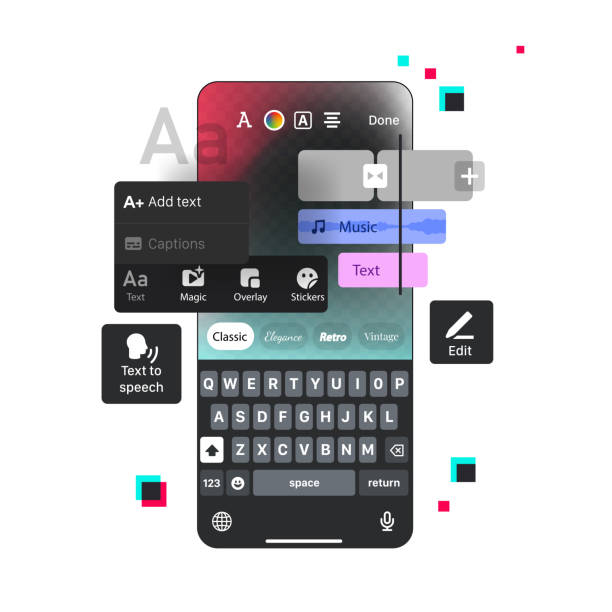
Getting started with Google TTS on your Android device is straightforward. Here’s how you can enable and customize this feature:
Step 1: Open Settings
- Open the Settings App: On your Android device, locate and tap the gear icon to access settings.
- Select Accessibility: Scroll down and find the “Accessibility” option.
Step 2: Enable Text-to-Speech
- Tap on Text-to-Speech Output: In the Accessibility menu, look for “Text-to-speech output” and select it.
- Choose Your Preferred Engine: Ensure that “Google Text-to-Speech Engine” is selected as your default option.
- Customize Settings: Adjust the speech rate, pitch, and language preferences according to your liking.
Now you’re ready to use Google TTS across various applications!
Using Google Text-to-Speech in Different Apps
Reading Text Messages Aloud
Want to hear your incoming messages instead of reading them? Here’s how:
- Open Your Messaging App: Launch any messaging app like Messages or WhatsApp.
- Select the Message: Tap and hold the message you want to hear until it’s highlighted.
- Choose Speak Option: From the context menu that appears, select “Speak” or “Listen.” Your device will read the message aloud.
Imagine driving while listening to important texts—Google TTS makes it safe and convenient!
Using TTS in Google Chrome
You can also use Google TTS while browsing the web:
- Open Chrome Browser: Navigate to any webpage containing text.
- Highlight Text: Select the text you want read aloud by clicking and dragging over it.
- Right-click and Select Speak: Right-click on the highlighted text and choose “Speak” from the menu.
This feature is perfect for listening to articles or research papers without straining your eyes!
Listening with Google Translate
Need help with pronunciation in another language? Use Google Translate:
- Visit Google Translate: Open your browser and go to the Google Translate website.
- Enter Your Text: Type or paste the text you want translated.
- Click the Speaker Icon: After translation, click on the speaker icon next to the translated text box to hear it spoken aloud.
This is an excellent way to practice language skills while ensuring correct pronunciation!
Advanced Features of Google Text-to-Speech
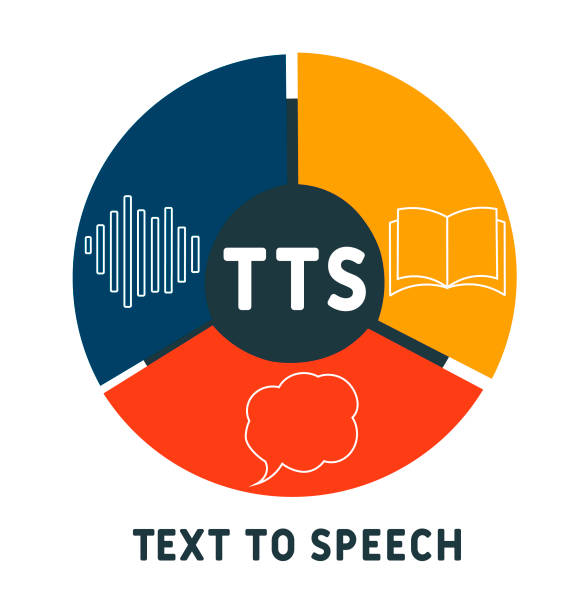
Google TTS isn’t just about reading text; it also offers advanced features that enhance user experience:
Customization Options
You can customize various aspects of TTS:
- Voice Selection: Choose different voices based on gender or accent by going into settings.
- Speech Rate Adjustment: Modify how fast or slow the text is read aloud according to your preference.
Integration with Other Apps
Many apps integrate with Google TTS, allowing for seamless functionality:
- Note-Taking Apps: Use TTS in apps like Google Keep or Evernote to listen to notes while on the move.
- E-Book Readers: Many e-book applications support TTS, letting you enjoy audiobooks without purchasing additional content.
Conclusion
Google Text-to-Speech is a versatile tool that enhances productivity and accessibility for users across various platforms. Whether you’re listening to messages while cooking, browsing articles online, or learning a new language, TTS makes it easy and convenient. So why not give it a try? With just a few simple steps, you can set up Google TTS on your device and start enjoying all its benefits today! Embrace this technology and transform how you interact with written content—making life a little easier one spoken word at a time!
