Add MobilityArena as a preferred source on Google
Microsoft releases updates for Windows frequently to introduce exciting new features and address known bugs. Windows will automatically install any updates that are available if you have enabled automatic updates on your PC. However, there are also options to update Windows manually on your PC so you can enjoy the latest Windows features.
In this article, I’ll explain all the effective methods you can use to update Windows manually on your PC to get the newest OS build.
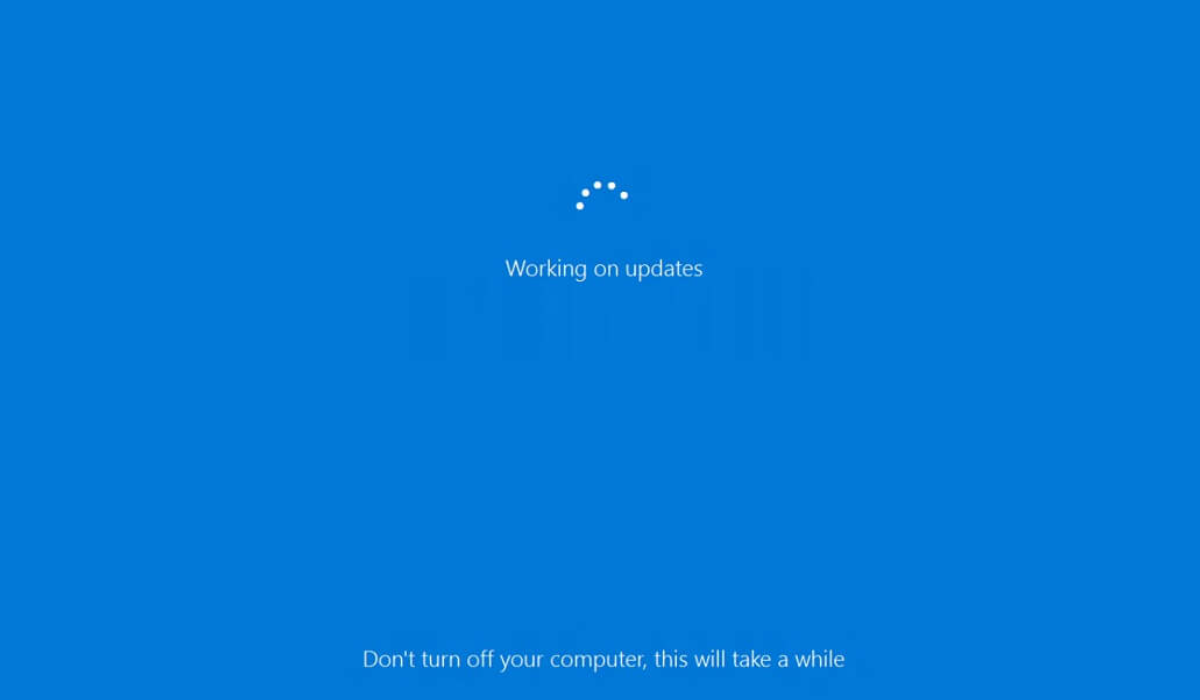
- How Can You Update Windows Manually on Your PC? Use the Settings App Use the Windows Update Assistant Use the Microsoft Update Catalog Use Windows PowerShell
How Can You Update Windows Manually on Your PC?
It’s essential to keep your operating system updated because it not only adds new functionality but also fixes bugs, enhances security, improves system performance and shields your PC against danger. It’s easy to update Windows manually especially if you’ve already turned off automatic updates in the past. Here are four ways to update Windows manually on your PC.
Use the Settings App
The Settings app is the simplest and most preferred way to download any available Windows update. It is the primary location for managing system settings, configuring features, and updating Windows.
Follow these steps to manually update Windows on your PC through the Settings app:
- To open the Settings app, press the Win+I hotkeys. If this key combination does not work, you can open Settings using any other method.
- Select Windows Update from the left panel in the Settings app.
- To check for updates, press the Updates button.
Now, Windows will look for and download any updates that are available. You may need to restart your computer to finish installing the update.
You can also use the Advanced option to change settings such as downloading updates over a metered connection, changing the active hours, and changing the types of updates you receive.
Use the Windows Update Assistant
Your computer can download feature updates by using the Windows Update Assistant , a small executable file. It prevents you from having to wait for an automatic update.
Follow the steps below to use the Windows update assistant to update Windows manually on your PC:
- Visit the download website for Windows Update Assistant.
- Select the Update Now option. The update assistant will be downloaded to your computer.
- Launch the downloaded file.
- When the UAC prompt appears, select Yes .
- To allow the computer to verify compatibility, click the Update Now button.
- Click Next , followed by Restart Now .
The Windows Update Assistant will download and install the most recent update on your computer while safeguarding your private data. The “ Thank you for updating to the latest version of Windows ” message will appear once the installation is finished.
Please keep in mind that the update assistant is only compatible with computers with x86/64 processors. You can try any of the other methods listed below to update Windows manually on your PC if you have an ARM-based computer.
Use the Microsoft Update Catalog
Another place to update Windows manually on your PC (for Windows 10 and later versions) is the Microsoft Update Catalog. Here’s how to go about it:
In any browser, open the Microsoft Update Catalog .
Type in the KB number of the update you wish to download in the search field. Try searching for broad terms like Windows 11 and Windows 10 if you don’t know the KB number.
Next to the update you want to download, click the Download button. This will bring up a new window with a download link for the update.
As you would typically, click the link and select the location where you want to save it.
Check the update’s extension after it has been downloaded. If it is an MSU file, all you need to do to install it on your computer is double-click it. You will need to extract the file first using any file extraction software if the file has a CAB extension, which is usually a driver file.
You must manually update a driver after extracting it using the Device Manager. To do so, launch Device Manager and then locate and right-click on the driver you want to update. Click Update driver , then choose the Browse my computer for drivers option.
Restart your computer after installing the update so that the changes can take effect.
Use Windows PowerShell
You can also use Windows PowerShell to update Windows manually on your PC. Here’s how to do it:
- With admin rights, launch Windows PowerShell.
- Press Enter after entering this command:
“ Install-Module PSWindowsUpdate ”
- To confirm, enter Y and click the Enter option
- Type Y and hit Enter again to confirm if you get the message “ Unsupported repository “
- Enter the following command after typing it. It will alter the execution policy so that you do not see the import module error:
Set-ExecutionPolicy -Scope CurrentUser -ExecutionPolicy Unrestricted Import-Module PSWindowsupdate
- Enter the following command. Make sure the “ KB version ” is changed to the KB version of the update you want to install:
“ Get-WindowsUpdate
Get-WindowsUpdate -AcceptAll -Install -AutoReboot
Get-WindowsUpdate -Install -KBArticleID ‘(KB Version) ‘”
Any of the methods I’ve described above can help you to update Windows manually on your PC, but I recommend using the Settings app because it is the simplest method. If you are unable to access the Settings app, you can still download updates for your computer using any of the other methods.
Author:Joan Agie
Add MobilityArena as a preferred source on Google
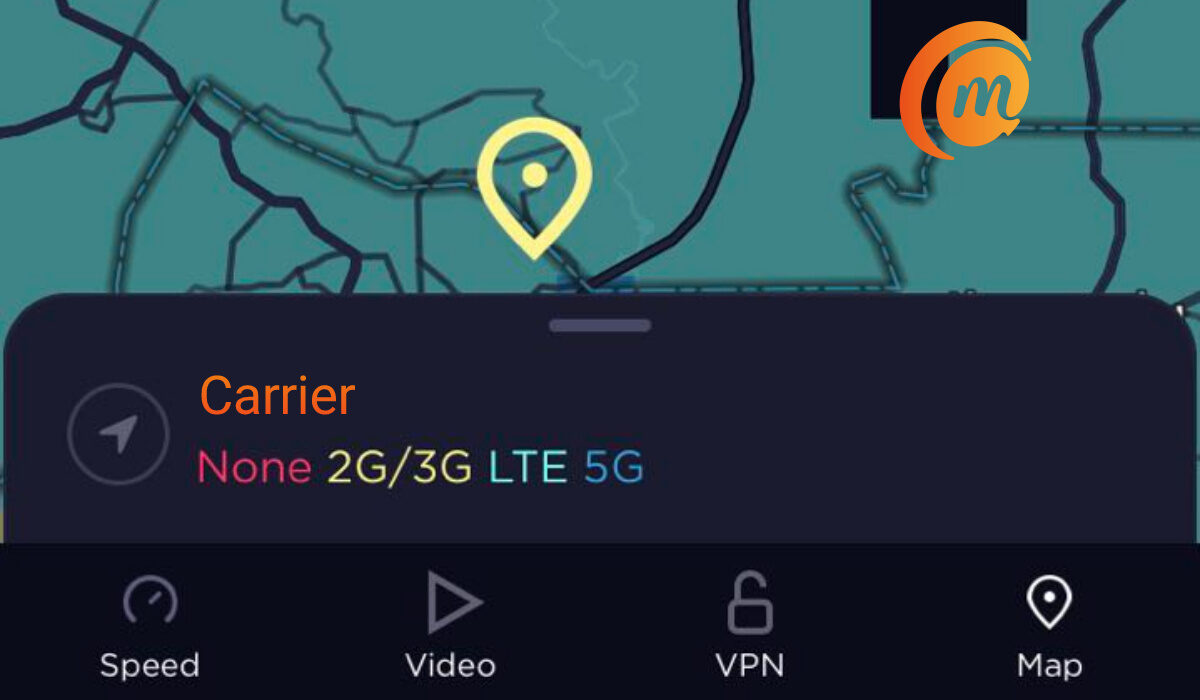
How to know if your location has 5G:
- Why your 5G signal is poor
- What to do to get better 5G signal on your phone or router
- Bonus Info: Not all 5G smartphones are the same
Why your 5G signal is poor
This is not rocket science. Wireless radio signals are an established science. You are getting poor network signal for a number of possible reasons. For one, it can be that your location is on the fringe of your carrier’s coverage – just within range of the cell tower enough to get a weak signal.
Another reason can be that there is some obstruction between you and your carrier’s nearest cell tower. The obstruction can be buildings, trees, a hill, or some other structure made up of materials that reflect or block out wireless radio signals.
What to do to get better 5G signal on your phone or router
Of course, it is rarely ever practical that you will be able to move your residence because of a network signal issues, but if it is, you should consider that option too to get better 5G signal.
Call Your Carrier’s Customer care . If you have done what you can to find a better position and still failed to get better 5G signal, it is probably time to talk to your carrier and lay a complaint. User feedback on network strength often helps carriers to plan properly for new towers. By letting them know what is happening at your location, they may be able to make plans to cover that place better. Also, sometimes, the problem of a weak signal can be solved by some network optimisations at the carrier’s end. Give them a call: provide as many details about your location as possible, and include what you have done to try to solve the problem.
Bonus Info: Not all 5G smartphones are the same
To help you understand this easily, consider cars: not all car engines are the same. Some are more powerful than others and will accelerate faster, achieve higher top speeds, and even brake faster. 5G smartphones are like that too. Some have more powerful 5G modems in them and will get stronger signals than the less powerful ones. How can you tell? A general rule is that the more high-end the smartphone, the more powerful its network radios and modems.
This is a rule, and you will run into exceptions, because modems and radios are not the only factors in determining how well a phone can latch on to the network. For example, the antenna is another factor. A smartphone might have a powerful 5G modem and radio but perform less than optimally if the antenna is not properly placed or implemented. But as a rule, to get better 5G signal, buy a more premium 5G smartphone or router. Bear that in mind when shopping for a 5G smartphone.
Lastly, if experiencing weak signals occasionally, to get better 5G signal on your 5G phone or router, do not forget to try a simple restart/reset. Power the device off and then power it back on after a few moments and see if that helps. Sometimes, your device is just overworked and needs a break, in which case a simple restart sometimes works wonders.
Related Article: How to upgrade from 4G to 5G .
Author:Mister Mobility
Digital Skills and Communication Coach | Mobile Phone Connoisseur since 2001 | Tech Blogging since 2004
