Add MobilityArena as a preferred source on Google
Who still uses shares their smartphone’s Internet connection with other devices via USB in 2022? By default, I doubt that anyone uses it anymore. But USB tethering is a great backup for emergency situations when your WiFi hotspot fails. Windows laptop users know that WiFi hotspot connections fail. You are blissfully working on your laptop, and suddenly it disconnects from the hotspot and just won’t connect back for a long while.
Just tonight, I was in one such situation. I was watching the movie, Interceptor , on Netflix on my laptop, while connected to my phone’s hotspot. Right in the middle of the action, my Windows laptop disconnected, and nothing I did solved that problem. Thankfully, there was a USB-C cable close by and I plugged one end to my phone and the other to the laptop, and I was back to watching my movie on no time. So, how does USB tethering work? Come with me, as I explain it.
Is USB tethering faster than WiFi hotspot?
Is USB tethering faster than WiFi hotspot? Yes, all other things being equal, it is. However, its big limitation is that you can share your Internet with only one device at a time. With a hotspot, you can share to multiple devices simultaneously. But when it comes to speed, nothing beats a cable.
How to use USB Tethering
To tether via USB, you need a USB cable. The specific type depends on which port your phone uses – B or C. Open the settings menu of your phone and look under Mobile Networks , Networks , or Hotspot and tethering . The names and precise location will vary from one manufacturer to the other. But the USB tethering toggle will be found under those menus. Once you have found it, connect your host smartphones and your laptop with the cable, then enable the feature on your phone. Your phone will create a wired network with your laptop and automatically start sharing its Internet connection with the laptop.
You are good to go: start browsing and streaming and downloading on your laptop. You may not get to use it regularly, but like Bluetooth tethering , it is one of those features that you will be glad you have on that rare say that the need arises.
How to share your iPhone Internet with your computer
You can also tether with your iPhone and share your mobile data with your laptop via a cable. Connect iPhone and your computer with a cable. If you receive an alert that says Trust this Computer?, tap Trust. In your computer’s network preferences, choose iPhone, then configure the network settings. You will have to get the correct network configuration settings from your carrier or operator.
- Don’t miss our mobile phone reviews .
- Follow our news on Google News .
- Join our WhatsApp Group , to be notified of the most important articles and deals,
- Follow us on Instagram , Facebook , Twitter , and YouTube .
Author:Mister Mobility
Digital Skills and Communication Coach | Mobile Phone Connoisseur since 2001 | Tech Blogging since 2004
Add MobilityArena as a preferred source on Google
Apple has unveiled the latest version of their mobile operating system for iPhones, iOS 16. When the software update arrives, five older iPhone models will not be getting it. A leakster had earlier tipped us that three models, iPhone 6S and iPhone 6S Plus and the iPhone SE (2016), will not be eligible. It turns out that Apple had other ideas.
Announced at WWDC 2022, features of the iOS 16 update include: lockscreen personalisation, the ability to unsend iMessages, automatic transcription under videos, maps availability in 11 more countries, among others.
The biggest improvement that this update is about are the new lockscreen features. You will be able to personalise your Lock Screen with photos, customised widgets, updates, and notifications. So what iPhone models are eligible for this update when it rolls out?
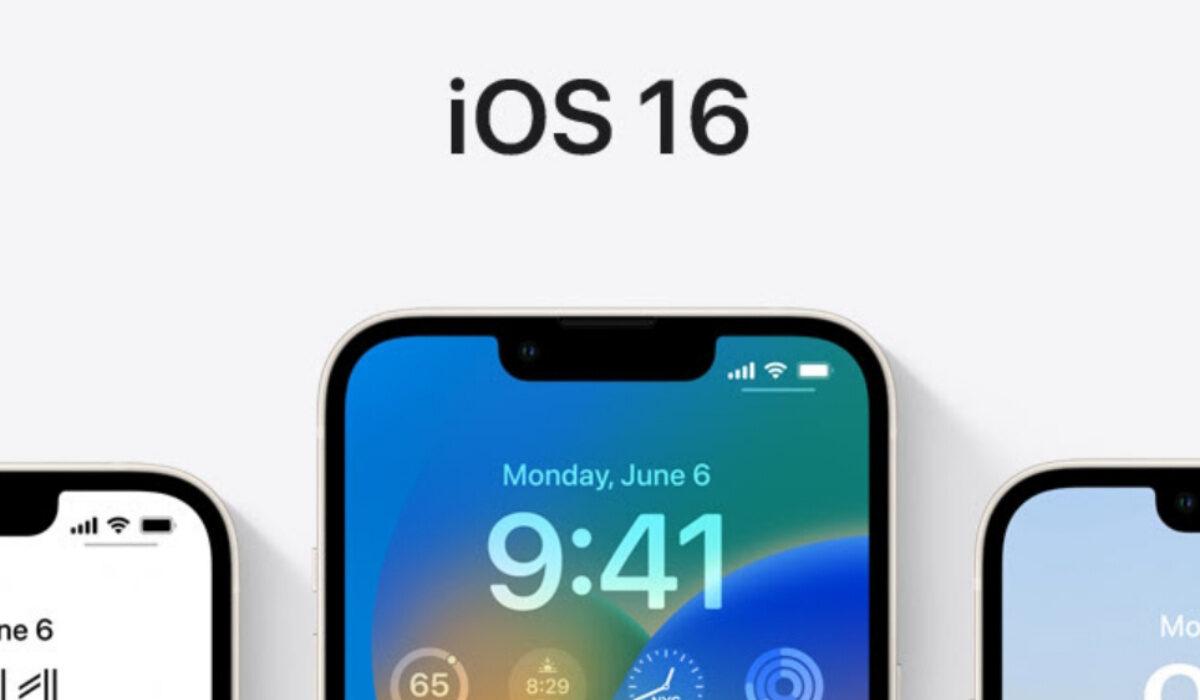
iOS 16 Supported Devices
If you want a taste of iOS 16, you have to buy an iPhone 8 or newer device. Your options are:
- iPhone 8
- iPhone 8 Plus
- iPhone X
- iPhone XR
- iPhone XS
- iPhone XS Max
- iPhone 11
- iPhone 11 Pro
- iPhone 11 Pro Max
- iPhone SE 2020
- iPhone 12 Mini
- iPhone 12
- iPhone 12 Pro
- iPhone 12 Pro Max
- iPhone 13 mini
- iPhone 13
- iPhone 13 Pro
- iPhone 13 Pro Max
- iPhone SE 5G
The following five models have now been dropped off the table and are not eligible for the update:
- iPhone 6s
- iPhone 6s Plus
- iPhone 7
- iPhone 7 Plus
- iPhone SE (1 st generation)
iOS 16 Release Date
IOS 16 is expected to start rolling out in September 2022 immediately iPhone 14 is announced.
If you own one of the older devices, it might be time for you to replace it with an eligible model, so you can be ready to enjoy the new features rolling out with iOS 16 in September.
- Don’t miss our reviews .
- Join our WhatsApp Group , to be notified of the most important articles and deals,
- Follow us on Instagram , Facebook , Twitter , and YouTube .
Author:MobileChic
That motivated, gadget-loving geeky chic who tries to stay on top of things. Unapologetic iFan.
