Add MobilityArena as a preferred source on Google
What Is Data Recovery? The process of restoring lost, corrupted, deleted or inaccessible data is known as data recovery. In IT word data recovery refers to restoration of data to digital device such as pc, laptop, and mobile phone or from server or external storage from a backup.
EaseUS Data Recovery
This data recovery wizard was created by EaseUS, in 2004, both for Microsoft Windows and Apple for getting back lost data easily. EaseUS data recovery wizard is used to recover data from storage devices such as memory cards, universal serial bus (USB’s) and others similar devices. It is user-friendly software, as the name “EaseUS” informs us, as that every single user can easily run it. Following is a list of storage devices from which data can be recovered through EaseUS:
- Hard disk drive
- External hard driver
- USB
- SD card
- Digital camera
- iPhone
- Androids
- Smart phones
- PC/laptop
- CD/DVD
How to Operate EaseUS Data Recovery Wizard
EaseUS is very simple to use and have very basic steps, explained as follow:>
- Launch : the user opens his/her device and launches the EaseUS recovery wizard.
- Scan : the storage device is than scanned thoroughly from laptop, pc, memory card, flash drives with the help of EaseUS recovery wizard and it identifies lost data it has been commanded to find and recover.
- Recover : the lost data is then recovered with help of EaseUS saving the user from a lot of inconvenience.
- Deleted Recovery: retrieve or recover lost data due to accidental deletion by “shift-delete” or from the recycle bin.
- Partition loss: retrieve or recover lost data due to system/windows re-installation or due to re-partition.
- Hard Drive/Format recovery: retrieve data from a formatted storage device such as memory card, flash drive and hard drive etc.
- Disaster recovery: retrieve data lost due to natural calamities such as earthquake, tornadoes which damages the storage devices.
Paid/Free Trial
There are two versions of EaseUS data recovery software , the paid version and the free version. In free version you have about 1GB recover able data along with basic tutorial and helpful information where as in full version you can recover a large number of data along with complete tutorial and intensive helpful material so that the user can take full advantage of the recovery wizard.
Limitations
Before recovering the lost data the user should always know that not all data can be recovered and there are limitations to it i.e. a data can be recovered from a storage device as long as it is not overwritten or fully corrupted by a virus. Some other reasons from which data recovery is sometimes not possible are:
- The storage device is severely damaged and is far from being repaired.
- Missing storage location.
- Lost files that were heavily infected due to virus such as Trojan, which makes the data irrecoverable.
- Physically damaged storage device that the system maybe unable to read.
Bottom Line
The bottom line is that if you have lost important information/family pictures/office files, you can recover it by using EaseUS Data Recovery Wizard easily and effectively and in short period of time without taking help from someone.
- Don’t miss our reviews .
- Follow our news on Google News .
- Join our WhatsApp Group , to be notified of the most important articles and deals,
- Follow us on Instagram , Facebook , Twitter , and YouTube .
Author:Content Partner
Add MobilityArena as a preferred source on Google
So, you bought an Android phone which supports USB host. In most cases, you will be able to connect it to a PC for transferring files and to a printer for printing documents or images through a USB cable. Sometimes, this may not possible due to some technical glitch or incompatibility. If you cannot directly print from Android phone via USB, then check this post, which will help you in doing that efficiently.
You may know that the USB host (the device that supports USB compatibility) is available on Android 4 and higher versions. This functionality makes a lot easier to finish some of the tasks.
For example, in earlier days, users were needed to connect their Android phones to a computer system for copying documents and images. Then only they became able to print those files by connecting the PC to a printer. But today, the users can easily print their required data from Android phones by directly connecting it to a printer via USB.
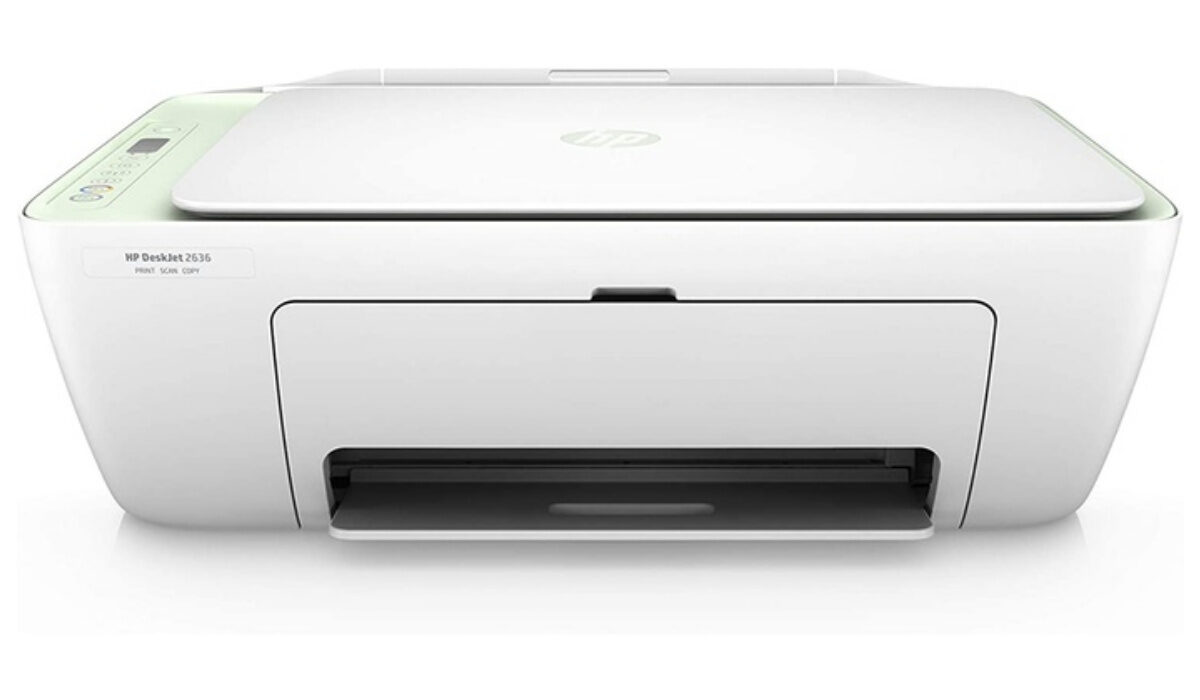
Printing Directly from Android Phone via USB
If your phone is USB compatible, but still if you can’t print through a USB cable, then follow the steps below to make it happen.
Step-1: Take Backup
First of all, take the backup of your files, documents, images, etc. on ‘Google Cloud.’ It is a free and reliable place to keep your data secured. You can access the data stored on ‘Cloud’ anytime anywhere from your Android device or PC. Taking this step will make sure that you will not lose any of your data if anything goes wrong.
This step is optional but recommended.
Step-2: Install App from PlayStore
There are bunches of applications which are handy for printing from your Android device via USB. You can choose from the specific printer brand apps like HP Smart, Epson iPrint, Samsung Mobile Print, Canon Print Service, etc. You can also use the Google Cloud Print app if your printer is connected with the application.
There are also some favourite third-party apps like PrinterShare Premium Key, StarPrint, etc. which will help to make your printing task easier. The PrinterShare app is now no longer available for free (It is a good app though. So you can install and use it if you wish to spend some bucks for premium printing service). So, I will show you how to use the StarPrint app for printing documents and images from your Android phone via USB.
The main reasons behind choosing this app are; first, it is free, and second, it is compatible with more than 4000 models of the printing machines from the famous brands like Canon, HP, Epson, Kodak, etc.
Go to Google PlayStore and search for “StarPrint” app. Download the app and install it on your Android device.
Step-3: Connect the Device to USB
Now, attach the USB cable to the Android phone USB OTG port. Then, connect the other end of the cable into the printing machine. Make sure that both the ends of the cable are attached properly, and the devices have identified the connection.
Step-4: Launch the Printing App
Now, open the StarPrint app on your phone. Then, select the item that you want to print from the list of images, documents, web page, map, drive, camera, etc.
Step-5: Set the Print
Next, set up the printing options. You can set the page margins, the number of copies, and other additional printing settings that you can generally do on any printing machine. You can even see the print preview to make sure everything is perfect.
Step-6: Select the Printer
You will have different options for printing like Wi-Fi, Bluetooth, and USB. As we are printing from the cable, you need to select the ‘USB printers’ option. Now, click on the printer model on your Android screen. If you cannot see any device there or if your phone cannot detect the printer, then follow steps 2 to 5 again.
Step-7: Enjoy Printing
Click on the ‘Print’ button once you find everything ok. Your printer should start the printing process, and in no time, you will get your hard copies of the files you want.
Printing is Easy
In this modern world of mobile technology, printing has become much more comfortable, quicker, and convenient. The primary factor behind this may be the upgraded Android versions, which are compatible with almost all types of application available in the store. So, the only limitation is the compatibility of the file you want to print.
I hope this guide will help you to print directly from your Android device via USB. If you still have any issue or doubt or if you know any better way to do it, then please share it in the comment section below. Thanks!
- Don’t miss our reviews .
- Join our WhatsApp Group , to be notified of the most important articles and deals,
- Follow us on Instagram , Facebook , Twitter , and YouTube .
Author:MobileChic
That motivated, gadget-loving geeky chic who tries to stay on top of things. Unapologetic iFan.
