Add MobilityArena as a preferred source on Google
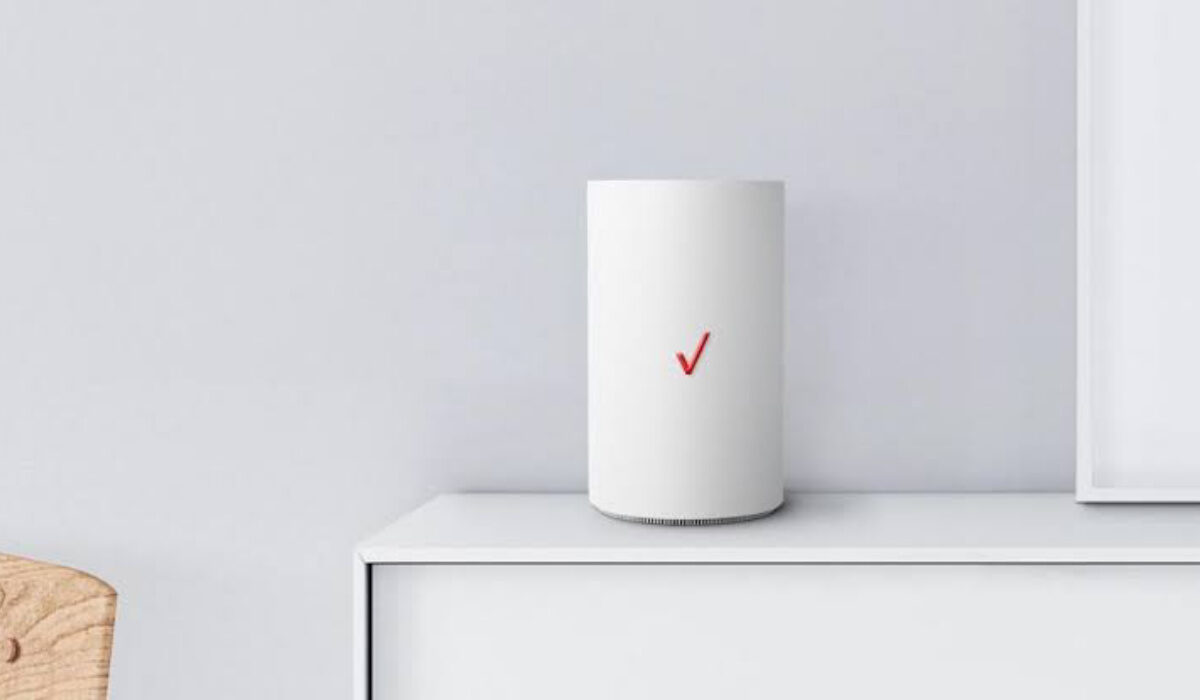
What is Verizon 5G Home Internet? Verizon’s 5G Home service is a wireless home Internet service provided on the carrier’s 5G Ultra Wideband. How does it work? A Verizon 5G tower near you sends a wireless radio signal to a 5G router installed in your home, which then provides your gadgets with an Internet connection via Wi-Fi hotspot.
- What service plans are available on Verizon 5G Home Internet service?
- Frequently Asked Questions Verizon 5G home internet vs fiber: what are the differences? Is it really unlimited? Is there any data cap? Does Verizon 5G home internet slow down? Does Verizon throttle 5G home internet? How many devices can connect to Verizon 5G home internet? What is the Impact of weather on Verizon 5G home internet? How can you improve your Internet speed? Does Verizon 5G home internet have an external antenna? Can you add an antenna to the service? How do I access my Verizon 5G Home Internet router? Where is Verizon 5G Home Internet available? How do I download the Verizon 5G Internet app? How much does it cost? Is it good for online gaming? Is Verizon 5G Home Internet good? How fast is the service?
- How to subscribe
What service plans are available on Verizon 5G Home Internet service?
Verizon offers different 5G Home Internet plans, providing customers with options to suit their specific needs. The 5G Home plan starts at $50/month with autopay and 5G Home Plus plan starts at $70/month with Afterpay.
Below are answers to some commonly asked questions about Verizon’s wireless home service.
Verizon 5G home internet vs fiber: what are the differences?
Verizon 5G Home Internet and traditional fiber internet have distinct characteristics:
Speed and Performance:
- Verizon 5G Home Internet: Offers high-speed wireless connectivity, with potential for fast download and upload speeds, suitable for residential use.
- Fiber Internet: Delivers ultra-fast and consistent speeds, often with symmetrical upload and download speeds, making it ideal for demanding applications and large households.
Installation and Availability:
- Verizon 5G Home Internet: Provides easy self-setup options and is available in select areas with 5G coverage, offering flexibility for installation.
- Fiber Internet: Requires professional installation and is available in specific locations where fiber infrastructure has been deployed, which may limit accessibility.
Reliability and Latency:
- Verizon 5G Home Internet: Offers reliable connectivity with low latency, suitable for most online activities, but may be subject to network congestion in densely populated areas.
- Fiber Internet: Known for its high reliability and low latency, making it well-suited for latency-sensitive applications such as online gaming and video conferencing.
Cost and Value:
- Verizon 5G Home Internet: Can be cost-effective for users seeking high-speed wireless connectivity, especially in areas where traditional wired options may be limited.
- Fiber Internet: Generally considered a high-value option for users who prioritize consistent, high-speed internet and are willing to invest in a reliable wired connection.
Is it really unlimited?
All plans with Verizon Home service come with unlimited data on your home internet connection. Verizon says the Home service offers maximum download speeds up to 1 Gbps, with typical average download speeds of 300 Mbps.
Is there any data cap?
Verizon 5G Home Internet service does not have a data cap or usage limit. Customers can enjoy unlimited data usage when connected to the 5G Home Internet network, without the worry of exceeding data caps or facing additional charges for data consumption.
Does Verizon 5G home internet slow down? Does Verizon throttle 5G home internet?
As is common to all wireless connections, Verizon 5G Internet is subject to weather conditions and network congestion. If you exceed the Fair Usage Policy threshold, your connection may also be throttled, though users say Verizon 5G does not enforce any strict data caps.
How many devices can connect to Verizon 5G home internet?
Verizon 5G home service can be connected to as many as 5 users.
What is the Impact of weather on Verizon 5G home internet?
Yes; weather conditions can impact the connection speed and stability of this wireless Home Internet service. Rain is less of an issue with because 5G works by sending signals in all directions.
Weather can have varying impacts on Verizon 5G Home Internet. Unlike traditional fixed-wireless internet, 5G home internet services are less affected by weather conditions such as rain and wind. This is due to the nature of 5G technology, which is more resilient to weather-related interference. However, extreme weather events like blizzards or severe storms may still potentially impact the service.
How can you improve your Internet speed?
One way to possibly improve signal strength and your connection speed is to change the Wi-Fi channel of your Gateway router/modem.
Does Verizon 5G home internet have an external antenna?
The 5G Home Internet does not support the use of external antennas.
Can you add an antenna to the service?
The 5G Home Internet doesn’t support the use of external antennas, but you can still use your Verizon SIM card in third party 5G LTE routers that do. That way, you can use an external antenna with your service.
How do I access my Verizon 5G Home Internet router?
- From a web browser, sign in to My Verizon , then from the ‘ My Verizon Home screen ‘. Click on, Account , then Device overview , and then the 5G Home Router mobile number. From the ‘ Manage My 5G Home ‘ section, click View Technical Router Info .
Where is Verizon 5G Home Internet available?
Verizon says their 5G Ultra Wideband is available in over 900 cities across the United States. Some of the states they are available in are Los Angeles, Boston, Houston, Sioux Falls, Dallas, Omaha, Chicago, Minneapolis, Denver, Providence, St. Paul, Atlanta, Detroit, Indianapolis, Washington DC, Phoenix, Boise, Panama City, and New York City and more.
How do I download the Verizon 5G Internet app?
How much does it cost?
Where available, Verizon 5G plans start at the low price of $25/month with no annual contract or hidden fees.
Is it good for online gaming?
Feedback from users is that the service works well for online gaming, because the connection is fast and Verizon does not enforce any strict data caps.
Is Verizon 5G Home Internet good?
It isn’t as fast as some other Home Internet services, but it is affordable, has about the widest coverage, and generally offers reliable service for a comfortable monthly fee.
How fast is the service?
You can expect to experience an average download speed of 300 megabits per second when using the 5G Home service.
- Check Availability: Visit the Verizon.com website or contact their customer service to confirm if 5G Home Internet is available in your area.
- Select a Plan: Choose a suitable 5G Home Internet plan based on your internet usage needs and budget.
- Place an Order: Once you’ve selected a plan, you can place an order online through the Verizon website or by contacting their customer service.
- Schedule Installation: If professional installation is required in your area, schedule an appointment for the installation of the necessary equipment. If self-installation is an option, you may receive the equipment for setup at your convenience.
- Activate Service: Once the equipment is installed or received, follow the provided instructions to activate your Verizon 5G Home Internet service.
- Enjoy High-Speed Internet: Once activated, you can start enjoying high-speed internet connectivity through Verizon’s 5G Home Internet service.
Author:Dun
Dun enjoys reading and writing, and is always on her smartphone. She currently uses a Google Pixel 3.
Add MobilityArena as a preferred source on Google
This simple and easy tutorial shows you how to change the hotspot name on iPhone, to make it easier to identify and connect to. If you have ever turned on your iPhone’s personal hotspot so you could share your mobile Internet with your PC or other devices, you must have noticed that it has a generic name. Should there be other active iPhone hotspots present, you would have a hard time figuring out which is yours.
Imagine being in a crowded mall or park or some other public space with lots of people. You are likely to find more than one or two others with an active iPhone WiFi hotspot. If all these hotspots have the same generic name, confusion may set in. It makes sense to personalise your iPhone’s mobile hotspot by giving it a unique name. That way, you and whoever else you choose to share it with can identify it. Here is how to change the hotspot name of your Apple iPhone or iPad.

To change the hotspot name of your Apple iPhone is as simple as changing the name of your iPhone in general. The name change will reflect on your hotspot.
- Steps To Change The Hotspot Name On iPhone
- How to change your iPhone’s hotspot password
- How to change hotspot name on Android phones
Steps To Change The Hotspot Name On iPhone
- Open your iPhone Settings menu.
- Scroll down and select the General option.
- Tap the About button at the top of the screen.
- Tap the Name button at the top of the screen.
- Tap the small x button to the right of the current name, enter a new name, then tap the blue Done button on the keyboard.
Done. From now on, your personal hotspot name is the new name you entered above, making it easy to identify when sharing your mobile Internet with others.
If you also need to set or change your iPhone’s personal hotspot password, that is easy to do as well. It is a great idea to secure your mobile hotspot so anyone cannot just connect to it when it is active and use your data subscription. Giving it a password that you can remember is also a convenience that you can enjoy. Have a look below for quick instructions on how to do it.
How to change your iPhone’s hotspot password
Here is how to go about changing your mobile hotspot password:
- Open your iPhone Settings menu.
- Tap Personal Hotspot .
- Tap the toggle switch to turn on Personal Hotspot.
- Tap Wi-Fi Password to change the Wi-Fi Password.
- Be sure to enter something that you can rememeber but that isn’t easy for others to guess.
That’s it. Your wifi hotspot is now properly secured. Again, it is important to spell it out that it is a good idea to have a strong password on your hotspot. If your password is easy to guess, your children, for example, will figure it out and exhaust your subscription. Children are that creative. Some of your colleagues and acquaintances are too.

Change your iPhone hotspot name and password
So, secure your mobile hotspot with a strong password. Also, make it a password that you don’t mind sharing with others on occasion. Which means, it is a bad idea to use a password that secures your bank account as your hotspot password. Get the idea?
Now you know how to change the hotspot name and password on your iPhone. Even if you upgrade your device to a newer model, the above instructions are valid unless Apple changes how it is done somewhere along the line. your iPhone’s personal hotspot has a unique name and a password you can remember.
How to change hotspot name on Android phones
You can do the same with your Android phone, so as to be able to share your mobile data bundle via your personal hotspot. The steps are easy too.
- Open the Settings menu on your Android smartphone.
- Open the Wireless & Networks/Connectivity menu.
- Open the Tethering & Hotspot option and tap.
- Open (Portable) Wi-Fi hotspot .
- Among other hotspot settings, you’ll see Hotspot name . Tap to open.
- Wipe out the current name and add the unique name you want to give it.
- Tap the Save button at the bottom of the screen, and that is it.
Now you have changed the hotspot name of your Android phone so you can identify it easily!
Being able to share your mobile Internet for use on your PC or other devices can come in handy during trips and when you are out and about for work or relaxation. You will not always find a public hotspot, and even when you do, you have to be wary of most of them, for security reasons. Where you can, use the personal hotspot on your mobile phone to connect your laptop and tablet for urgent work.
- Don’t miss our mobile phone reviews .
- Follow our news on Google News .
- Join our WhatsApp Group , to be notified of the most important articles and deals,
- Follow us on Instagram , Facebook , Twitter , and YouTube .
