Add MobilityArena as a preferred source on Google
Vivo has unveiled the Vivo Y30 smartphone as the latest device in the Y series. This device is introduced just a month after the release of the Y50 , with the Y30 featuring four rear cameras and a big battery.
The dual-SIM (Nano) Vivo Y30 runs on Android 10 with FunTouch OS on top and brings with it a 6.47-inch HD+ (720×1560 pixels) display with a 19.5:9 aspect ratio. This device is powered by the octa-core MediaTek Helio P35 (MT6765) which is paired with 4GB of RAM and 128GB of onboard storage.
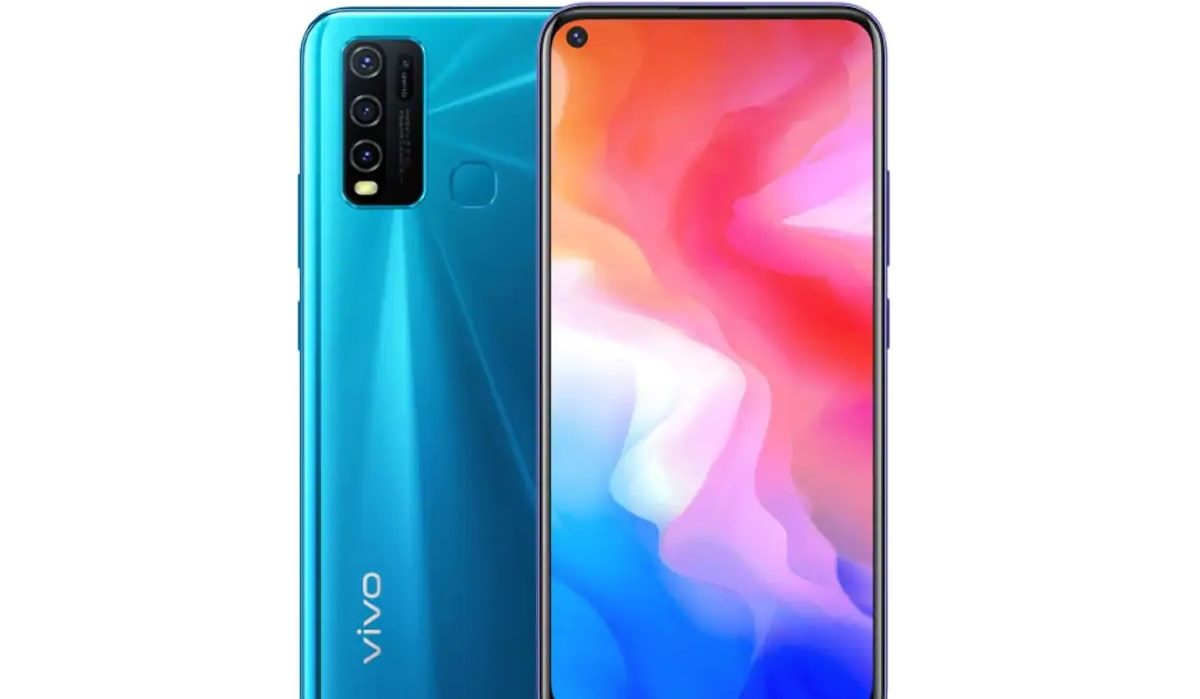
In the camera department, this smartphone’s four rear cameras consist of a 13MP primary sensor assisted by an 8MP secondary sensor, a 2MP shooter and another 2MP depth sensor. In the selfie department, an 8MP sensor that supports AI backed features takes care of selfies and video calls.
Vivo Y30 Price and Specs
- OS: Android 10 with FunTouch OS
- Release Date: May 2020
- RAM: 4GB
- ROM: 128GB
- Network Type: 2G/3G/4G
- Selfie Camera: 8MP
- Rear camera: 13MP+8MP+2MP+2MP
- Display: 6.47-inch HD+ display with aspect ratio of 19.5:9
- Battery: 5,000mAh
- Processor: MediaTek Helio P35
- Price: $210
The Vivo Y30 has a single 128GB storage variants that costs $210. This device has two colour options, the Moonstone White colour and Dazzle Blue. There are no details yet regarding when this device will be available to the global market, with reports suggesting that it will go on sale in the Malaysian market from the 9 th of May.
References
- Source ;
- Source .
Author:Alfa Baye
Staff Writer
Add MobilityArena as a preferred source on Google
Google has recently introduced a number of changes to some of its apps, with the Google Lens feature now able to scan, copy and paste handwritten notes to your computer.
This new feature on the Lens app is currently available for the latest versions of the Google Lens, App or Chrome. To use this feature, open the app or tap the Lens button on Google App, direct your phone’s camera lens towards the handwritten copy, take a quick photo, select the text you want, then click on ‘copy to computer’.
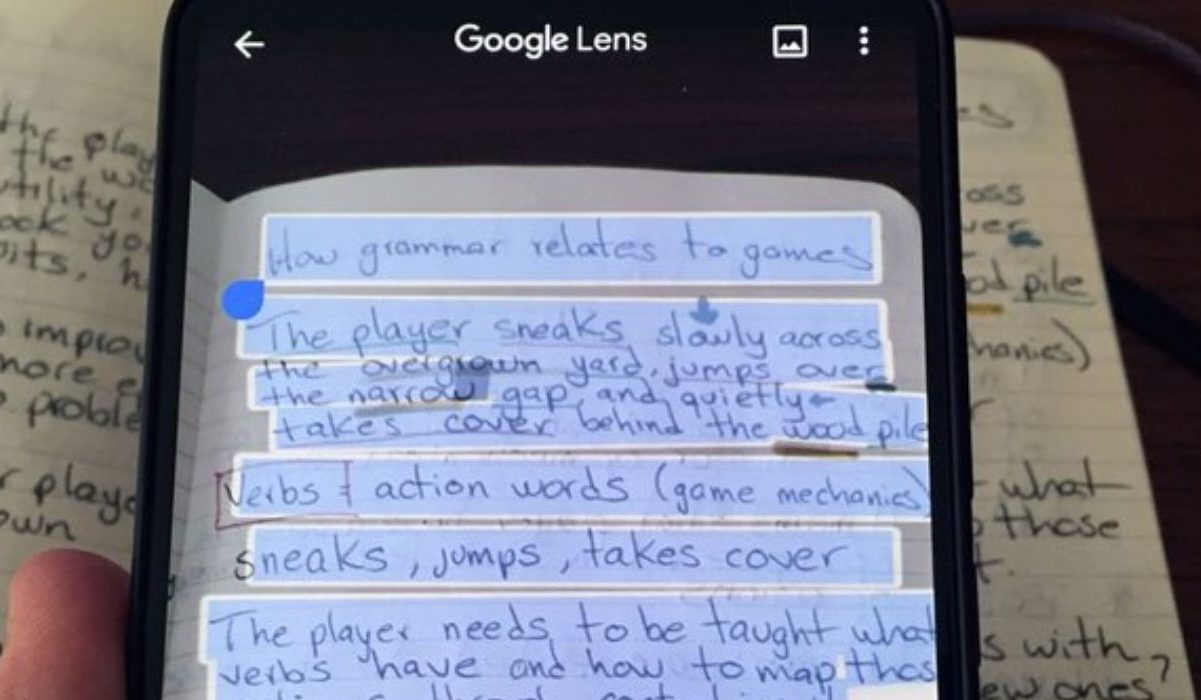
You can also decide to listen to this text read out loud after taking the photo by tapping on the Listen button. This feature can be particularly helpful for individuals who take online classes often and may not be able to keep up with the pace of typing assignments and notes every now and them.
This new feature however requires the user to have fairly good and legible handwriting to make sure that the app can scan, copy and paste the text on the computer with little or no error. When using this feature, the same Google account has to be logged in on all apps.
This is a welcome development to the ever-improving world of software development and will come in handy for students and freelancers. For individuals who do not have the Google Lens app, they can get it on Play Store (for Android) or App Store (for iOS) devices.
References
- Source ;
- Source .
Author:Alfa Baye
Staff Writer
