Add MobilityArena as a preferred source on Google
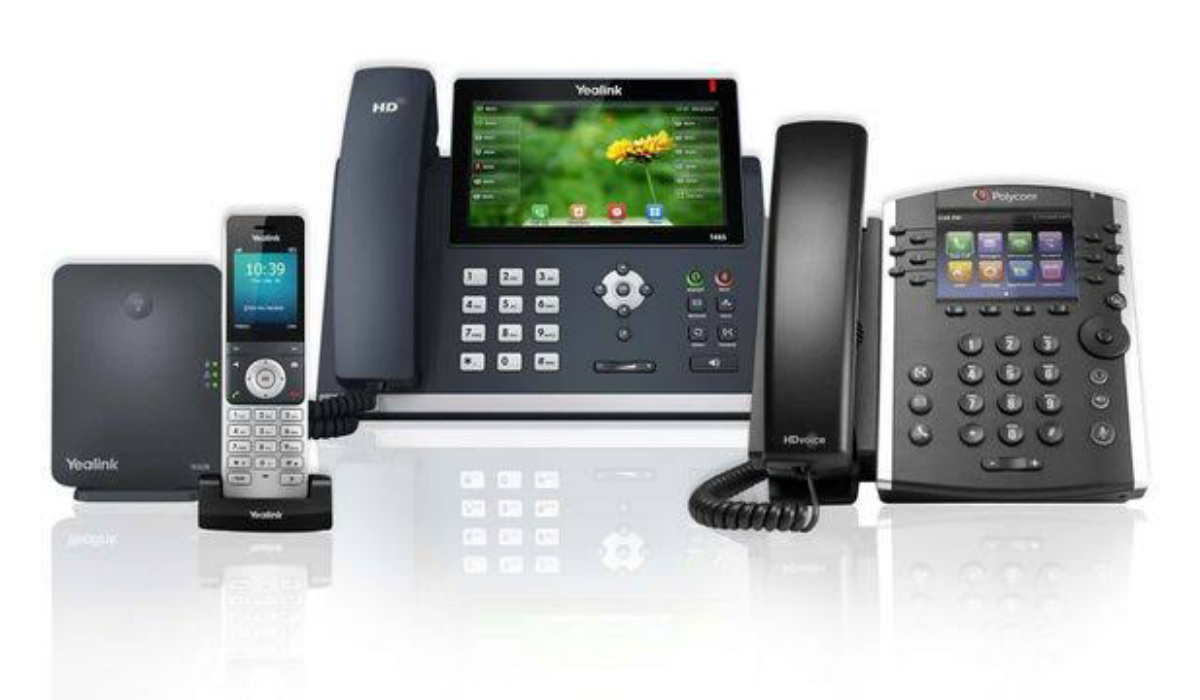
VoIP is essentially the modern-day commercial phone systems. Desktop phones used to be connected to analog PBX (Private Branch eXchange) systems, but modern VoIP solutions use platforms that are cloud-based to route digital calls over the internet. Additionally, they now offer capabilities like SMS, text chat, video calling, and more in addition to voice capability.
In this comparison guide, we’ll show you the best VOIP phone services and highlight the features that make them stand out from the rest.
- What are the Best VOIP Phone Services? Intermedia Unite RingCentral MVP 8×8 eXperience Communications as a Service
What are the Best VOIP Phone Services?
It can be difficult to match your specific needs with the ideal technology because VoIP is an established market with many participants. While some suppliers focus on serving clients with basic needs, others cater to customers with specific requirements.
So, we’ve looked for the top solutions and compared their best features to help you understand your options and make a decision. Based on our findings, the best VOIP phone services have been described below:
Intermedia Unite
Intermedia provides a fantastic VoIP communications system with Unite that scales from small to medium-sized organizations to large enterprises.
For each subscription seat, the service includes complimentary phones or related devices (cameras, headsets). Also, its emphasis on connecting with third-party software makes it appealing for organizations looking to support help desks and customer relationship management (CRM) further.
So we’ll recommend Intermedia Unite as one of the best VOIP phone services if your business is seeking a general-purpose VoIP phone system. While not being the most affordable corporate VoIP service among our suggestions, it provides enough flexibility and functionality to expand with your company.
If you’re searching for a VoIP solution that tightly integrates with Microsoft Teams, it’s also a fantastic option. Note that it has some downsides though—not dealbreakers in our opinion, but still worth knowing about:
● Contacts must first be imported and synced via a mobile app.
● restricted call monitoring capabilities
● Microsoft Edge isn’t supported by a new Chrome web app.
RingCentral MVP
RingCentral’s commercial VoIP solutions have long been impressive by many standards. The most recent version, known as RingCentral MVP, stands for “messaging, video, and phone,” indicating a shift away from fundamental voice services and toward a unified-communications-as-a-service (UCaaS) strategy.
Additionally, RingCentral has demonstrated its dependability in situations with a high volume of calls, something that many of its competitors struggle with. Particularly impressive are the features for call analysis and transcription powered by AI. We also value RingCentral’s administrative features, which provide administrators with a wealth of options in a simple to use interface.
Similar to Intermedia Unite, RingCentral MVP is a well-rounded platform with almost all the features a small to midsize business would require. Considering the price, though, it looks like RingCentral would be more appealing if you anticipate a high call traffic. This is because there are no restrictions on the number of people you can add to your subscription for even its mid-level pricing tiers.
Based on these features, RingCentral MVP is unarguably one of the best VOIP phone services, but still consider these downsides before you make a decision:
● Limited options for report customization
● Configuration is tediously wizard-based
8×8 eXperience Communications as a Service
As seen by its new (and somewhat complex) branding, 8×8 has fully committed to UCaaS. All of your business conversations and conferences will have a unified experience, and 8×8 consistently releases new features and improvements.
The new Frontdesk feature, which launched with the most recent edition, is one instance. Small businesses can more easily imitate the classic receptionist’s desk thanks to the application.
Even though 8×8 lacks some of its rivals’ more sophisticated capabilities, we still think it’s a future-thinking contender, and one of the best VoIP phone services in the market for small to midsize businesses.
Its emphasis on UCaaS exemplifies its innovative mindset and should appeal to any firm that wants to take full advantage of what software-based calling and conferencing solutions have to offer. Its pricing may also be more alluring to businesses on a budget who don’t require all of the features offered by its top rivals.
Based on these features, 8×8 can join the list of the best VOIP phone services, but also take note of some significant downsides:
● Certain user settings can only be changed in bulk
● Analytics reports can’t be configured
On the list of the best VOIP phone services, you may also find other options such as Vonage Business Communications, Grasshopper , Dialpad, and Microsoft Teams Phone, among others. These options have varying features that could work for you based on your specific needs.
In summary , we hope these suggestions for the best VOIP phone services help to simplify your choice and get the best of easy, seamless communication.
Author:Joan Agie
Add MobilityArena as a preferred source on Google
It’s not great when your phone number falls into the wrong hands. So, when making work-related calls, contacting someone on Craigslist, or calling a company you’re not sure about, it’s smart to block your number or conceal your caller ID to protect your privacy.
In this article, we’ll show you how to block your phone number or caller ID when making calls on an iPhone or Android device. Remember though, that many people automatically decline calls from private numbers, so they may not answer the phone if they don’t recognize you.
- How Can I Block My Number or Caller ID When Making Private Calls?
- How to Block Your Number or Caller ID on iPhones
How Can I Block My Number or Caller ID When Making Private Calls?
Not every person you contact should have your phone number, only the people you want to have it. Here are several methods for blocking your number or caller ID and preventing your phone number from appearing on the other end of a call.
Before dialing the number you want to call, enter *67
On a per-call basis, *67 is unbeatable at blocking your phone number and hiding your caller ID. This method works on both smartphones and landlines. Open your phone’s keypad and dial *67, then the number you want to call.
The free service blocks your phone number, which will appear on the other end as “Private” or “Blocked” when reading caller ID. Note that you have to dial *67 each time you want your phone number blocked.
Change Your Phone’s Caller ID Settings
By changing the settings on your device, you can also block your phone number and hide your caller ID for every call you make. Both Android and iOS devices allow you to hide your caller ID, making you appear to everyone you call as No Caller ID , Private , or Blocked .
After making these changes, dial *82 before calling the desired number if you want to temporarily unblock your number. This overrides your settings and displays your caller ID once more. Since you can’t easily call private numbers, this is a good idea if you want the person to be able to call you back.
How to Block Your Number or Caller ID on iPhones
To block your number or hide caller ID on an iPhone, follow these steps:
● Navigate to the Settings app and scroll down to click the Phone option.
● To hide your number, select the toggle next to Show My Caller ID and turn it off.
How to Block your Number or Caller ID on an Android Device
These steps may change depending on the brand of Android you use as well as its dialer app configuration. However, the following locations are the most popular on Android for blocking your number or caller ID:
● Open the Phone app and select the Menu option in the upper-right corner.
● Navigate to Settings, then to Supplementary Services . Depending on your device, you may need to navigate to Calls > Additional Settings.
● Select Hide number from the popup menu after tapping Show my caller ID.
If the above steps don’t work, below are other settings to try:
● Relaunch the Phone app, then navigate to Menu > Settings.
● Choose Calling accounts , then under Settings , tap your carrier name.
● Select Additional options .
● Click on Caller ID and select Hide number to hide your number every time you make a call.
Directly Block Your Caller ID With Your Cell Carrier
If your phone’s settings don’t give you a way to block your number or hide your caller ID, you’ll have to contact your cell carrier directly.
Most carriers that don’t provide an option to block your phone number through the device settings allow you to do it through their dedicated app. Otherwise, you’ll have to contact your carrier and request that your number be blocked.
Blocking your number in this manner, like the previous method, hides your caller ID for every call you make. If you’d like to nullify this and show your phone number for any specific call, put *82 in front of the number.
Use burner apps
If you’d rather not mess with your phone’s or carrier’s settings, try using a burner app. Such apps make calls using your internet data, effectively giving your phone a second phone number.
On iOS and Android, there are a large number of burner apps.
One of the most downloaded apps for iOS and Android devices is called Burner. Instead of hiding your secondary number, you can use the app to direct calls to it. After seven free days, the app charges $5 per line every month.
You can also create a new phone number with Google Voice and use it to send free texts, audio messages, and voice calls.
You’d only need an active Google account for this option because unlike the other alternatives, Google Voice doesn’t charge a monthly subscription. It uses the minutes and data you already have on your phone, but the number that appears is your Google Voice number.
In conclusion, try the methods above to block caller ID or hide phone numbers when placing private calls; we hope you’ll find them useful.
