Add MobilityArena as a preferred source on Google
Once upon a time, many mobile phones were made in Europe . Nokia phones, Siemens phones, and Ericsson phones were a few such. Then Europe gradually faded off the mobile phone table. But in 2023, we have a new made in Europe smartphone. Volla Phones are proudly made in Germany.
No surprise. Germany has been an industrial powerhouse in Europe, for decades. If there was one European country that could make that comeback, it was Germany. So, what is Volla Phone all about?
What is Volla Phone?
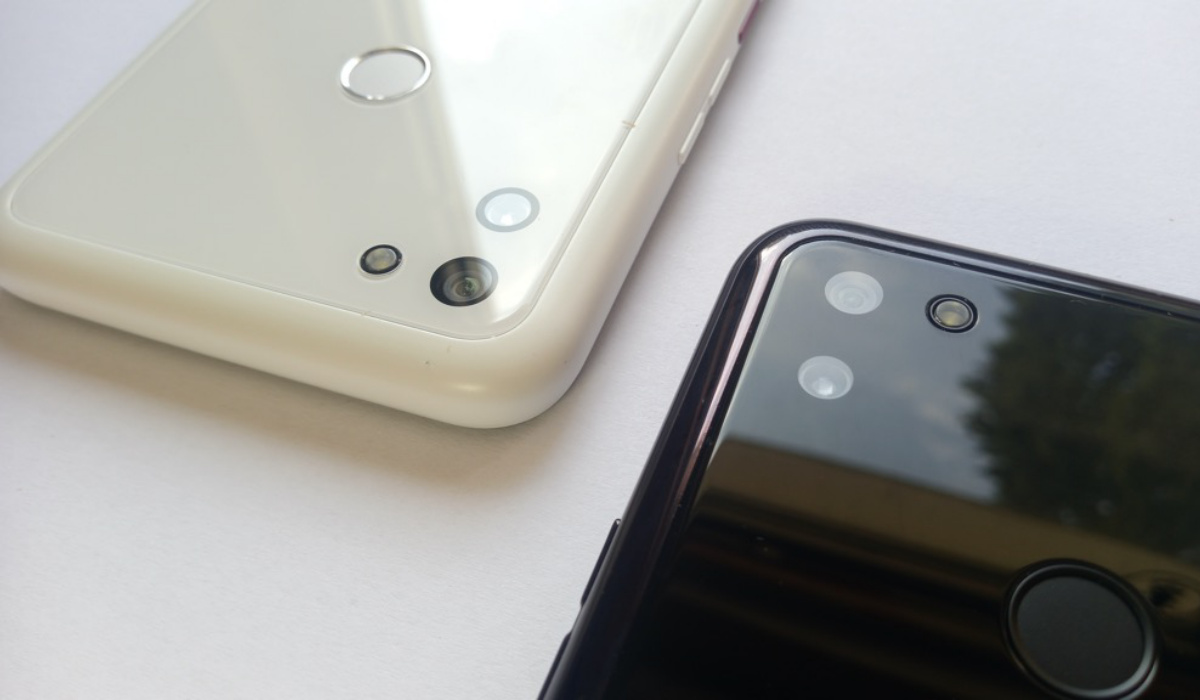
Volla Phones are smartphones that respect your privacy, as they built on a free open-source, Google-free Android with no dependence on a cloud. In other words, they are privacy-focused phones.
Europe and America have consistently been at loggerheads over the way that both Android OS and iOS mine and milk user data. Again and again, we have seen the EU wield the stick against certain actions. I always wondered when someone in Europe would decide to build alternatives to what Apple and Google offer.
To be sure, some others have done some work before now. For example, Gael Duval’s Murena has been developing and shipping a privacy OS in phones for a few years now. I follow their work keenly. But Murena has not gone mainstream. What the privacy phone crowd needs is a brand that will power through the teething issues and become as mainstream as say Google Pixel or Nothing.
Those are niche and small phone brands that have mainstream appeal and following. The world needs a privacy-focused phone brand like that. Will Volla Phones be able to bell the cat?
Volla OS is a Google-free version of Android Open Source Project. That is the software that runs inside Volla Phones. The company says the OS does not collect your data, does not sync to any servers, and does not require you to sign into any account to use it. The good thing is that most of your Android apps will run on it. All but the ones that require a Google account to function.
Volla phones also come with the option to install Ubuntu Touch (which I have used a bit in the BQ Aquaris ) as an alternative operating system. You can also have both Volla OS and Ubuntu Touch OS pre-installed so you can switch between them as you please.
I asked earlier if this brand will be the one to go mainstream with a privacy OS. It looks like they are on their way to achieving that. Why do I say so? They have a small catalogue of models on the market already. At least four phones. Have a look.
List of available Volla Phones

Volla Phone Quintus, released in 2024
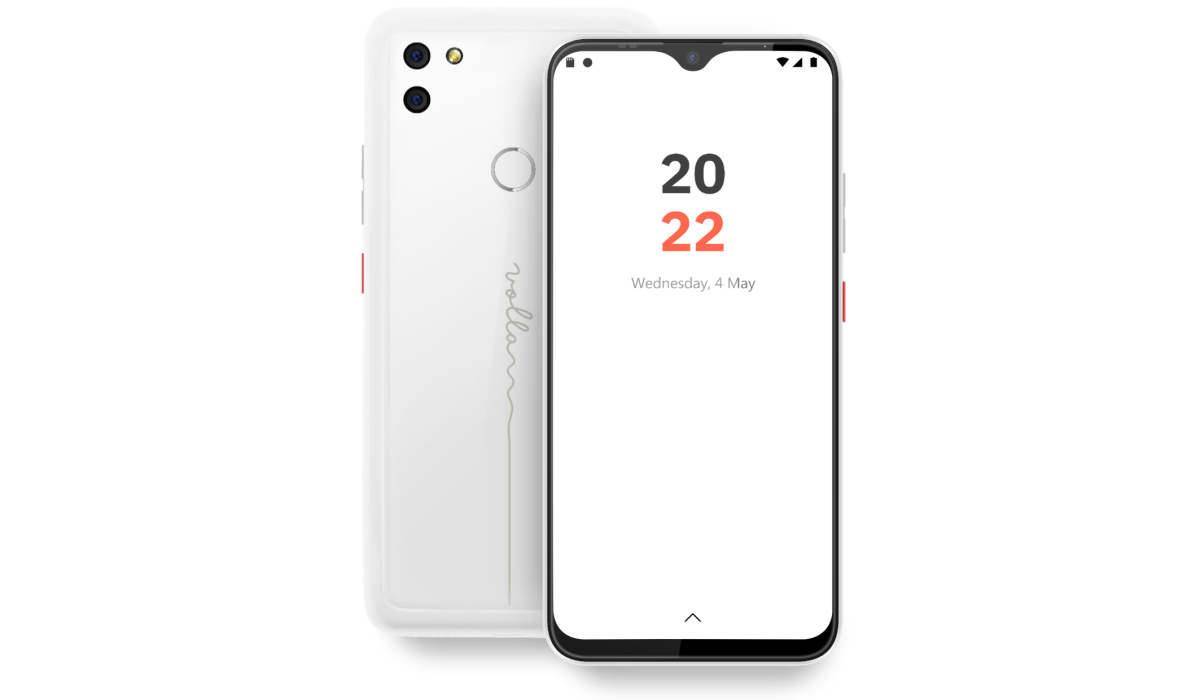
Volla Phone 22
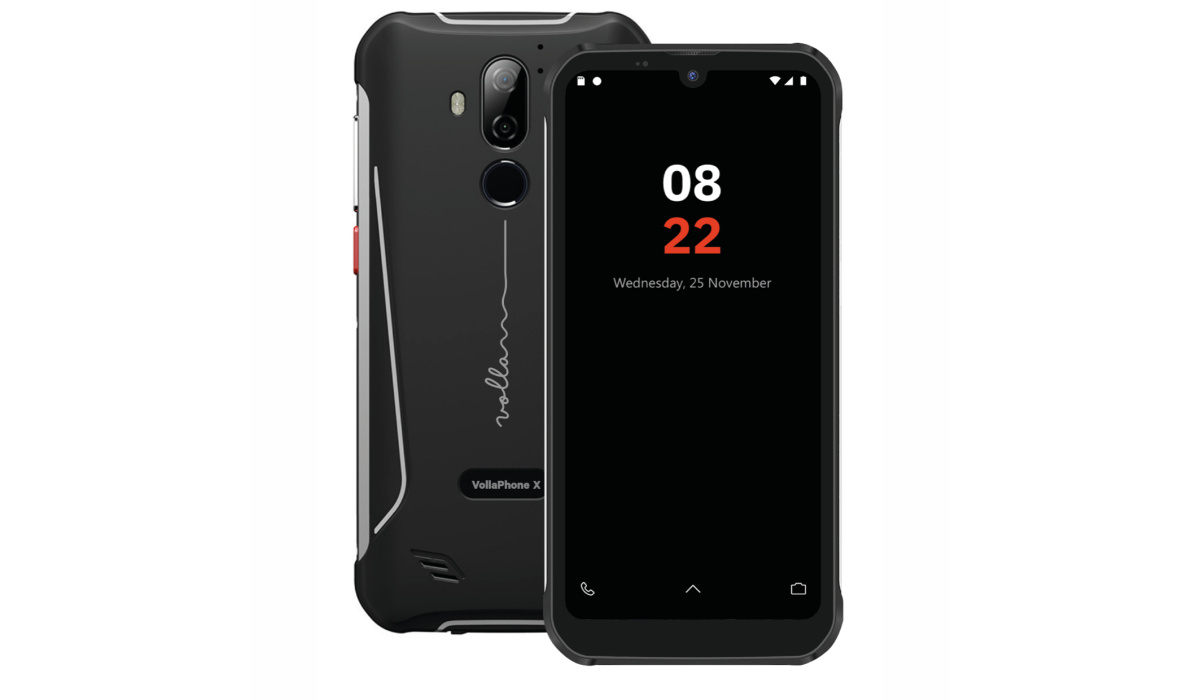
Volla Phone X
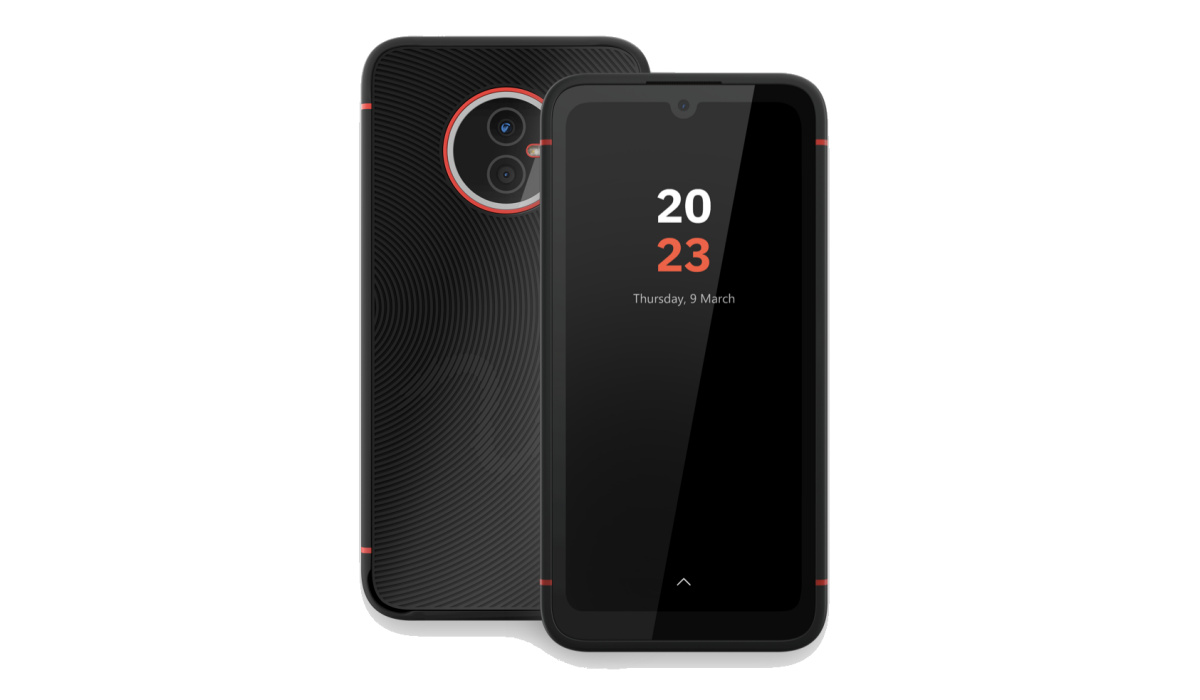
Volla Phone X23
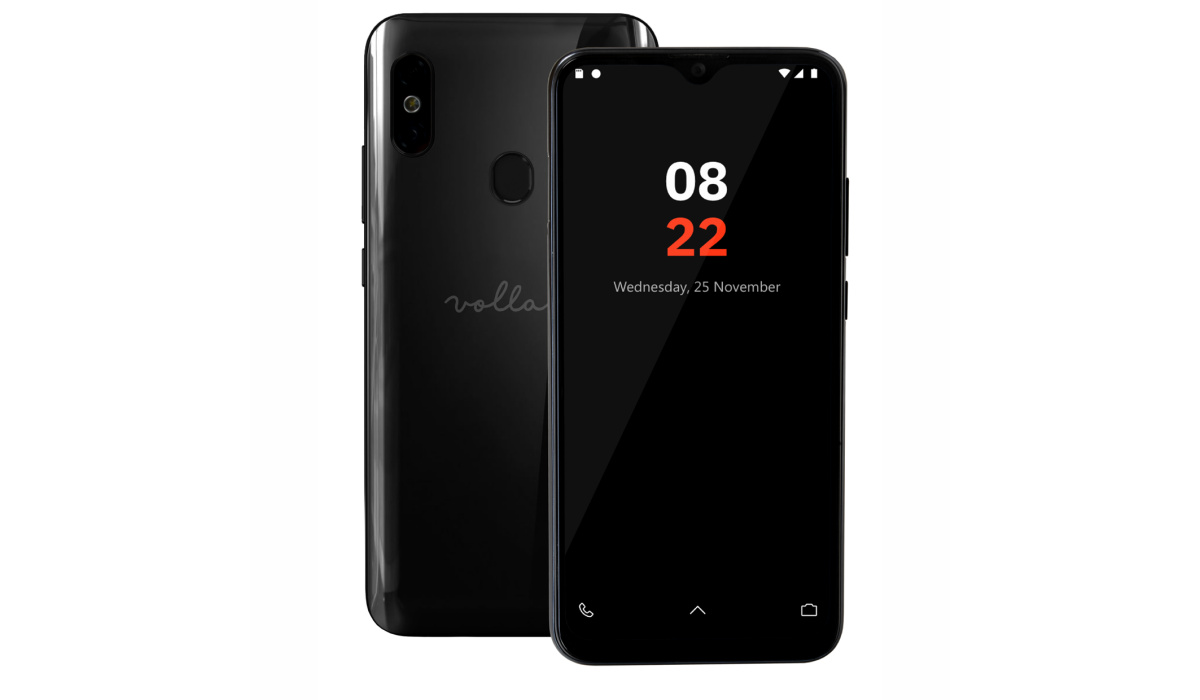
The original Volla Phone
A phone brand that has the muscles to have produced a small catalogue of models looks like they have the resources to go far.
Core Specs of Volla Phones
One of the areas that most privacy phones fail at is that of performance. Manufacturers often equip them with underpowered processors that leave the user experience less than ideal. People want smartphones that run smoothly and won’t give that up even for the promise of privacy and security. So, one of the first things I looked out for are the kind of processors that Volla is using in their phones. Here is what I found.
The original Volla phone and Volla Phone X both used the unimpressive Helio P23 processor. I cringe at the kind of performance those phones must have had.
But the 2nd generation Volla Phone 22 uses a Helio G85 SoC, while the X23 uses a Helio G99. These are decent processors with good performance. I have reviewed and owned a few Helio G96 and G99 smartphones, and if my experience with them is anything to go by, these Volla smartphones will run smoothly.
2025 update : Volla Phone Quintus was released in 2024 with a Dimensity 7050 chipset (meaning it is a 5G device), 8 GB RAM, 256 GB internal memory, and a 4600mAh battery.
Country Availability of Volla Phones
Volla ships its smartphones only to countries of the European Union, the EFTA countries and the United Kingdom. This makes business sense, seeing as Europe is the world’s bastion of digital privacy and where their products will have the most demand. Perhaps in some years down the road, other regions will begin to see why it isn’t a good idea to have all your personal data out there in the hands of Apple and Google, and hordes of developers.
Personally, I’d like to order a Volla smartphone. I just need to figure out a way to get it to me. Wait; my buddy Elroy lives in Germany now. Elroy! Hey, buddy! Let’s talk!
Author:Mister Mobility
Digital Skills and Communication Coach | Mobile Phone Connoisseur since 2001 | Tech Blogging since 2004
Add MobilityArena as a preferred source on Google
When you get notified that you’re running out of storage space, it might be time to consider deleting apps from your Android phone. Luckily, you only need to follow a simple procedure to delete any app from an Android device.
However, it’s worth noting that deleting apps doesn’t always follow the same process for all Android phones. That’s why we’ve created this guide to show you different ways to delete apps from your Android device.
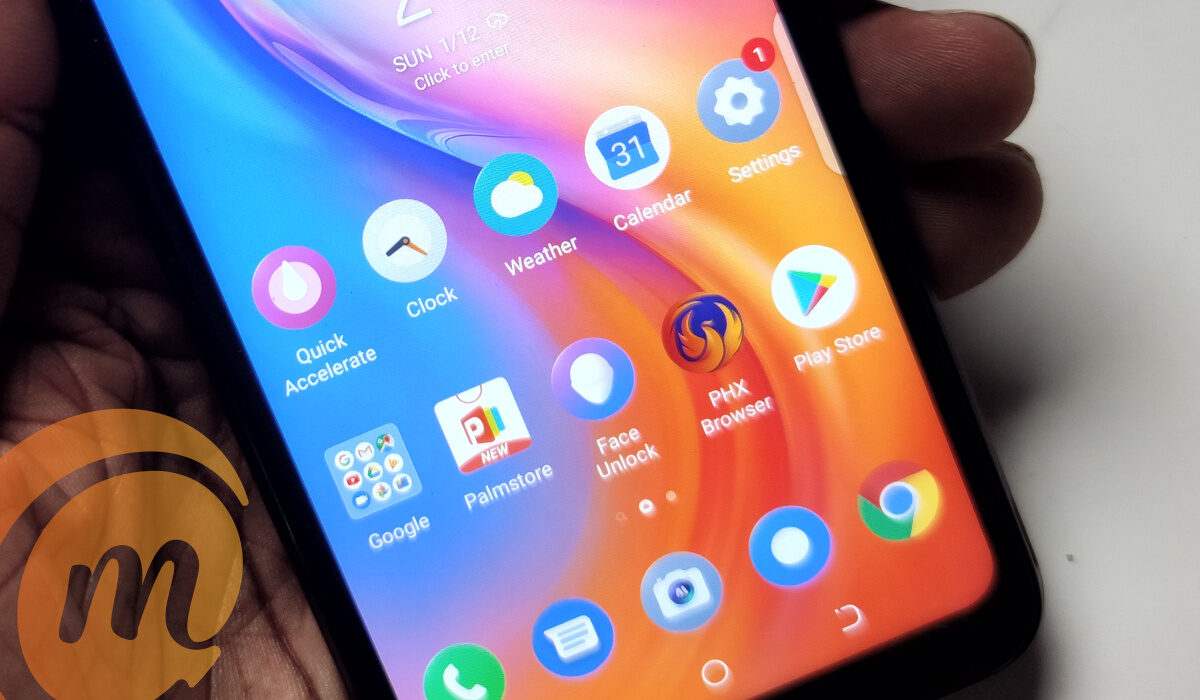
How Can I Delete Apps from an Android Device?
Since different Android manufacturers tend to incorporate various unique elements into their devices, there’s no one general way to delete apps from Android devices. However, at least one of the methods we’ve described below should help you successfully delete apps from your Android device.
Delete Apps from your Android’s Settings
Using the Settings app, it’s possible to delete any app of your choice from your Android device. To do so, follow these steps:
● On your device, go to Settings .
● Click on Apps .
● Click the option to See all apps .
● Locate and choose the app you wish to uninstall.
● Click Uninstall .
● Finally, click the OK button
As soon as you’re done deleting the app, you’ll be directed back to the Apps menu where you can repeat the procedure to remove other apps if necessary or desired.
Delete Apps from Google Play Store
Another option you have to delete any unwanted apps from your Android device is going to the Play Store and uninstalling the app(s) from there.
Here’s how to do it:
● On your smartphone, launch the Google Play Store app.
● Tap the picture of your user profile.
● Next, click the Manage apps & device option.
● Navigate to and select the Manage tab.
● Click on the app you wish to uninstall by checking the box next to it.
● Click on the trash can icon.
● Choose Uninstall .
Delete Apps on Android from the Home Screen or App Drawer
This is most likely the most straightforward and simplest method for deleting apps from an Android smartphone or tablet.
Unfortunately, however, this method is not compatible with older Android devices. As such, you should stick with one of the two solutions we described above if the one below doesn’t work for you. Follow these steps:
● On the home screen or in the app drawer of your Android device, tap and hold the app you’d like to delete.
● When the Uninstall section displays on the screen, drag the app there.
● As soon as the pop-up window appears, click OK .
● Activate the Home tab.
● Click on and hold on to any app you want to delete
● You’ll see a few options appear after you release the app. Select the option to Uninstall App .
● Finally, tap OK to confirm the action.
Deleting Pre-installed Apps on Android Devices
Many pre-installed apps are included with Android phones, and removing them frequently necessitates rooting, which may be time-consuming. If your device supports it, you can instead hide the system apps you don’t wish to use in the app drawer. The apps won’t be removed, but at least your app drawer won’t be cluttered.
Disabling pre-installed programs is another alternative. While it won’t actually delete them, doing this will prevent them from running in the background and make them disappear from your app drawer. Follow these steps:
● On your device, go to Settings .
● Click on Apps .
● Locate and choose the app you wish to disable.
● Click Disable
● Click Disable App
In summary , you can apply any of the methods described in this guide to delete apps from your Android device. Follow the instructions correctly for the right results.
